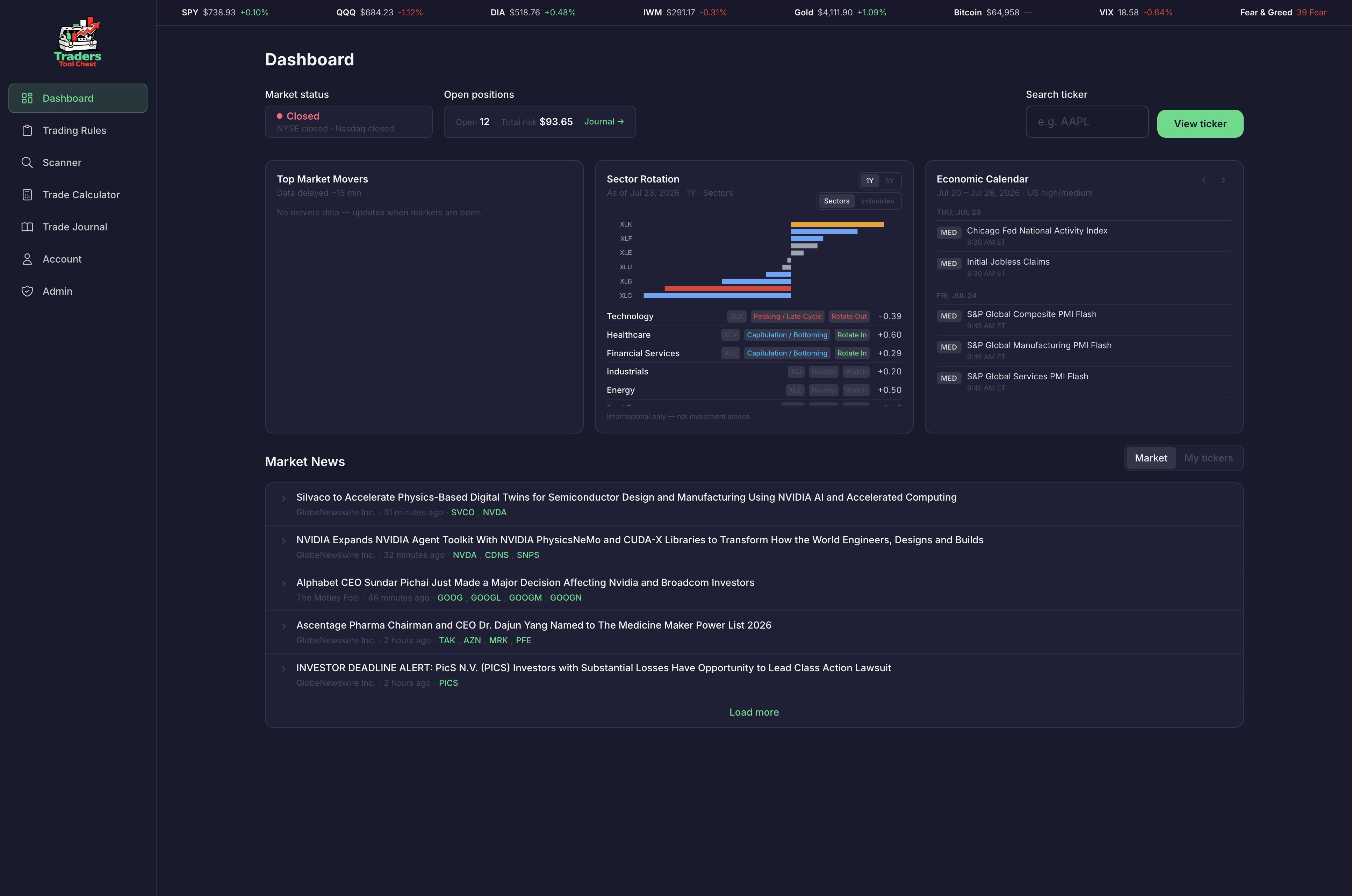
Dashboard Overview
Learn how to navigate the Traders Tool Chest dashboard to research market trends, sector rotation, and news.
1. Navigate to https://traderstoolchest.com/app/dashboard
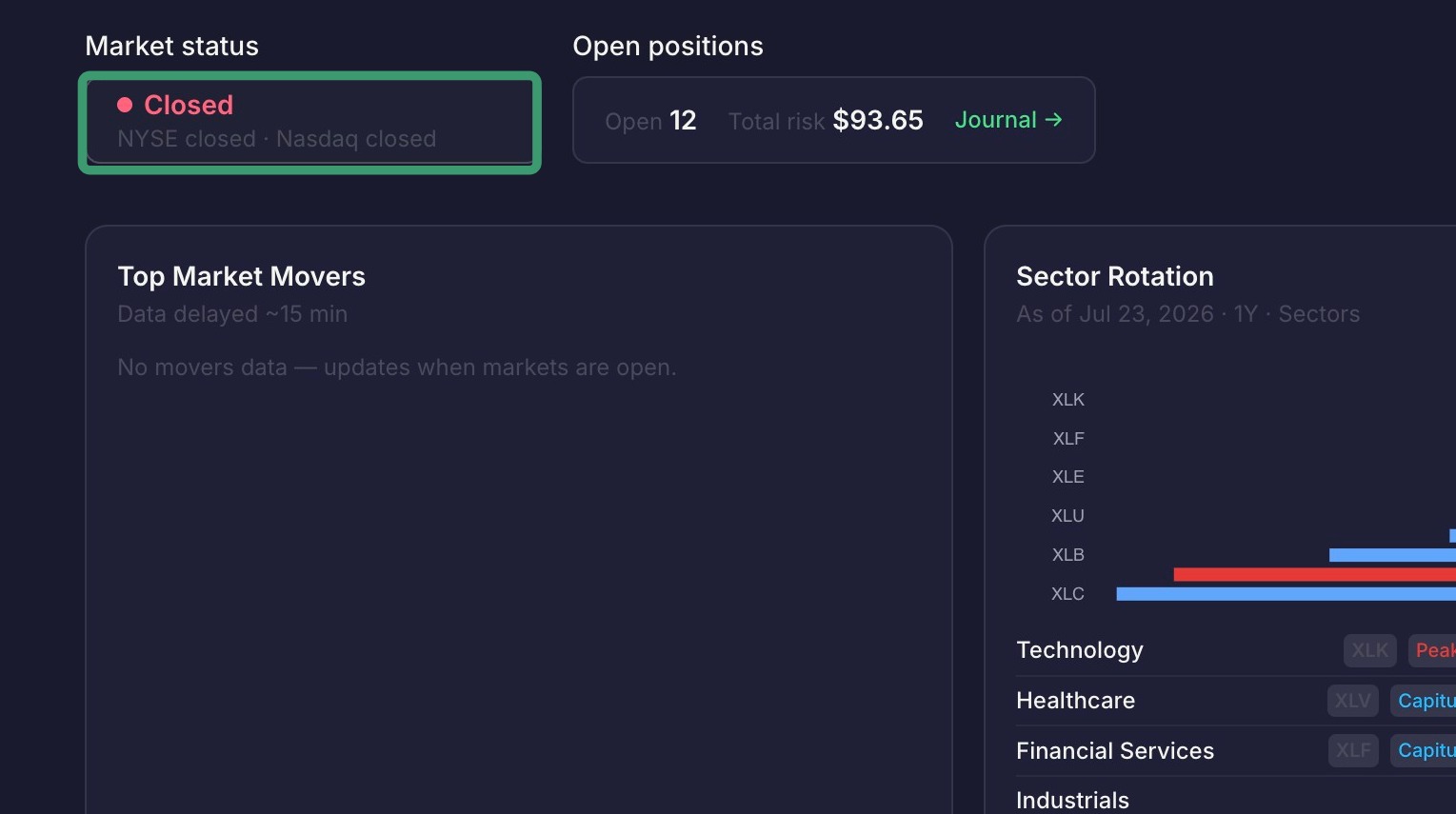
2. You can click on the "Market Status" section to see the status of the different markets
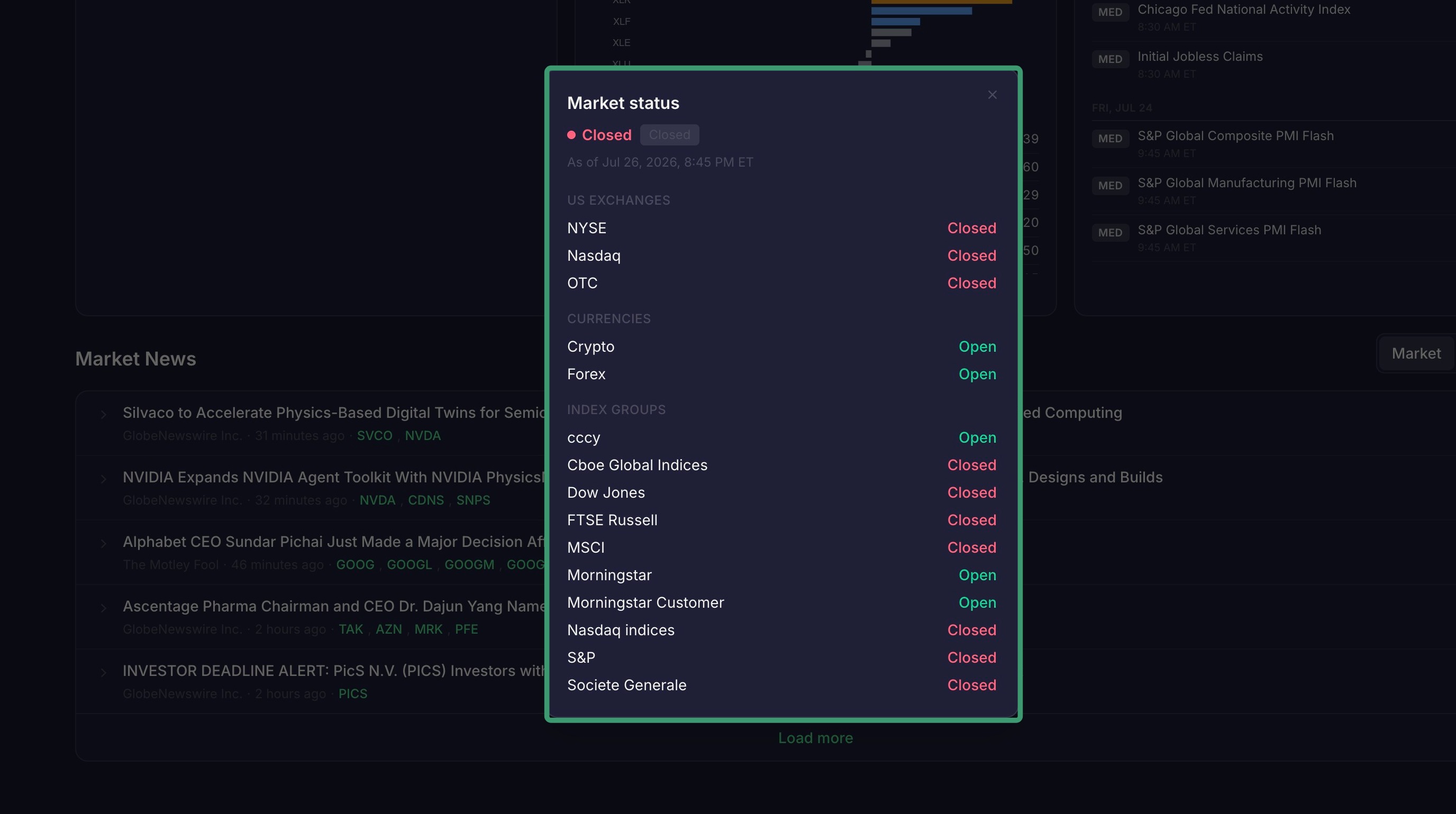
3. This opens the Market status details
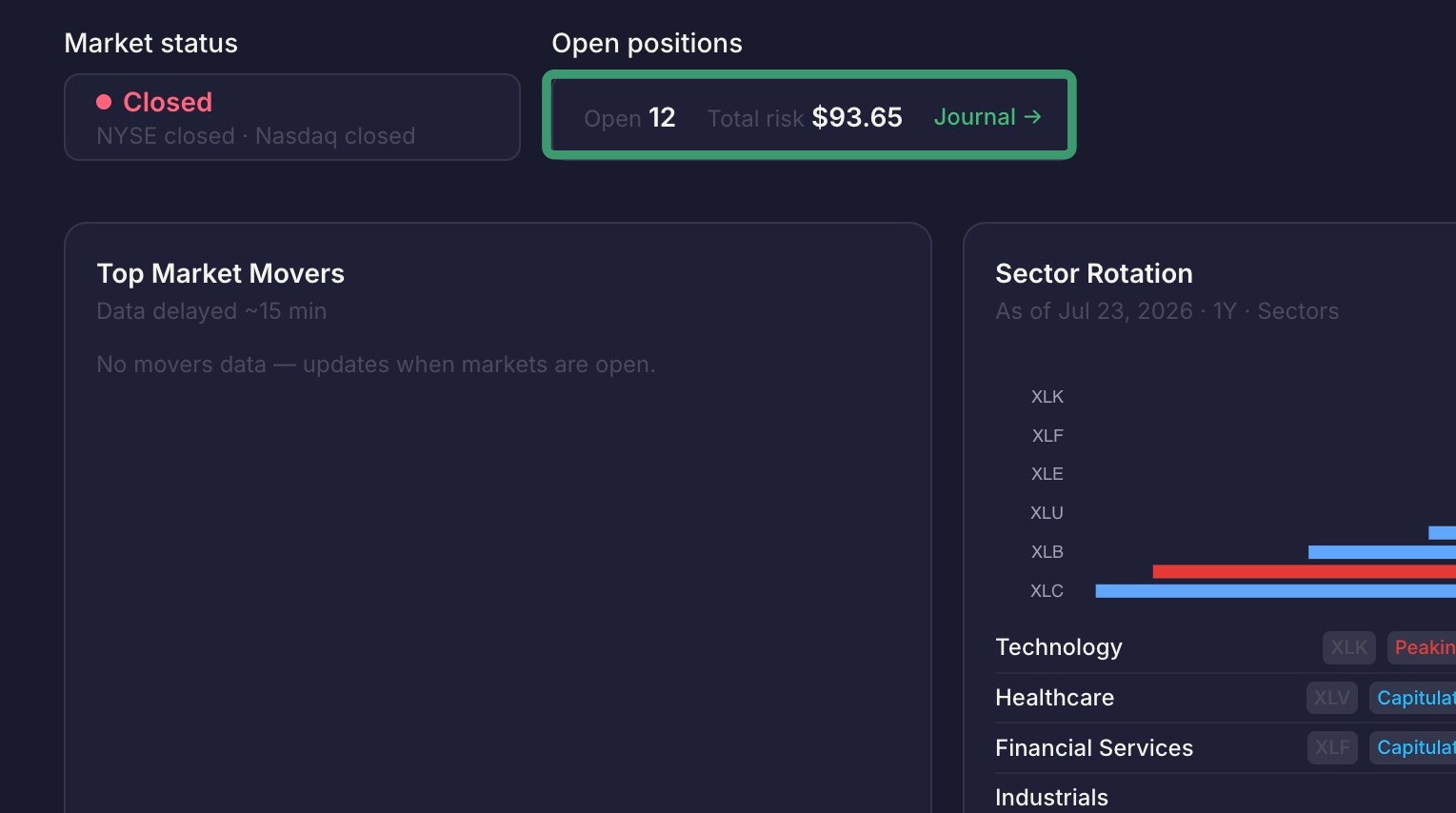
4. Open Positions shows your how many open trades you have, your total at risk in those positions, and if you click "Journal" this takes you to your Trade Journal which will show those open positions.
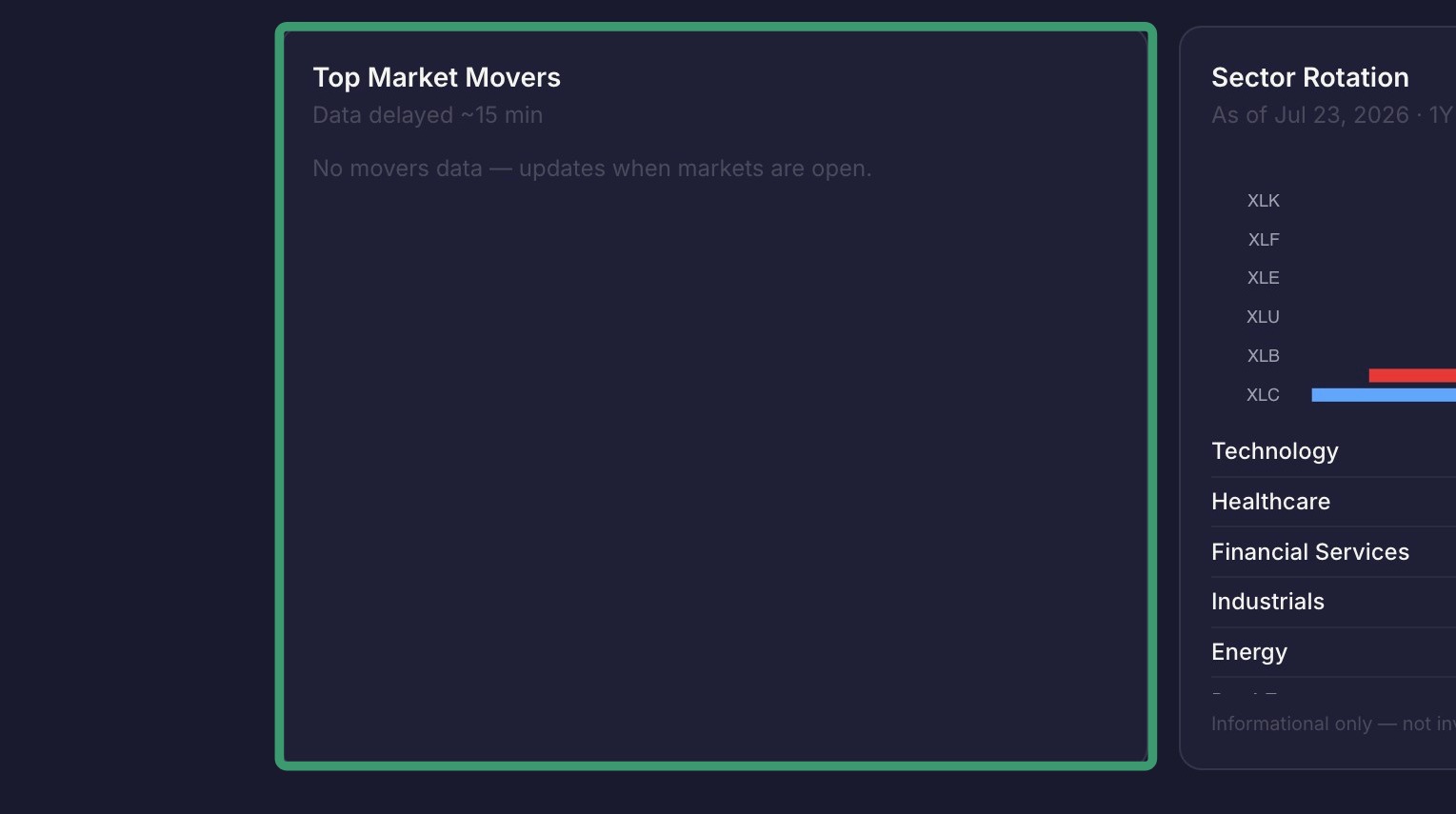
5. The "Top Market Movers" section shows you the top 20 gainers and losers.
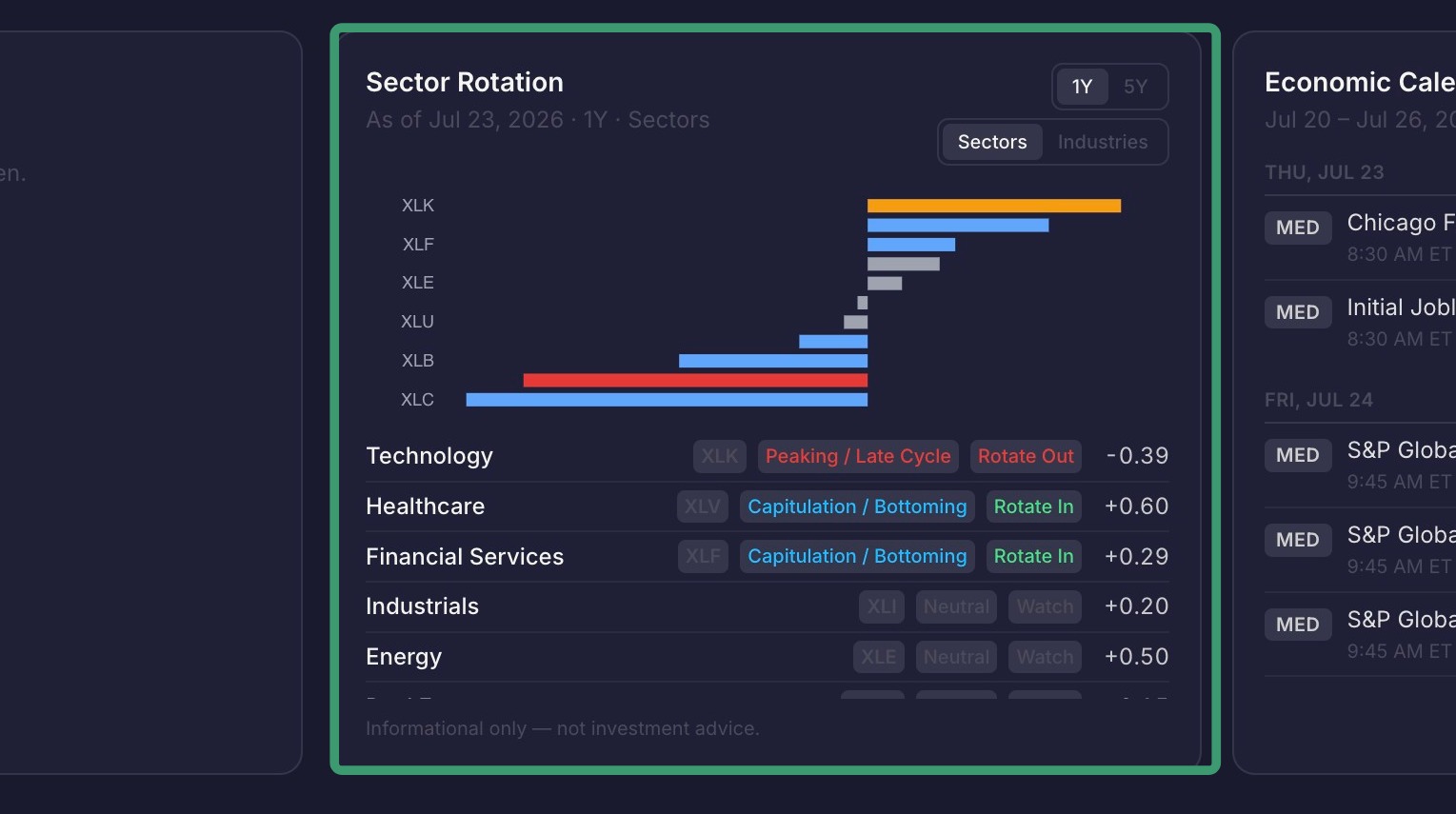
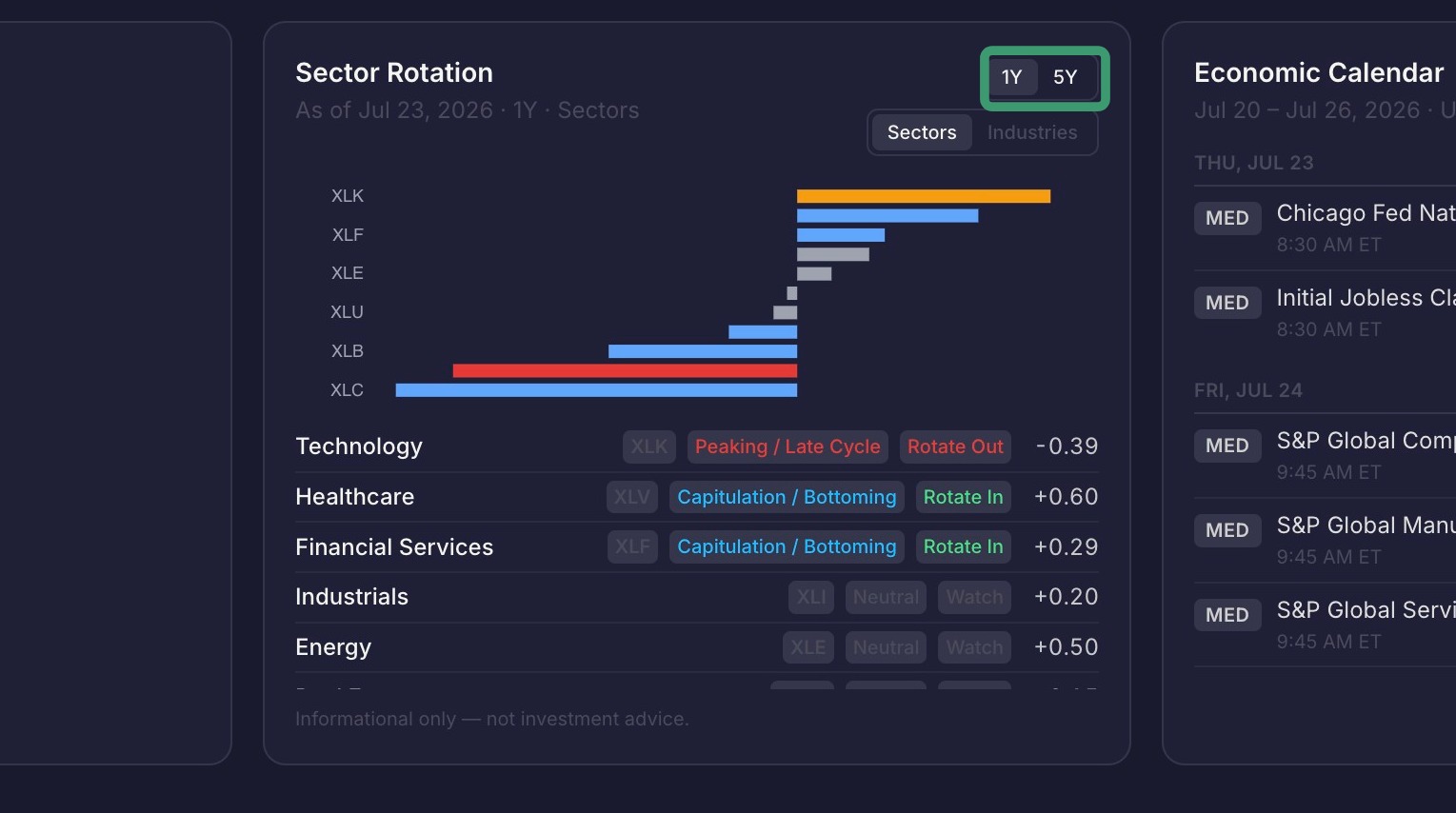
6. The "Sector Rotation" section shows how each sector or industry is performing with both a 1-year and 5-year outlook.
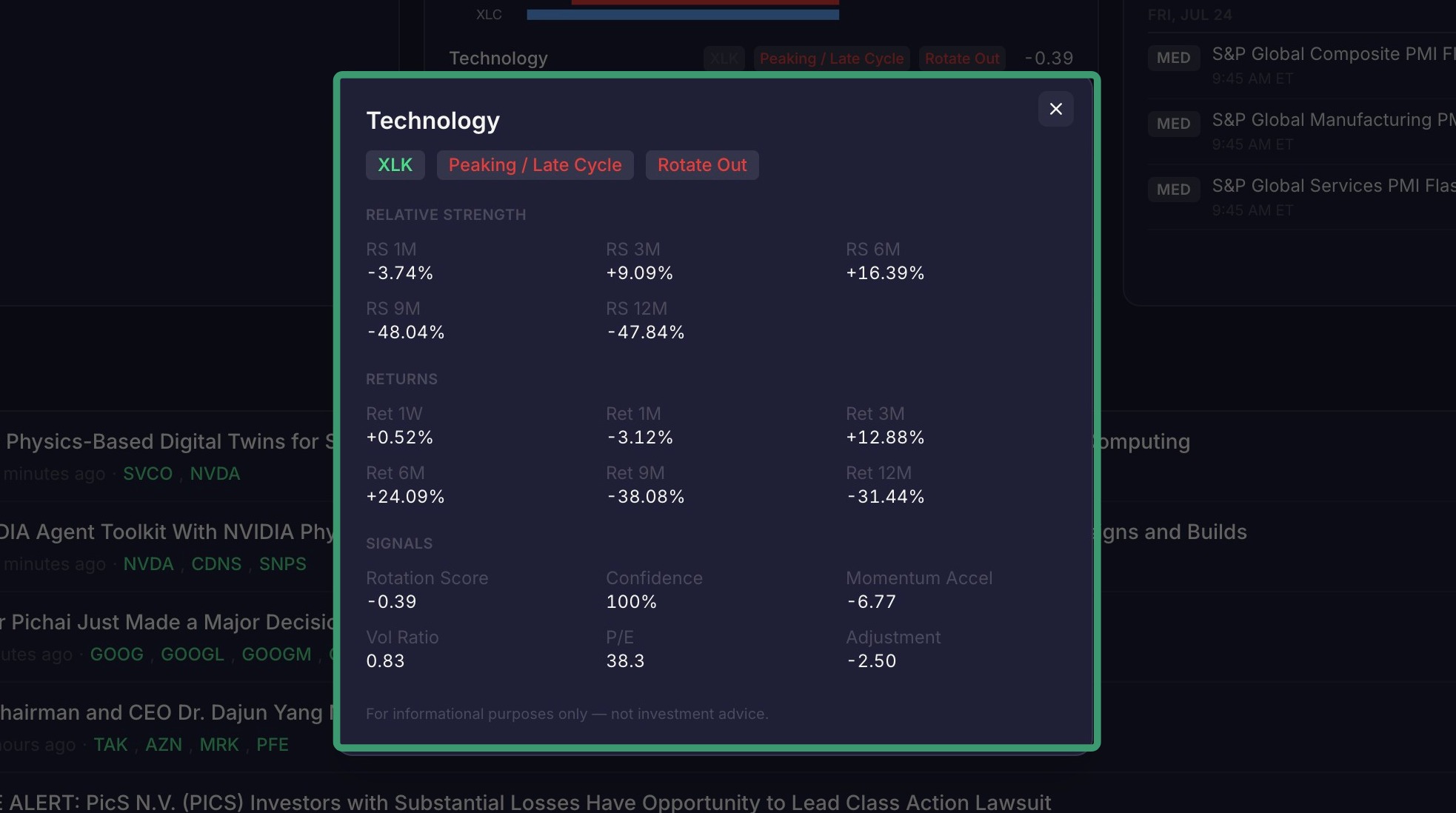
7. You can click on the individual sectors for more details. For example, click "Technology".
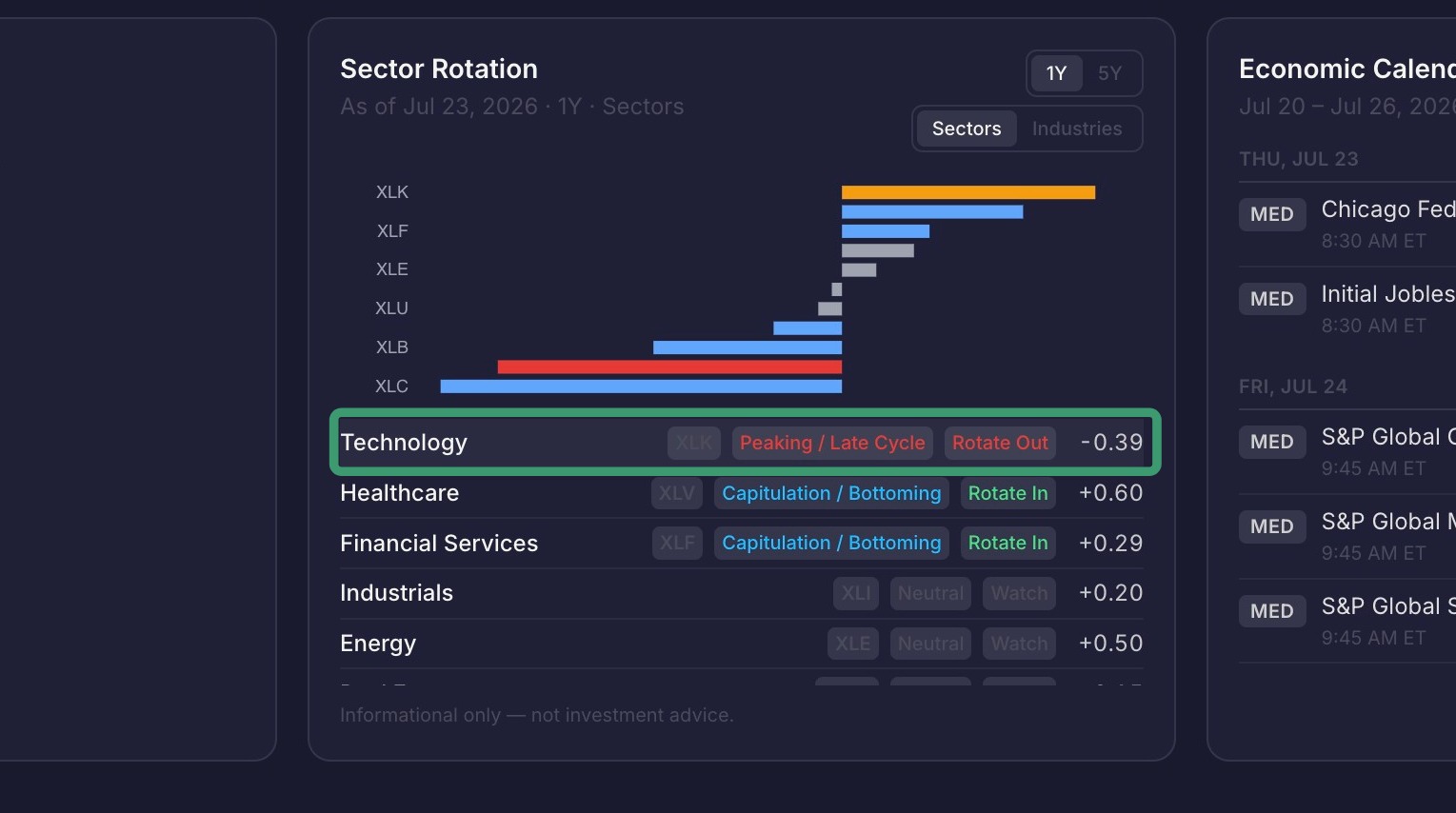
8. This shows the details about the Technology Sector including the current Phase and the Action (Disclaimer - This is for informational and education purposes only. it does not constitute investment advice, a solicitation, or a recommendation to buy or sell any security or financial instrument).
9. You can select the 1-year or 5-year outlook
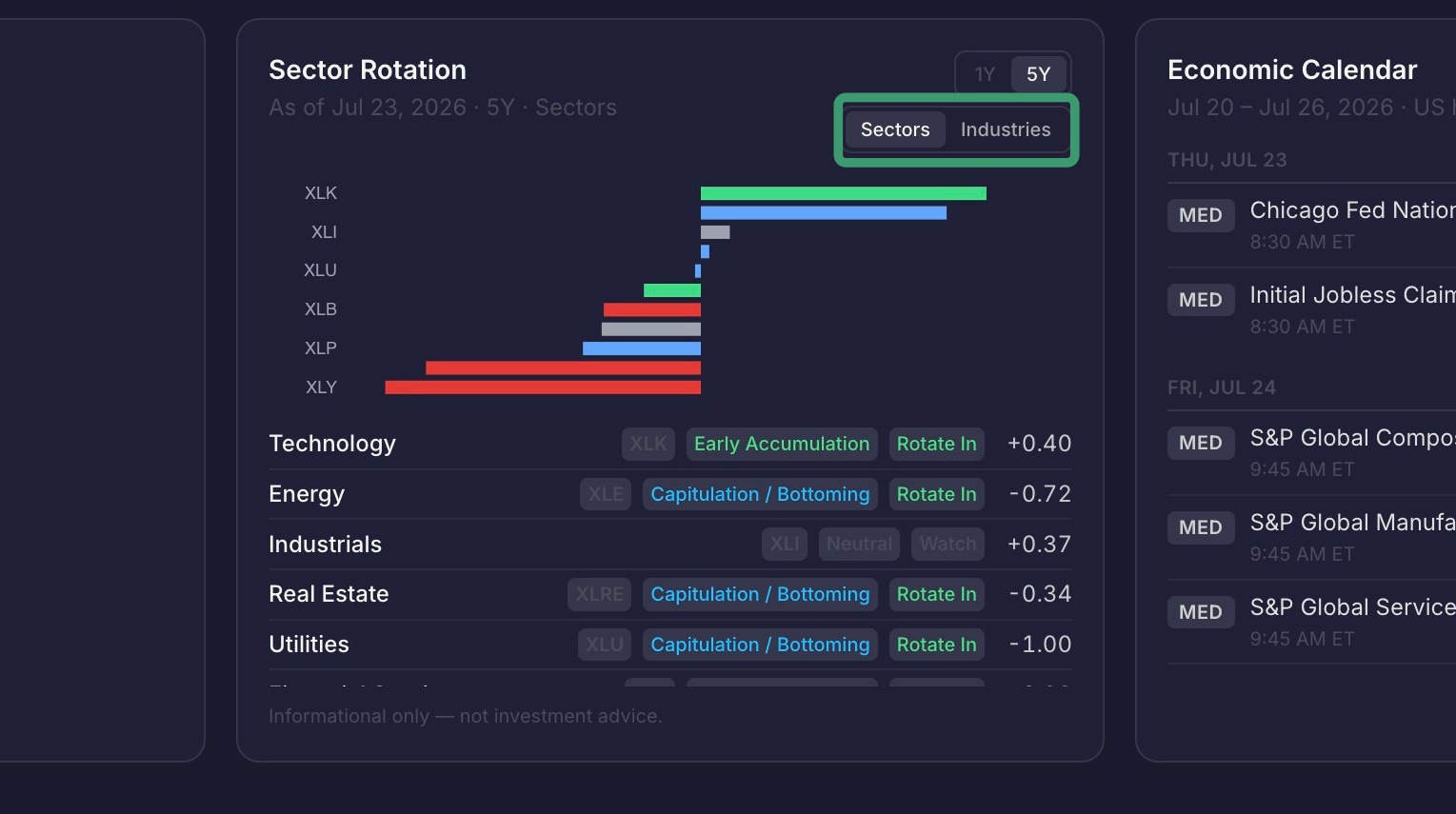
10. You can choose to view by Sectors or Industries
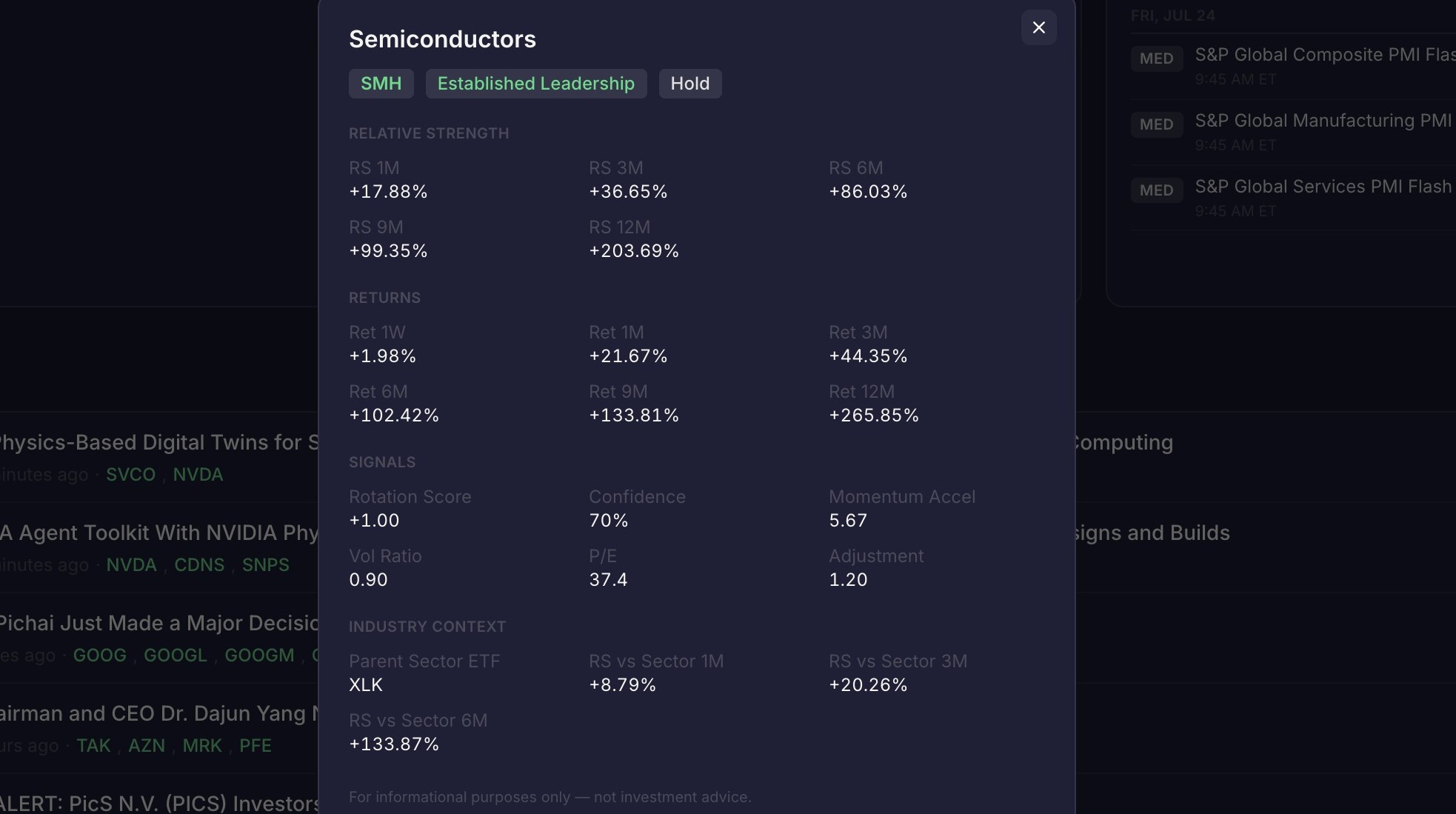
11. You can click on the individual Industry for more details. For example, click "Semiconductors".
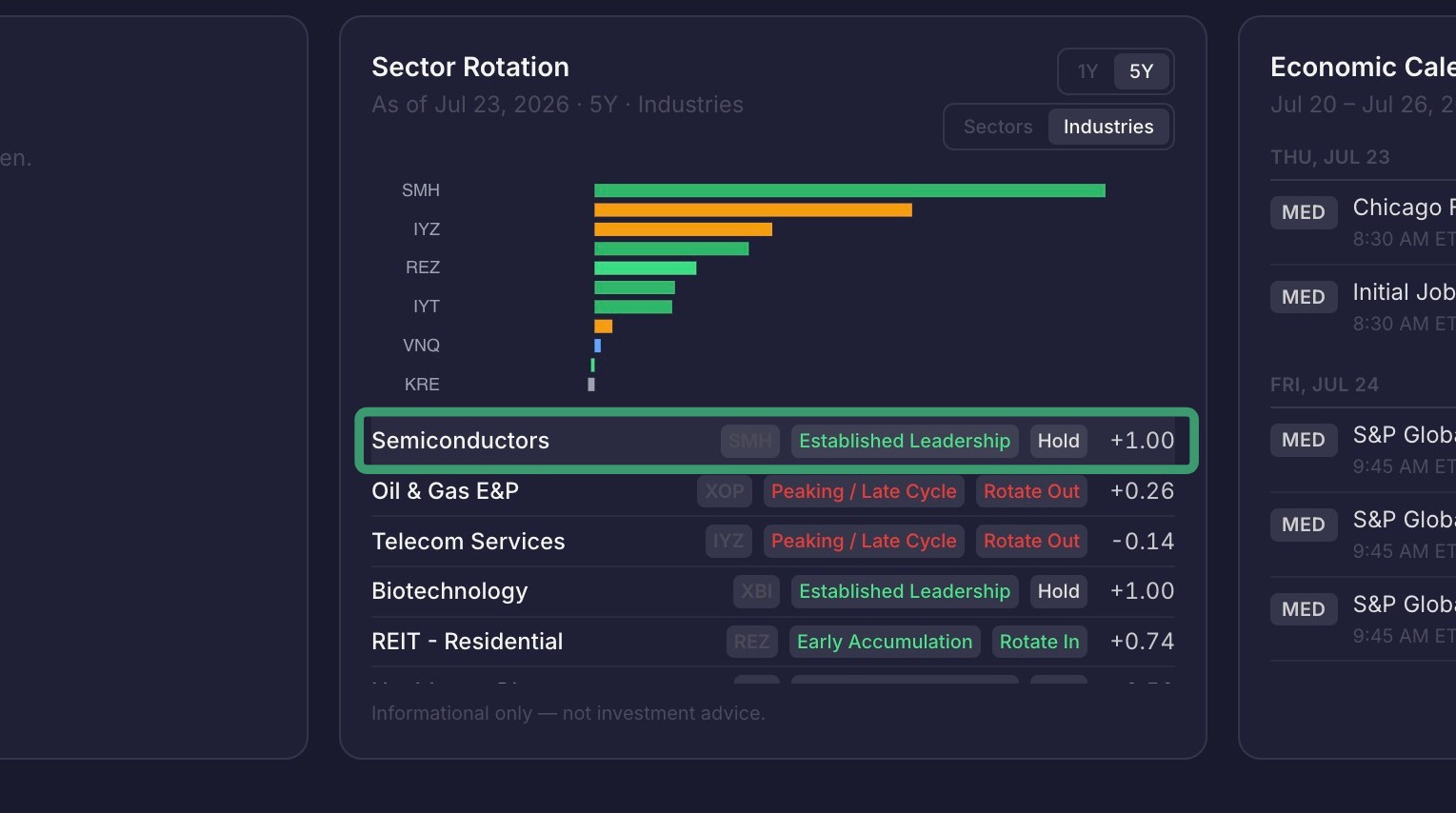
12. This shows the details about the Semiconductor industry including the current Phase and the Action (Disclaimer - This is for informational and education purposes only. it does not constitute investment advice, a solicitation, or a recommendation to buy or sell any security or financial instrument).
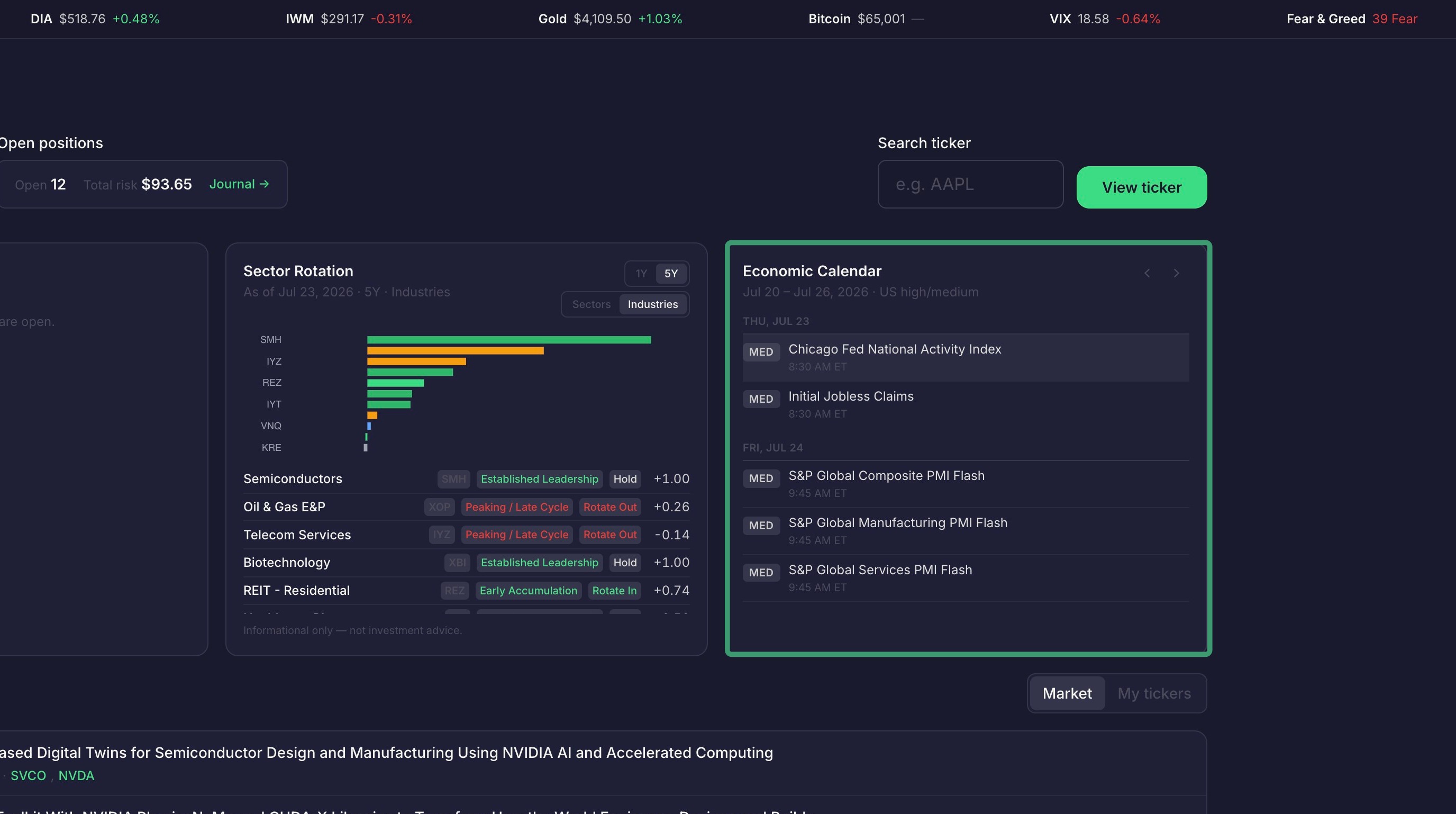
13. The "Economic Calendar" section shows you upcoming events such as Economic Data Releases, Fed Speakers, FOMC, etc. You can click on the event and it will take you to the external site for more details (if provided).
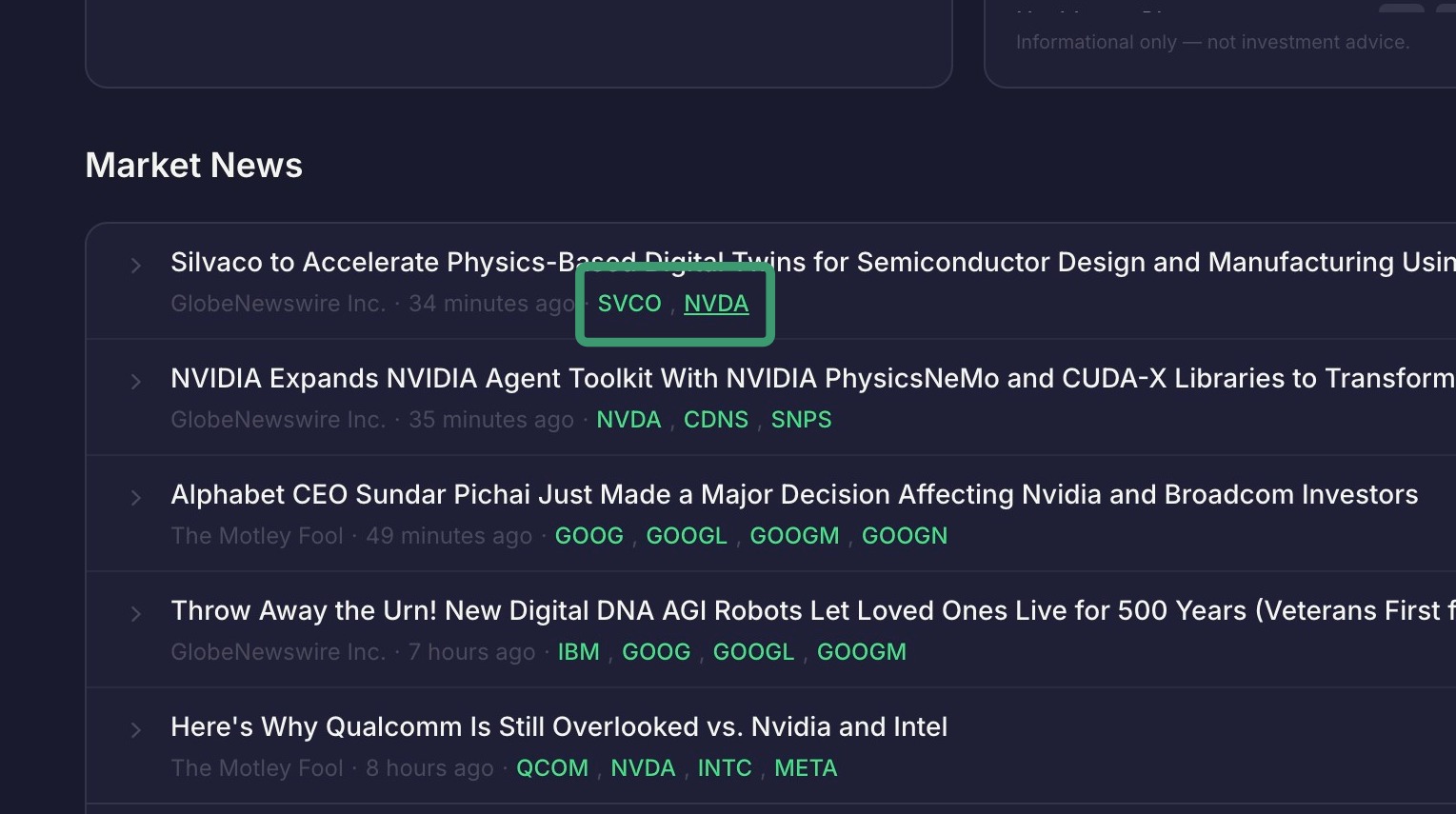
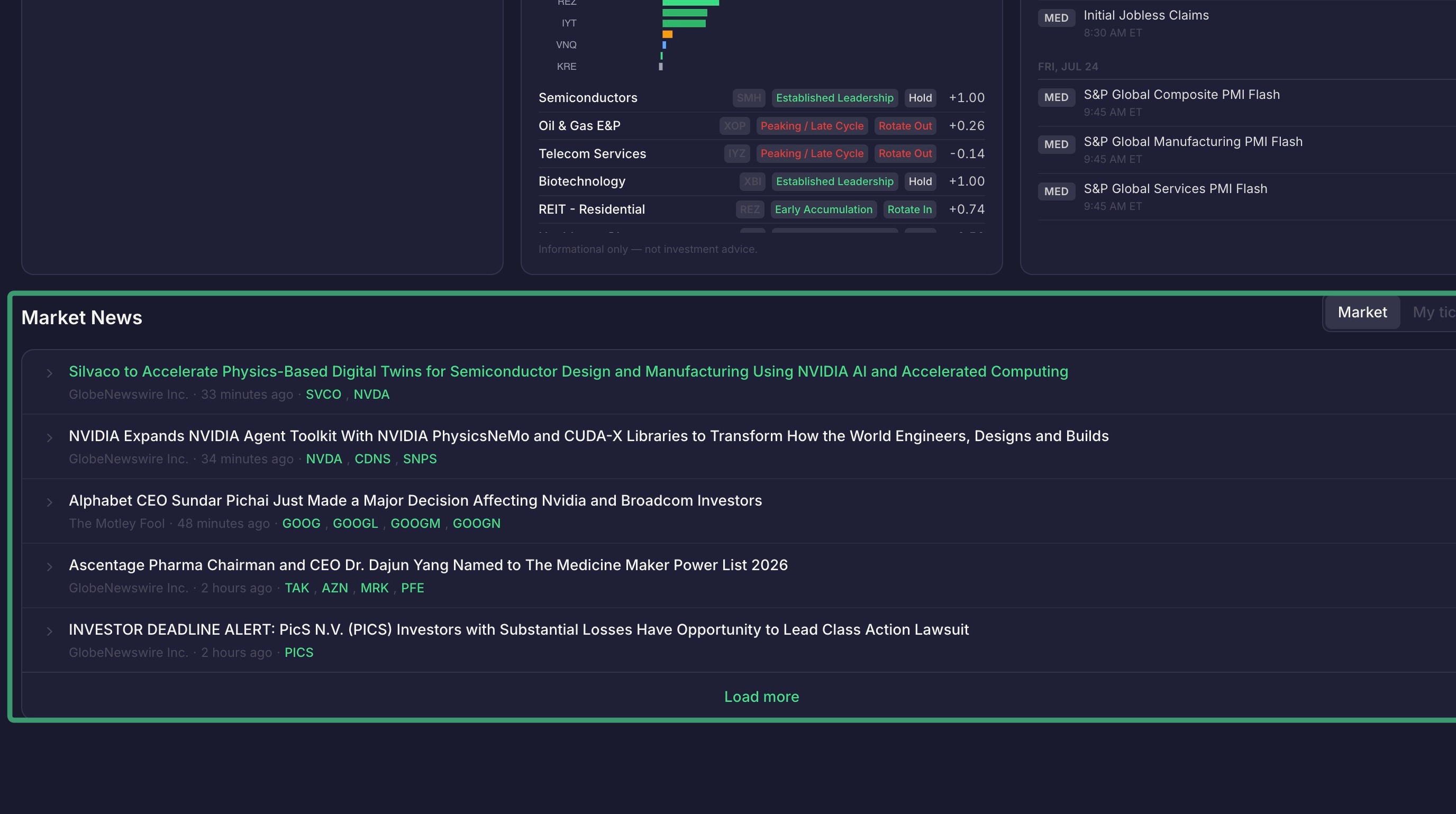
14. The Market News section shows current overall market news articles along with which tickers are referenced in the article. You can click on the articles to be taken to the external site for the article. You can also click Load more to view more articles.
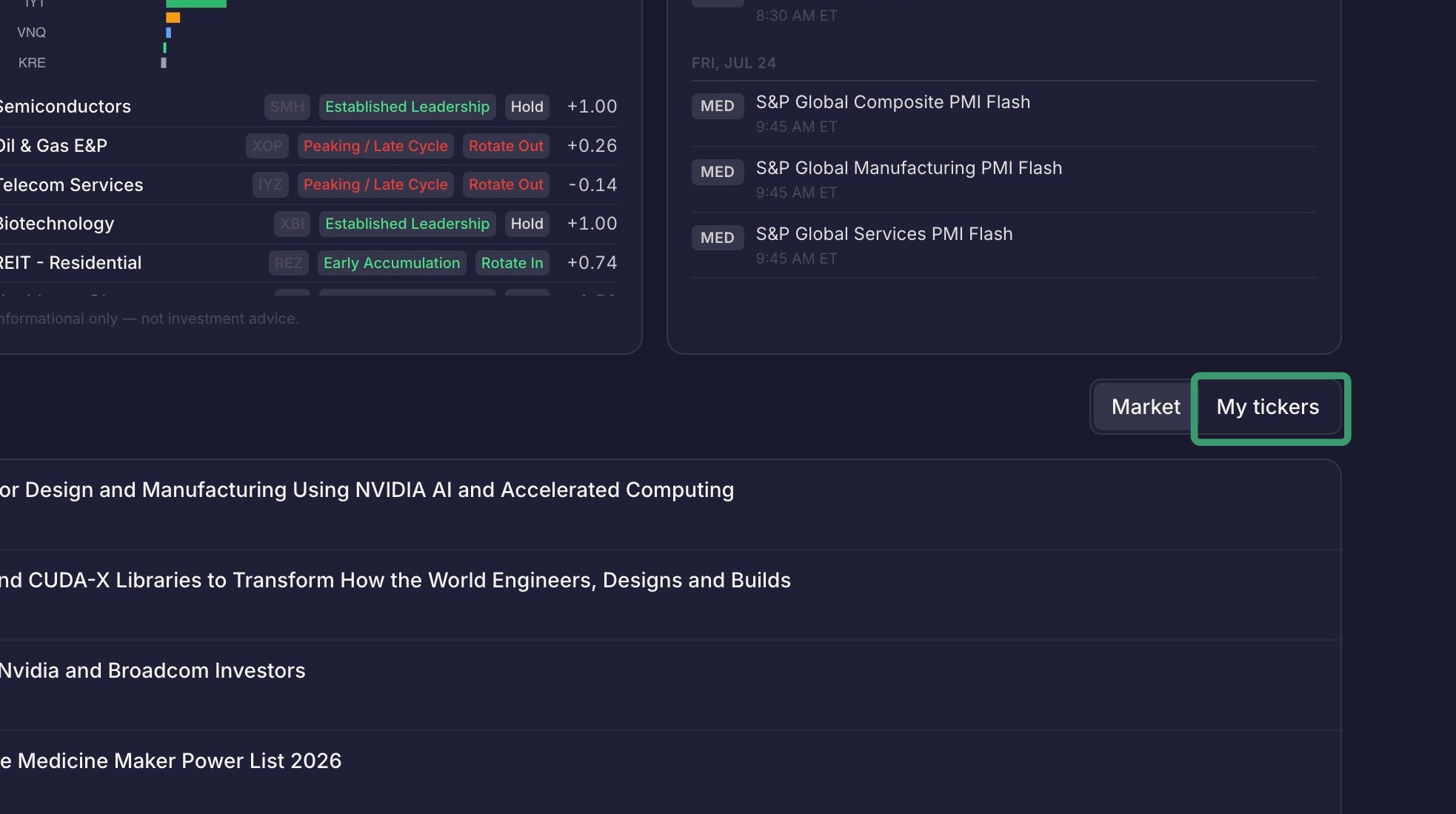
15. If you select "My tickers" under the Market News section, this will filter news articles related to tickers that you have either open positions in or that are in your watchlist.
16. If you click on a Ticker in Market News, it will open that Tickers details page.