How to Run a Trade Wizard Scan using a Single Ticker
Trade Wizard
How to Run a Trade Wizard Scan using a Single Ticker
Learn how to use the Trader's Tool Chest Trade Wizard to scan for trading opportunities using a single ticker. This guide walks you through selecting a symbol, sizing your position, and finalizing your trade plan for your brokerage account.
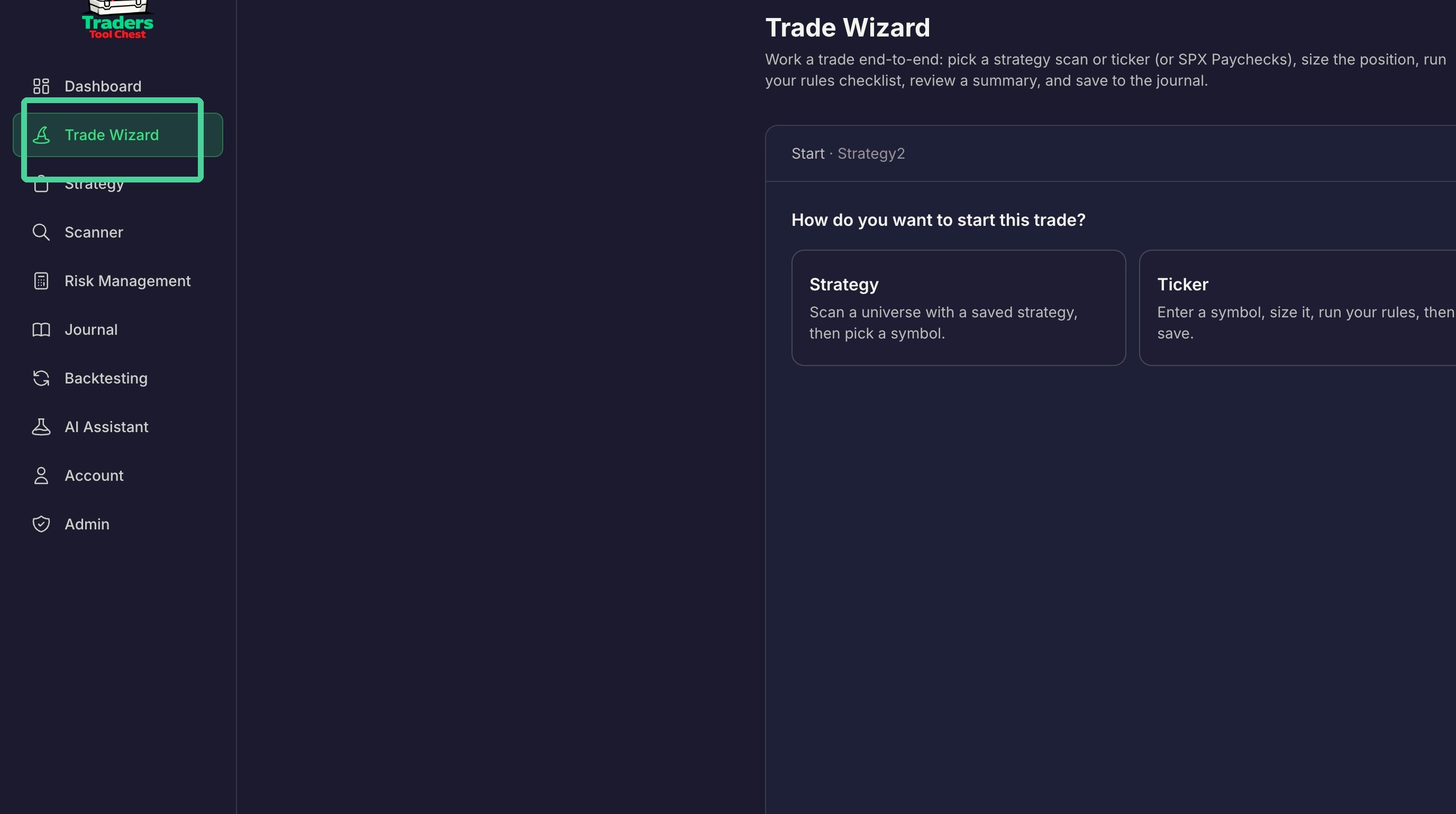
Click 'Trade Wizard' on the left hand side.
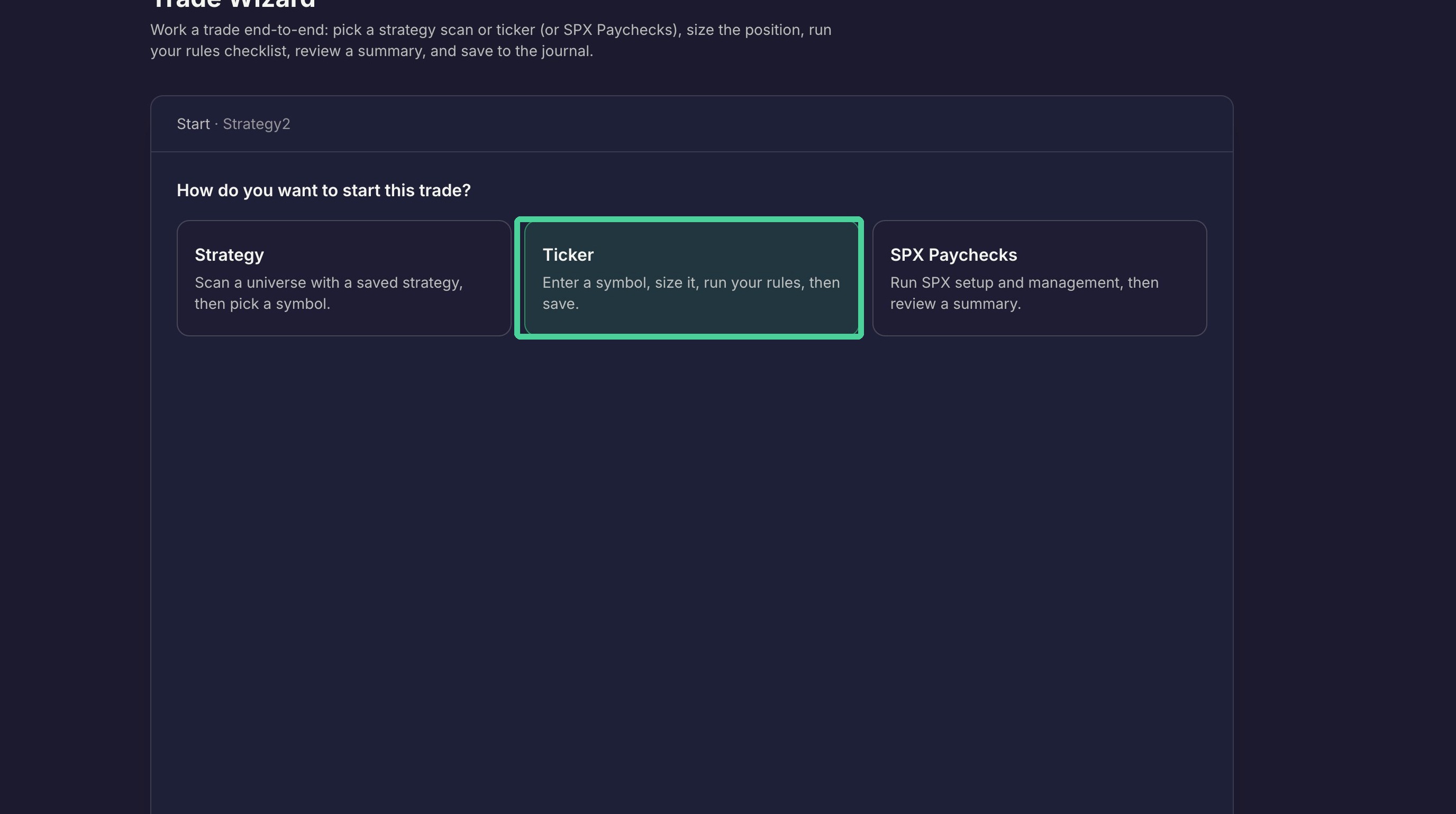
Ticker Selection
Select 'Ticker' .
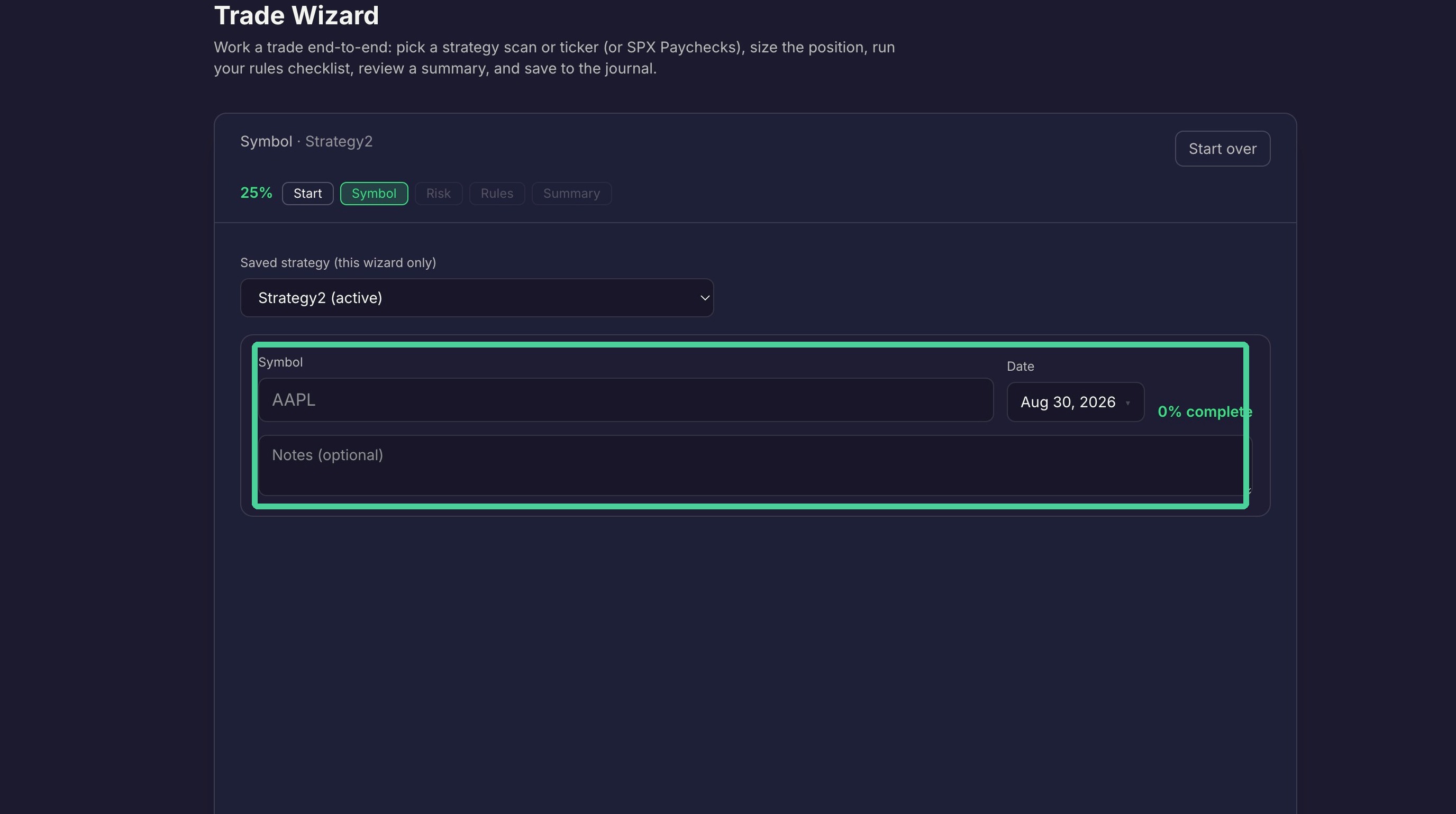
Select your strategy from the dropdown.
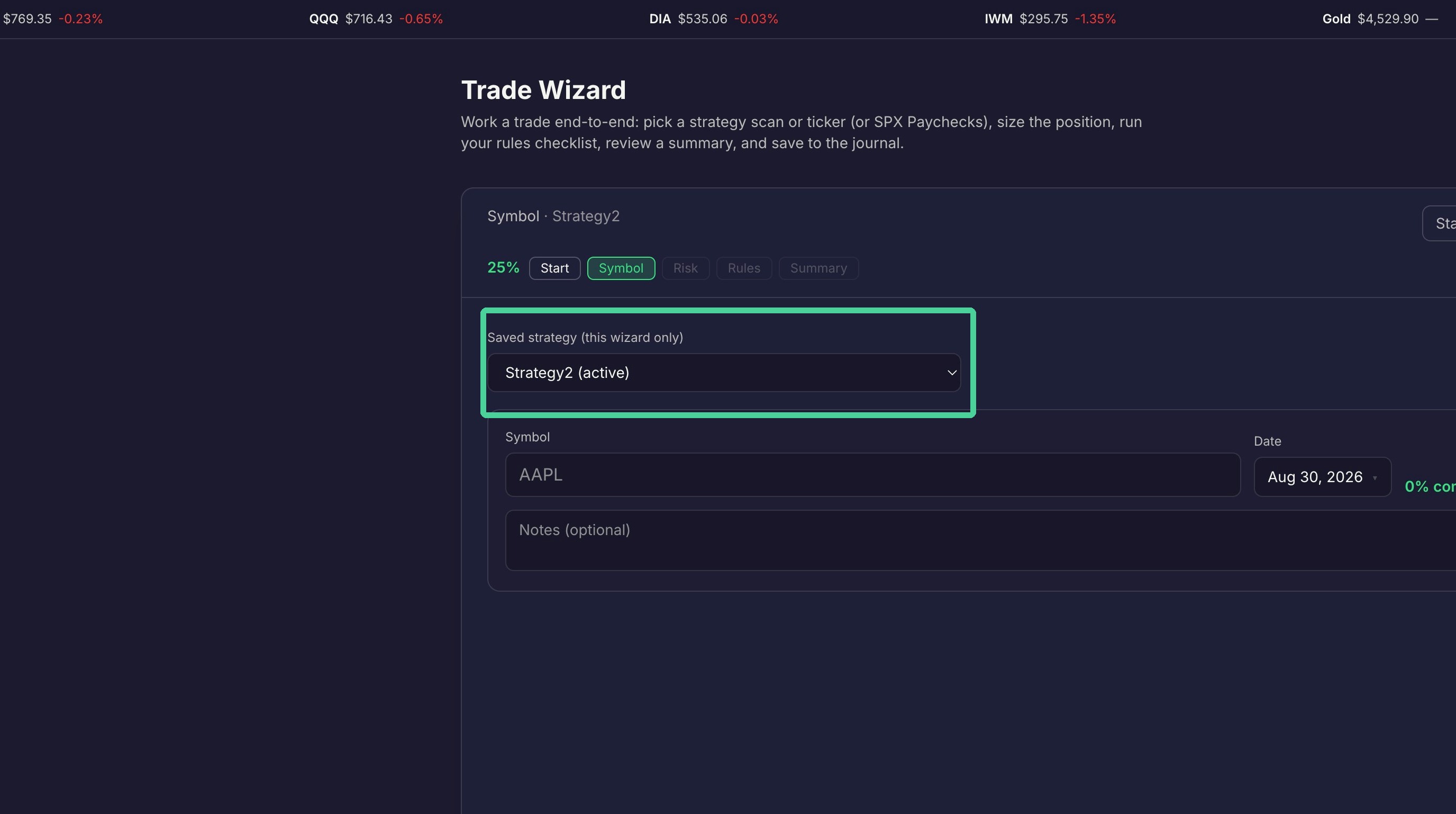
Enter the stock symbol you want to trade.
Click 'Next' to continue
Position Sizing
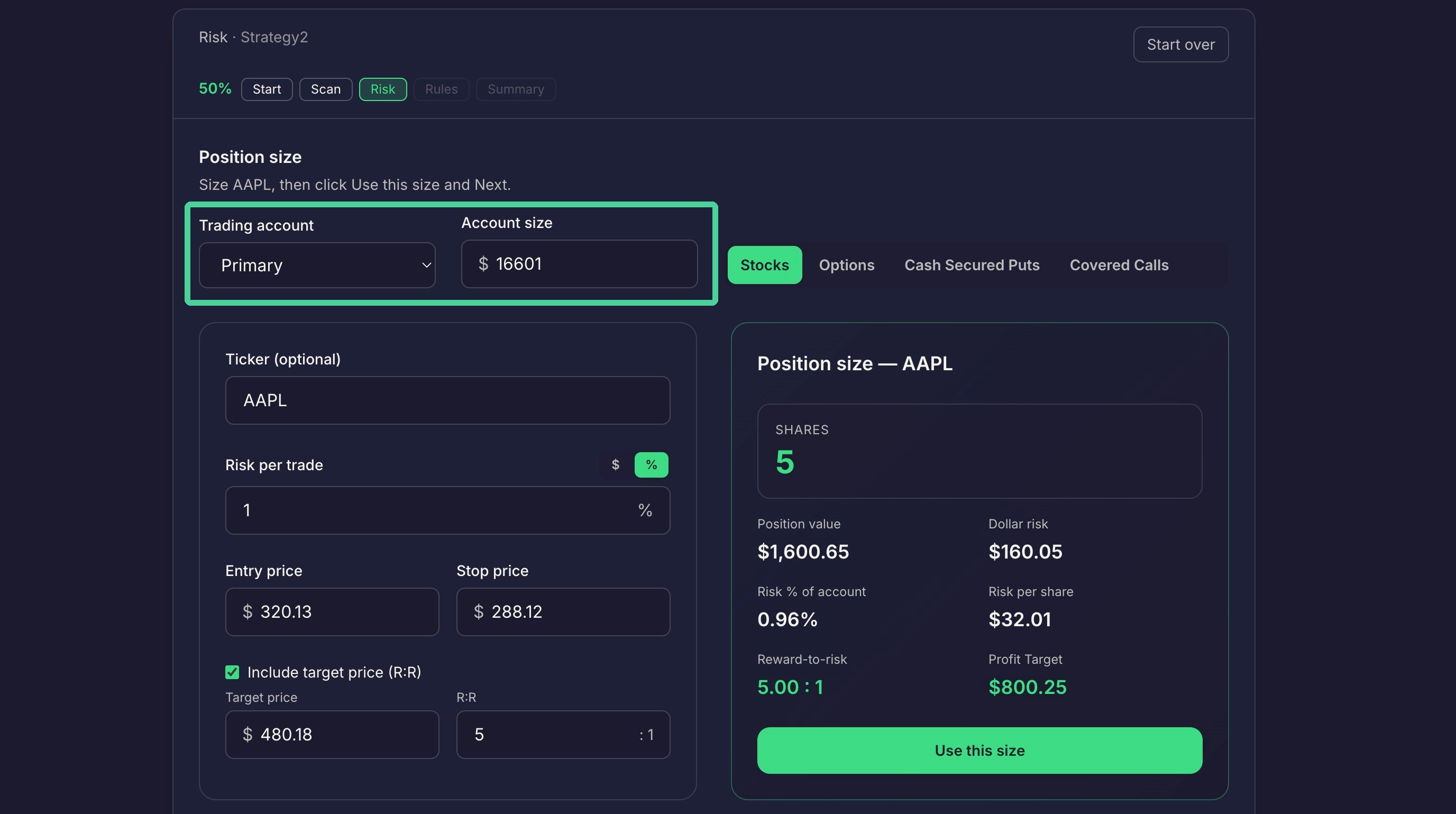
Select you trading account. Your account size will determine how much you can risk.
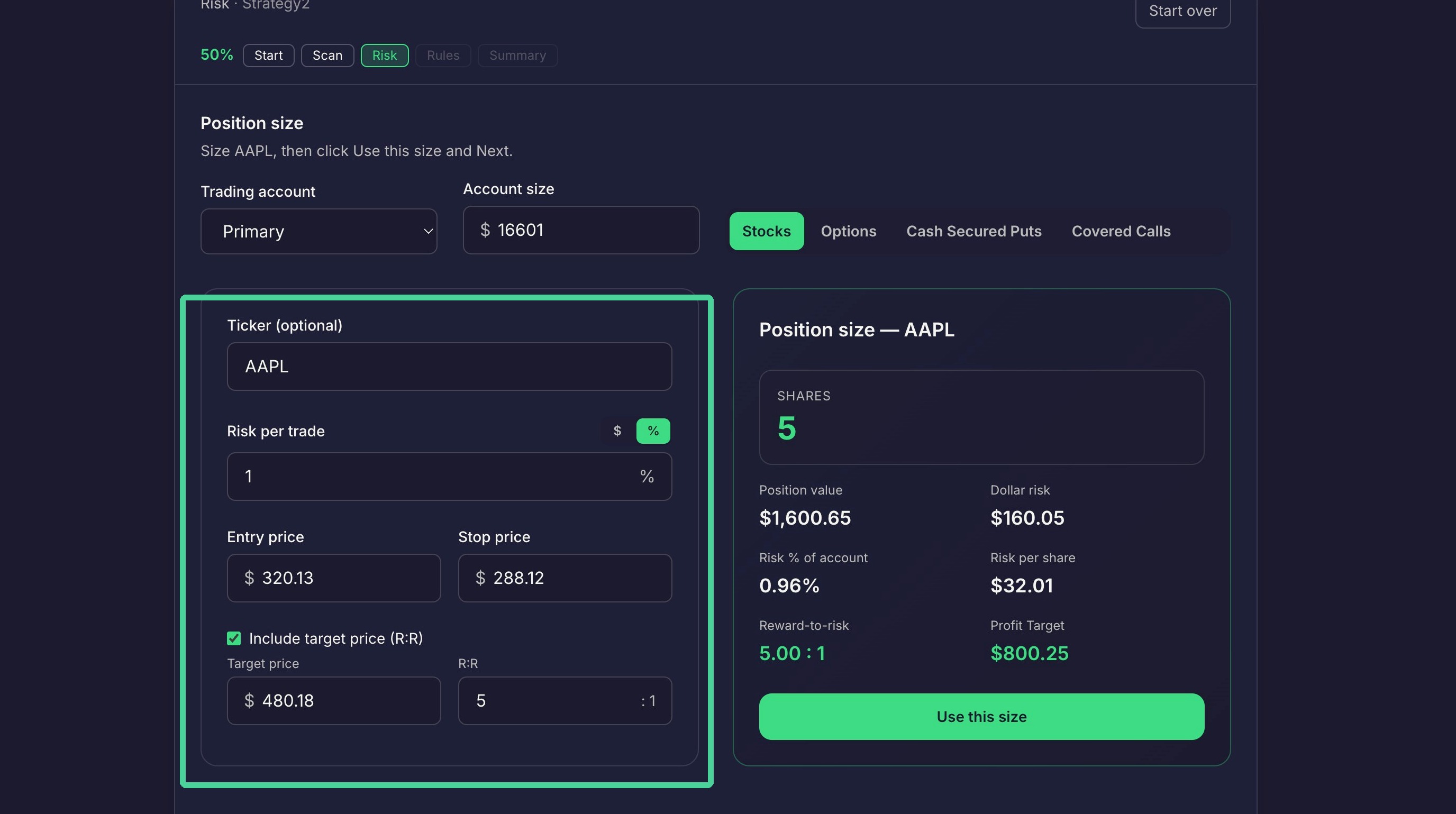
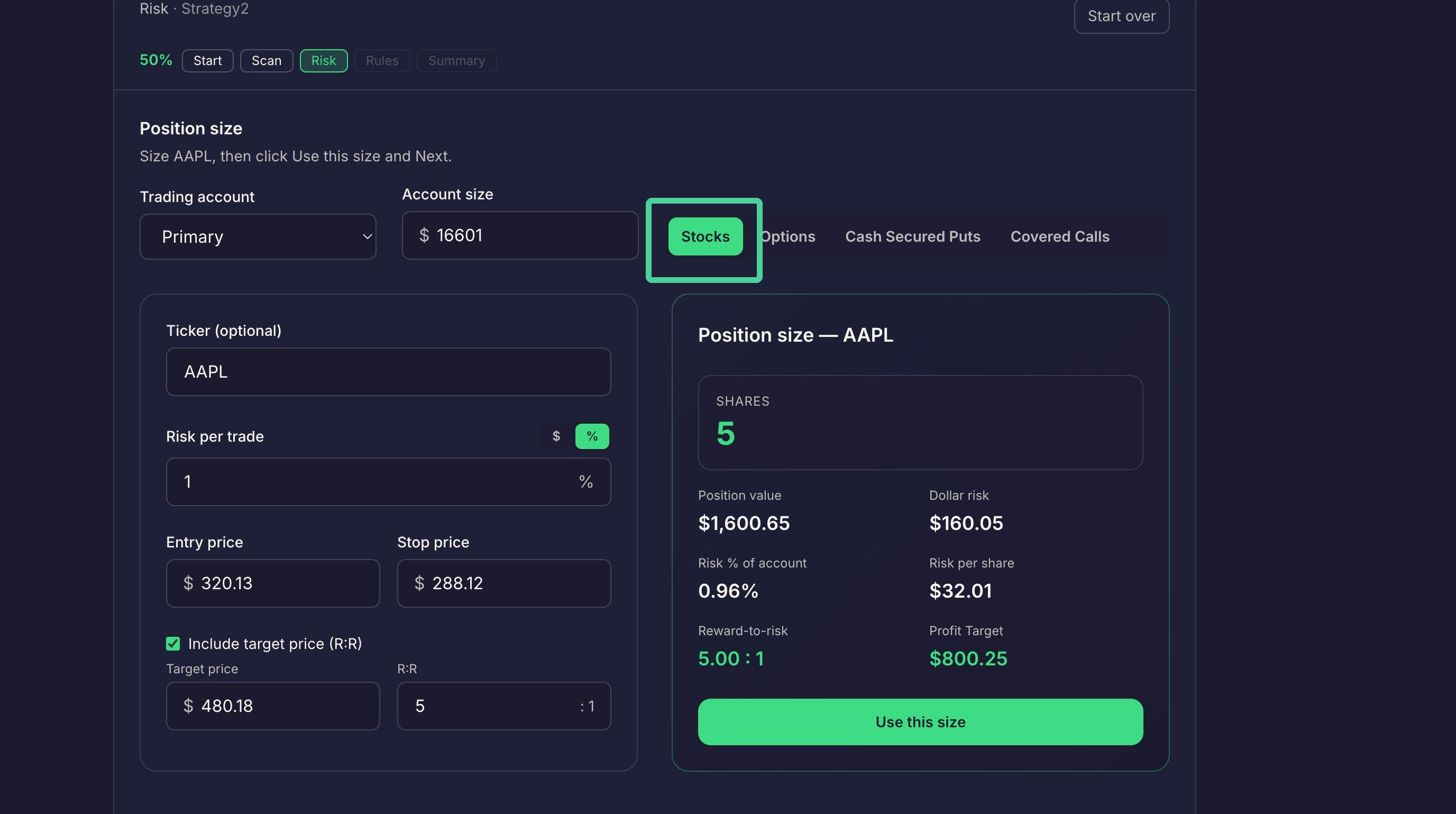
If you are trading stocks, you will enter your Risk per trade and Target price.
If you are trading options, Select the options tab.

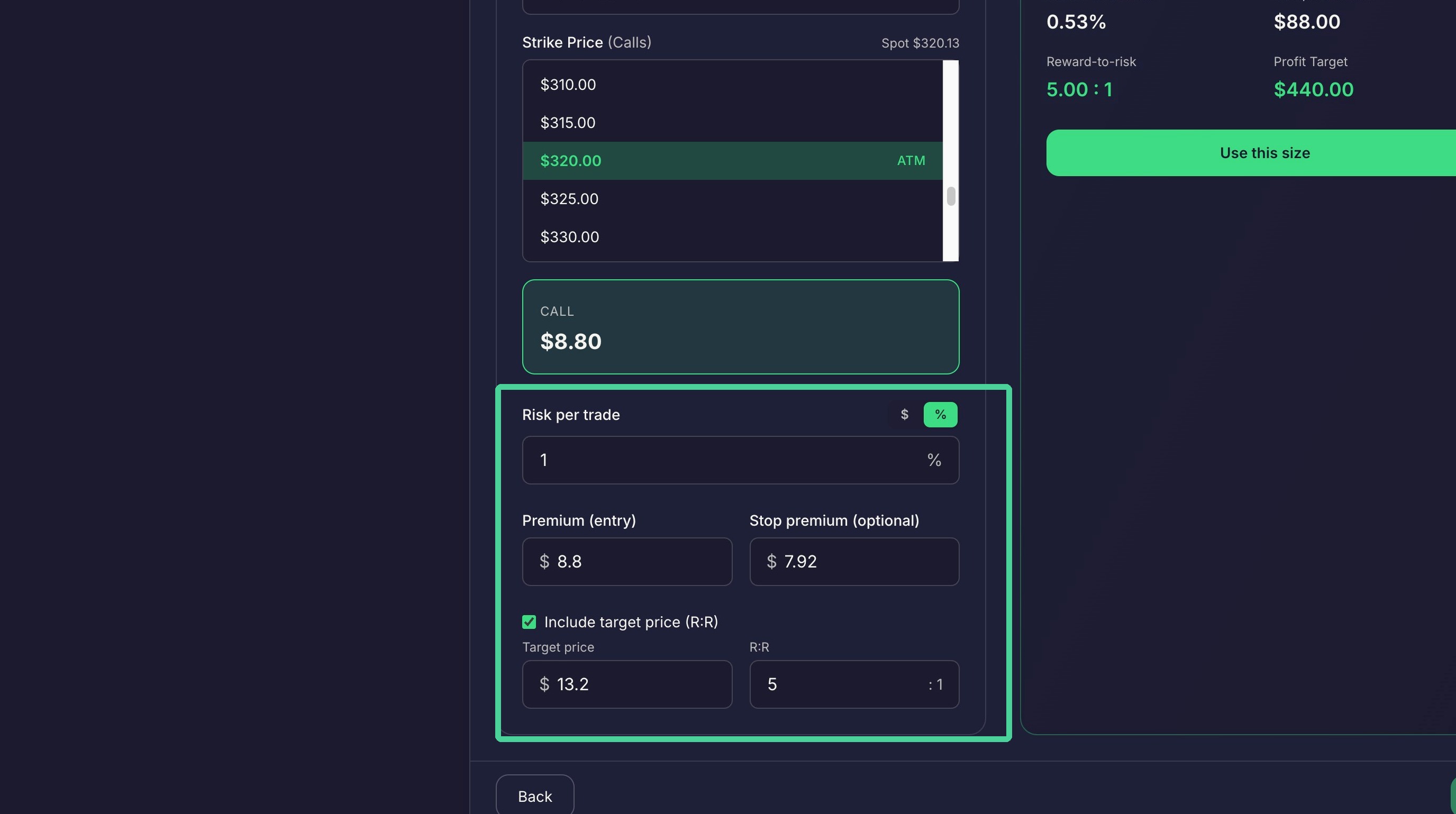
Select your contract type, Expiration date, and Strike price.
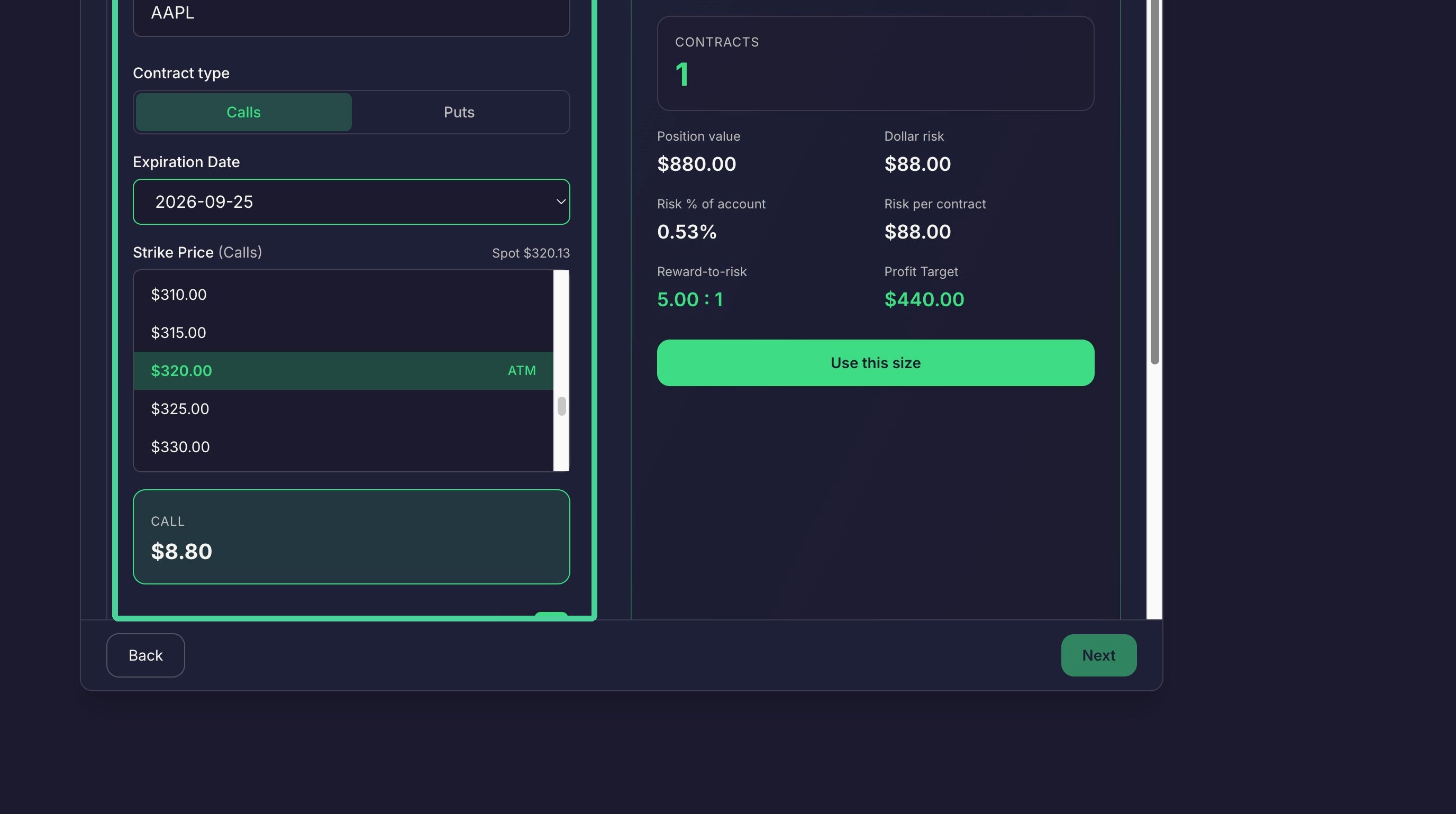
You can also modify your Risk per trade and Target Price.
We will trade stocks.
Once you are happy with the Risk per trade and Target price, click 'Use this Size'.
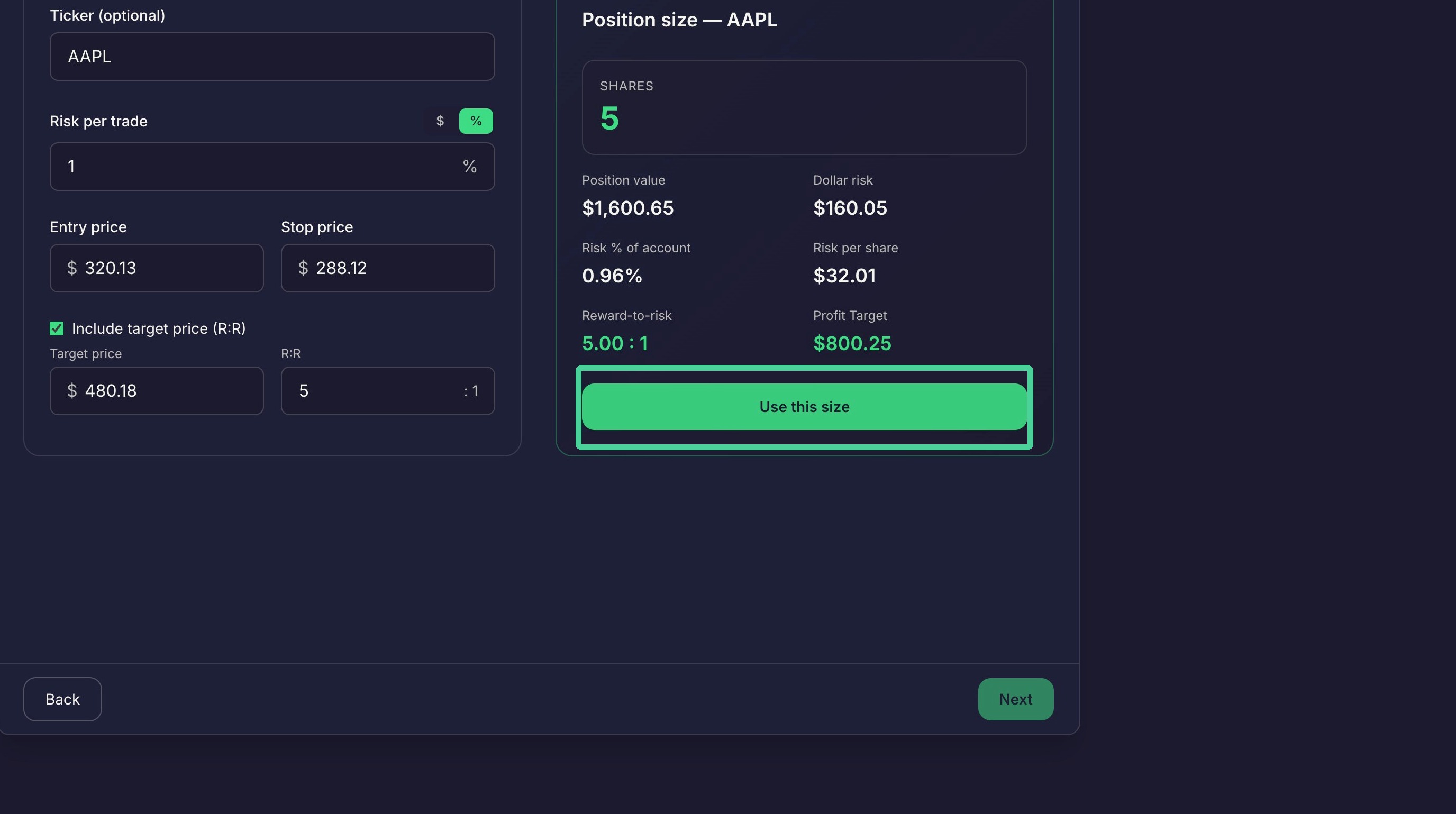
A draft of the position size will appear below.
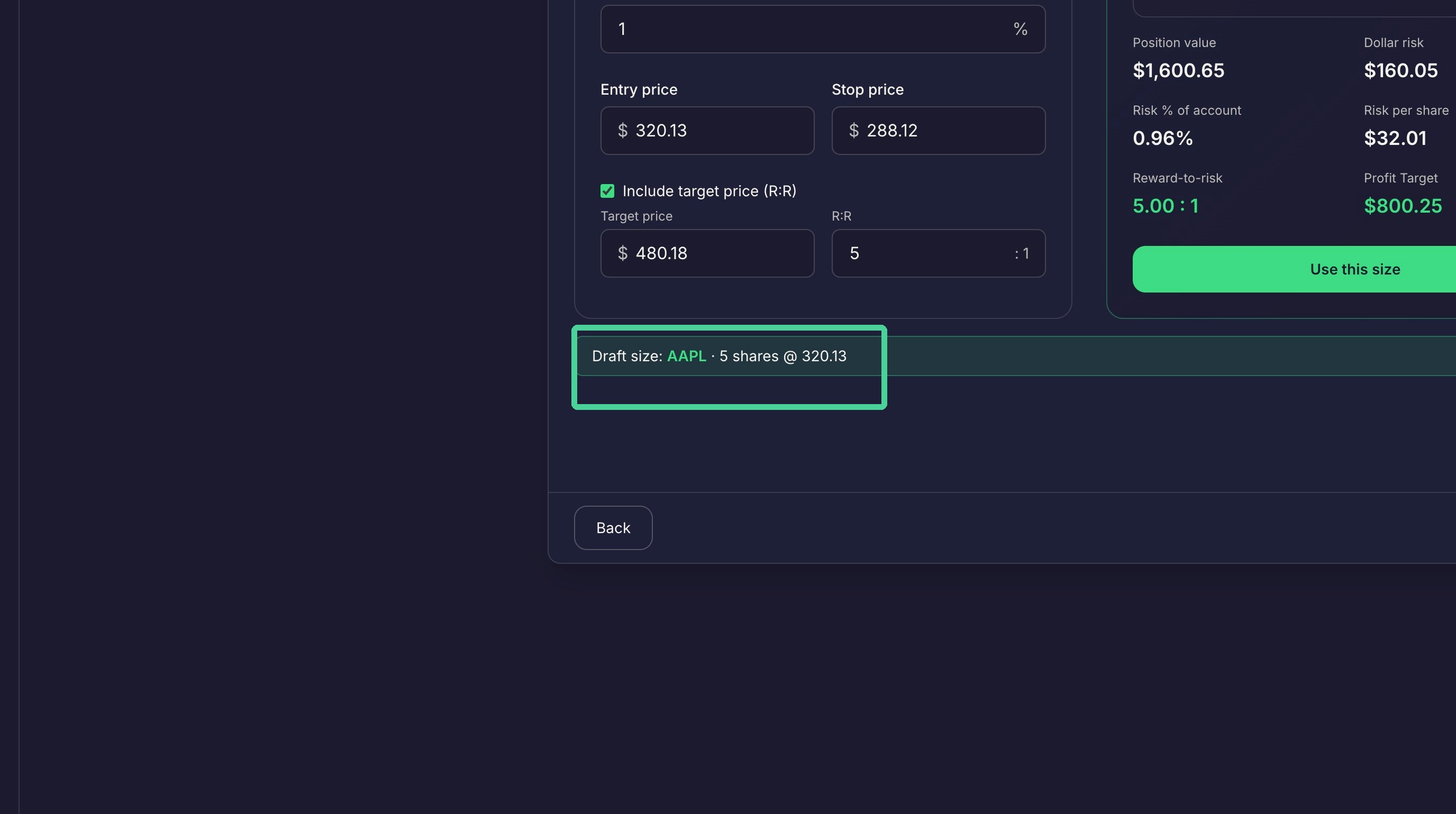
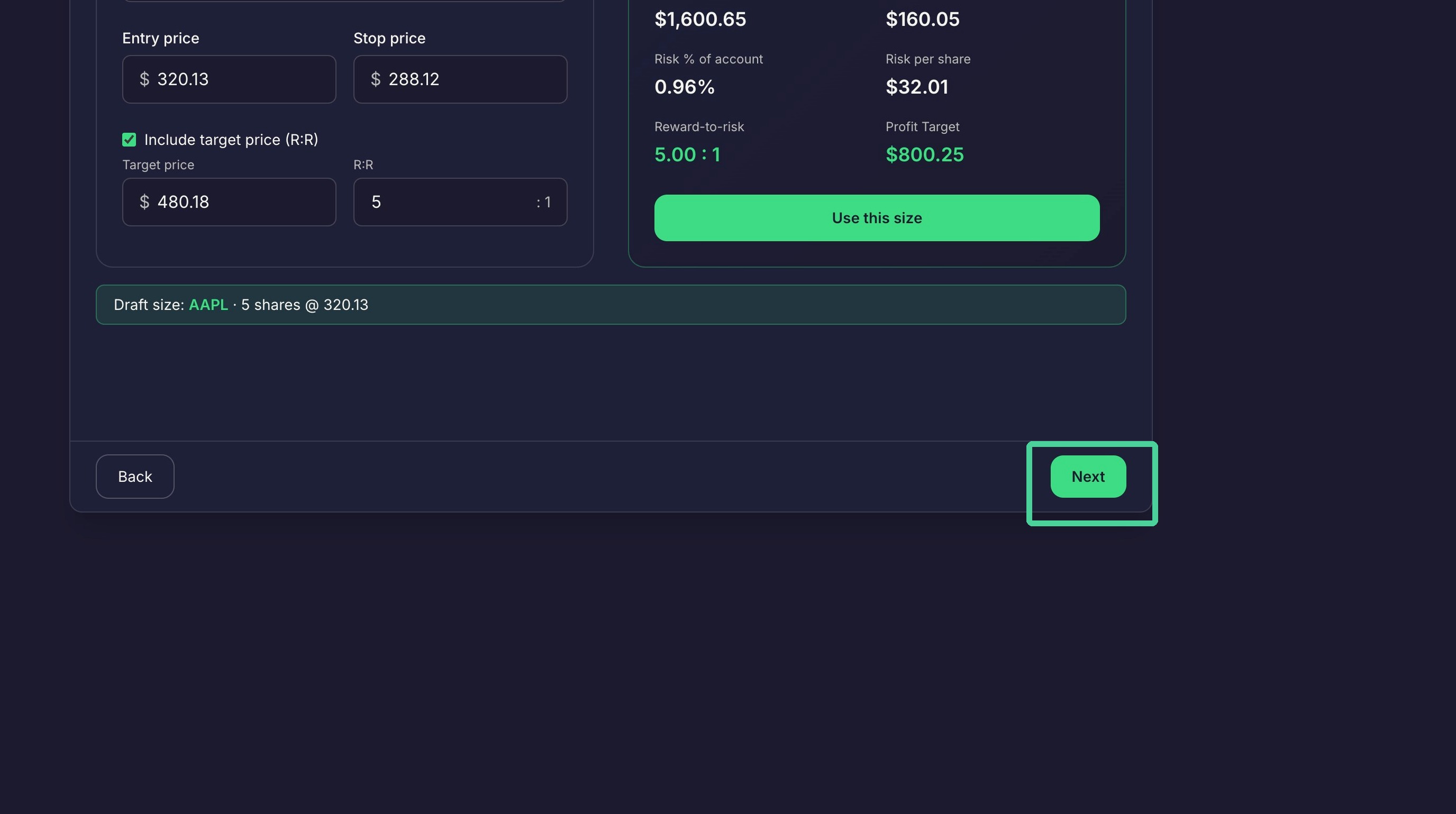
Click Next
Rule Review
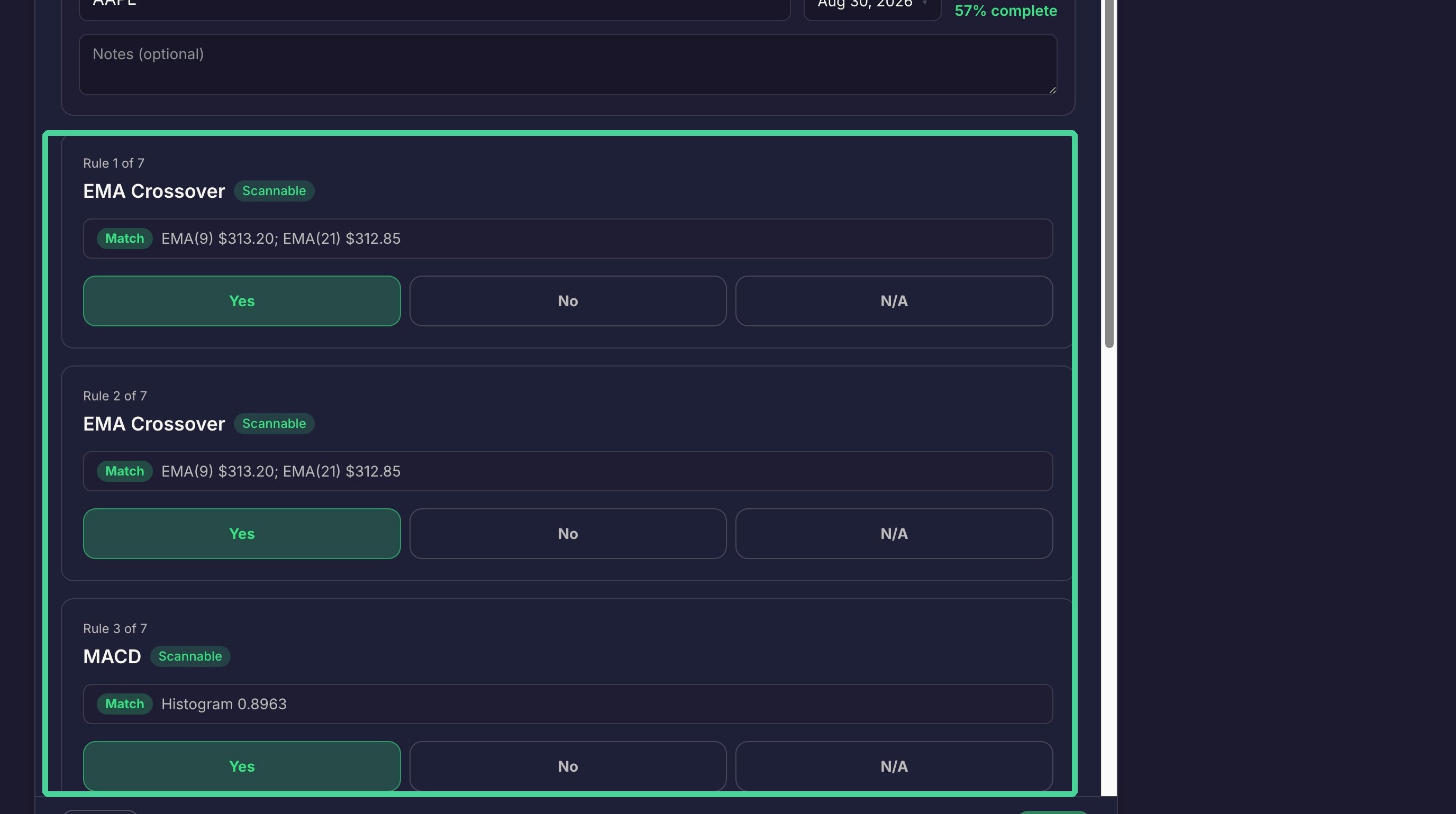
Here you will see which scannable rules have matched.
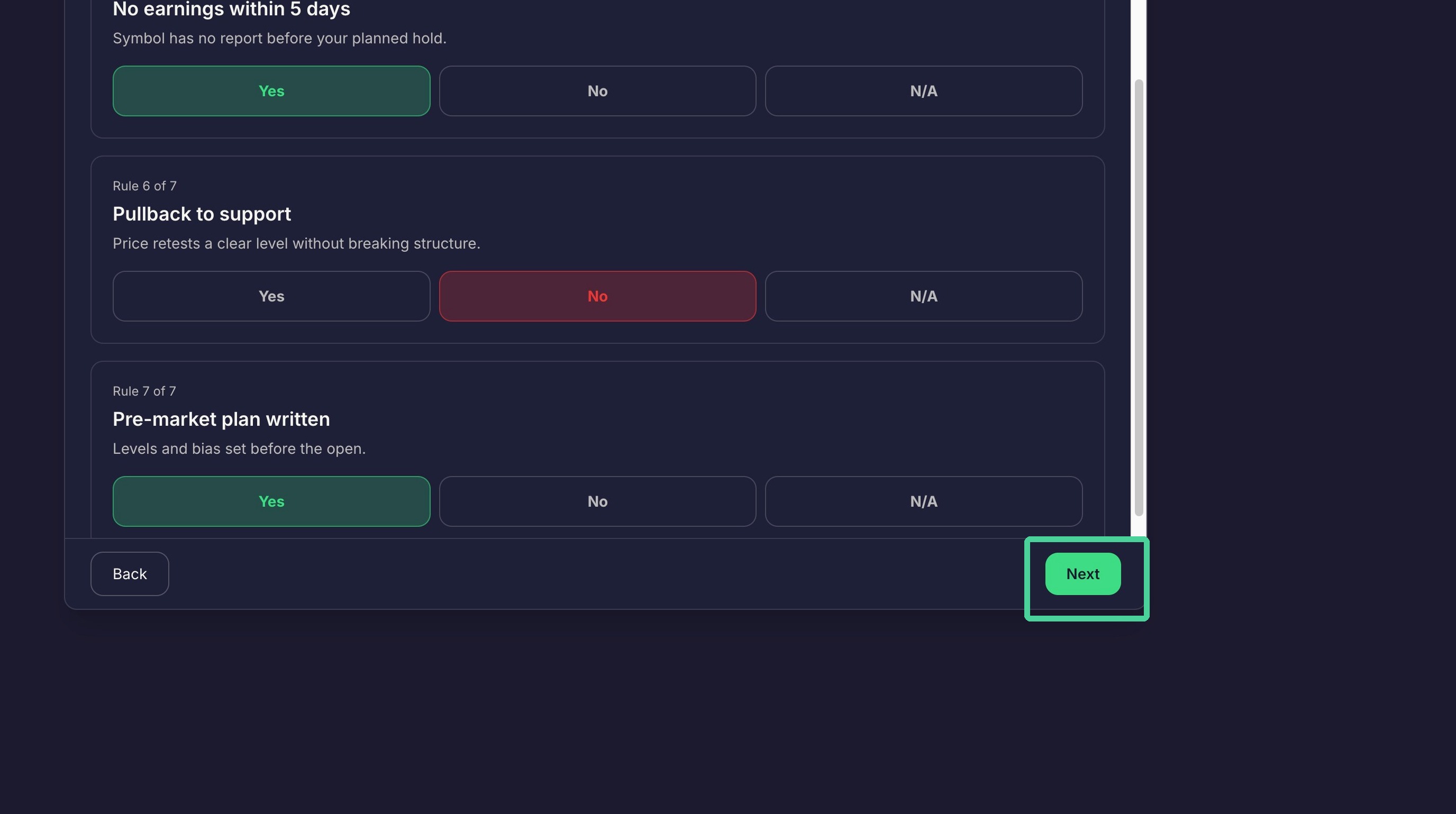
You will have to determine if the manual rules have been matched by selecting Yes, No, or N/A .
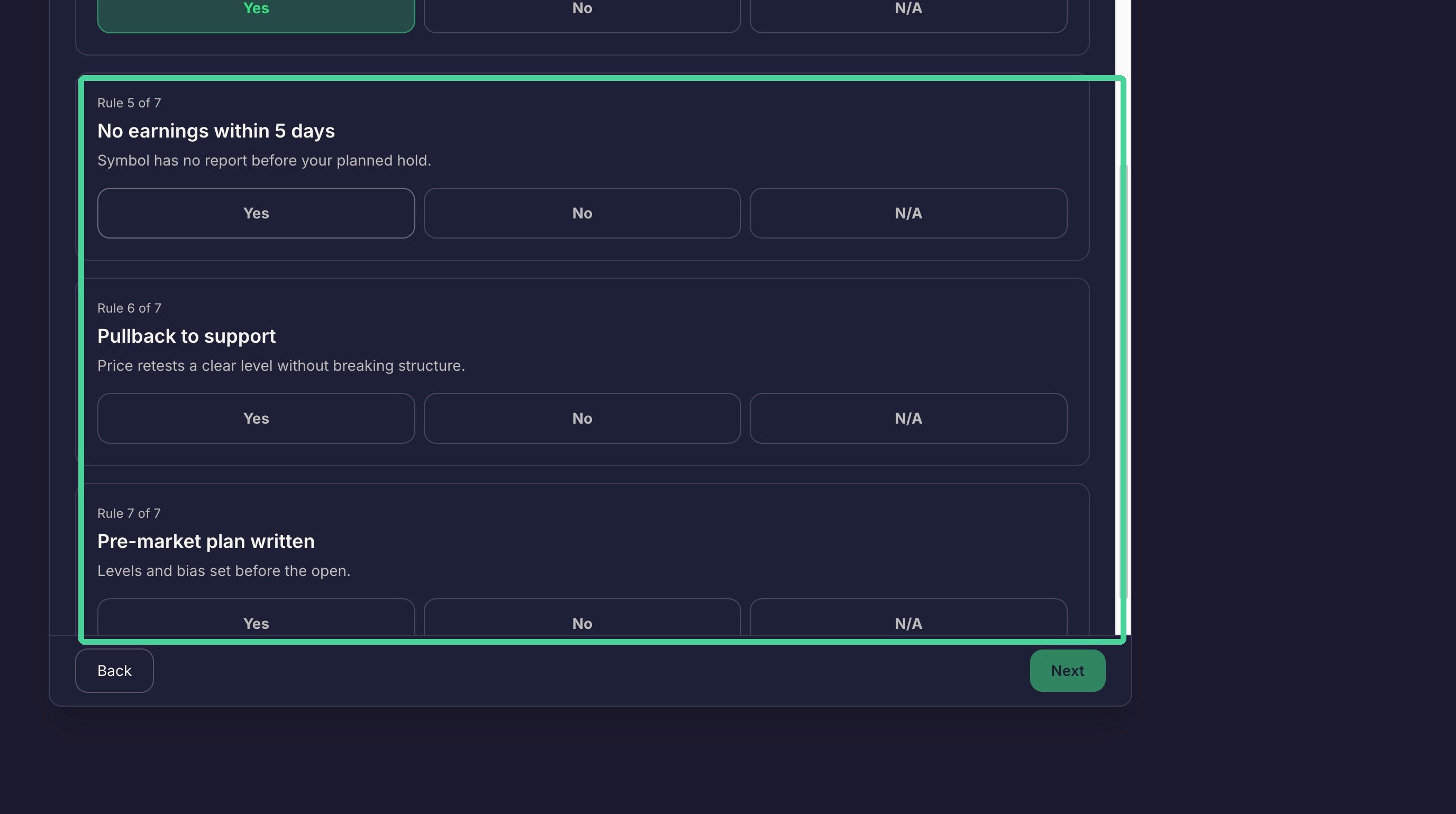
Click next to continue to the Summary page.
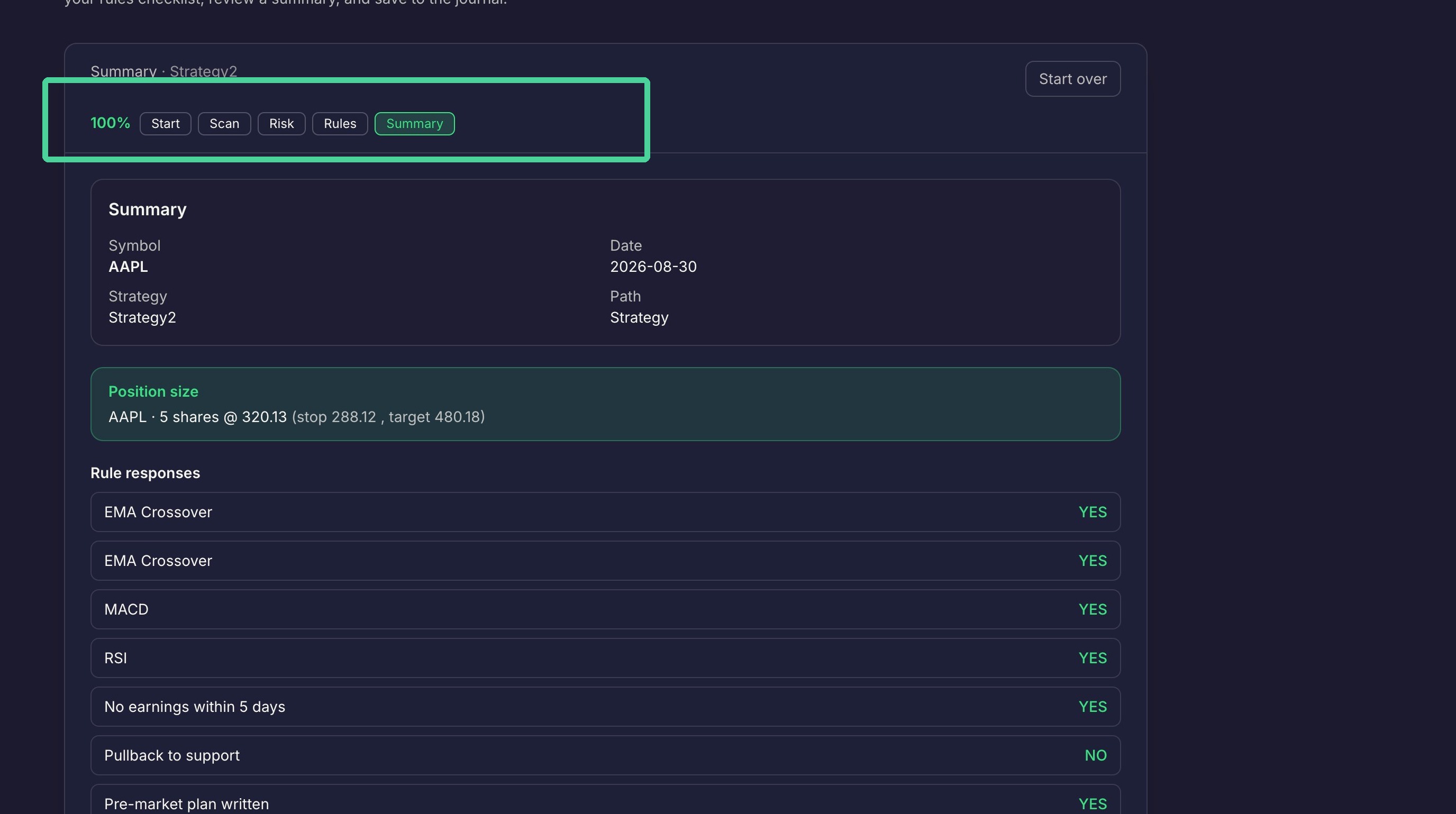
Trade Summary
Here you can go back to a previous step by clicking the link for that step,
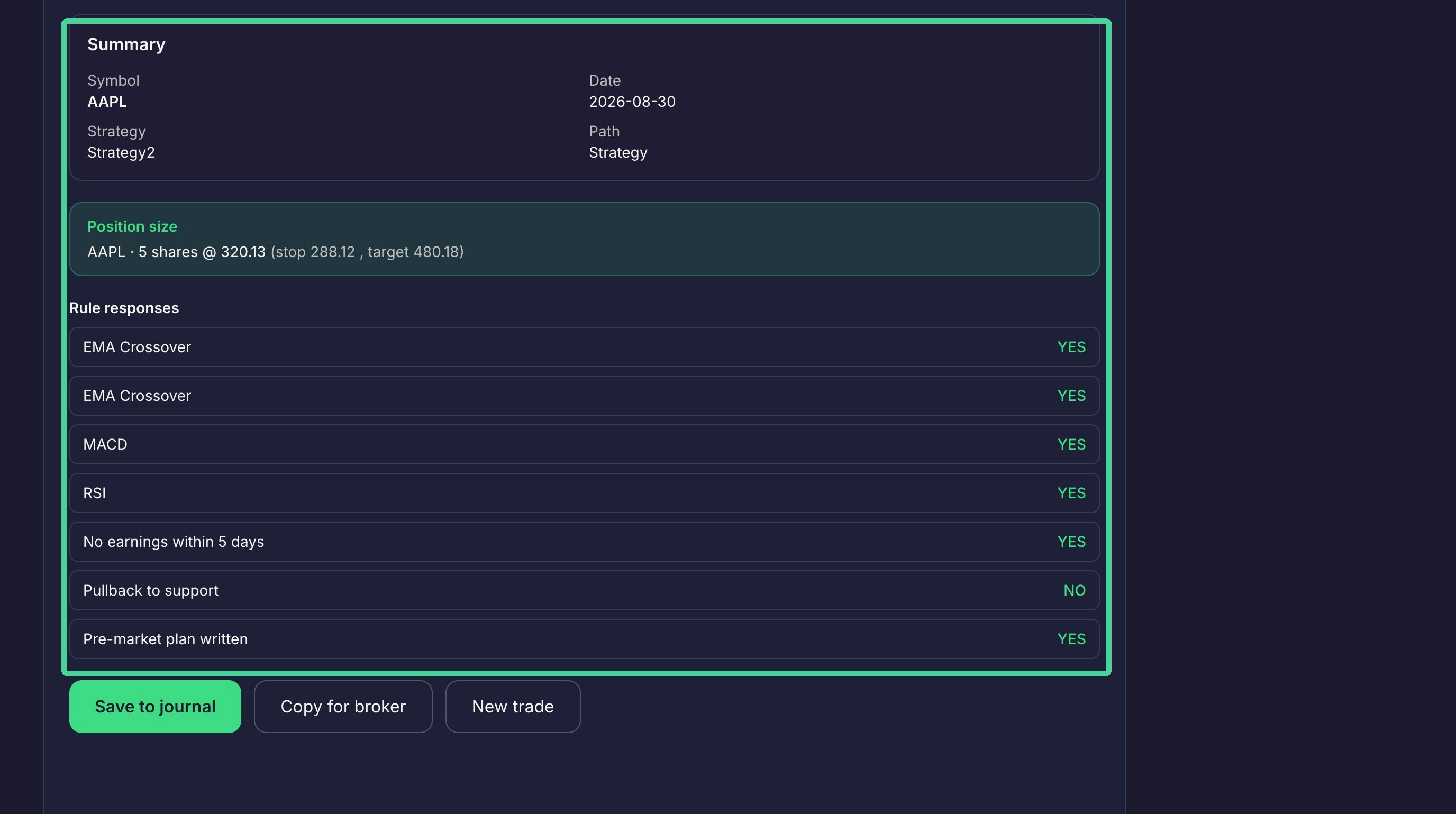
Here you can see a summary of the settings used in previous steps.
Click 'New trade' to start the wizard over.
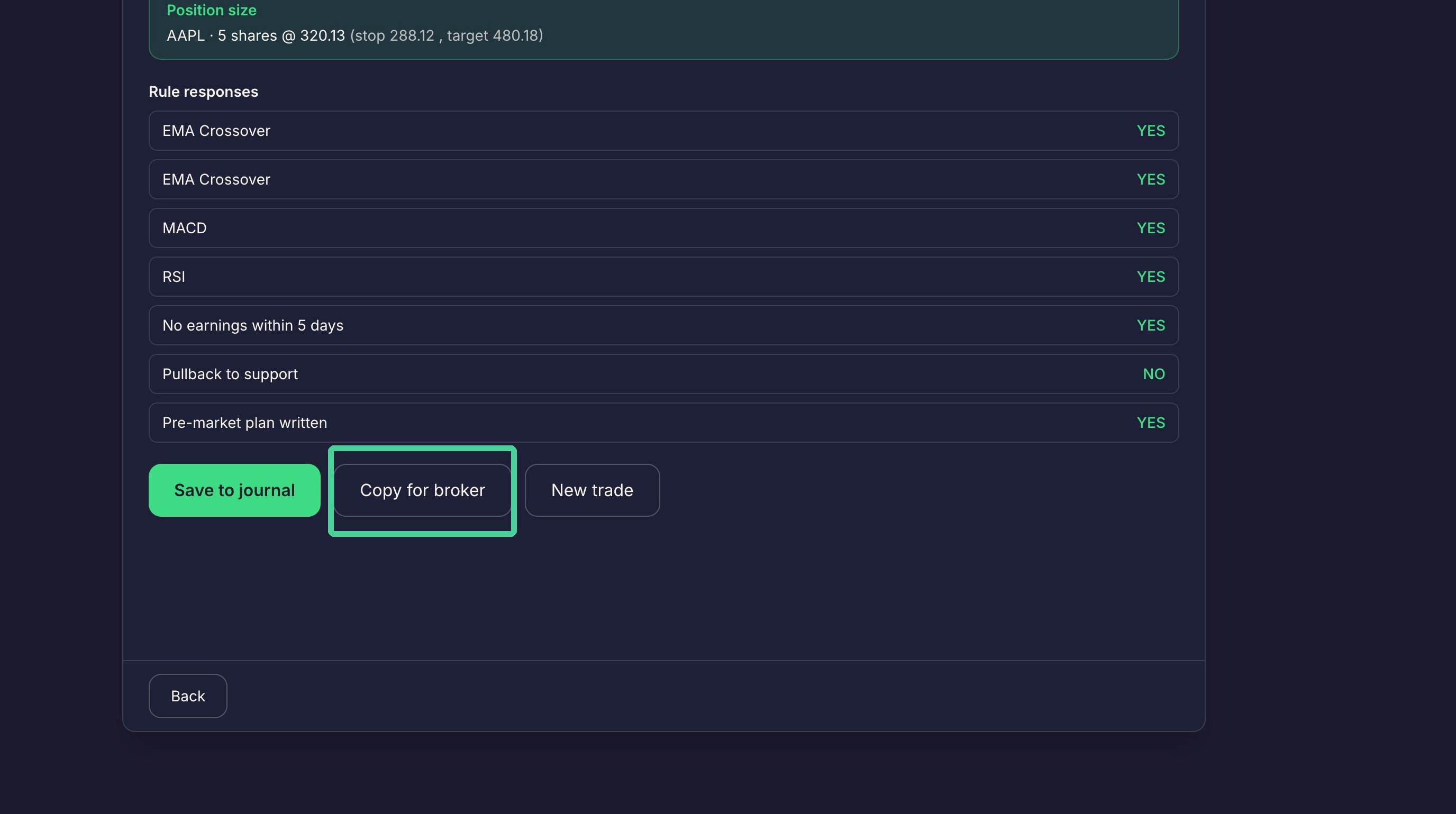
Click 'Copy for Broker' to copy a summary of the trade information to your clipboard.
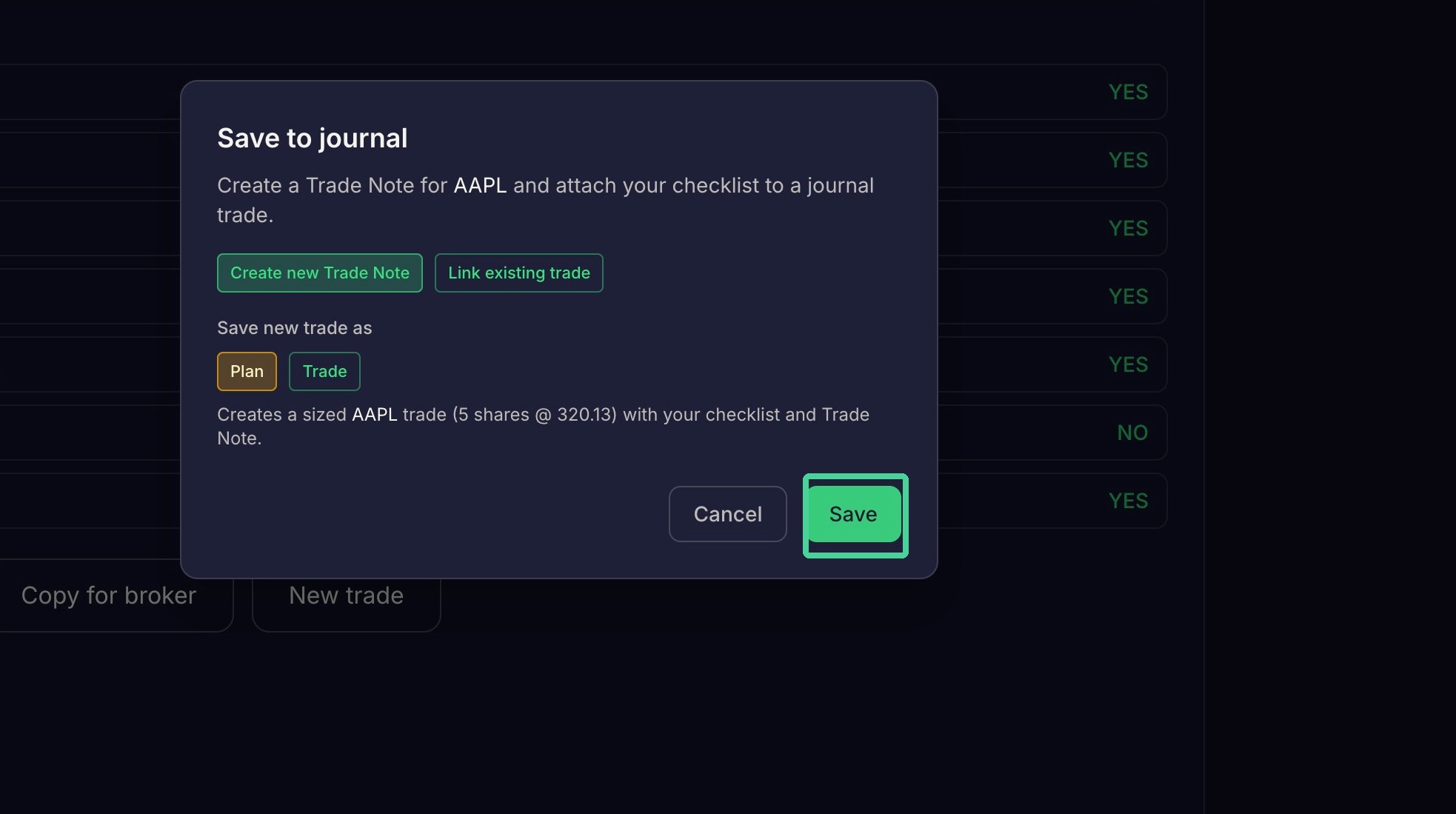
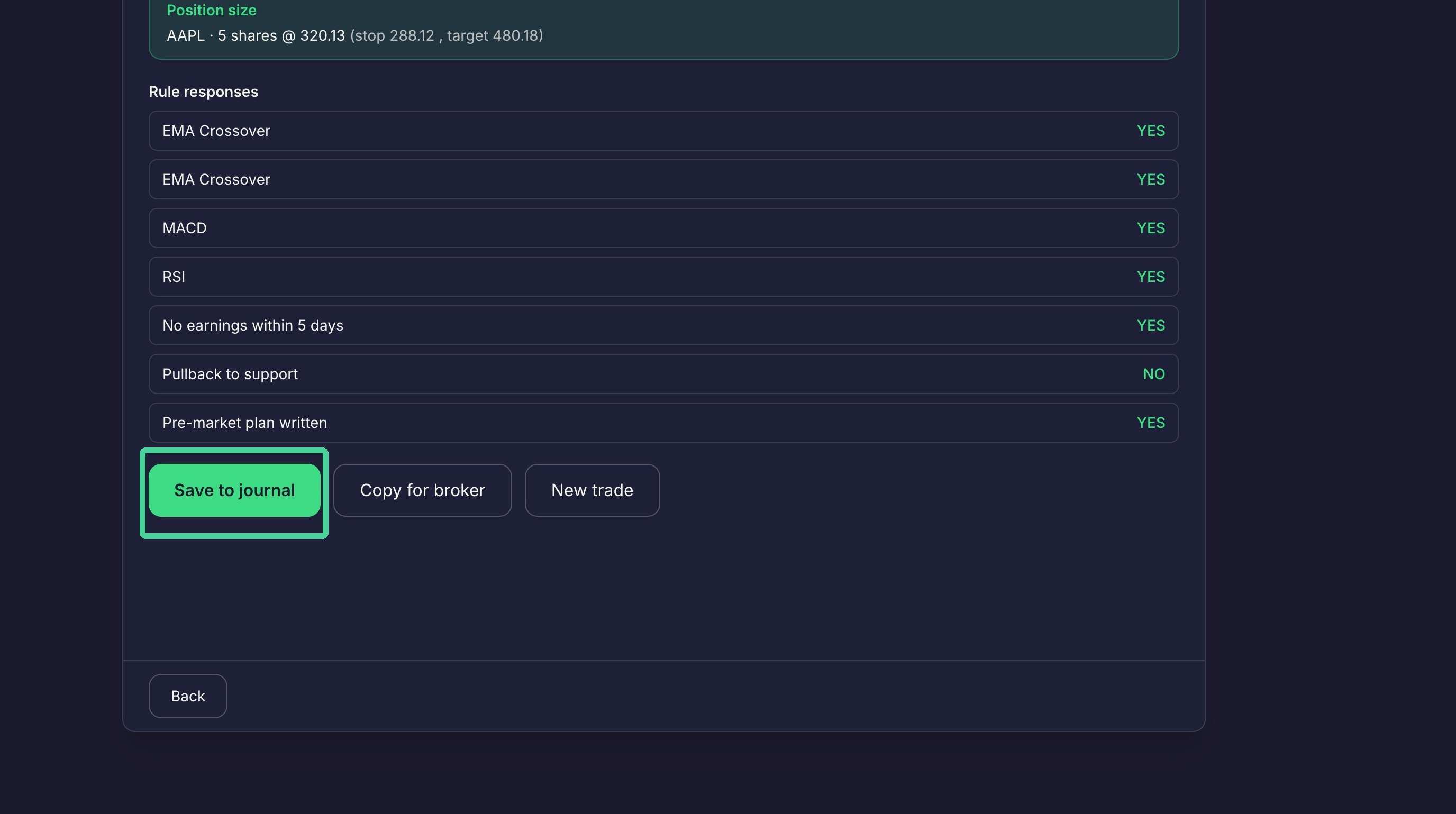
Click 'Save to journal' to open the Save to journal dialogue.
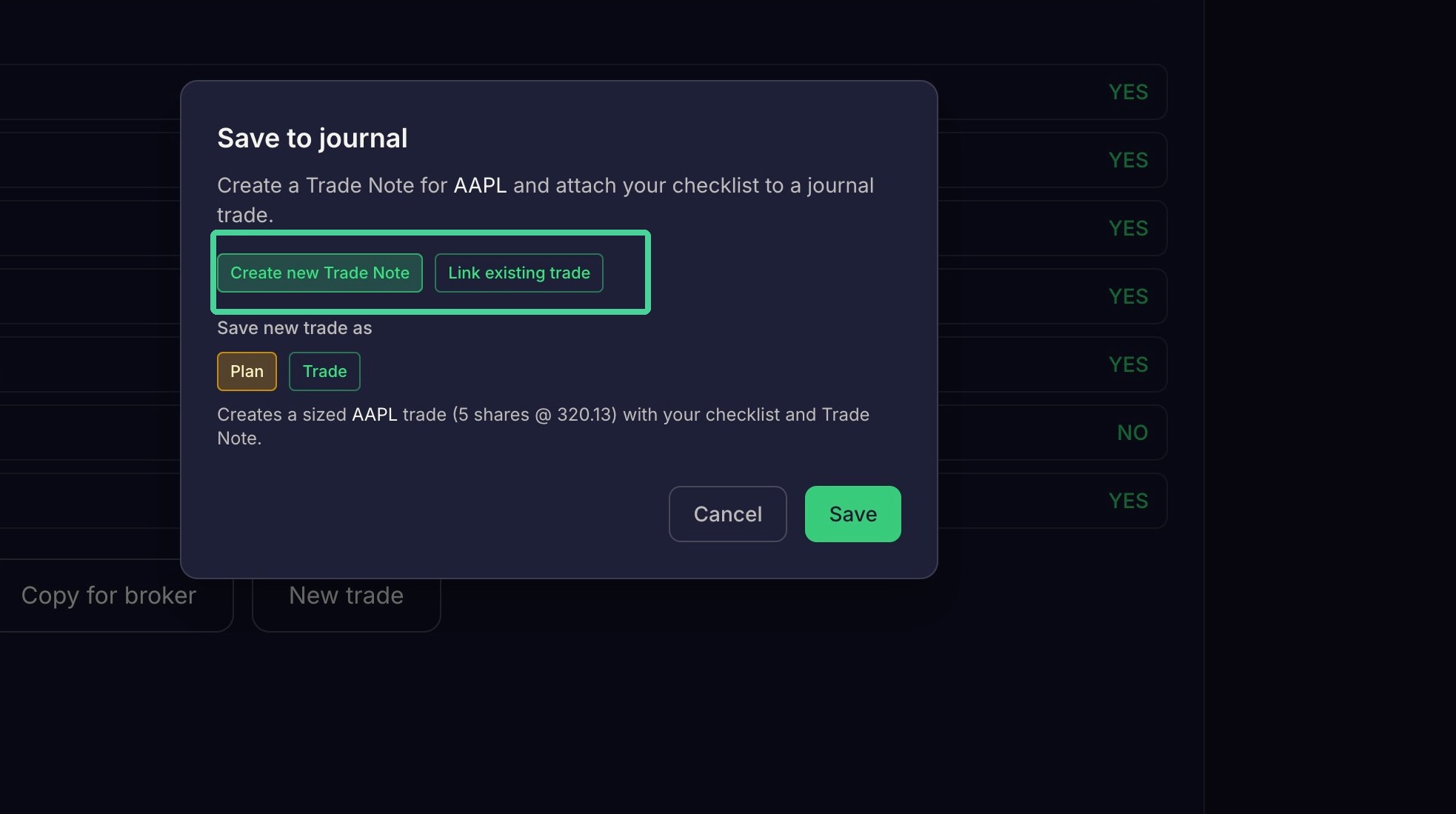
Select an option here to create a new trade note or link an existing trade.
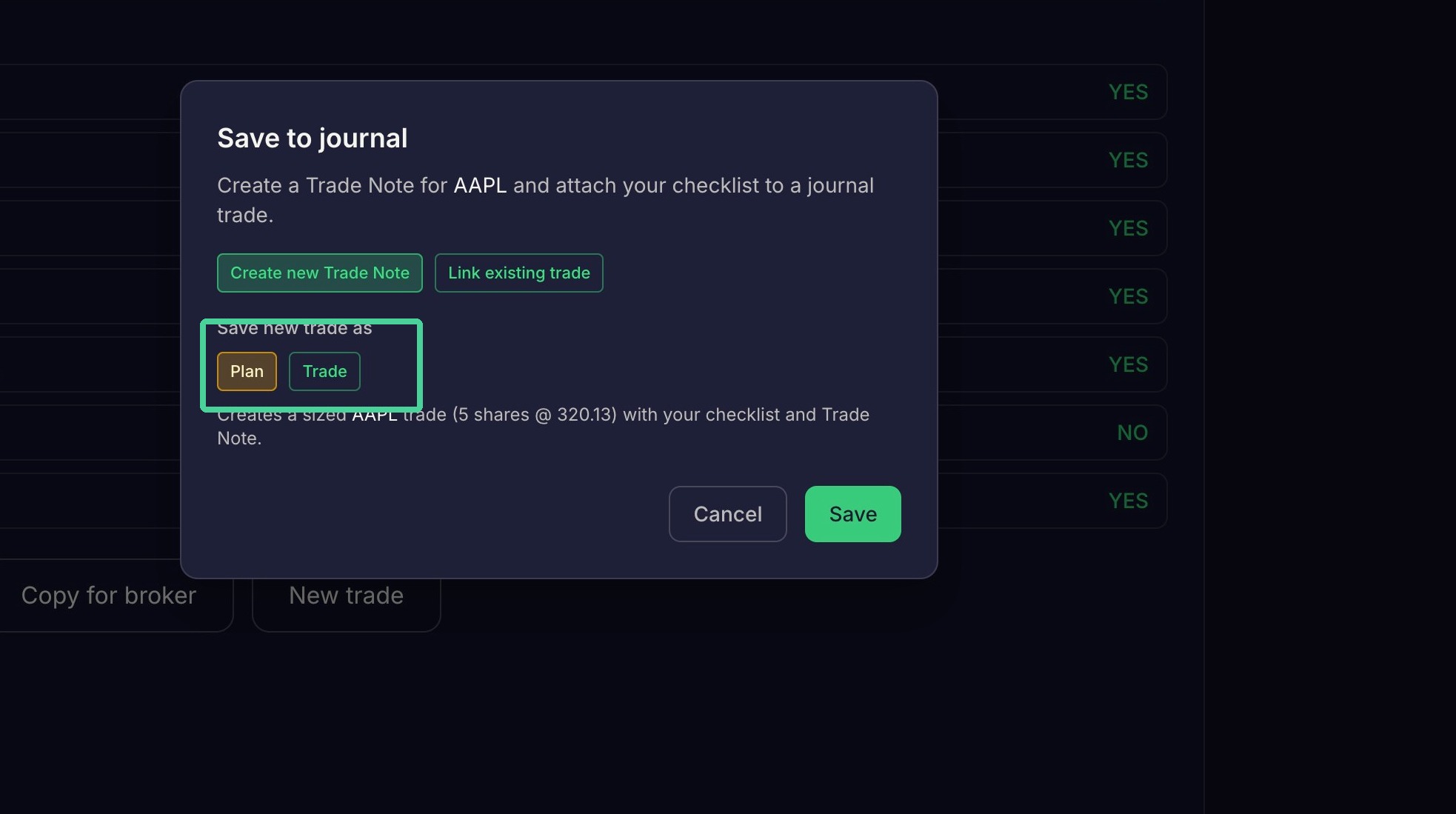
Select an option here to save to the journal as a plan or a trade.
Click 'Save' to send the trade to the journal and start the 'Trade Wizrad' over.