How to use the Trade Wizard with SPX Paychecks
Trade Wizard
How to use the Trade Wizard with SPX Paychecks
Learn how to efficiently record and manage your SPX credit spread trades using the Trader's Toolchest Trade Wizard. This guide walks you through the step-by-step process of configuring your trade parameters and saving them directly to your digital journal.
Click Trade Wizard on the left hand side.
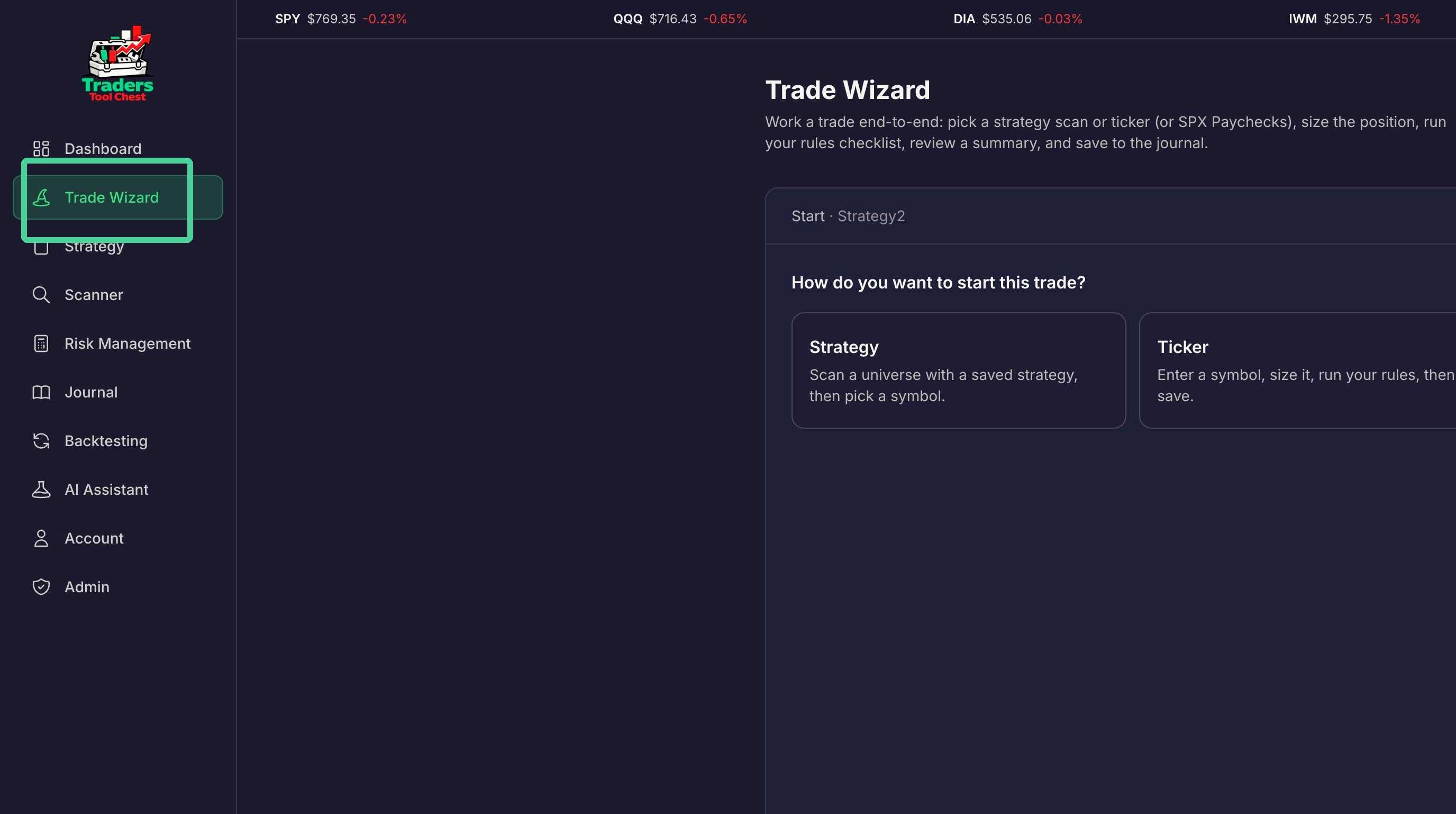
Trade Setup
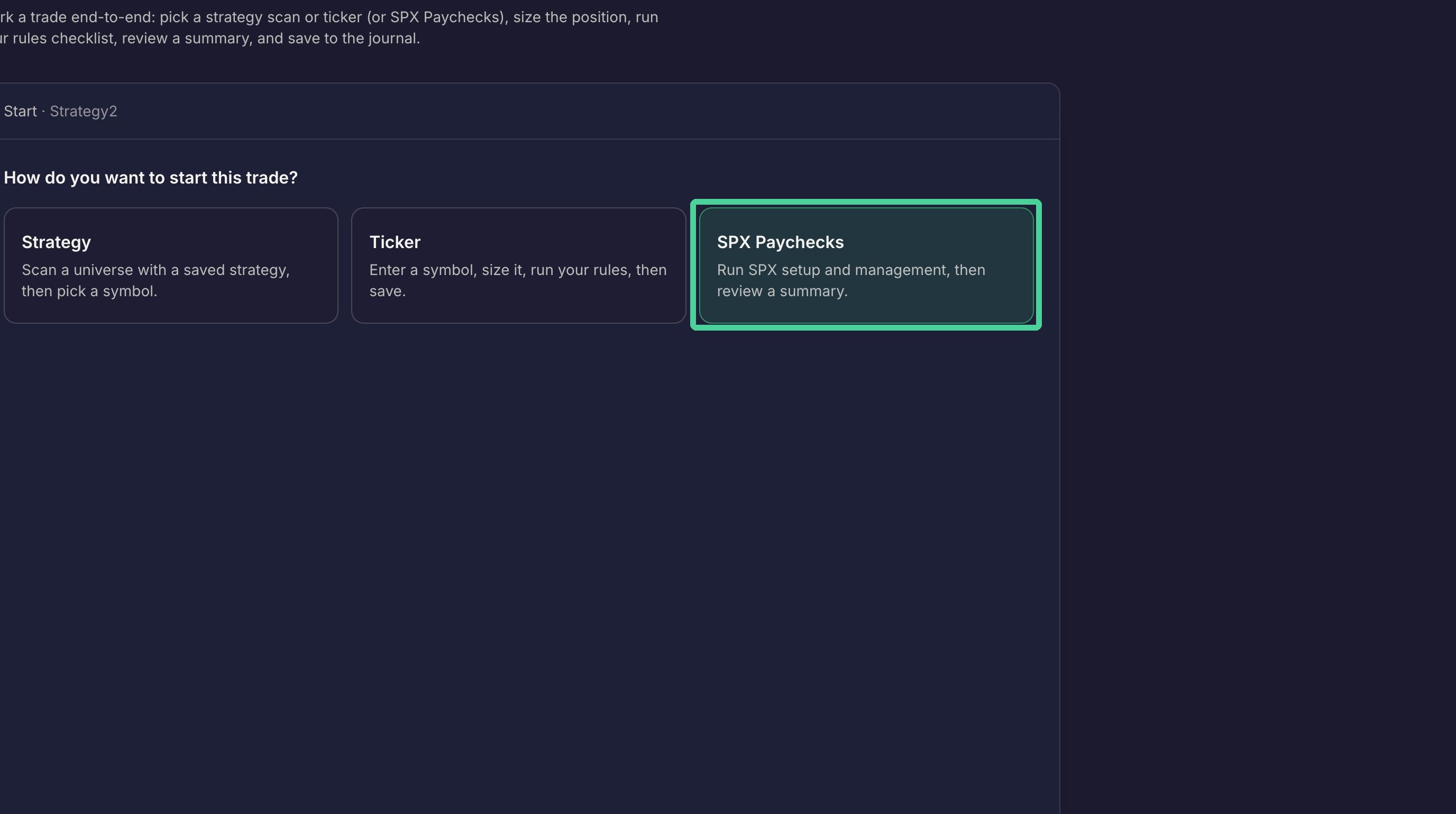
Click 'SPX Paychecks'
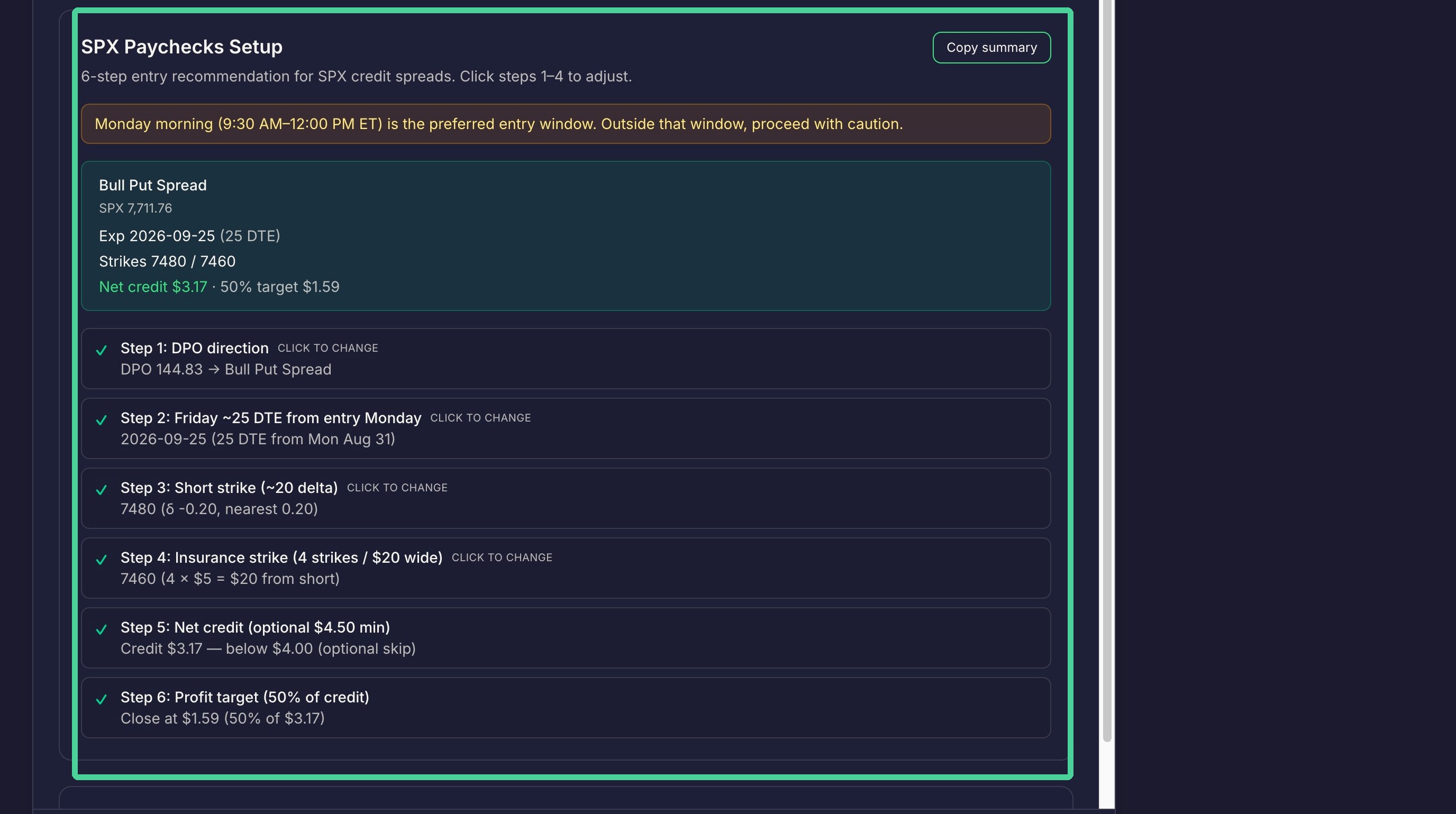
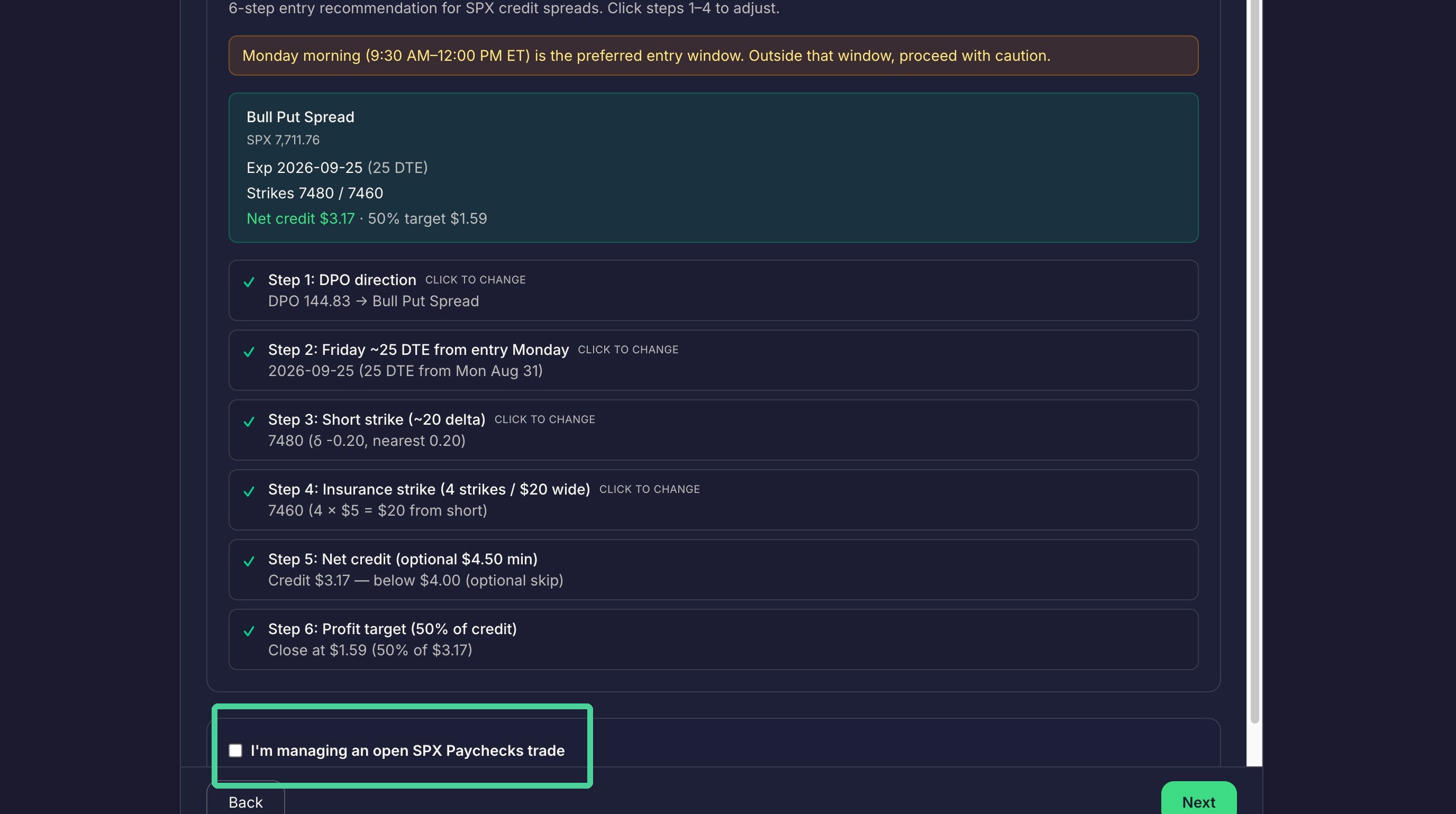
The recommended SPX options trade will be displayed. The rules for the SPX Paychecks strategy will be listed below the trade information.
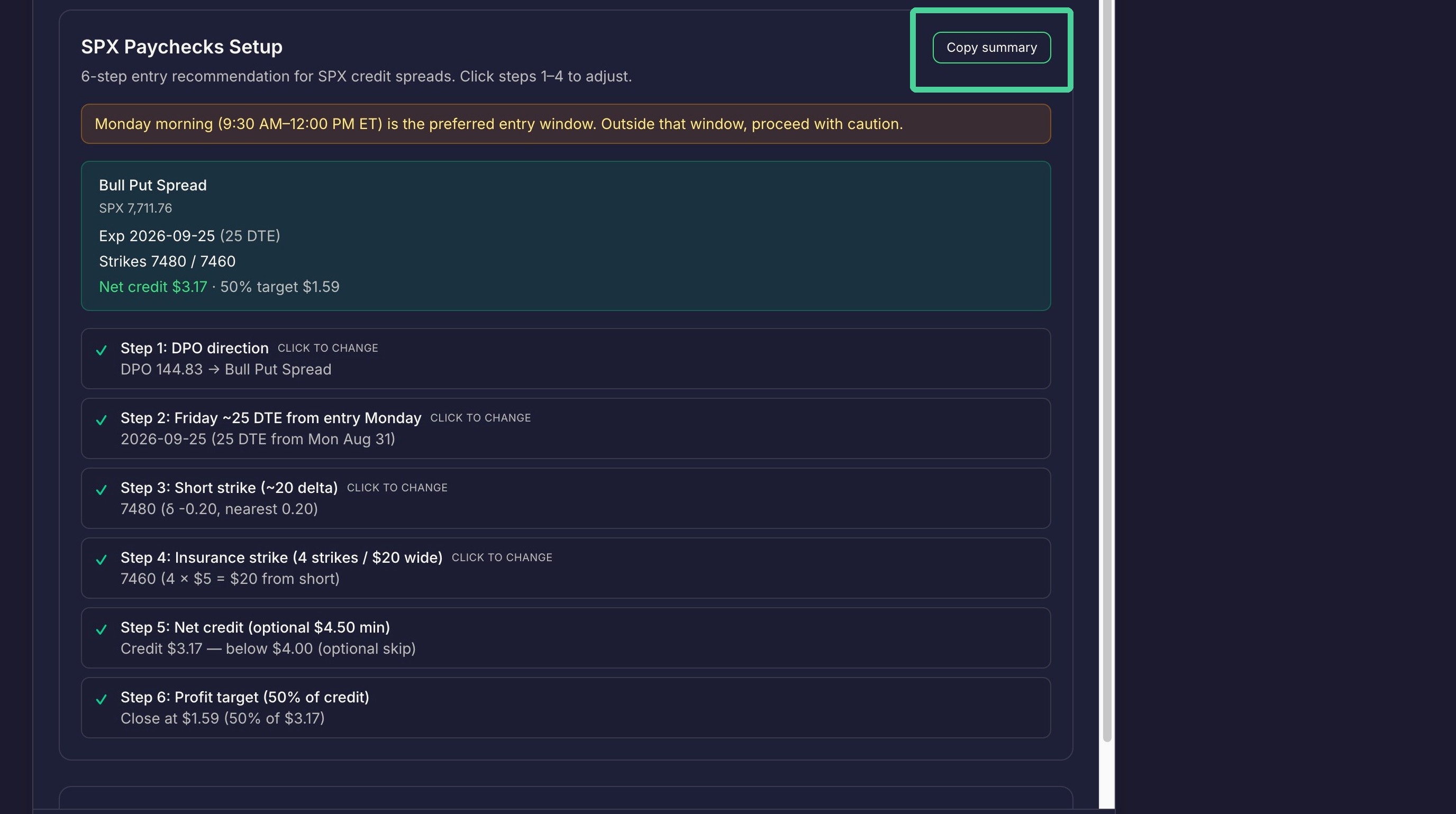
Click 'Copy Summary' to copy the trade information to the clipboard.
Trade Confirmation
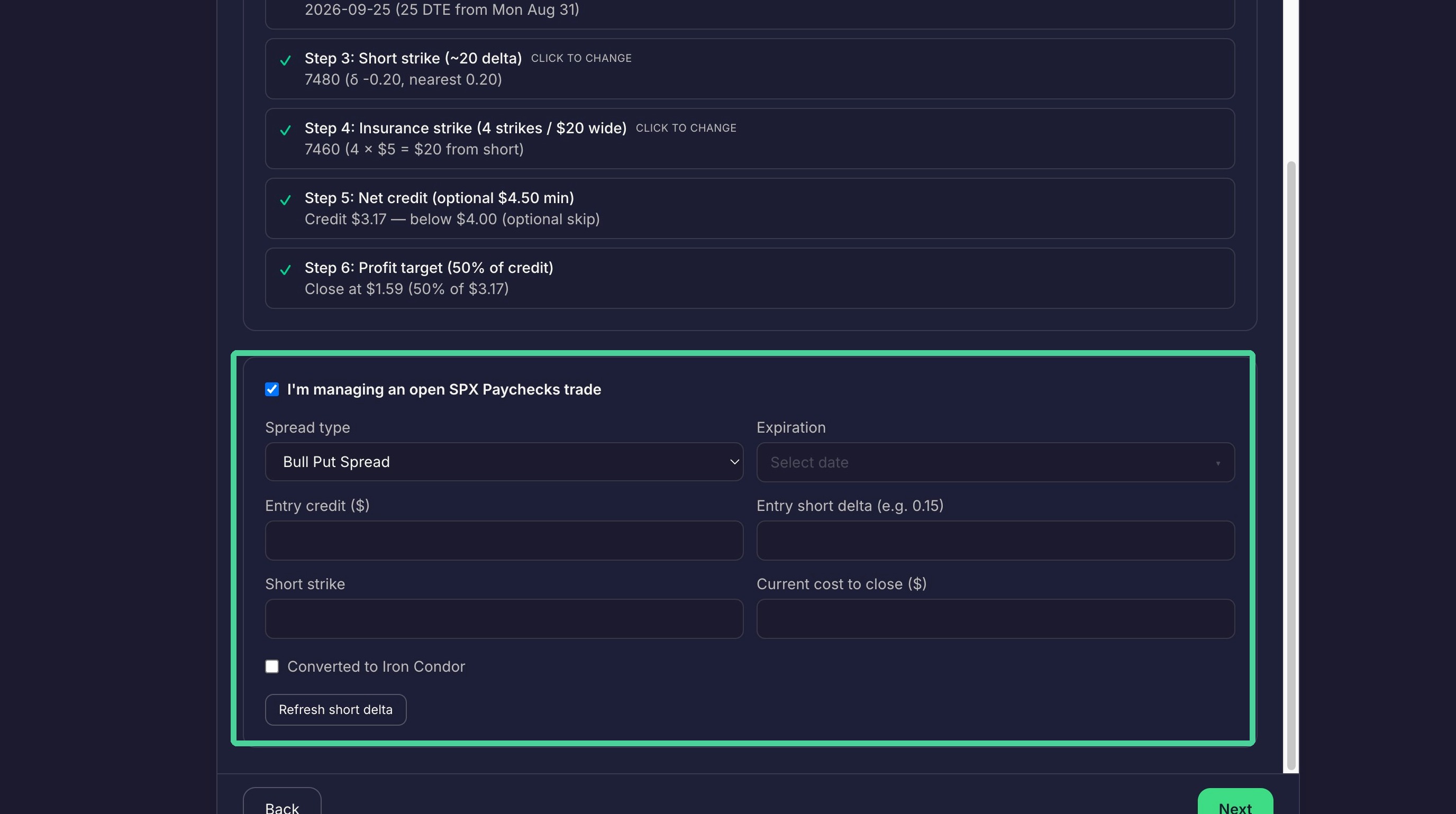
If you have an open SPX paychecks trade, click the checkbox.
Enter the information about your existing trade.
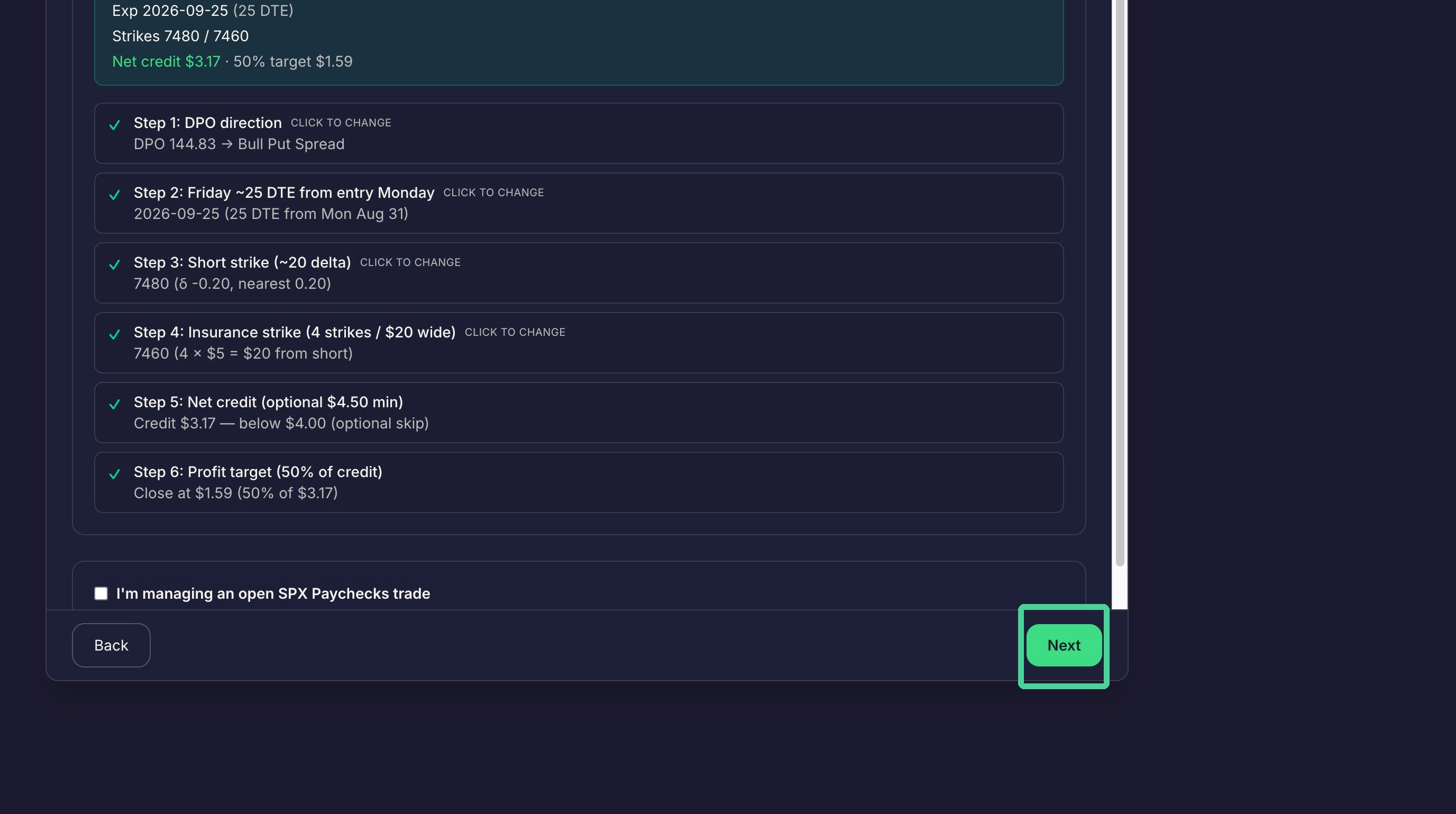
Click "Next"
Journal Entry
Click 'New Trade' to start the wizard over.
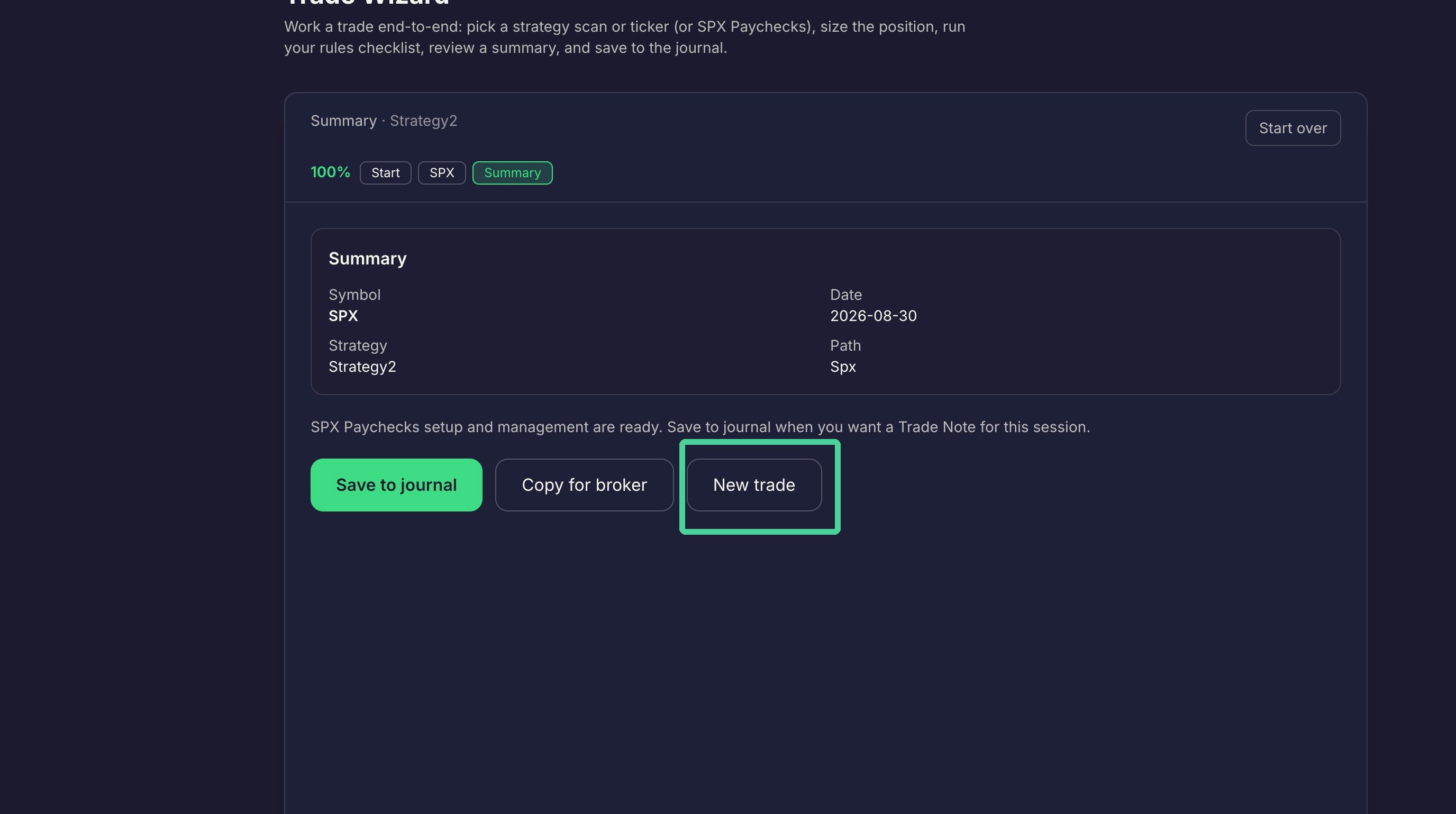
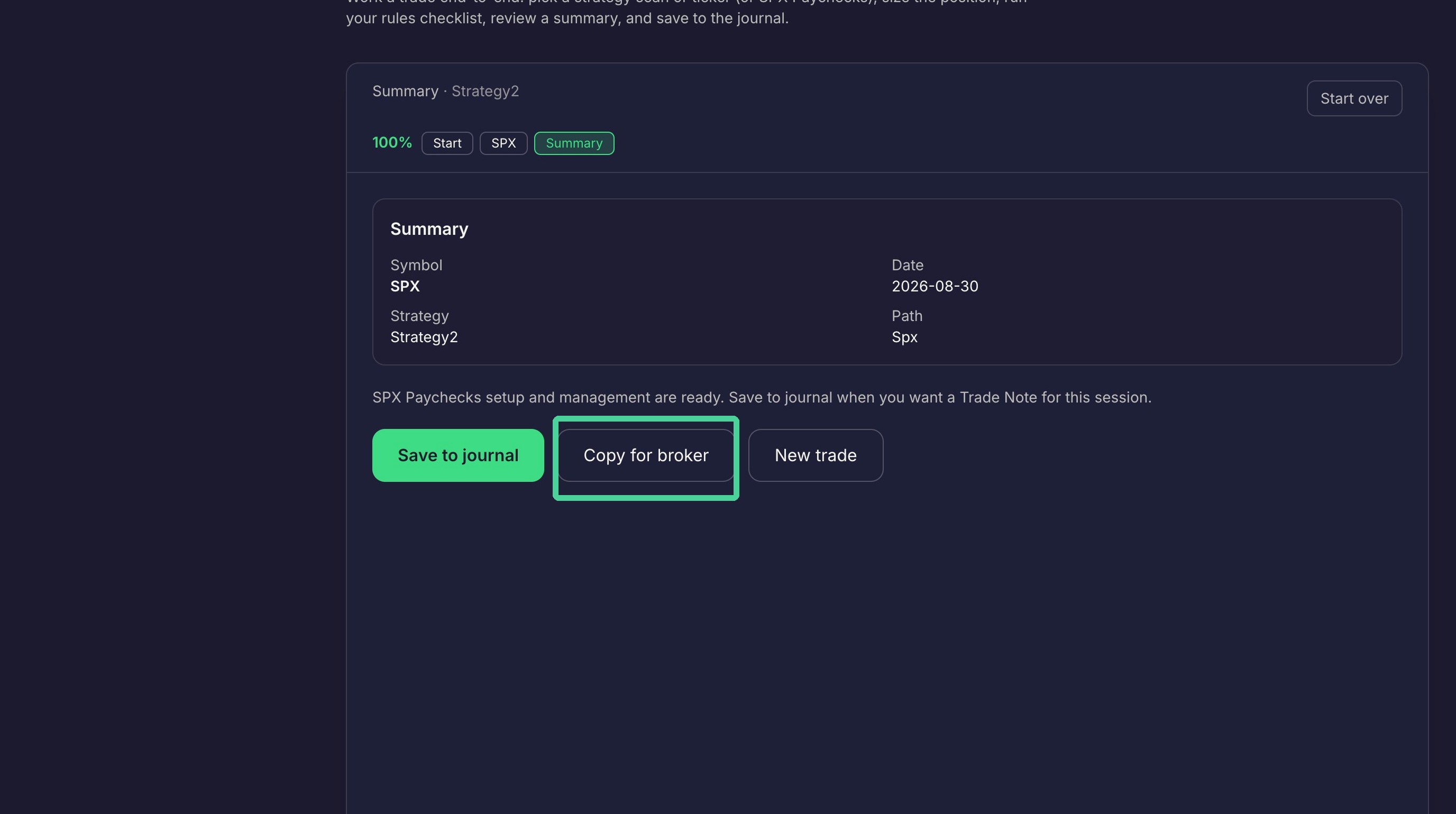
Click 'Copy for Broker' to copy the trade information to the clipboeard.
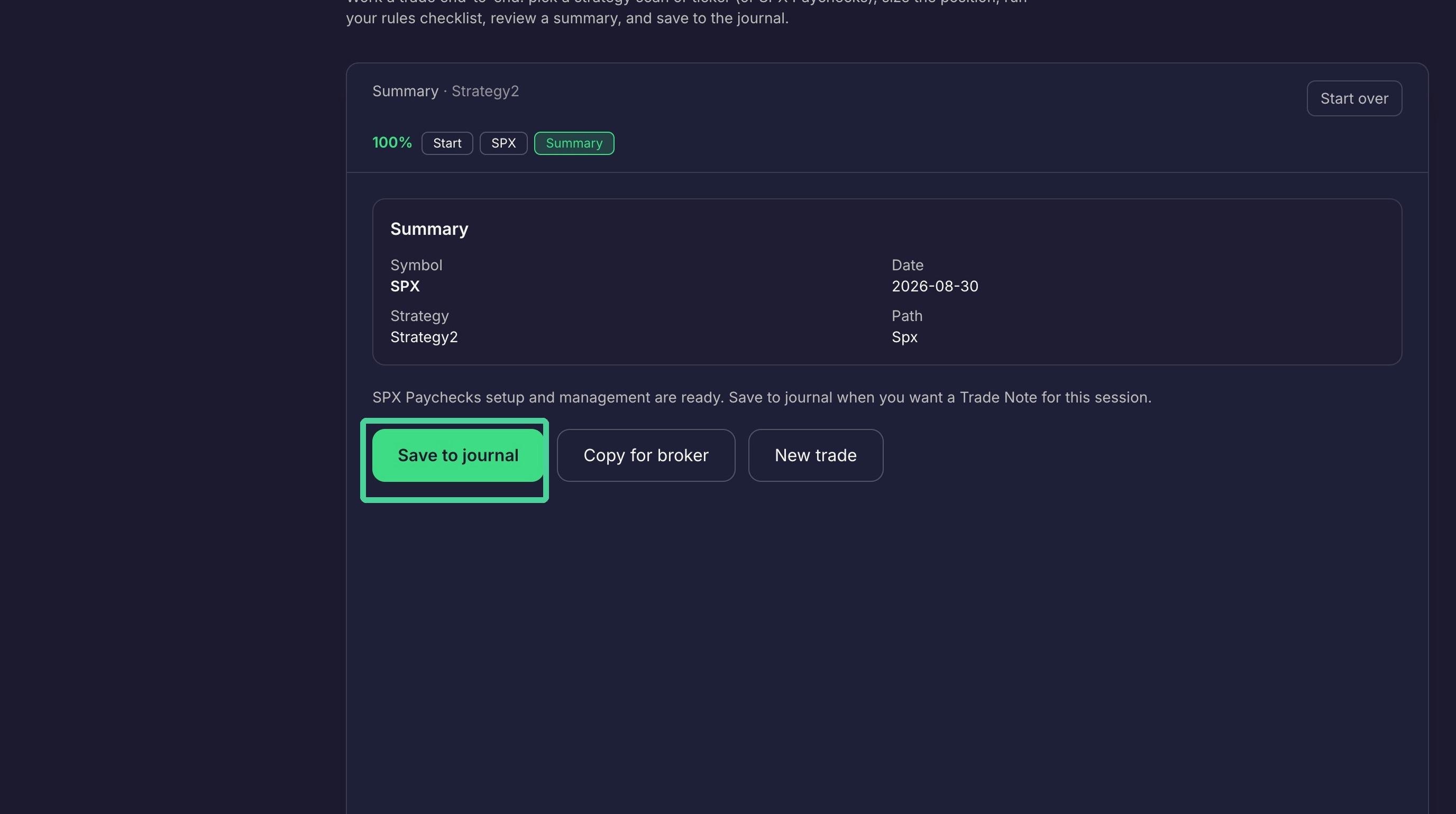
Click 'Save to journal' to open the Save to journal dialogue.
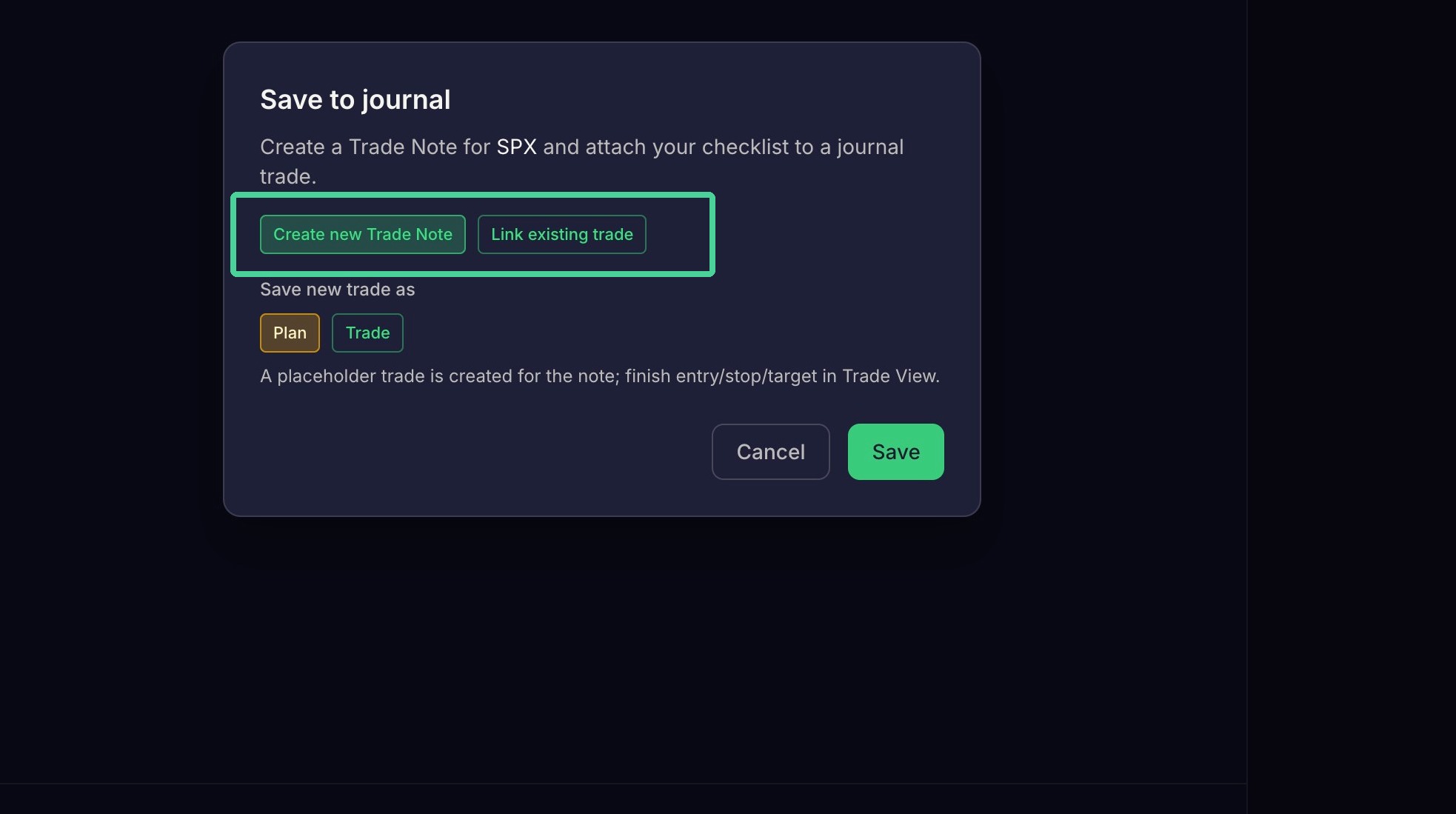
Select an option here to create a new trade note or link an existing trade.
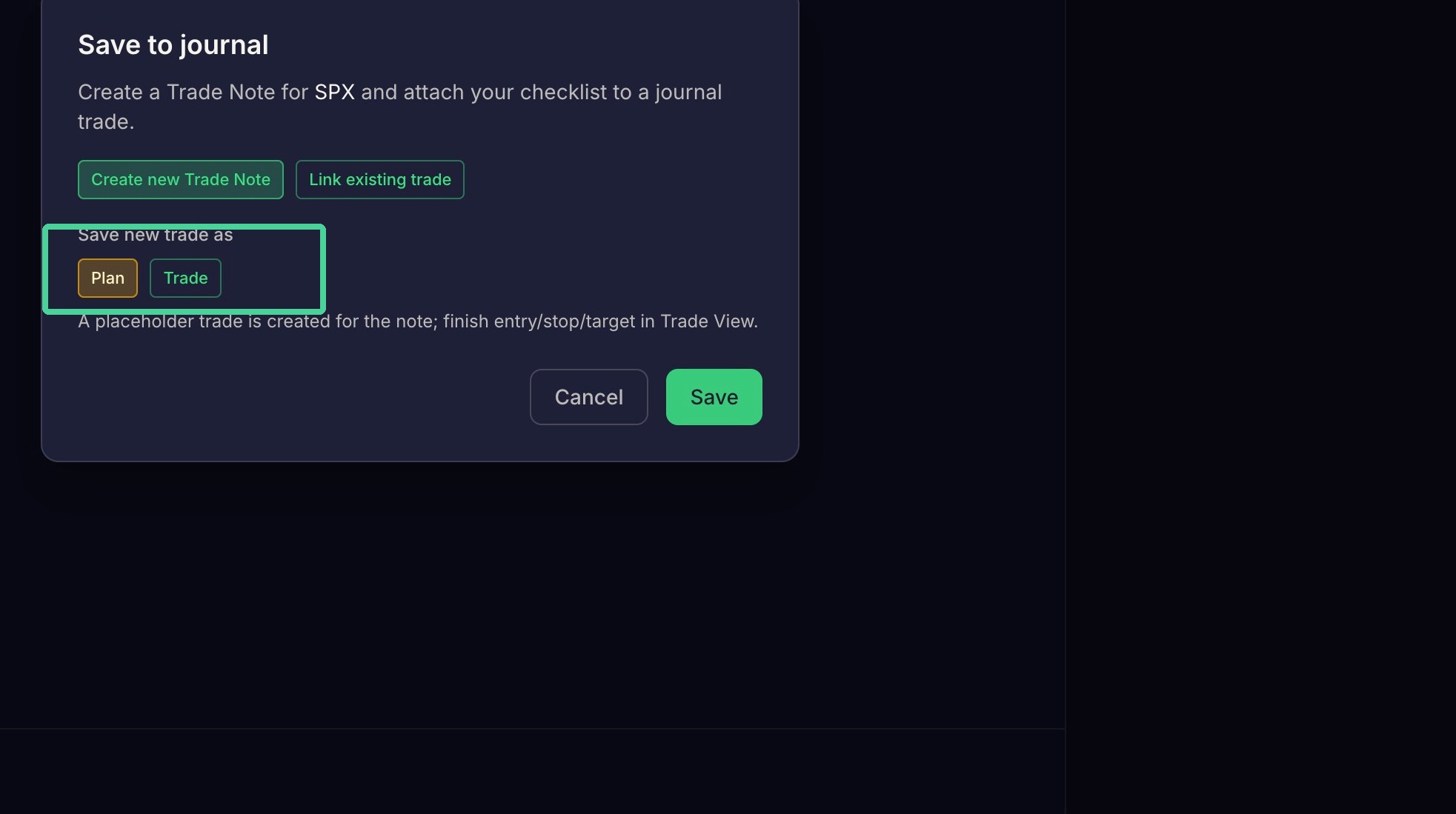
Select an option here to save to the journal as a plan or a trade.
Click 'Save' to send the trade to the journal and start the 'Trade Wizrad' over.