Managing Account Settings and Broker Connections in Traders Tool Chest
Account
Managing Account Settings and Broker Connections in Traders Tool Chest
Learn how to navigate your profile settings, configure multi-factor authentication, and link your brokerage accounts. This guide also covers customizing global preferences and time zone settings to streamline your trading experience.
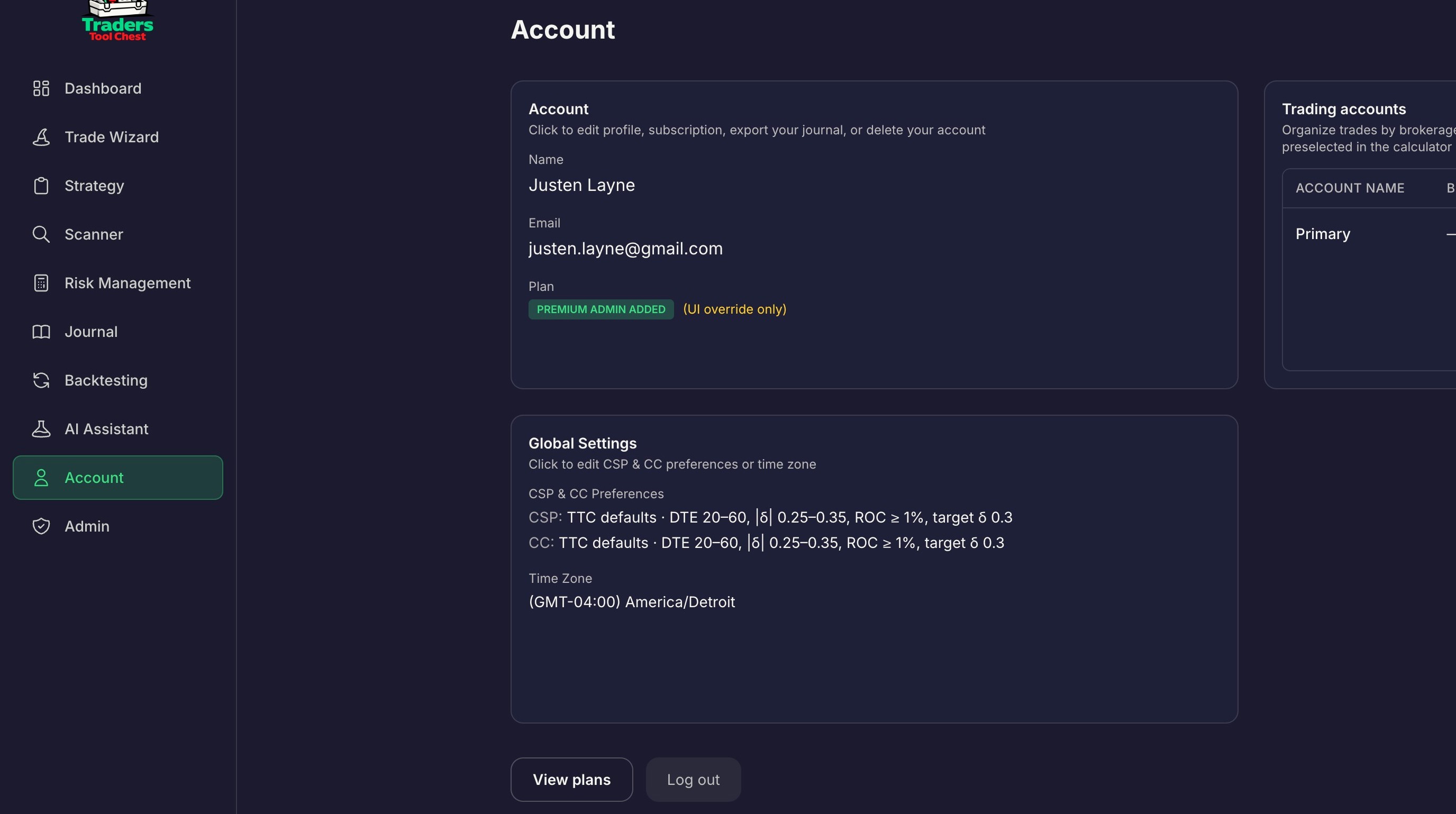
Click Account on the left hand side.
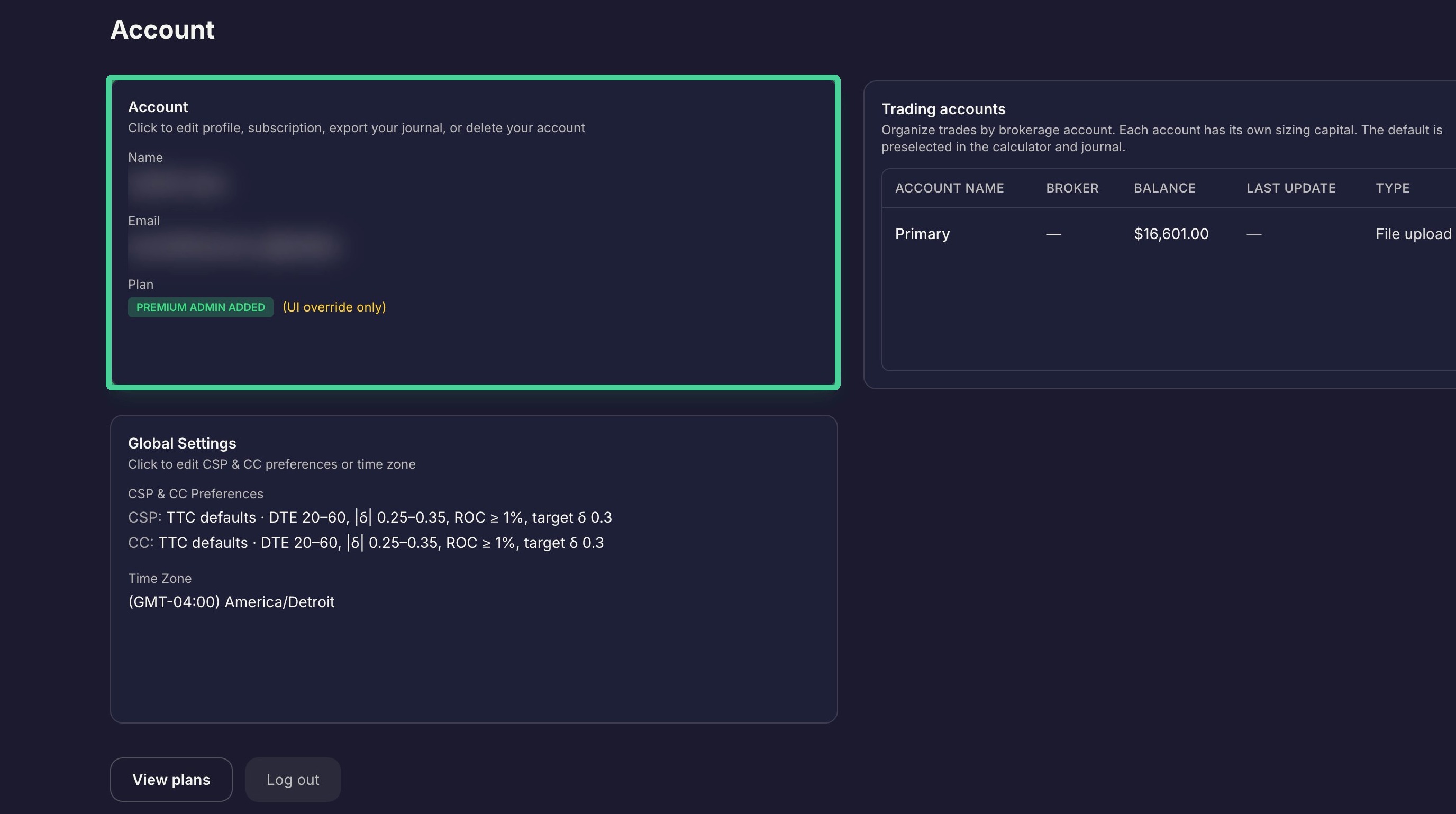
Click the Account pane.
Account Settings
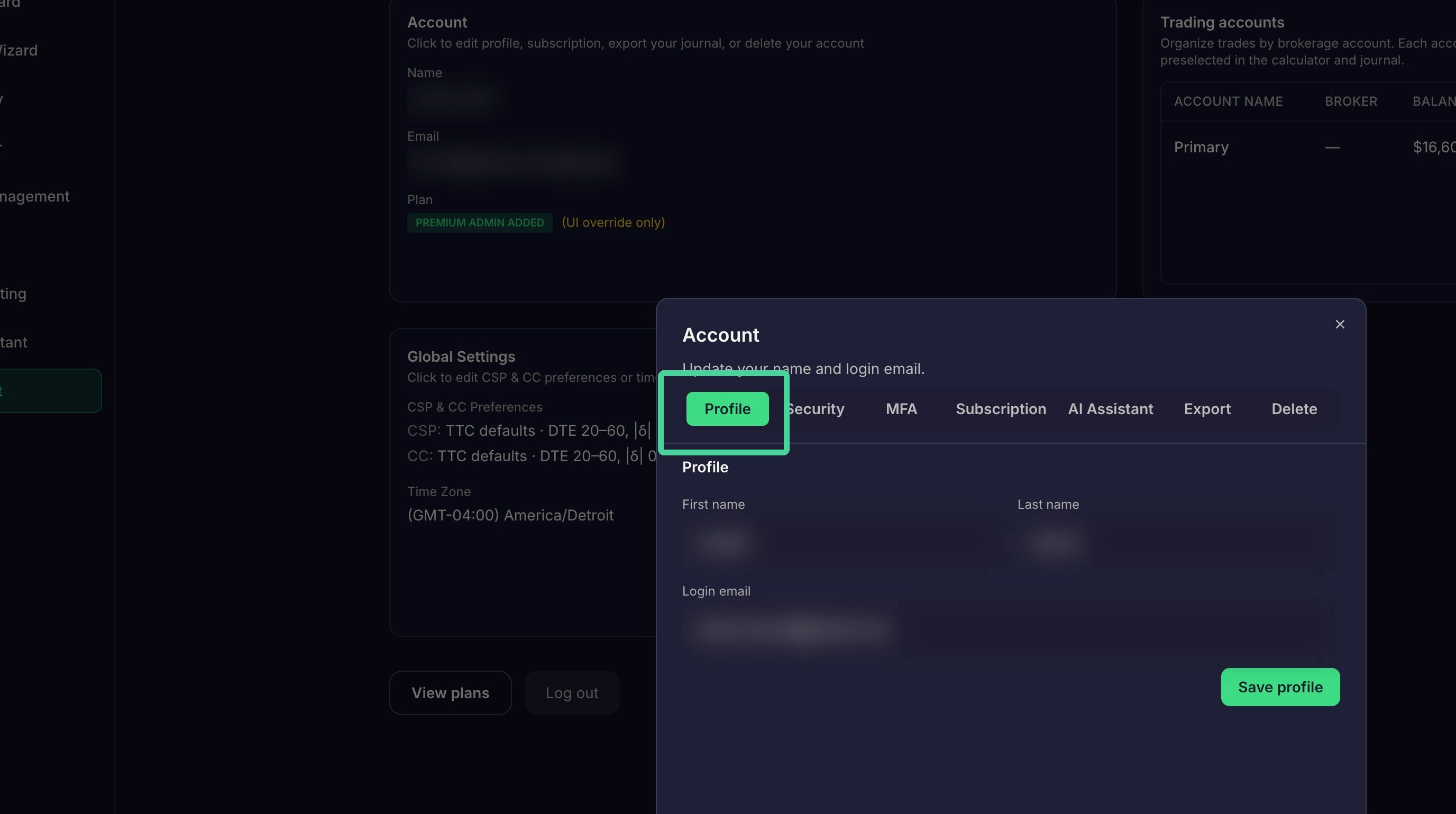
Click the "Profile" tab to edit your name or email address.
Click the "Security" tab to update your password.
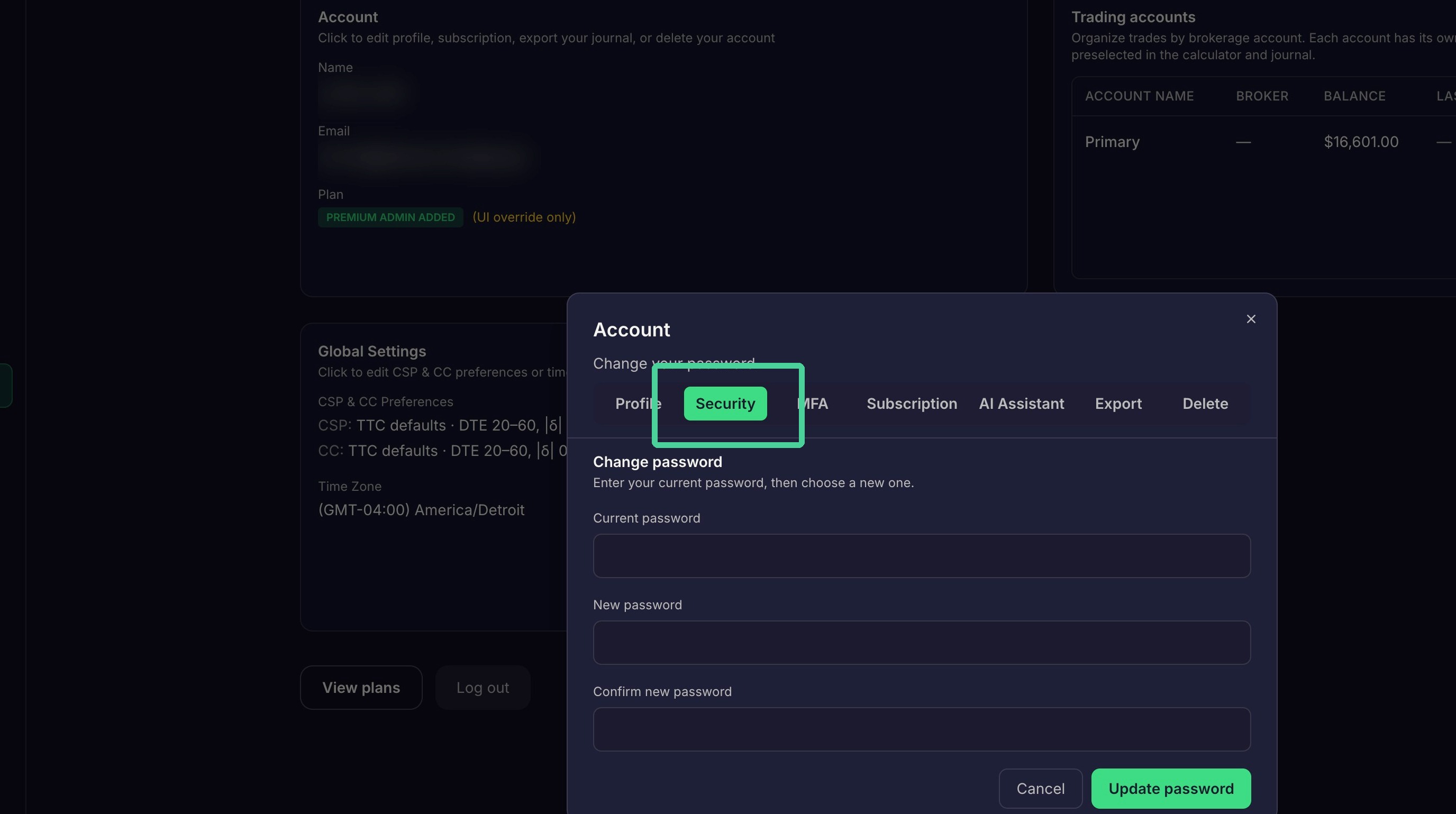
Click the "MFA" tab to view or edit your current MFA settings.
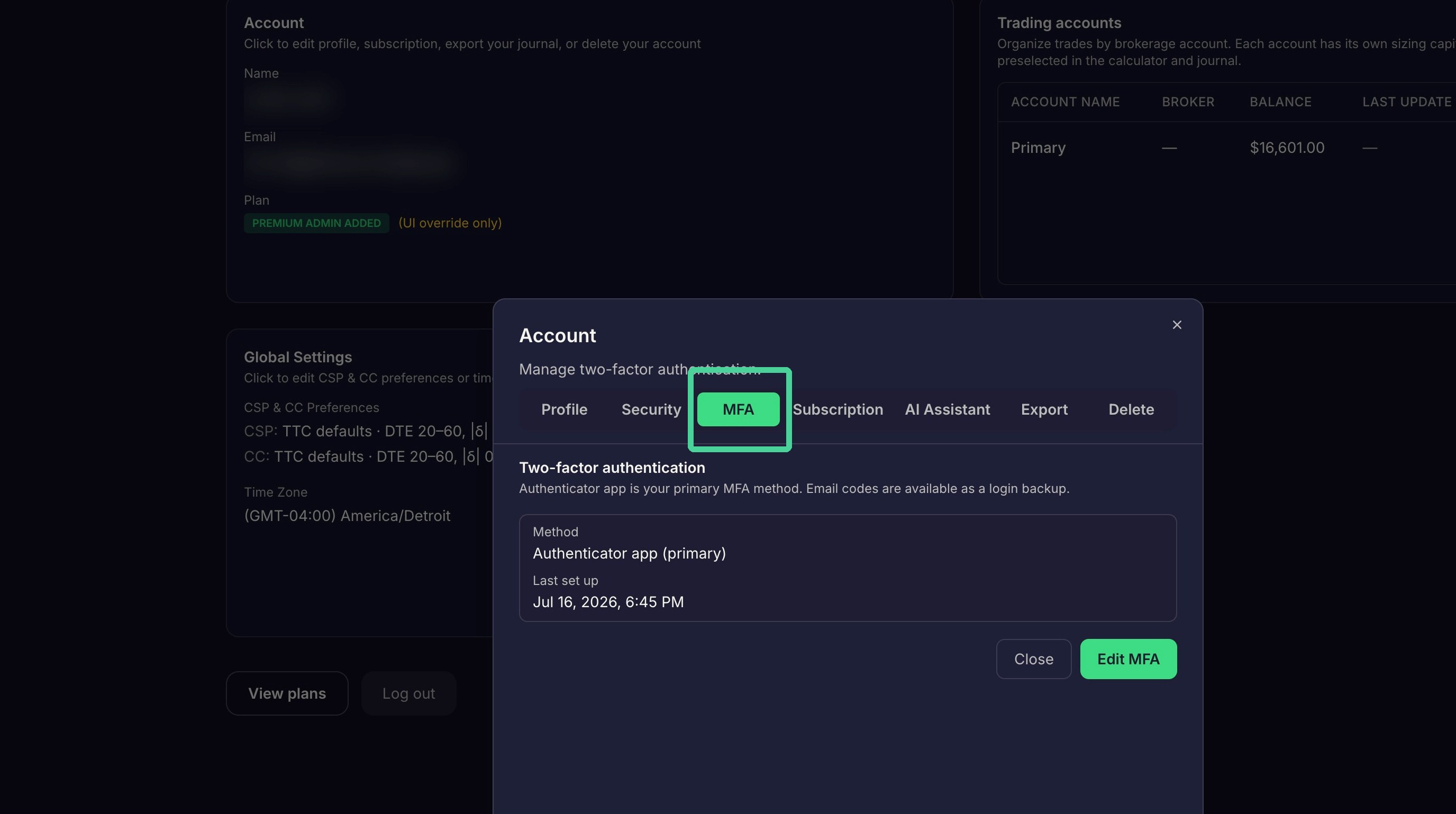
Click "Edit MFA" to modify your current MFA settings.
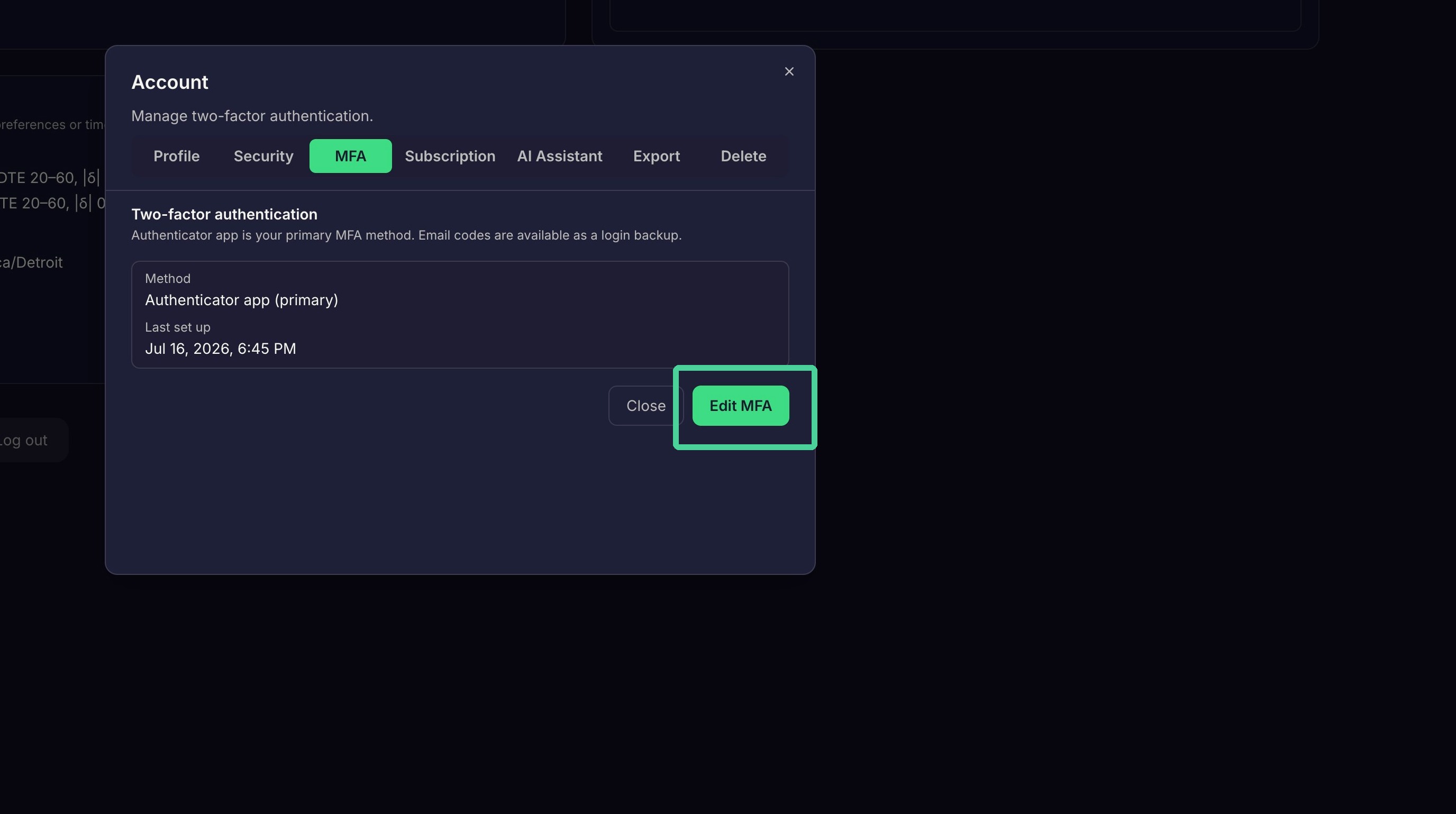
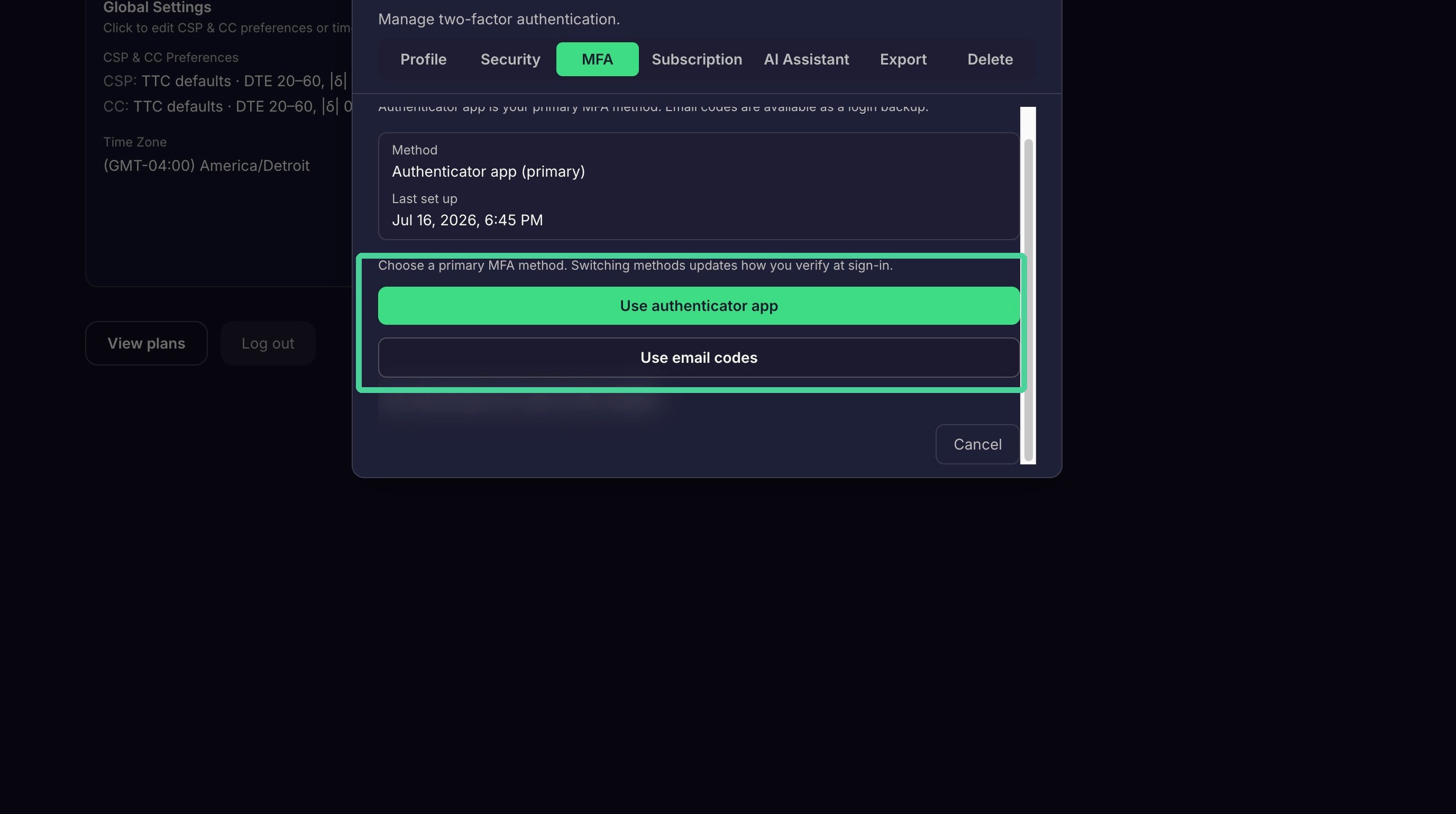
You can choose between using an authenticator app or having a code emailed to you.
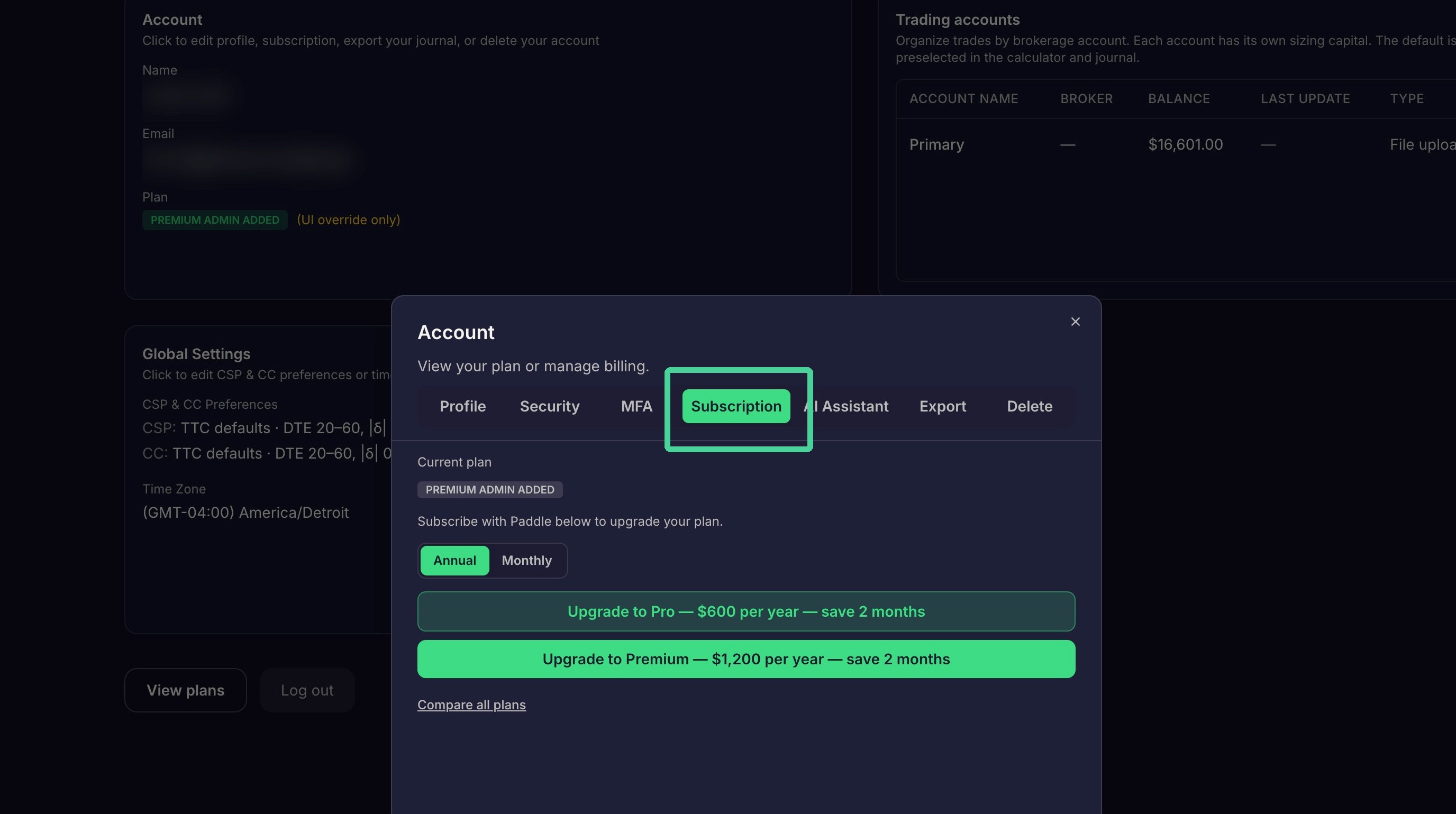
Use the subscription tab to upgrade or downgrade your subscription. You can also change between monthly and annual billing.
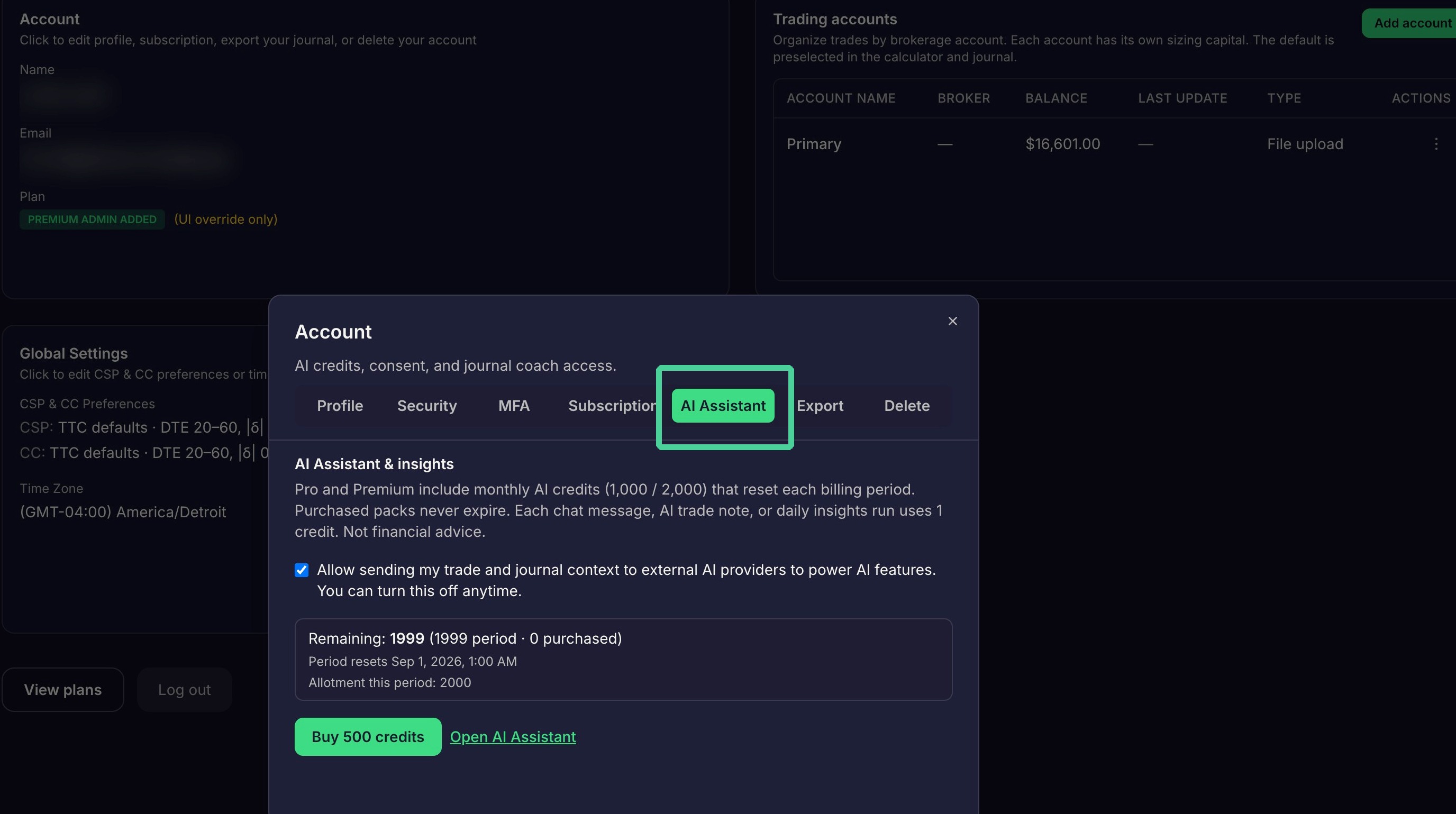
Use the AI Assistant tab to enable or disable AI features and purchase additional credits.
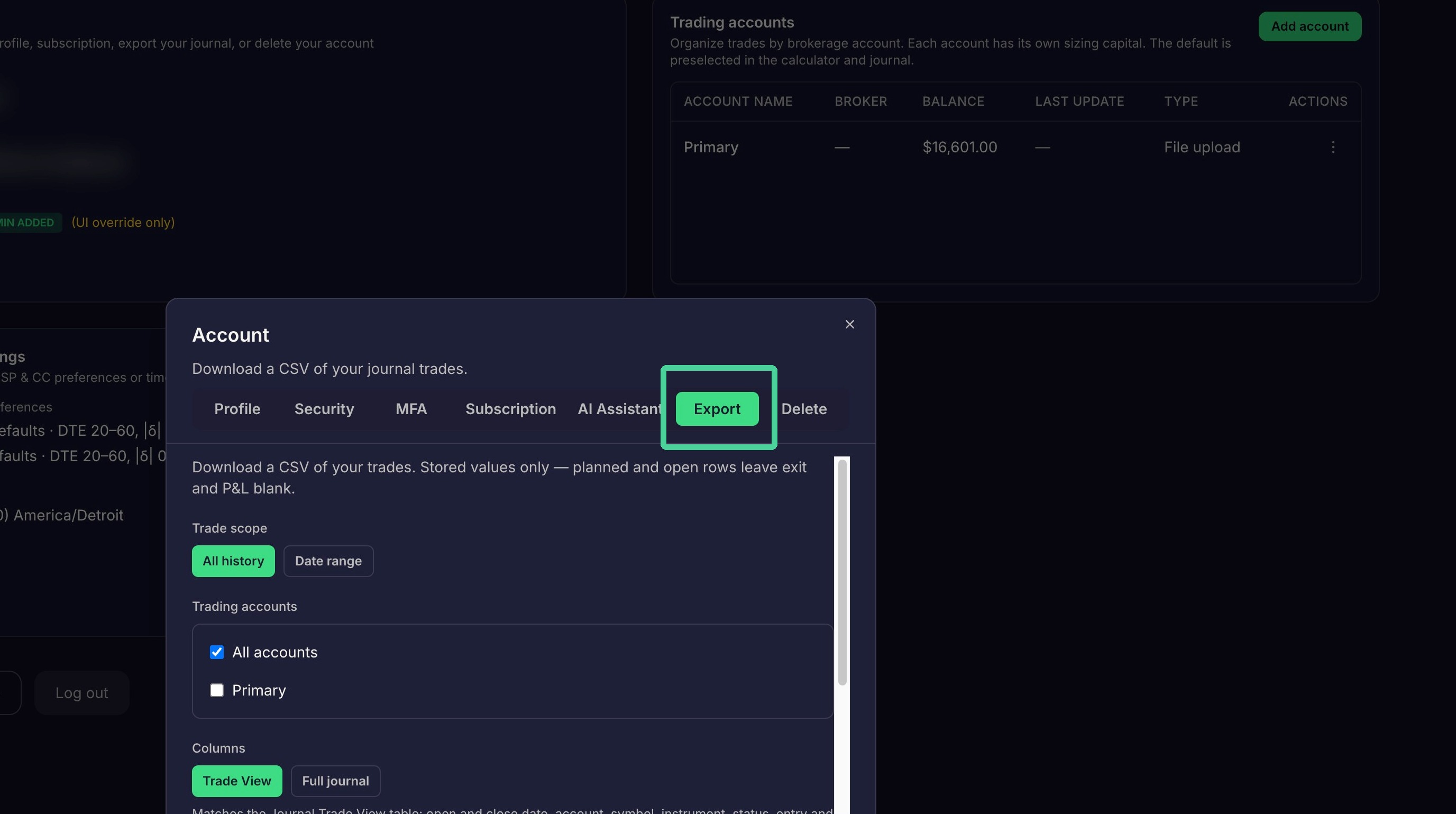
Use the Export tab to export all journal data to CSV.
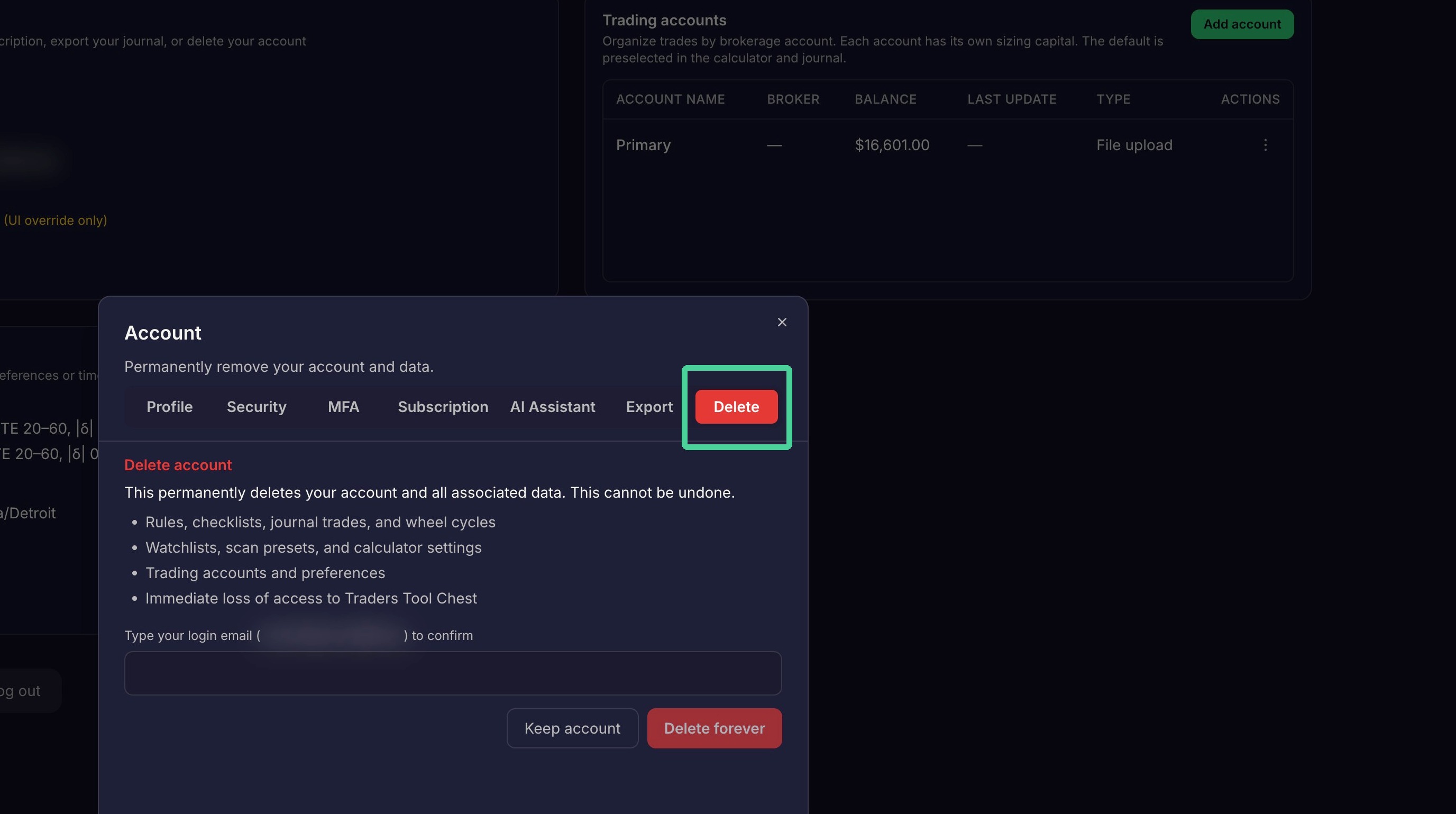
Use the Delete tab to delete your account including all data.
Trading Accounts
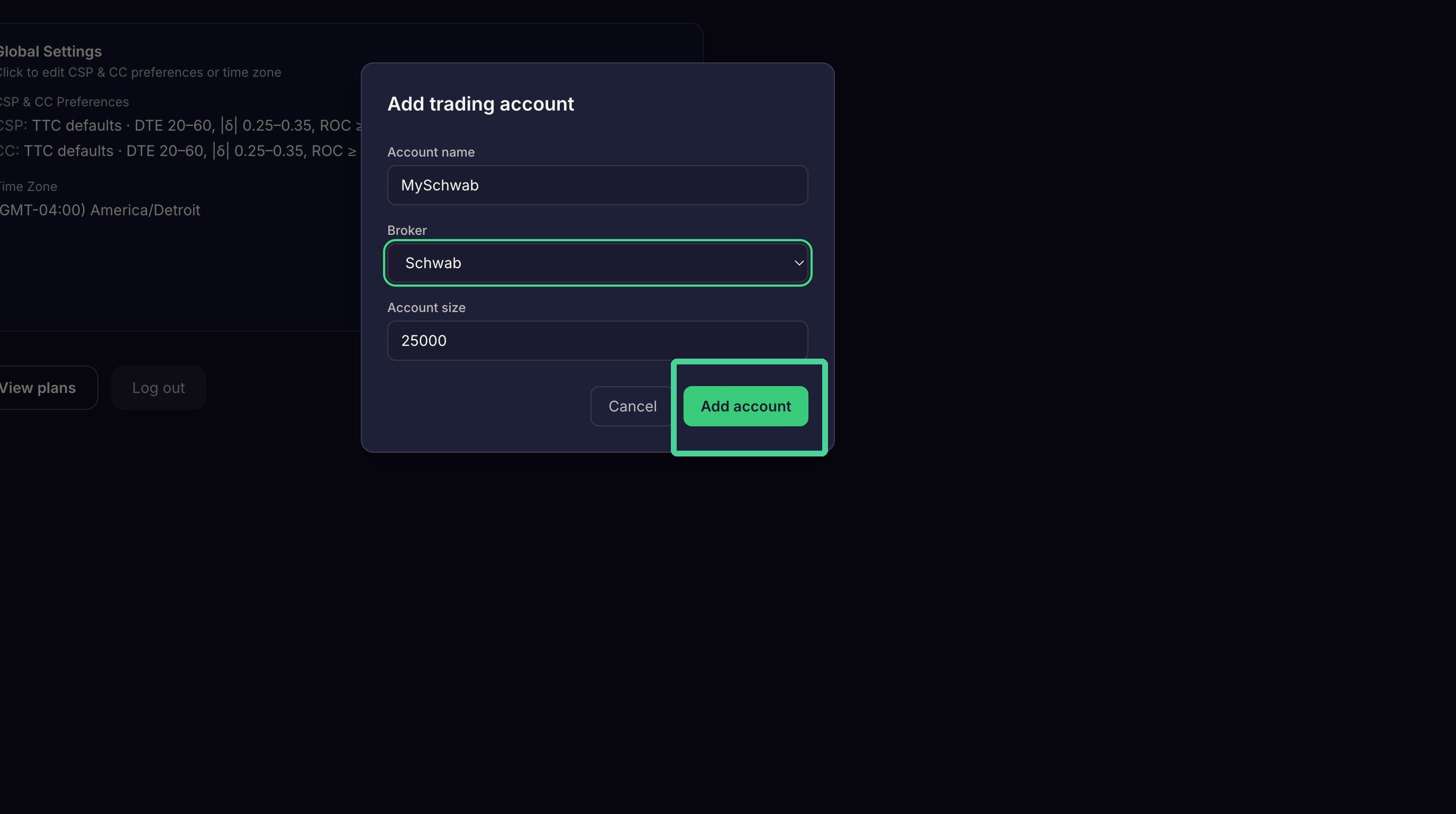
To add a Trading Account, click the 'Add Account' button in the trading account pane.
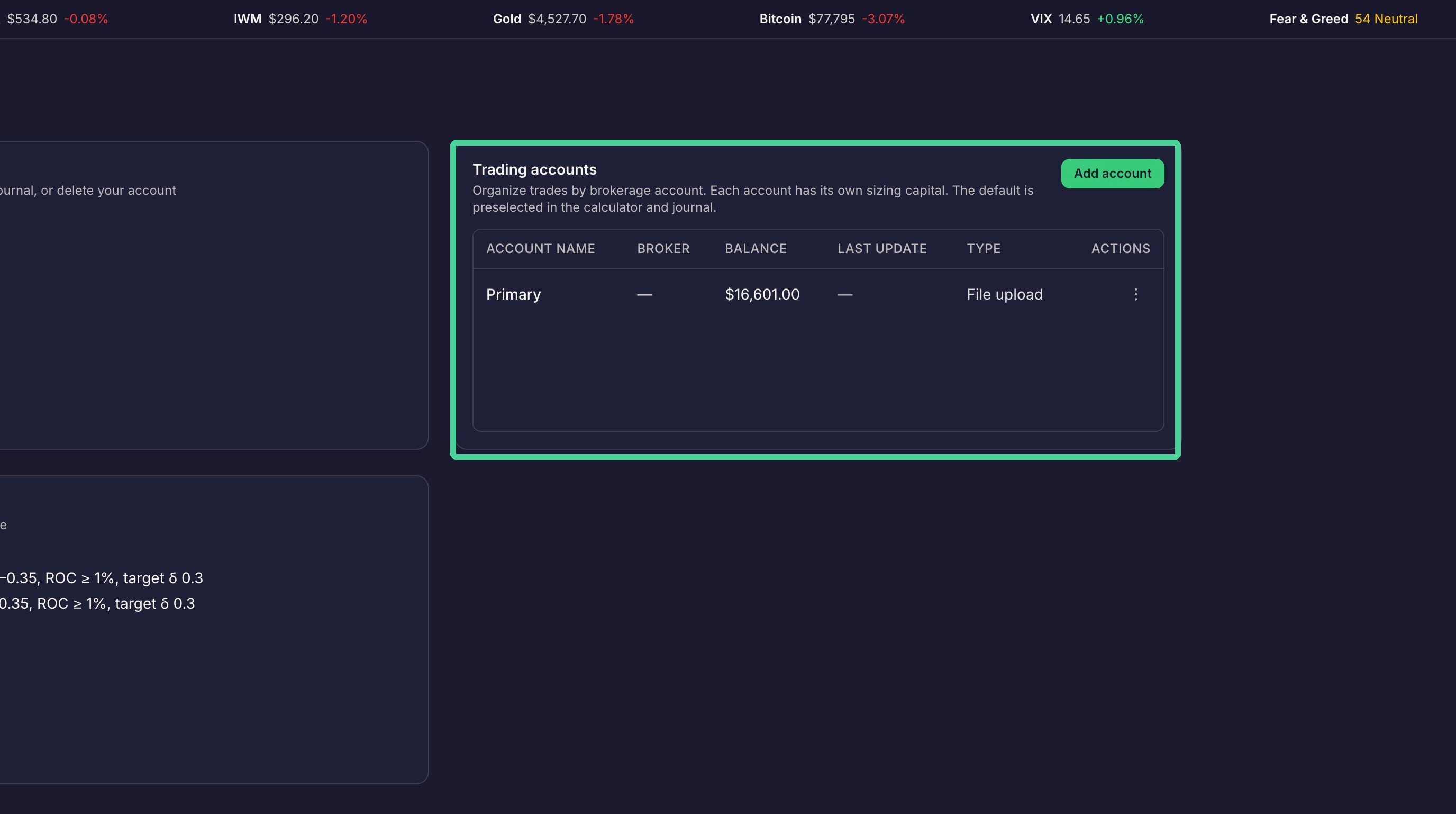
Enter a name for your trading account. This can be any name you want to use.
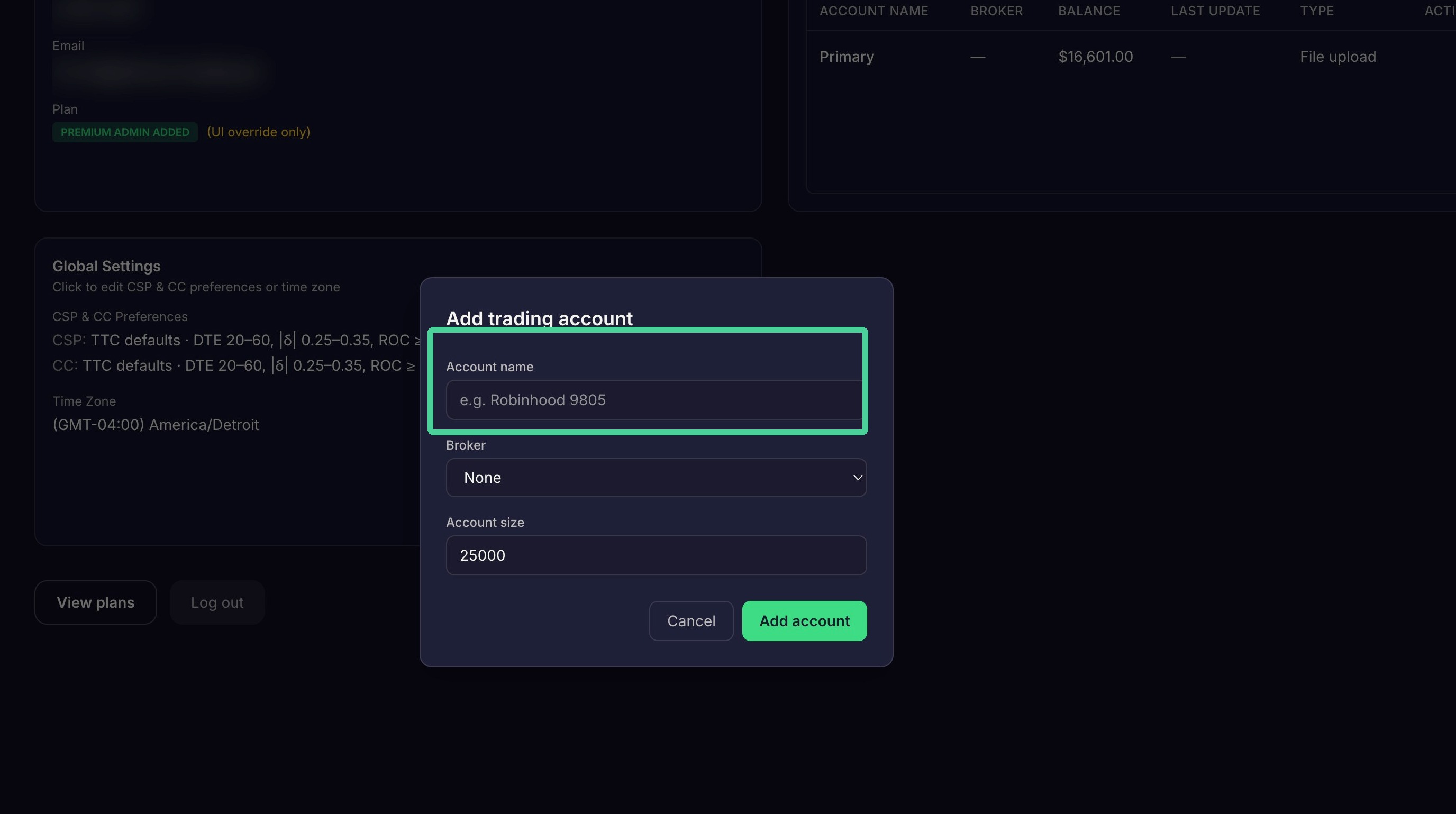
Use the Broker dropdown to select the broker for this account.
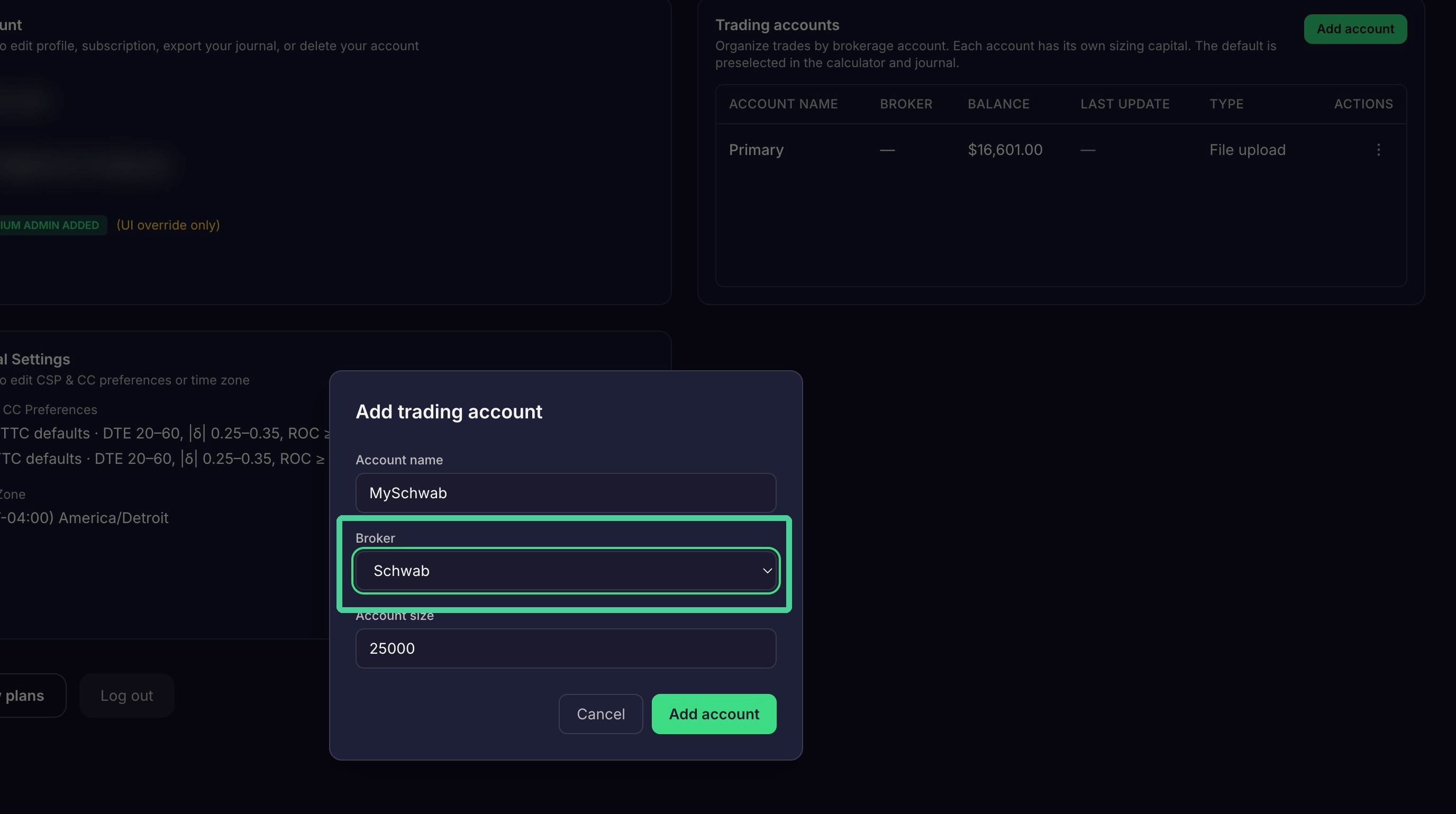
Set your account size.
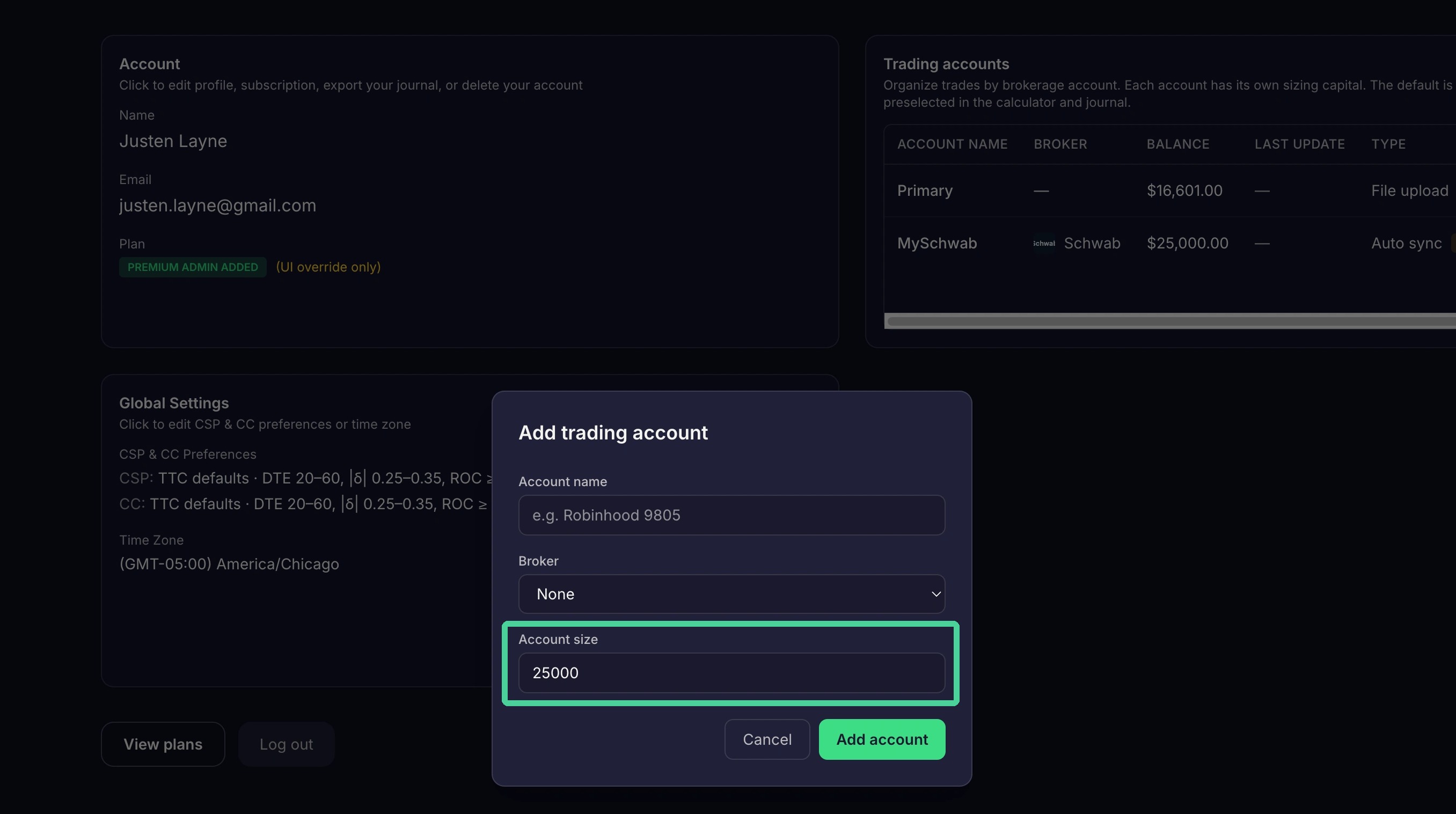
Click "Add account"
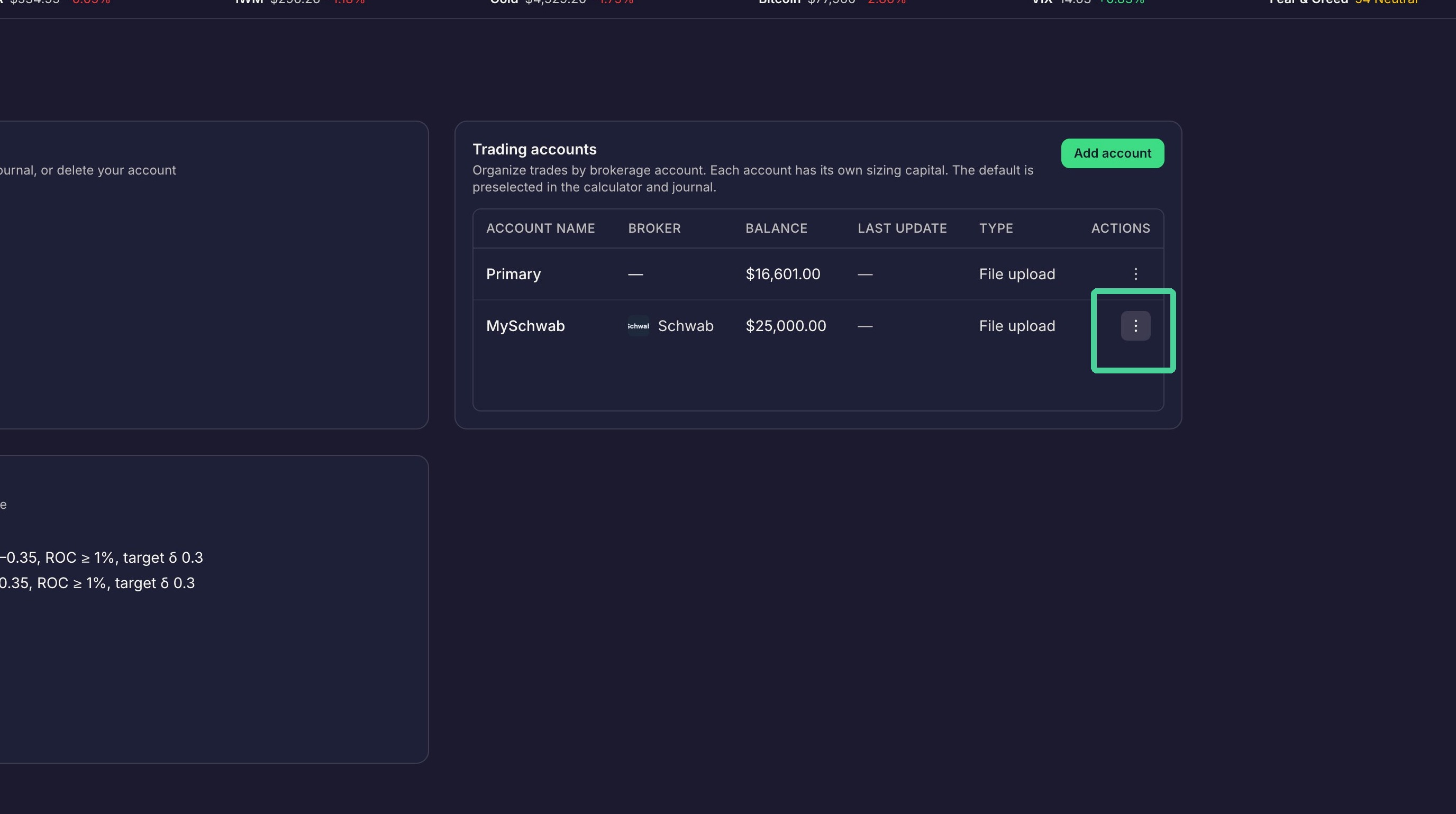
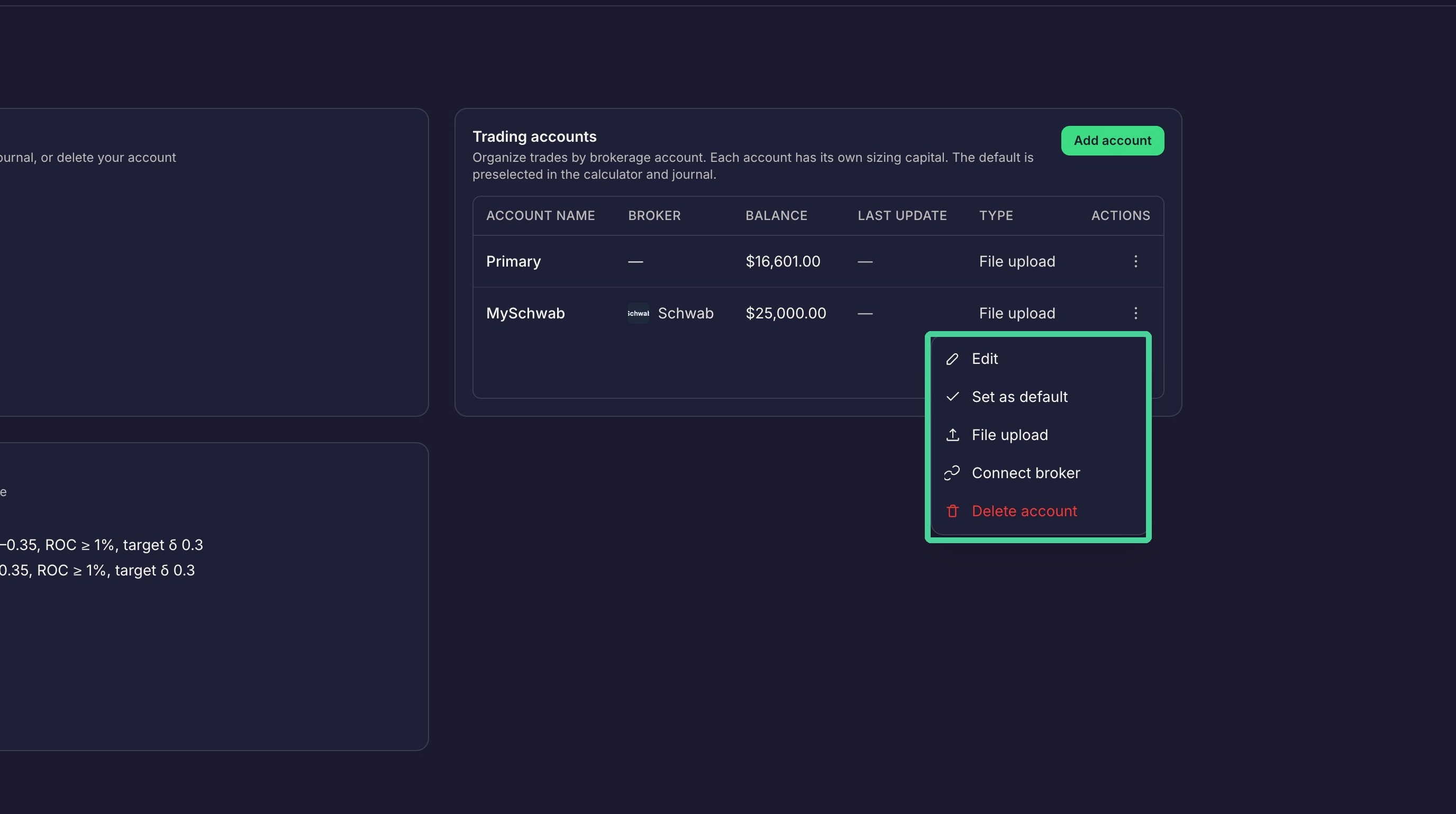
To edit the settings for a trading account, click the 3 vertical dots under Actions.
Here you can edit the accounts settings, upload trades via CSV, and have trades synced with your broker automatically.
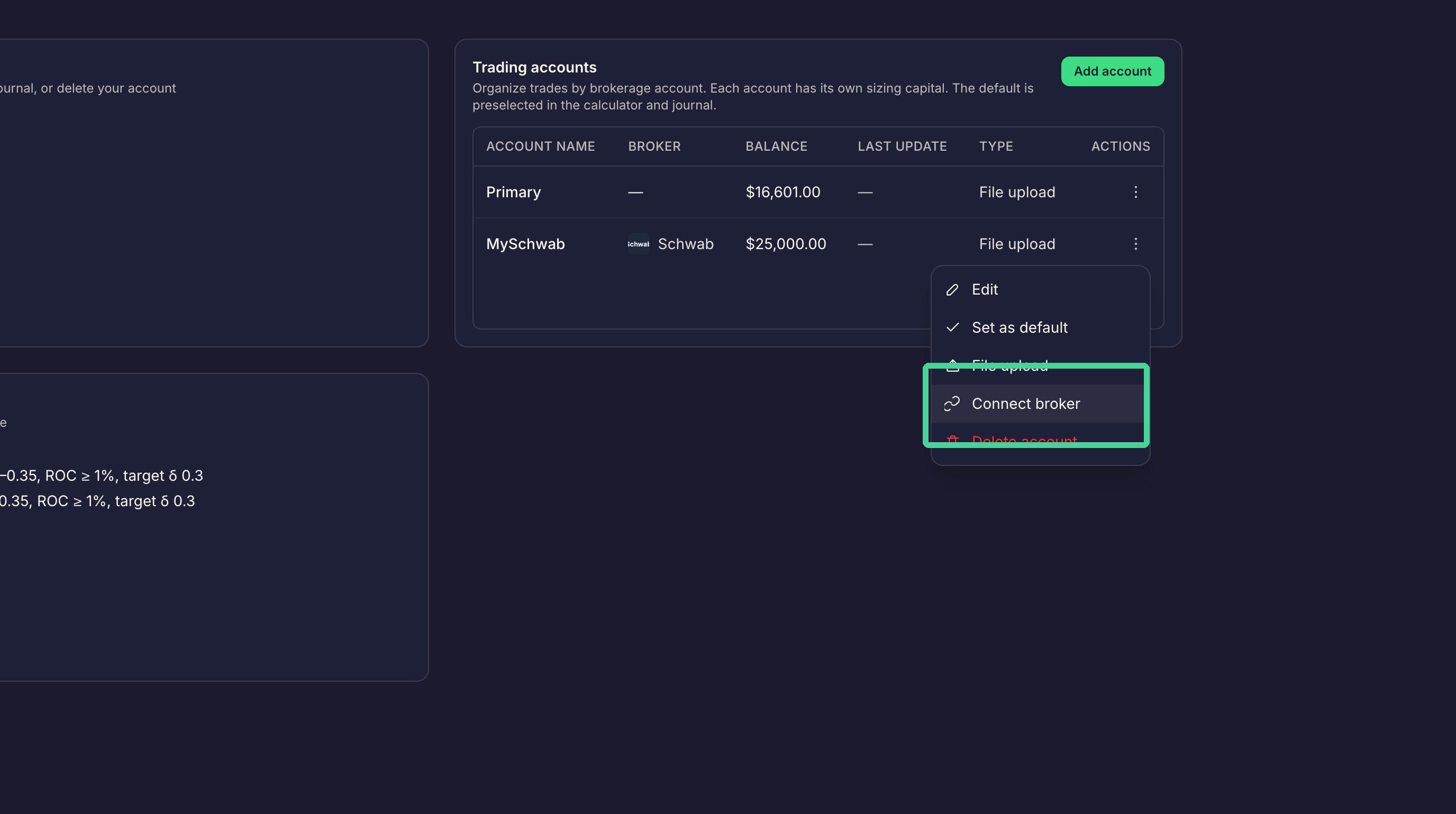
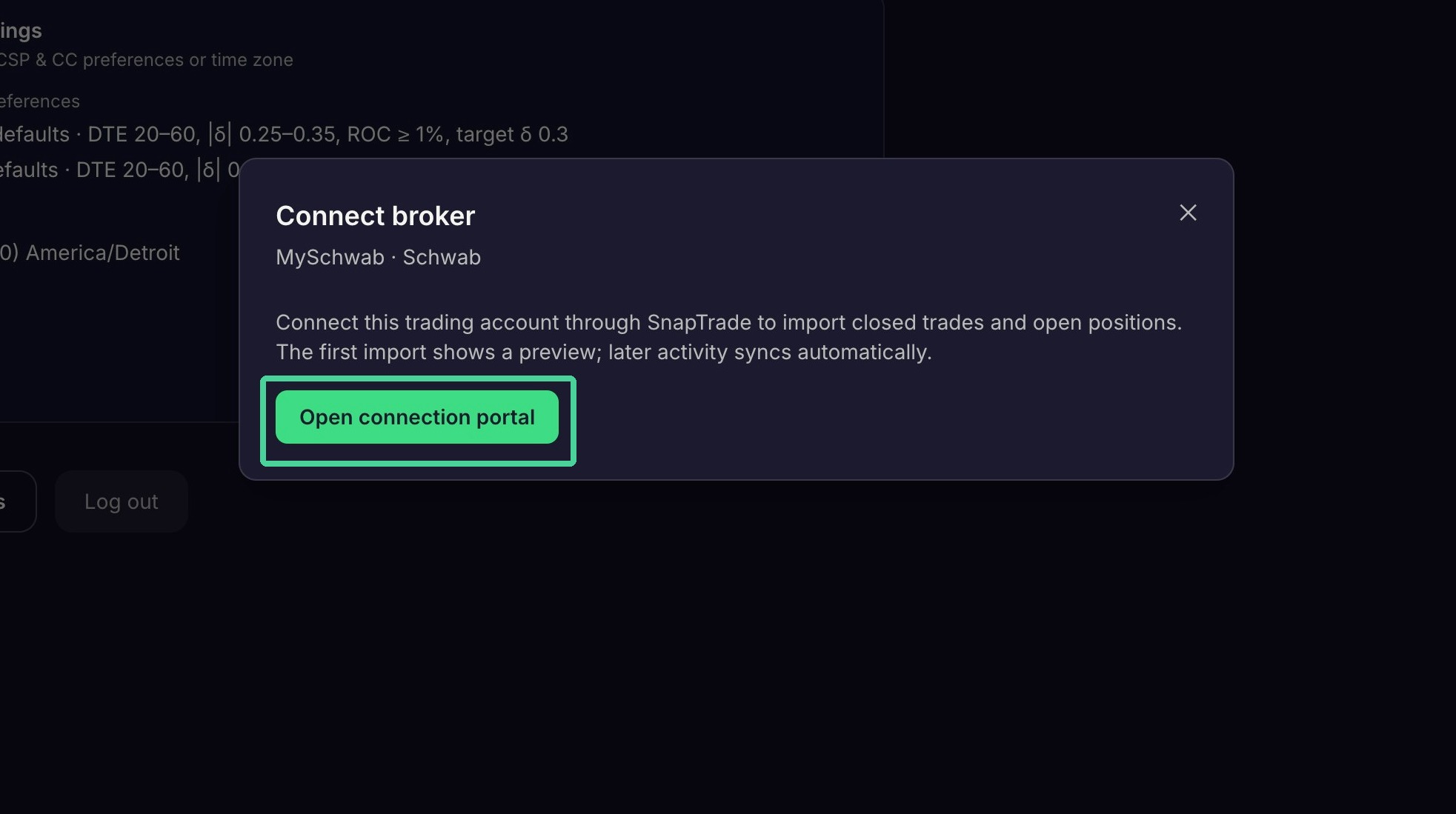
Click "Connect broker".
Click "Open connection portal".
Broker Connection
Traders Tool Chest Test uses SnapTrade to connect to some brokers.
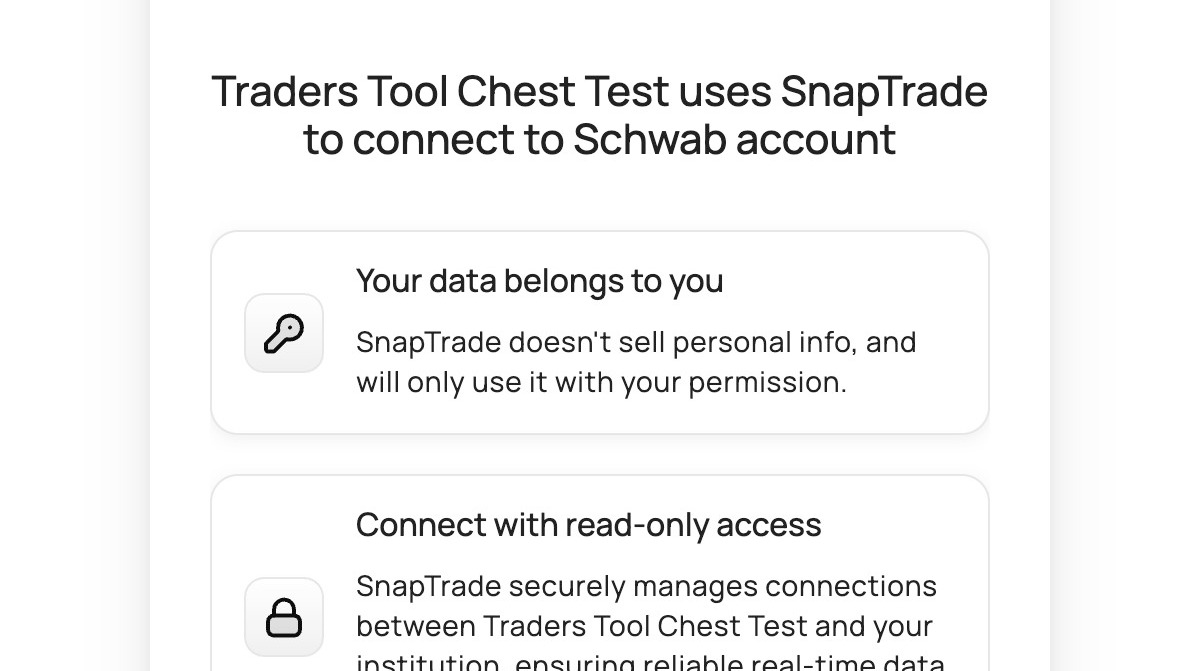
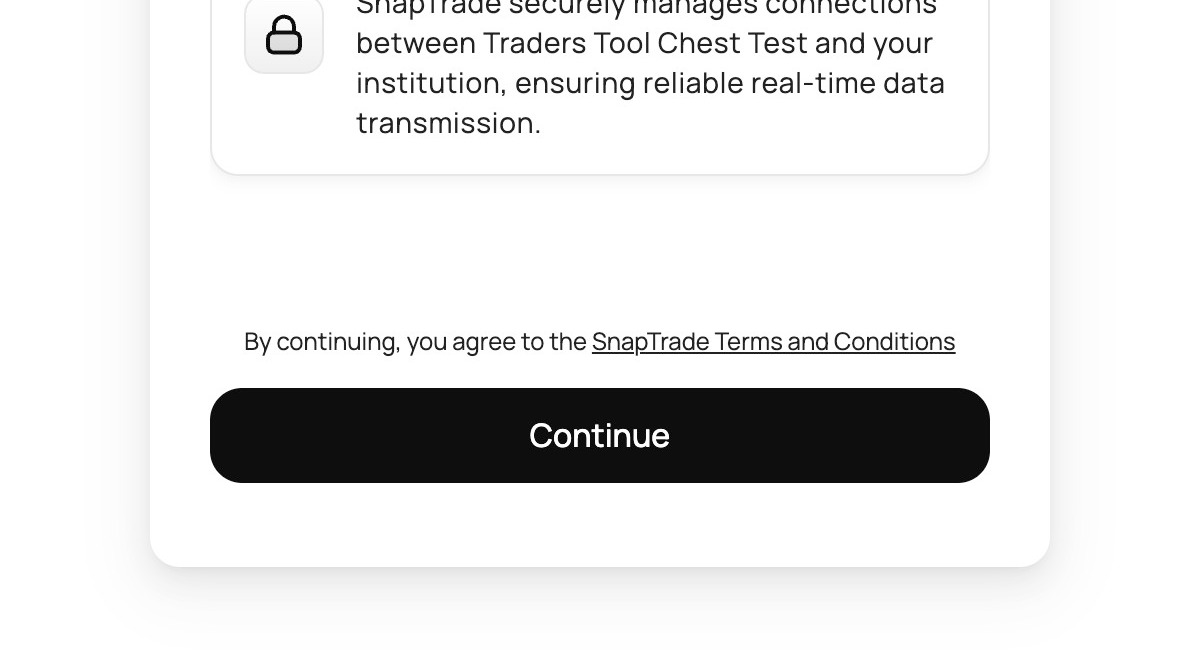
Click "Continue" if you agree to the Terms and Conditions.
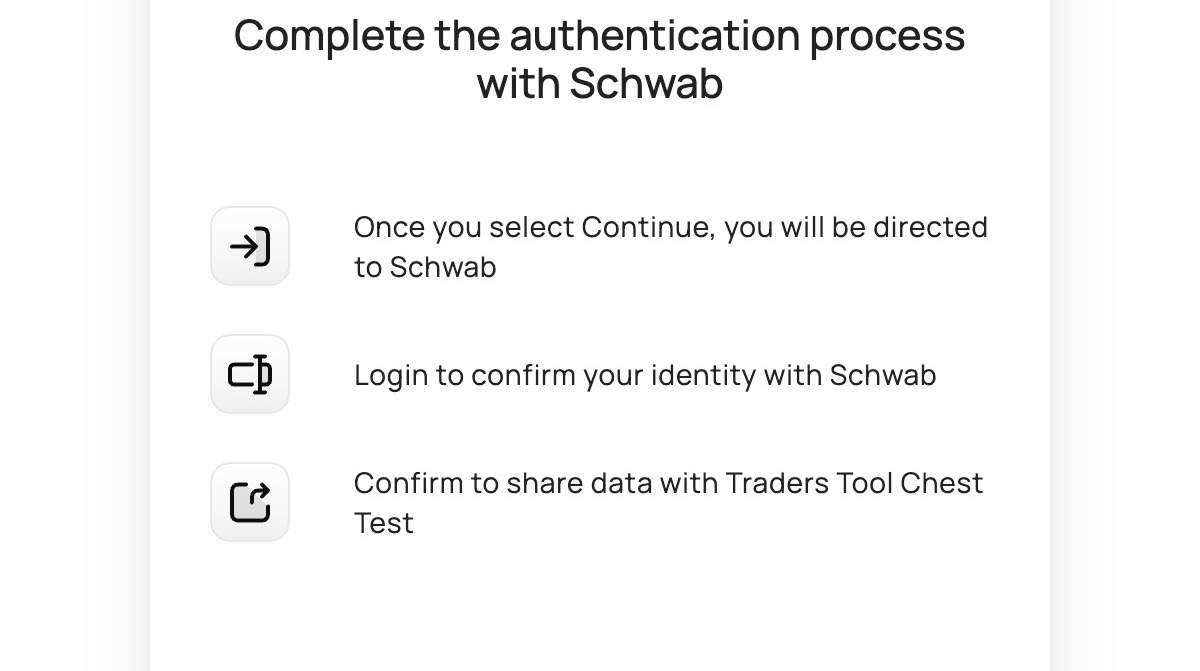
Click "Continue" to be redirected to your broker login page to enable trade synchronization with Traders Tool Chest.
Global Preferences
Click the Global Settings pane.
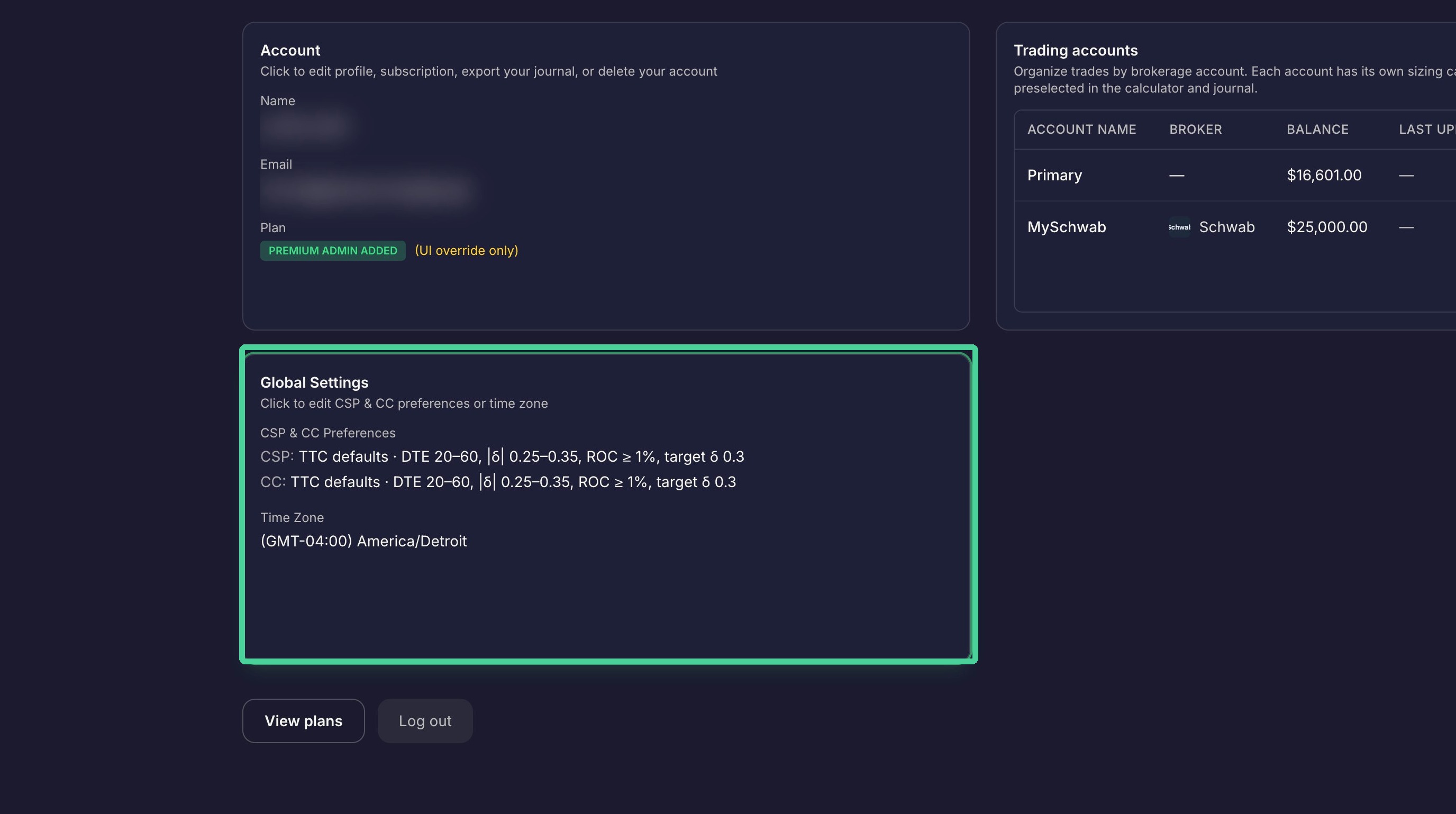
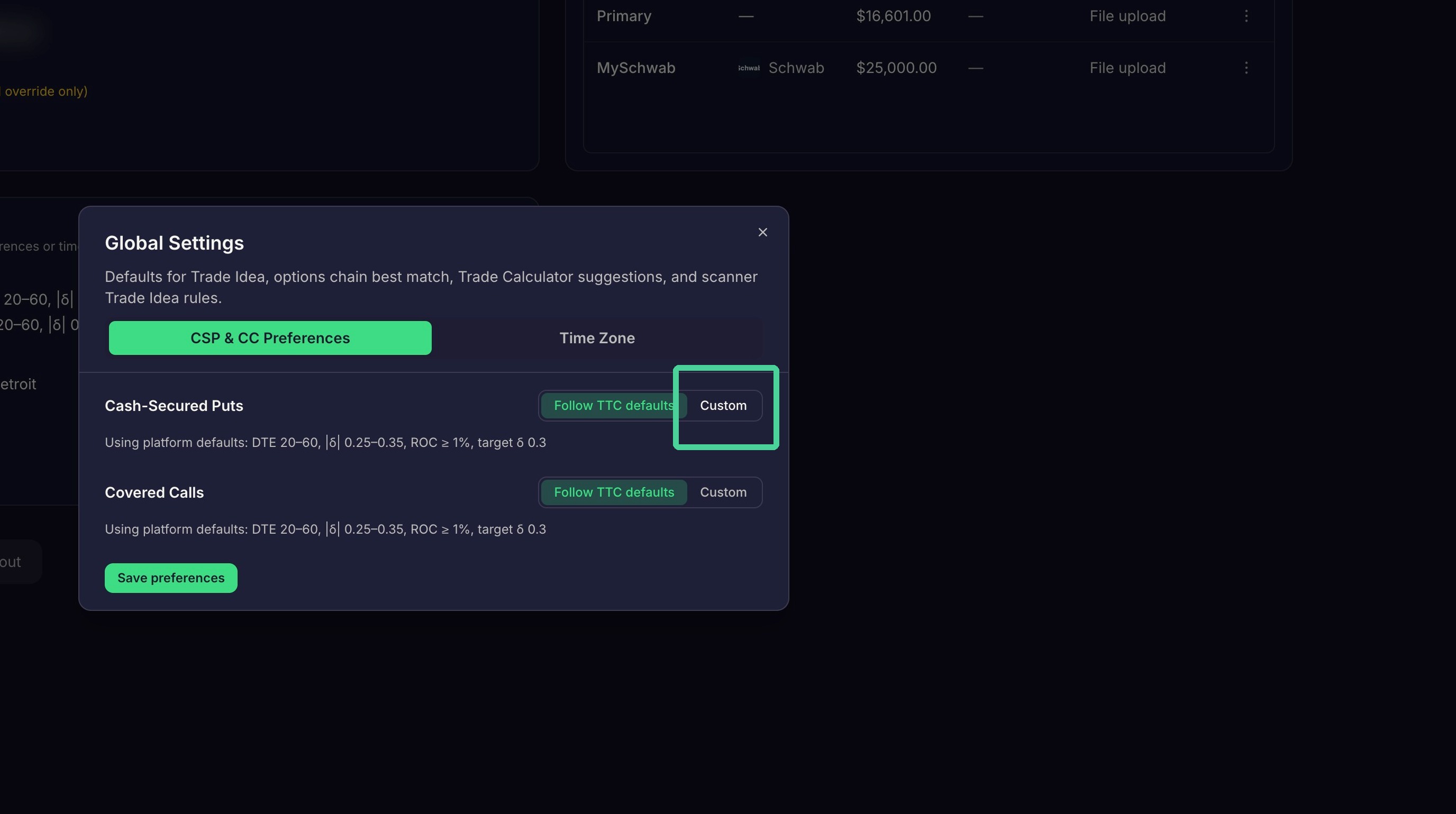
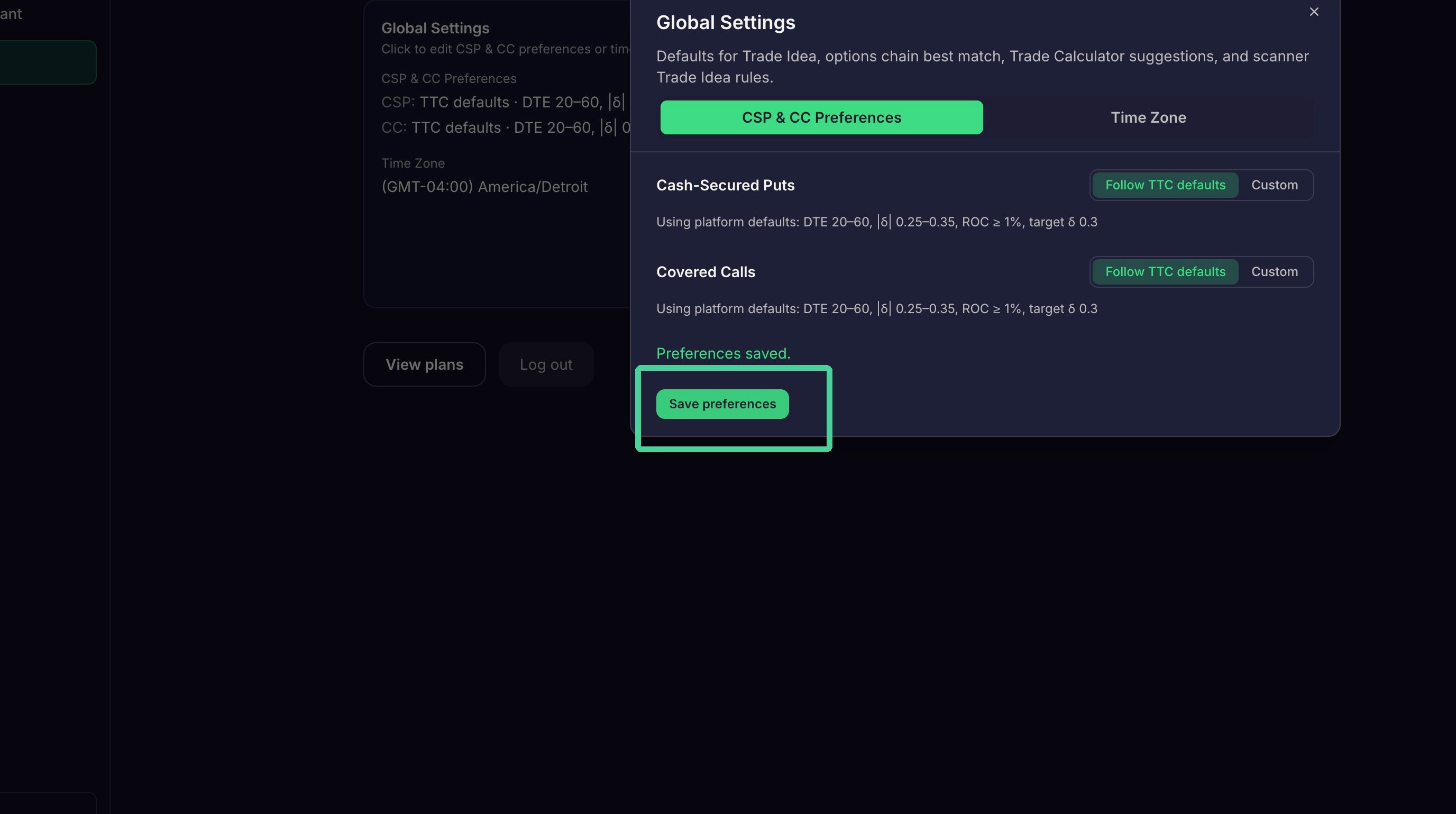
Use the 'CSP & CC Preferences' tab to change the default settings for Cash Secured Puts and Covered Calls. Click 'Custom' to change the settings.
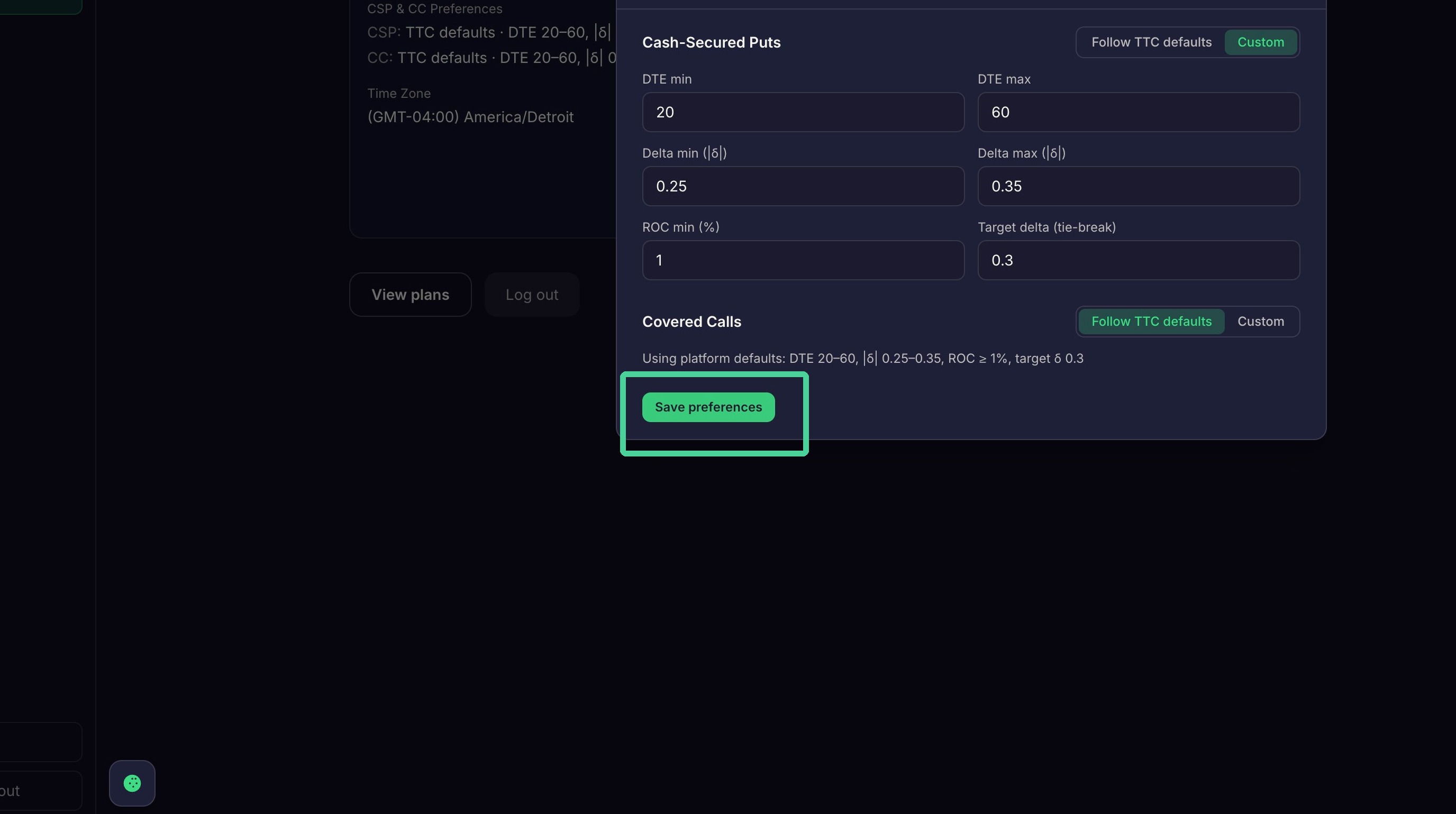
After you have made your changes click 'Save Preferences'.
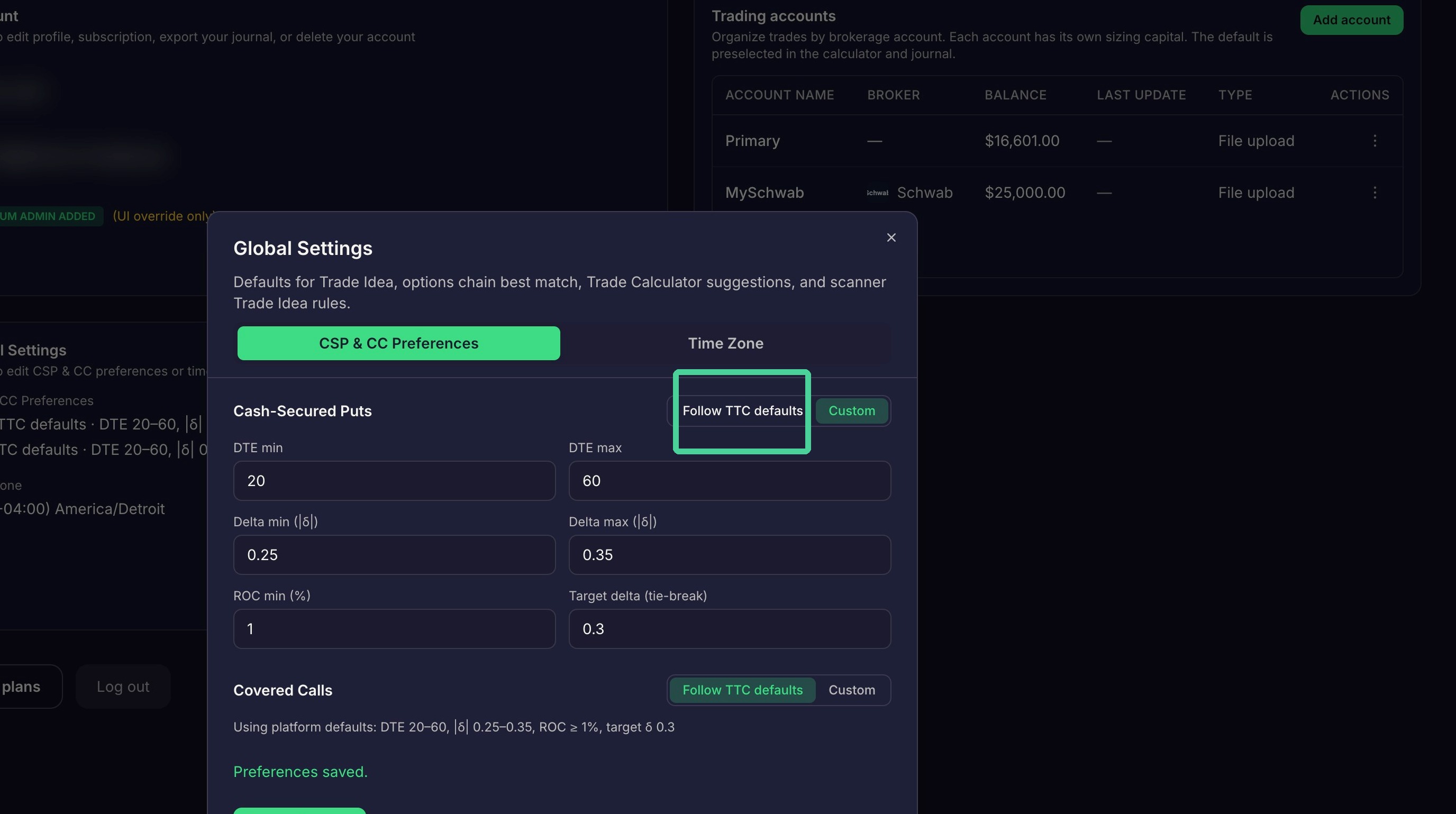
Click "Follow TTC defaults" if you want to revert your changes to the default settings.
Click "Save preferences"
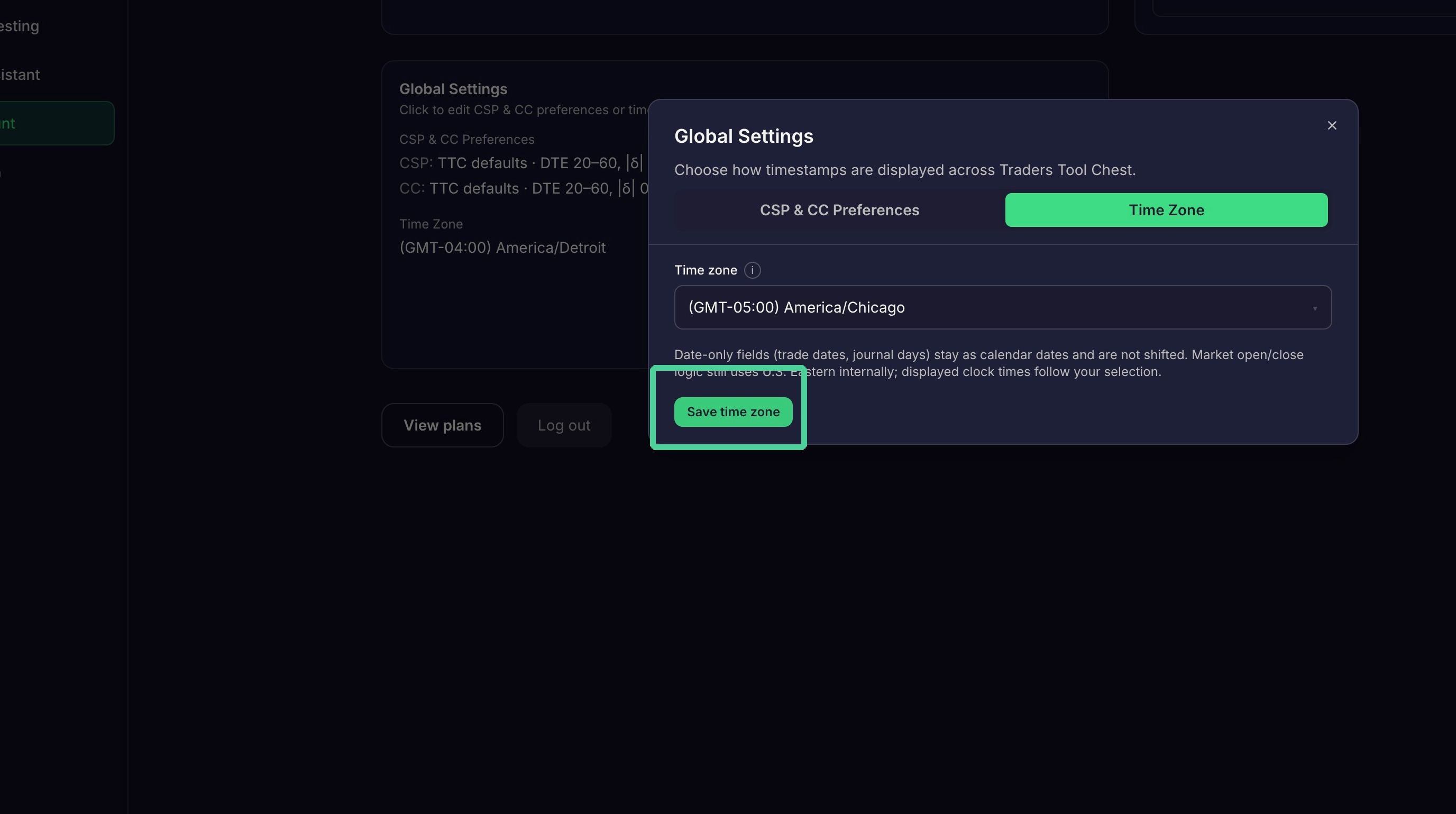
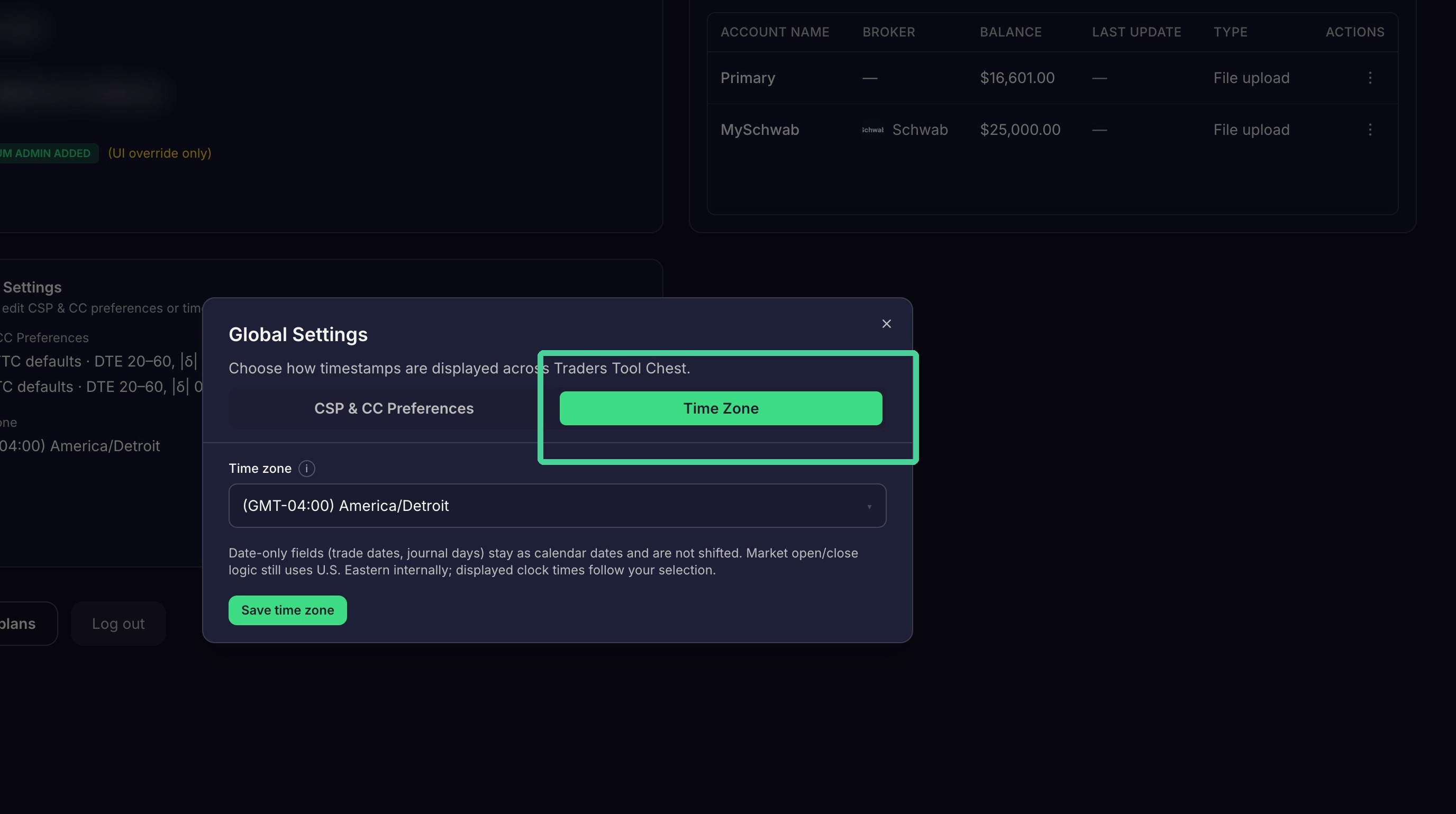
Use the Time Zone tab to set your Time Zone.
Select your preferred time zone from the dropdown.
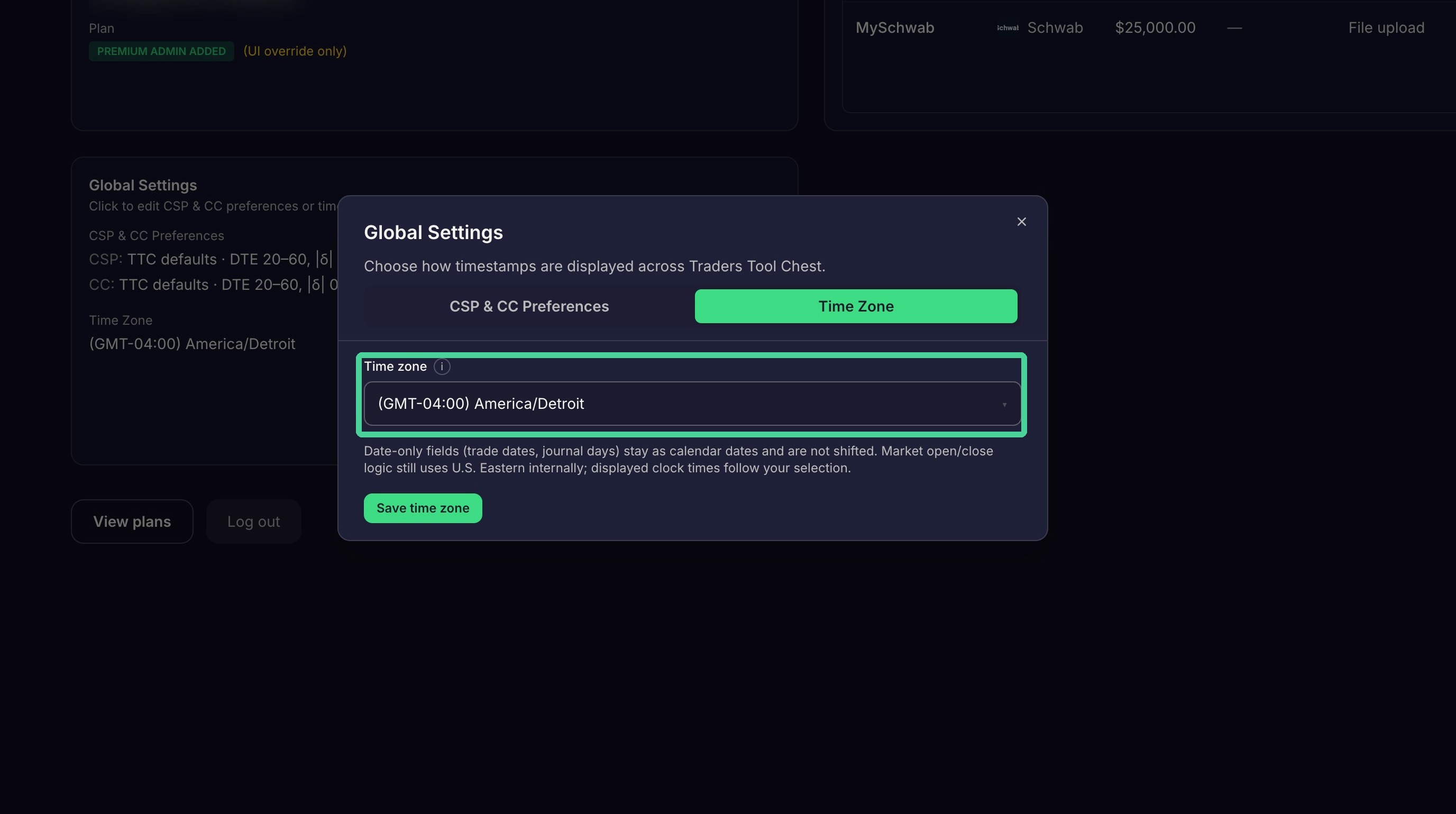
Click "Save time zone" to save the settings.