How to Configure Automated Backtesting
Backtesting
How to Configure Automated Backtesting
Learn how to set up and run automated backtesting strategies using the Traders Toolchest dashboard. This guide walks you through selecting trading parameters, defining risk management settings, and executing your backtest to evaluate performance.
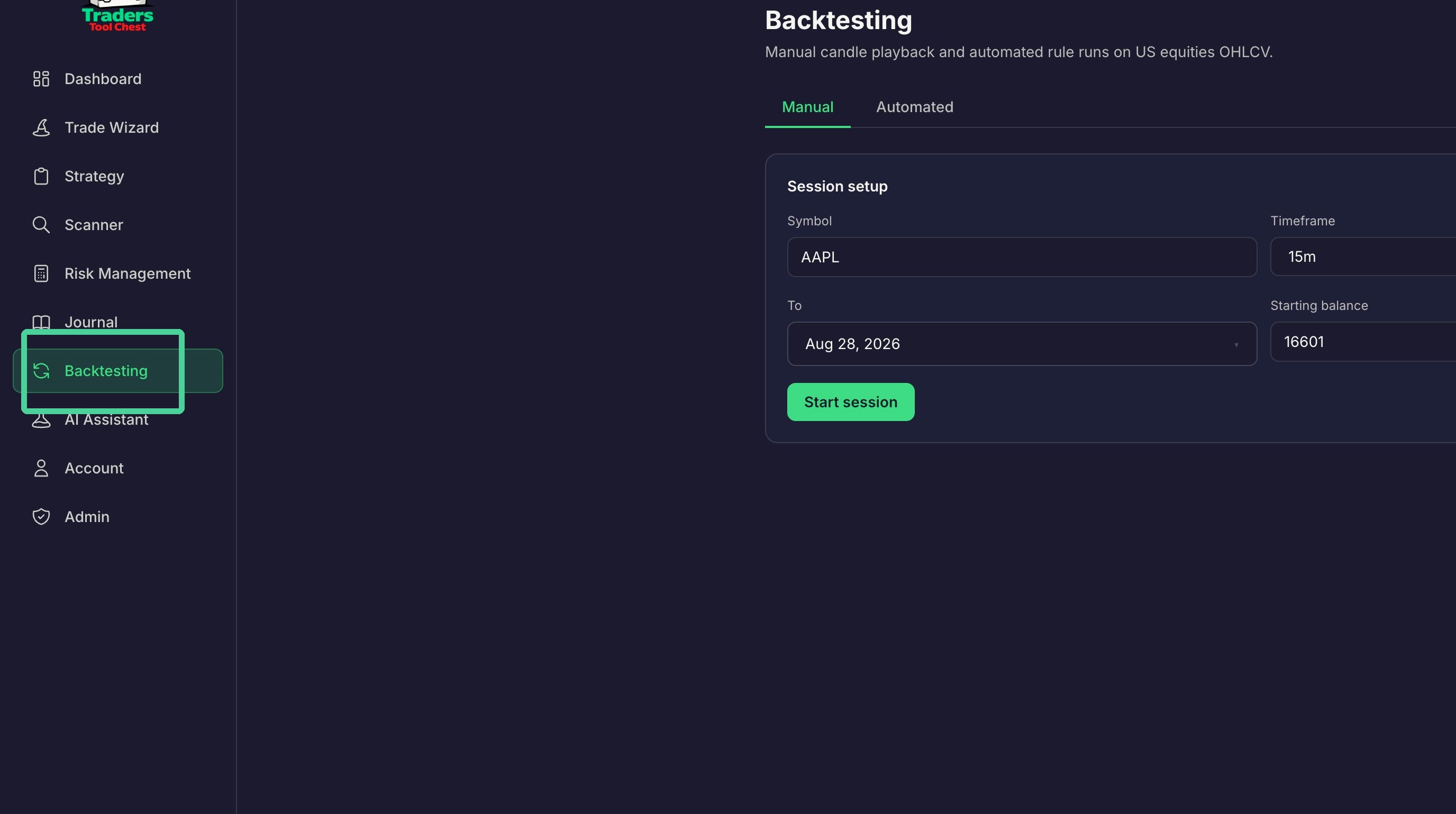
Click "Backtesting"
Backtest Configuration
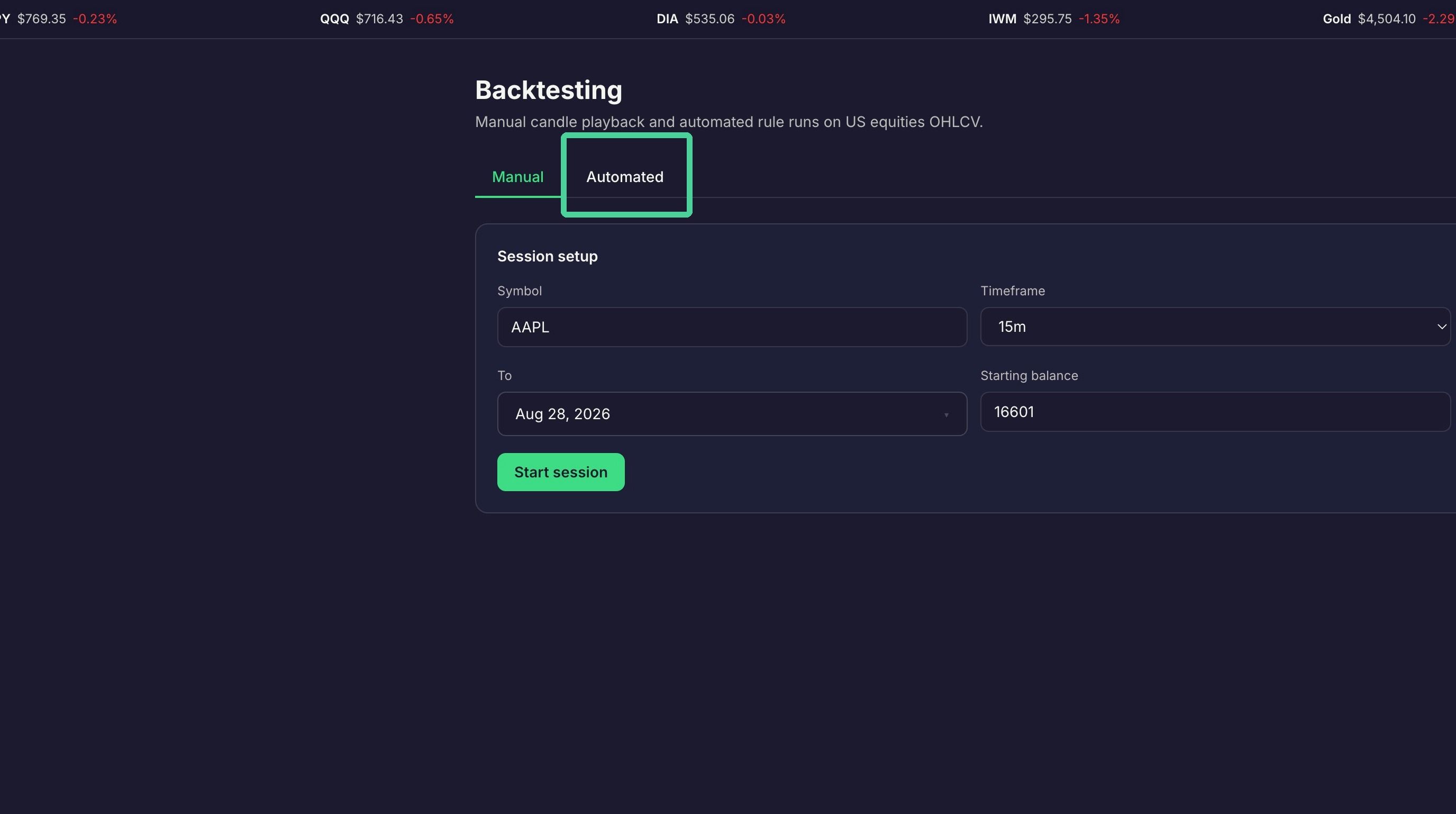
Click "Automated"
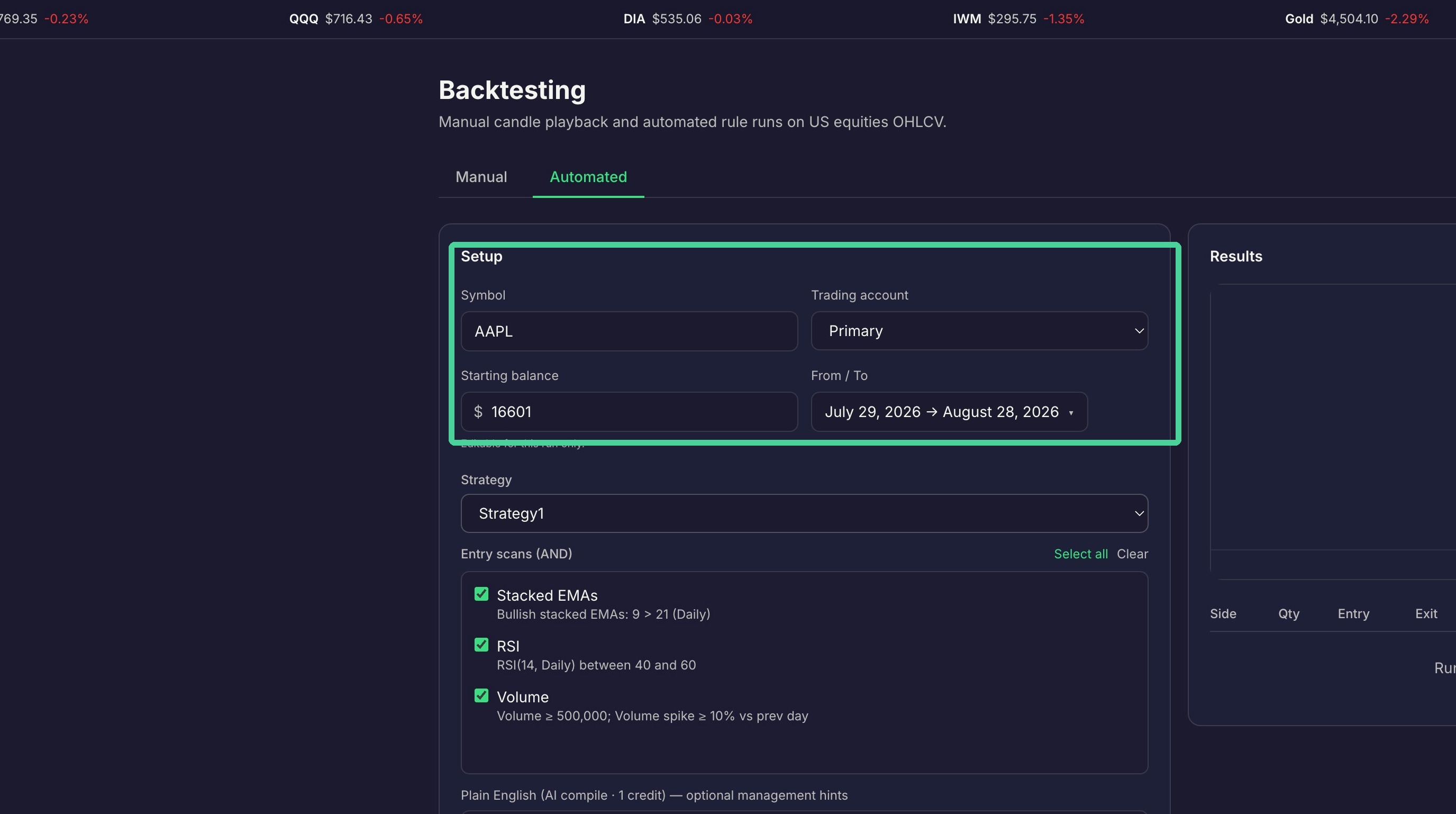
Enter the stock symbol you want to backtest, the trading account used to autofill the starting balance, and the date range you to run the backtest against. The starting balance can also be manually entered.
Here you can select the trading strategy you want to backtest. This will determine the rules that must be met in order for an entry to be taken. You have the option to uncheck specific rules in the strategy if desired.
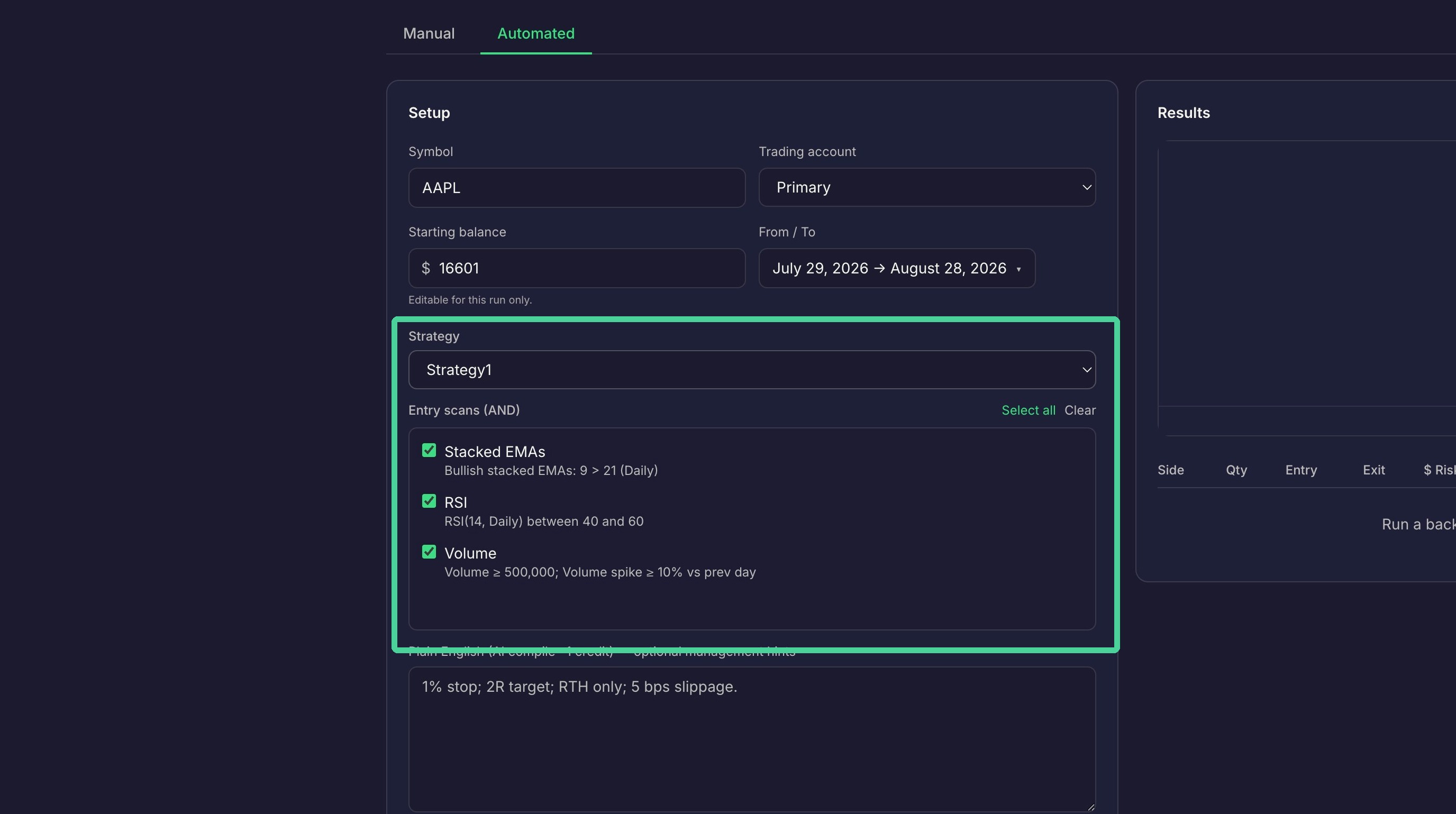
If you have AI enabled, you can enter your backtest setting using plain english.
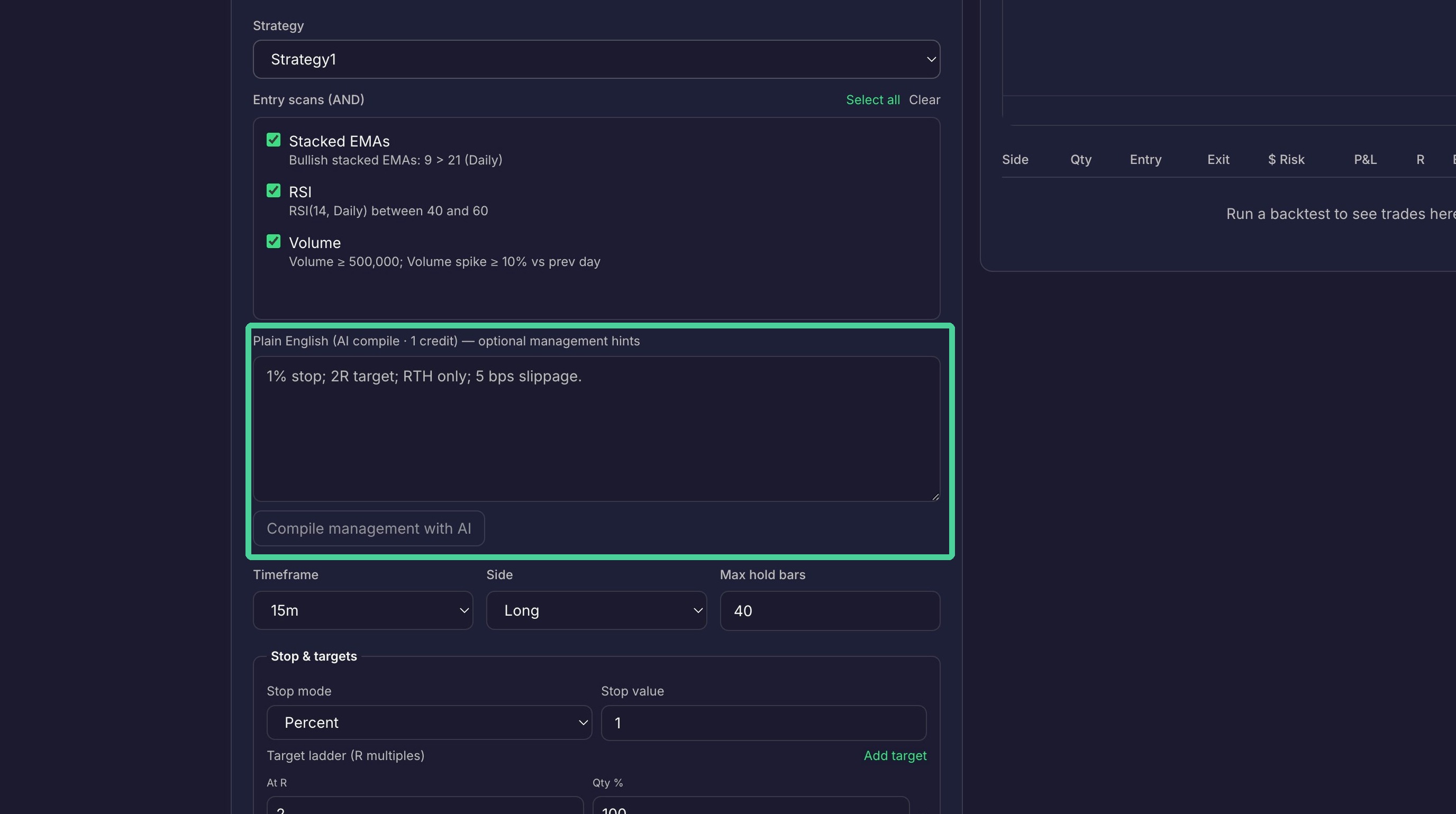
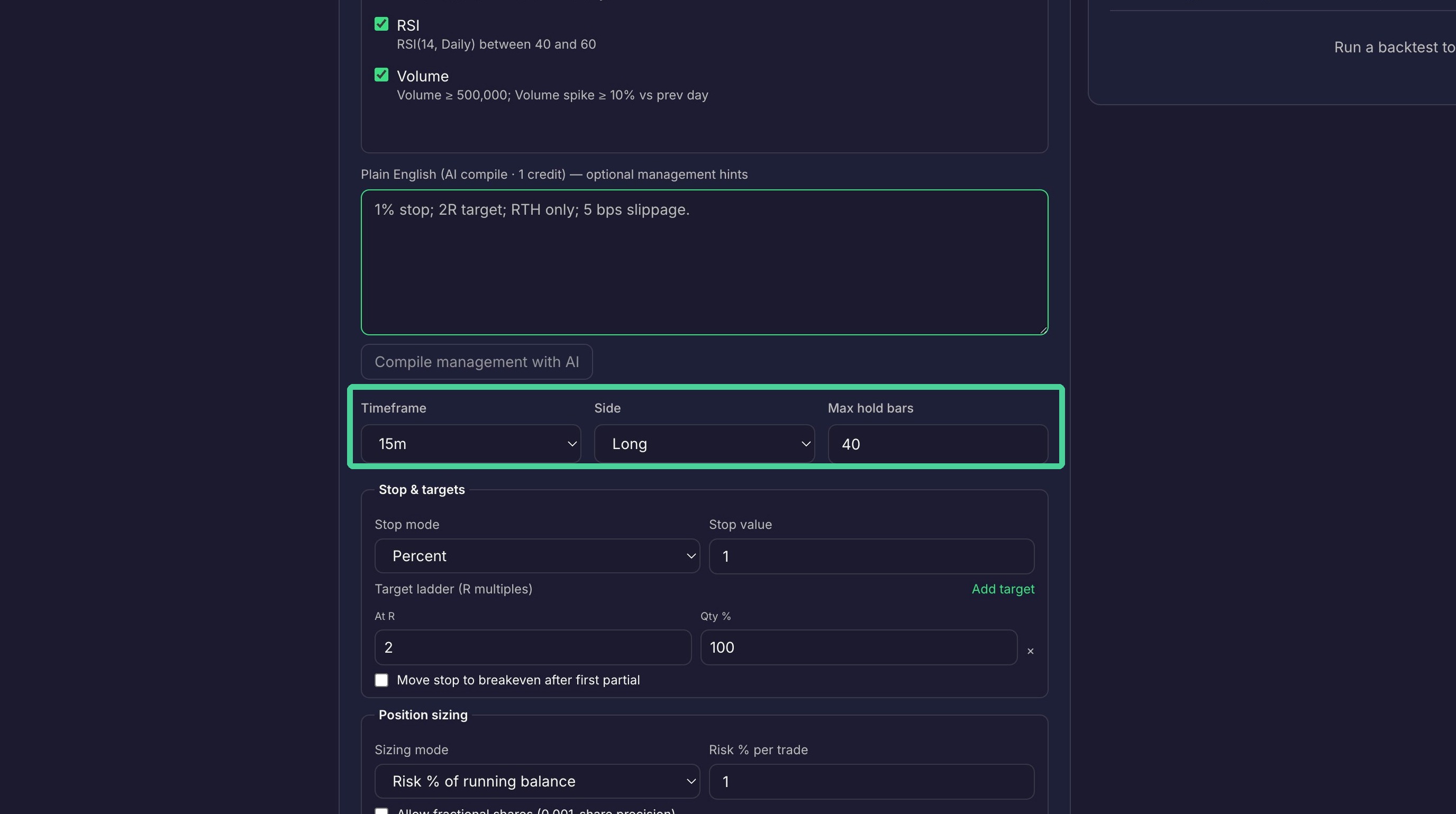
Select a timeframe, maximum number of bars to hold the trade and whether you are long or short.
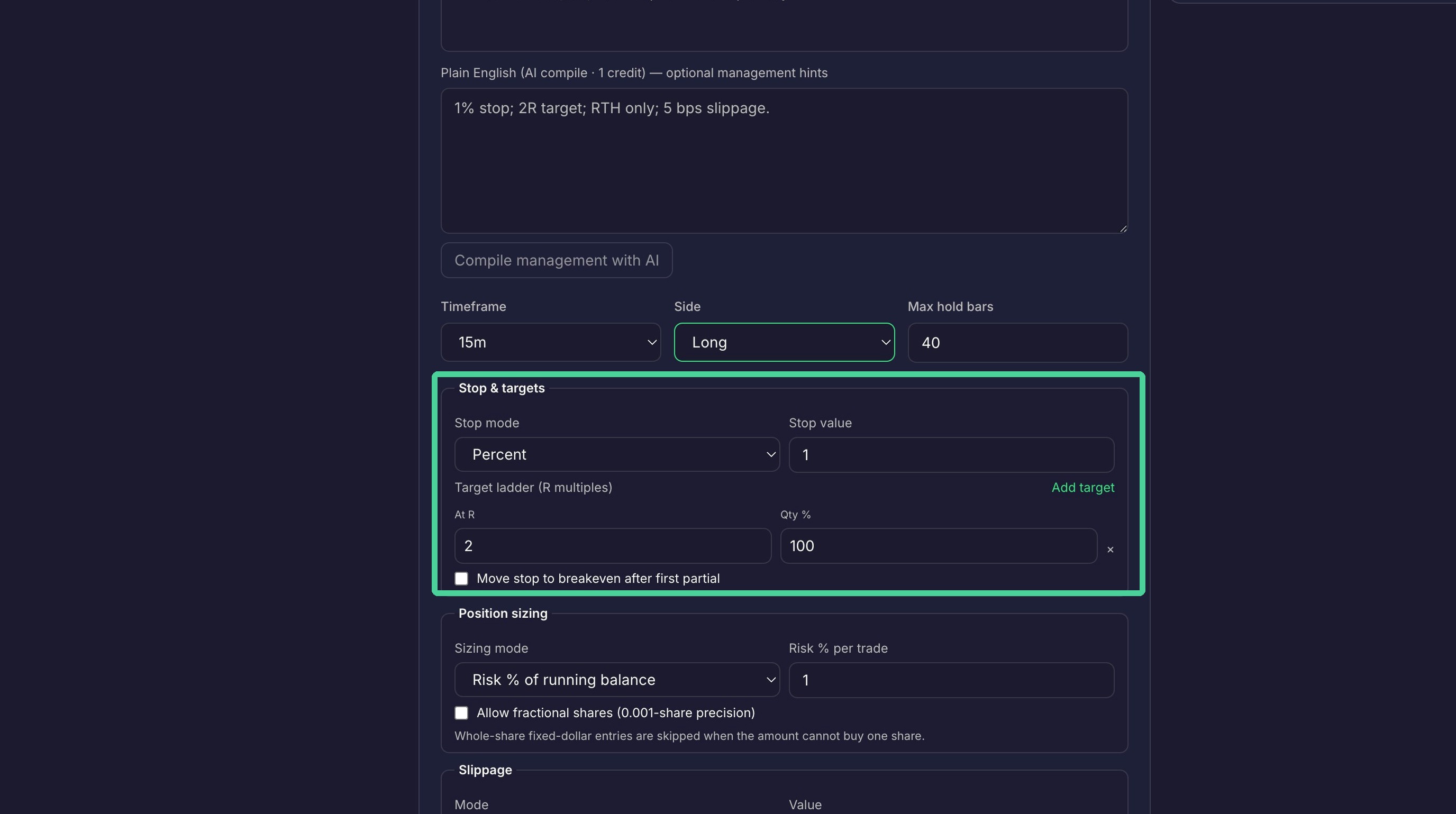
Here you can set your stop loss as a percent, a fixed price distance, or ATR multiple. This is where you would also set your price targets as a multiple of risk. Additional targets can be added if desired. When a price target is reached, the quantity specified is sold. The checkbox allows you to move the stop loss to breakeven once the first target has been reached.
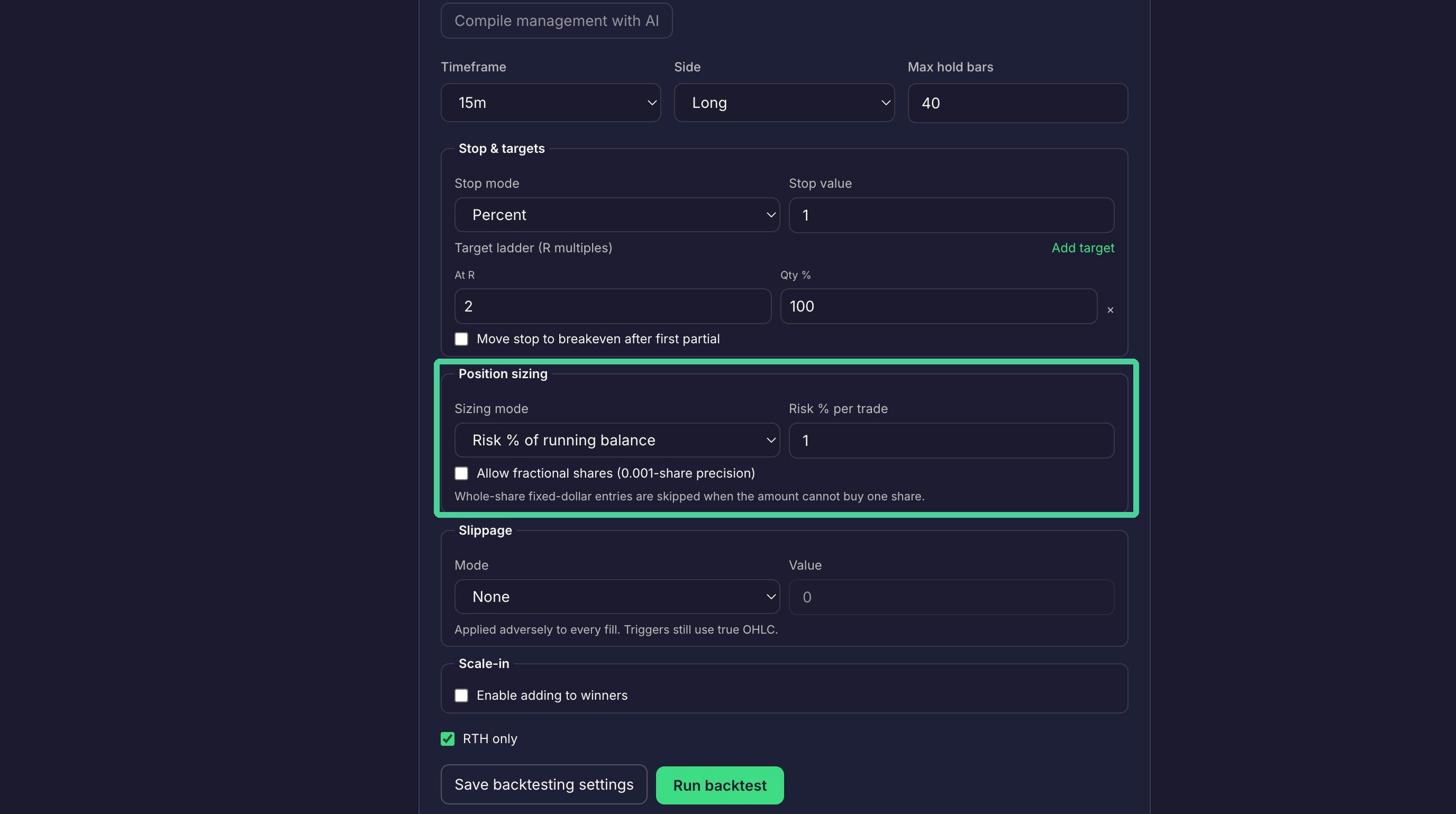
This section determines the size of your position as a percentage of your running balance or as a fixed dollar amount. The checkbox determines if purchasing fractional shares is allowed.
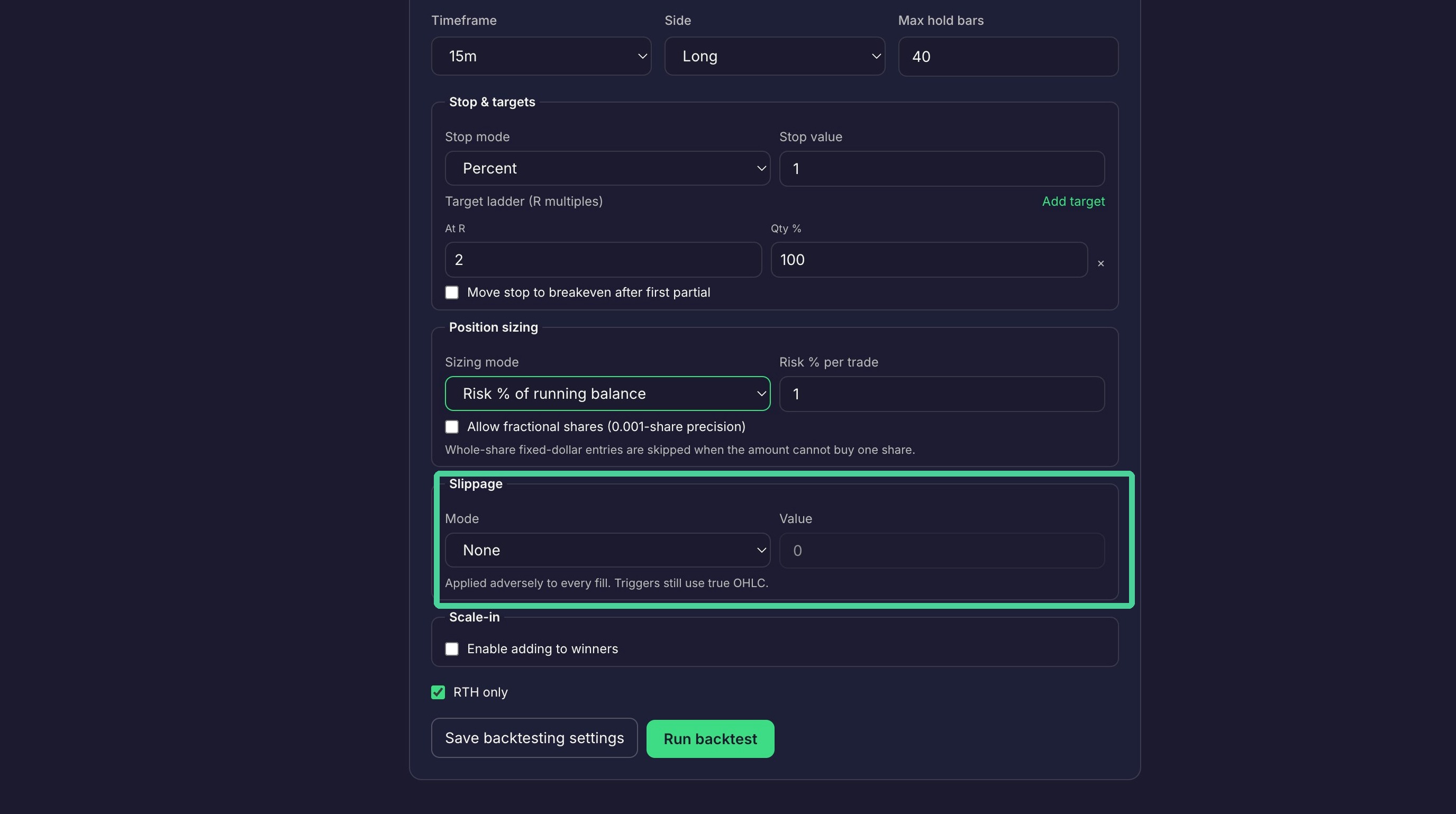
Here you can determine how you want add slippage to the backtest results. The options are No slippage, Percent of share price, Fixed dollar amount per share, and multiple of ATR.
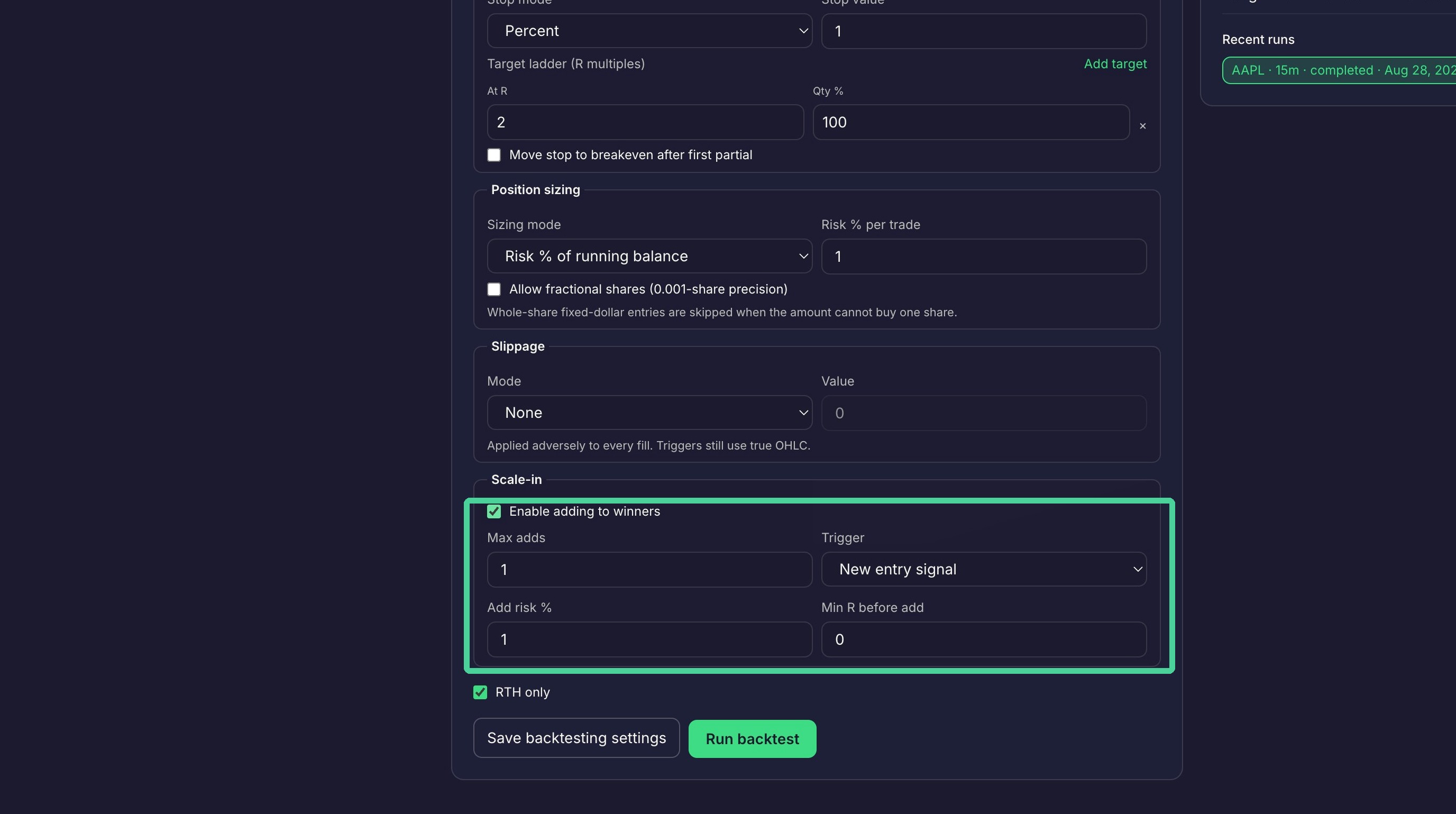
Here you can enable scaling into winners. Allows you to buy more shares if your entry signal is hit again after the initial entry. There is also an option to enter again after a pullback.
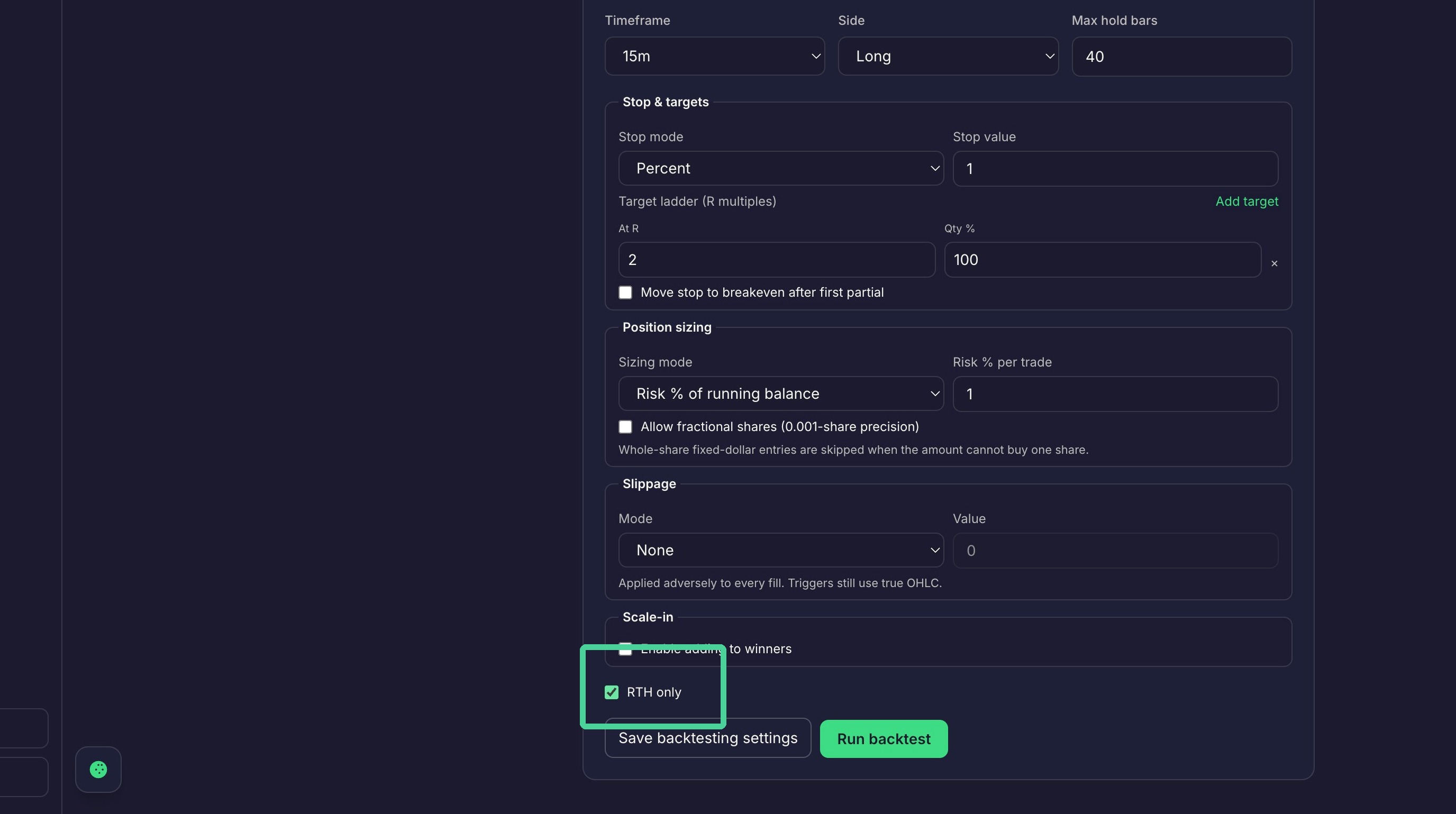
Click "RTH only" to only backtest against regular trading hours.
Run Backtest
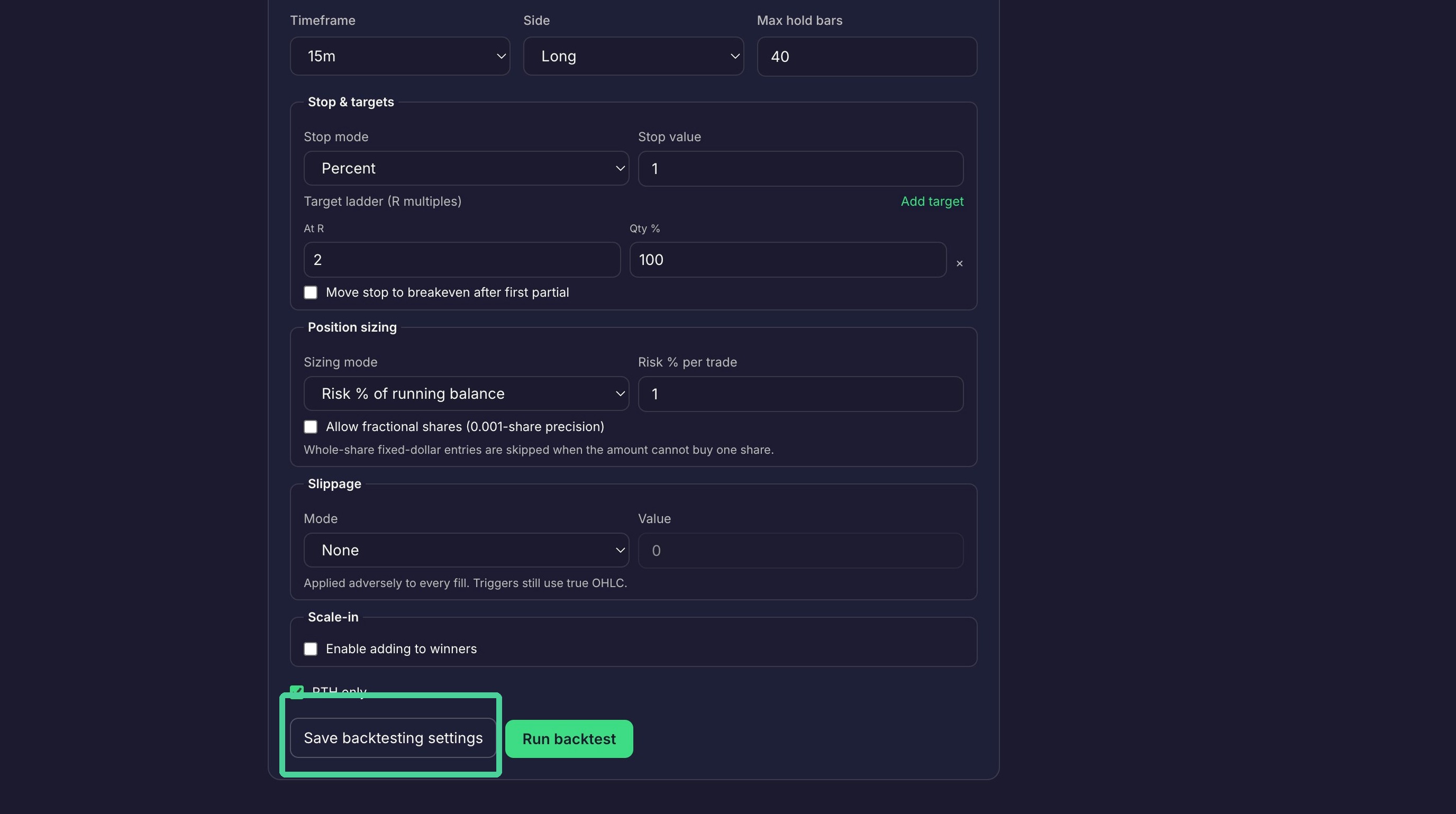
Saves backtest settings to the current strategy only.
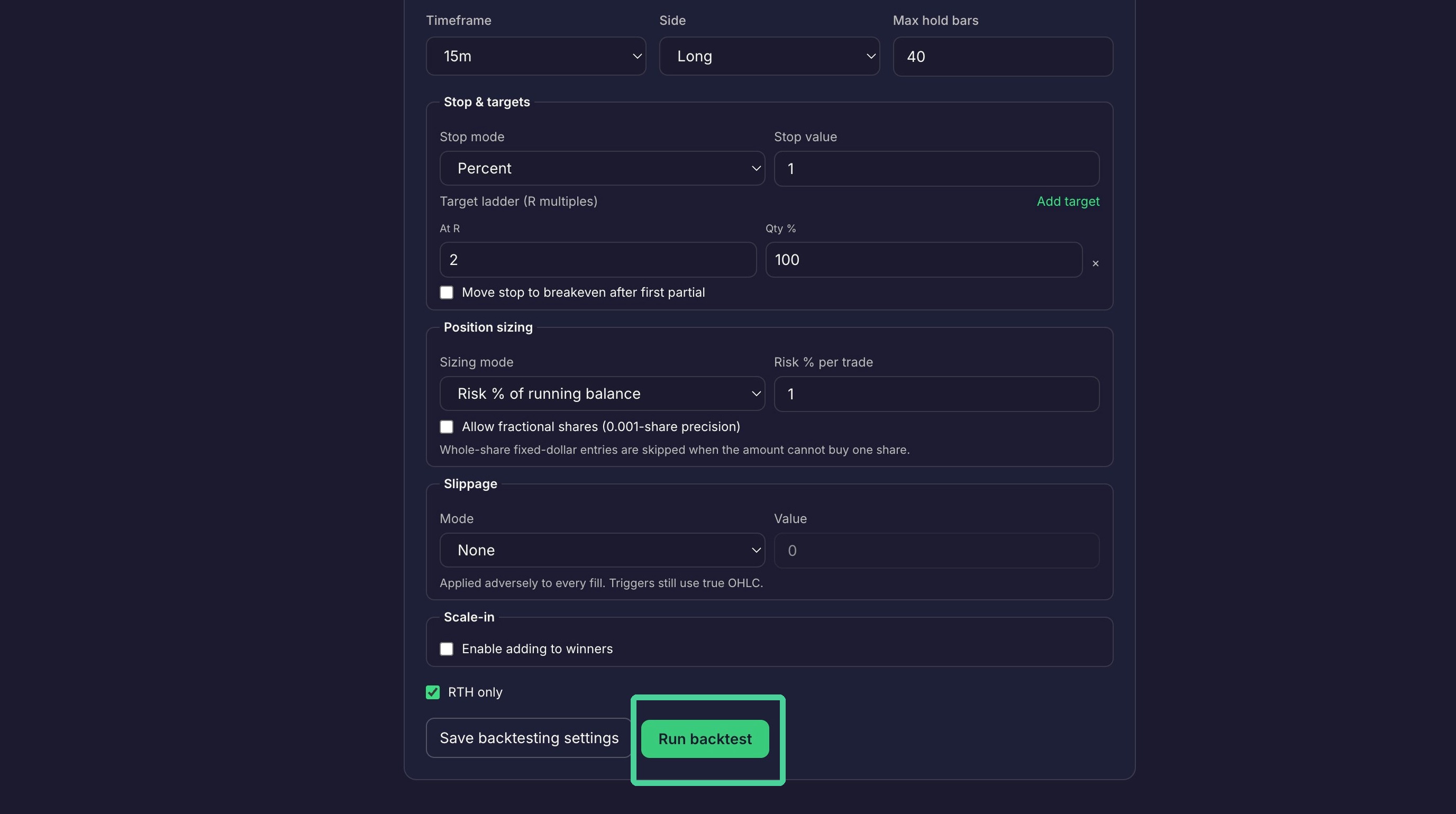
Click "Run backtest" to start the backtest with the configured settings.
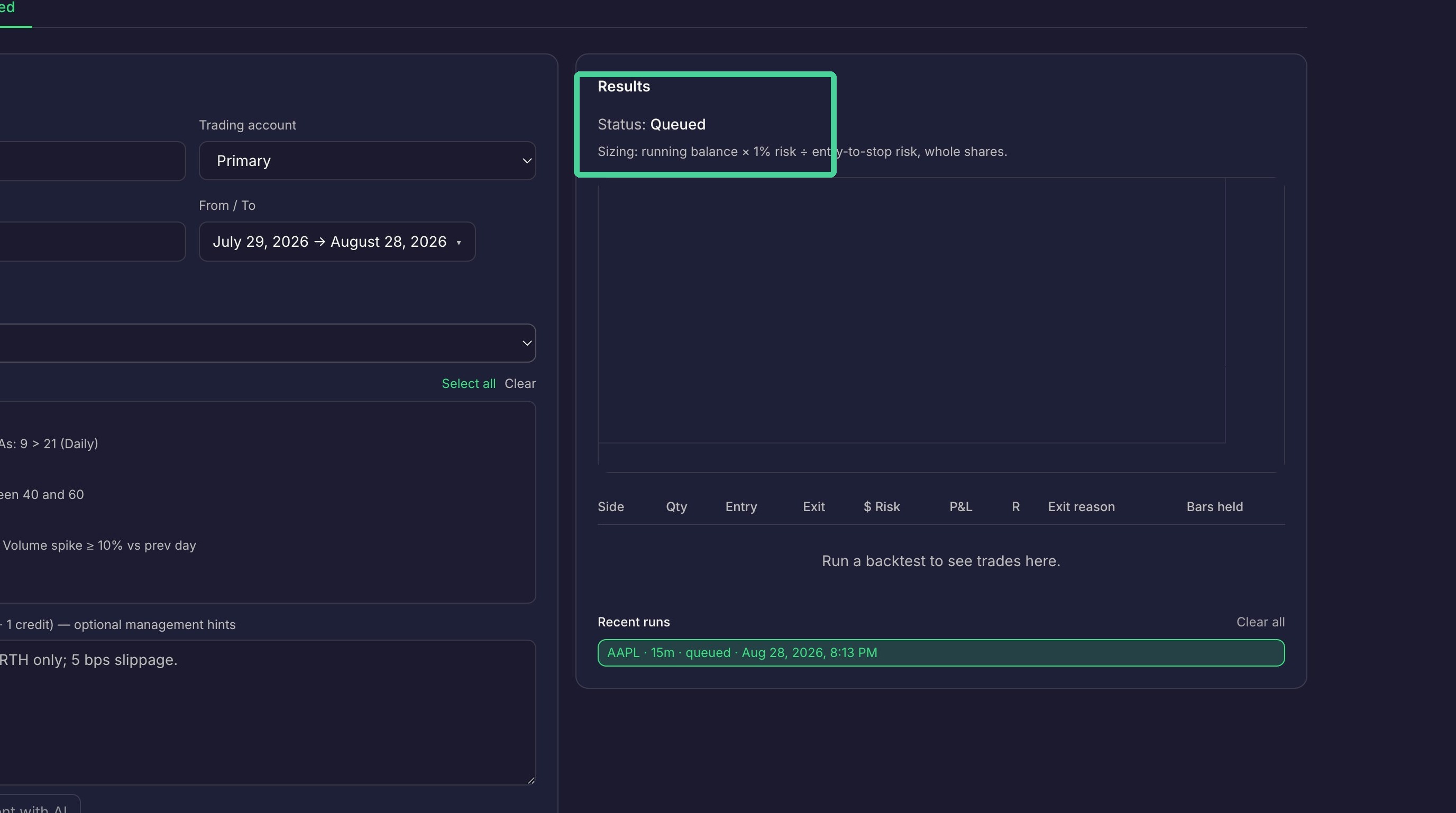
Status will show queued until the backtest is run.
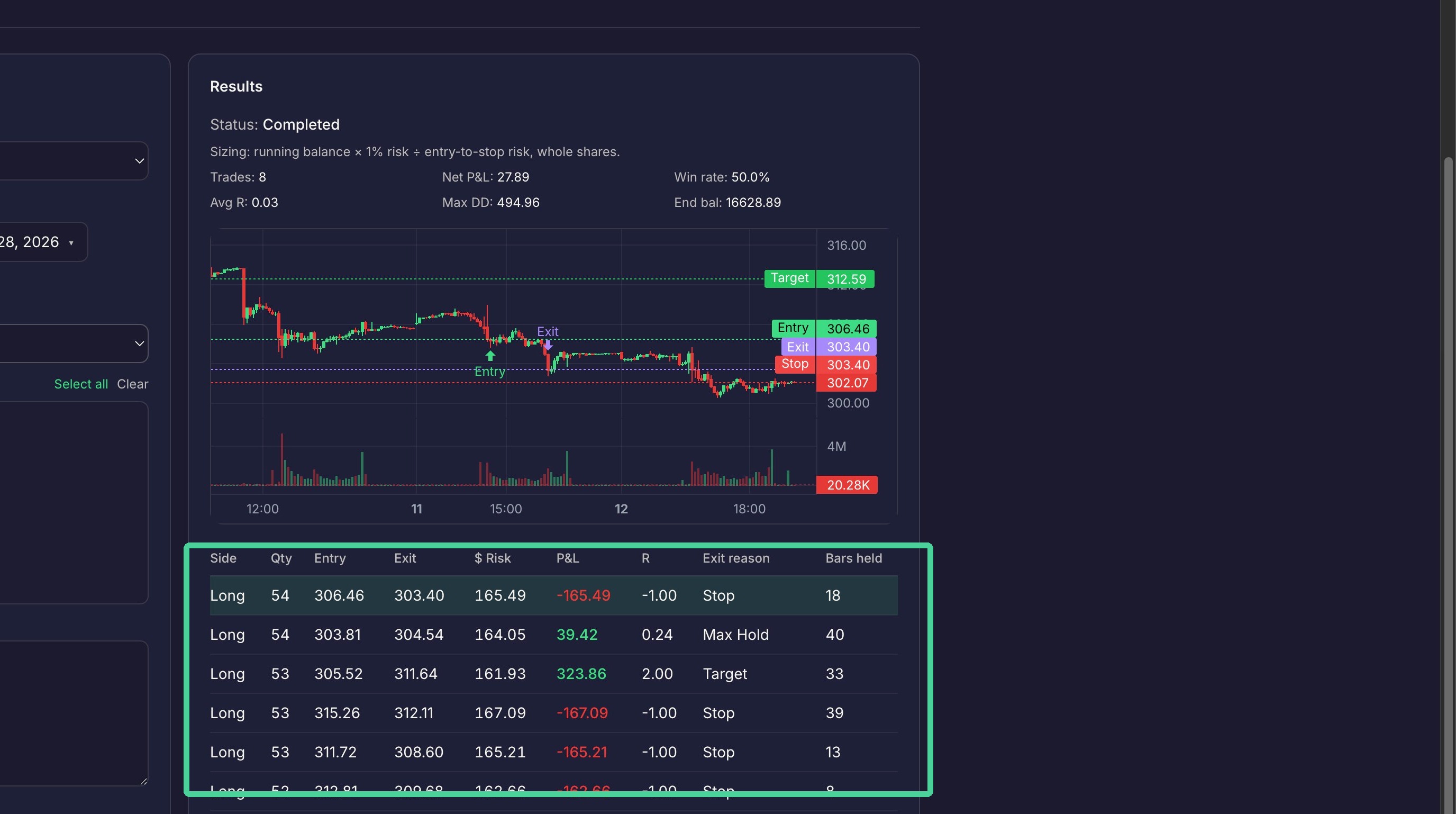
Once completed you will see a summary of all trades taken with win rate, P&L, and drawdown.
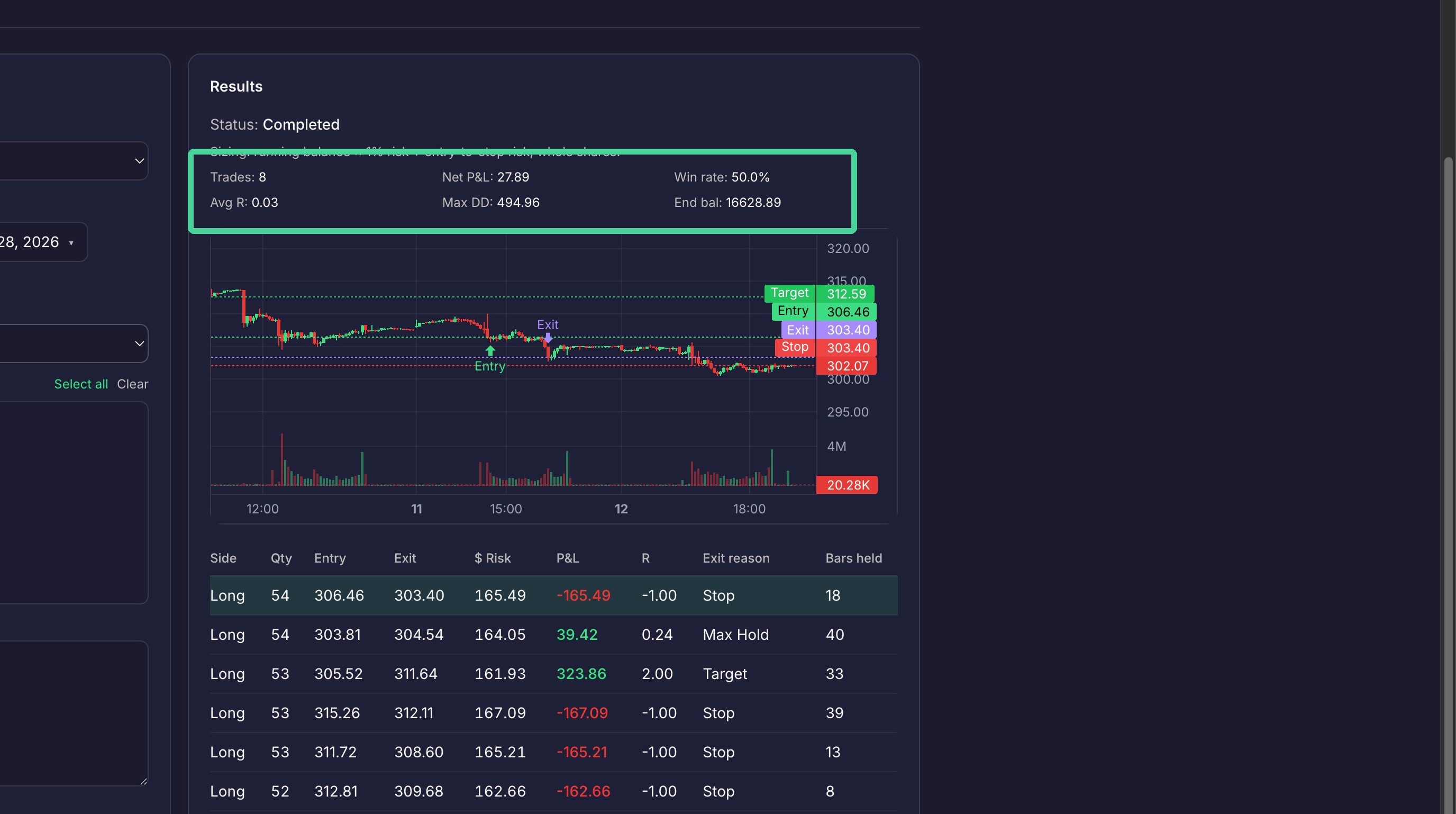
Each trade is listed below the chart. Select the trade in the list to display it on the chart.