How to use Risk Management
Risk Management
Risk Managment
Learn how to effectively manage your trading risk by sizing stock and options positions based on your account size. This guide demonstrates how to navigate the platform to calculate entry and stop-loss parameters for various options strategies.
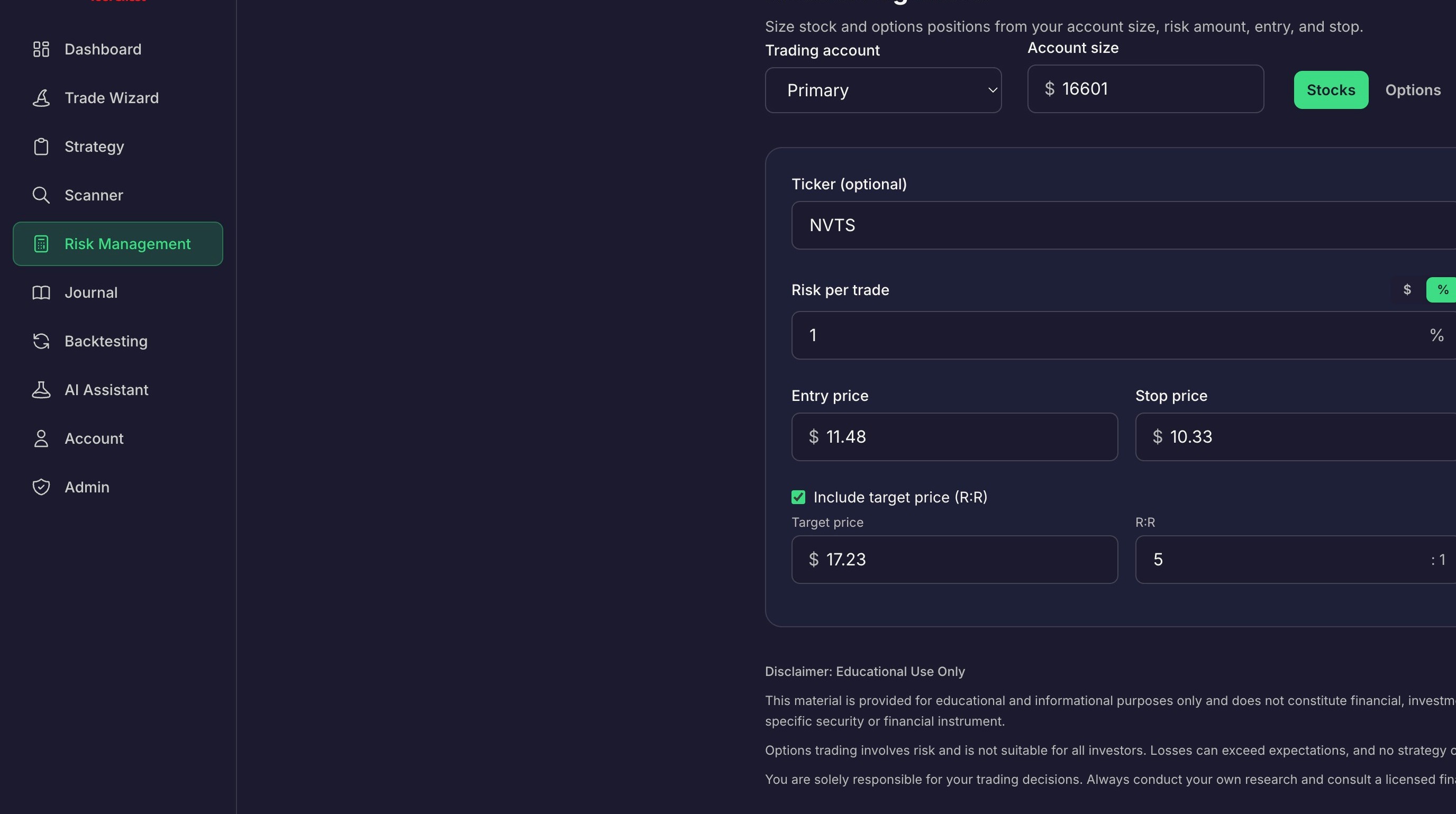
Click 'Risk Management' on the left hand side
Stock Position Setup
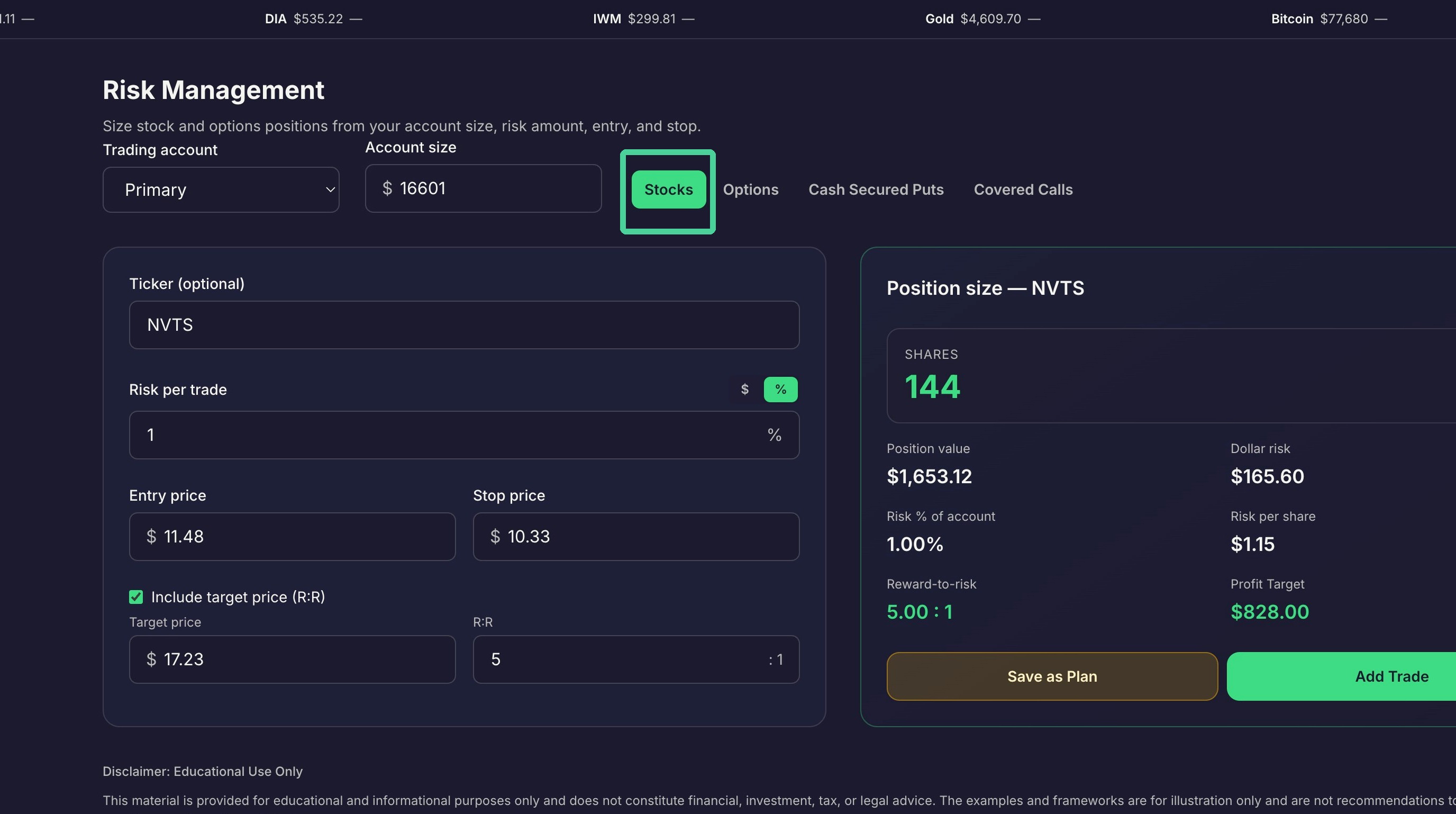
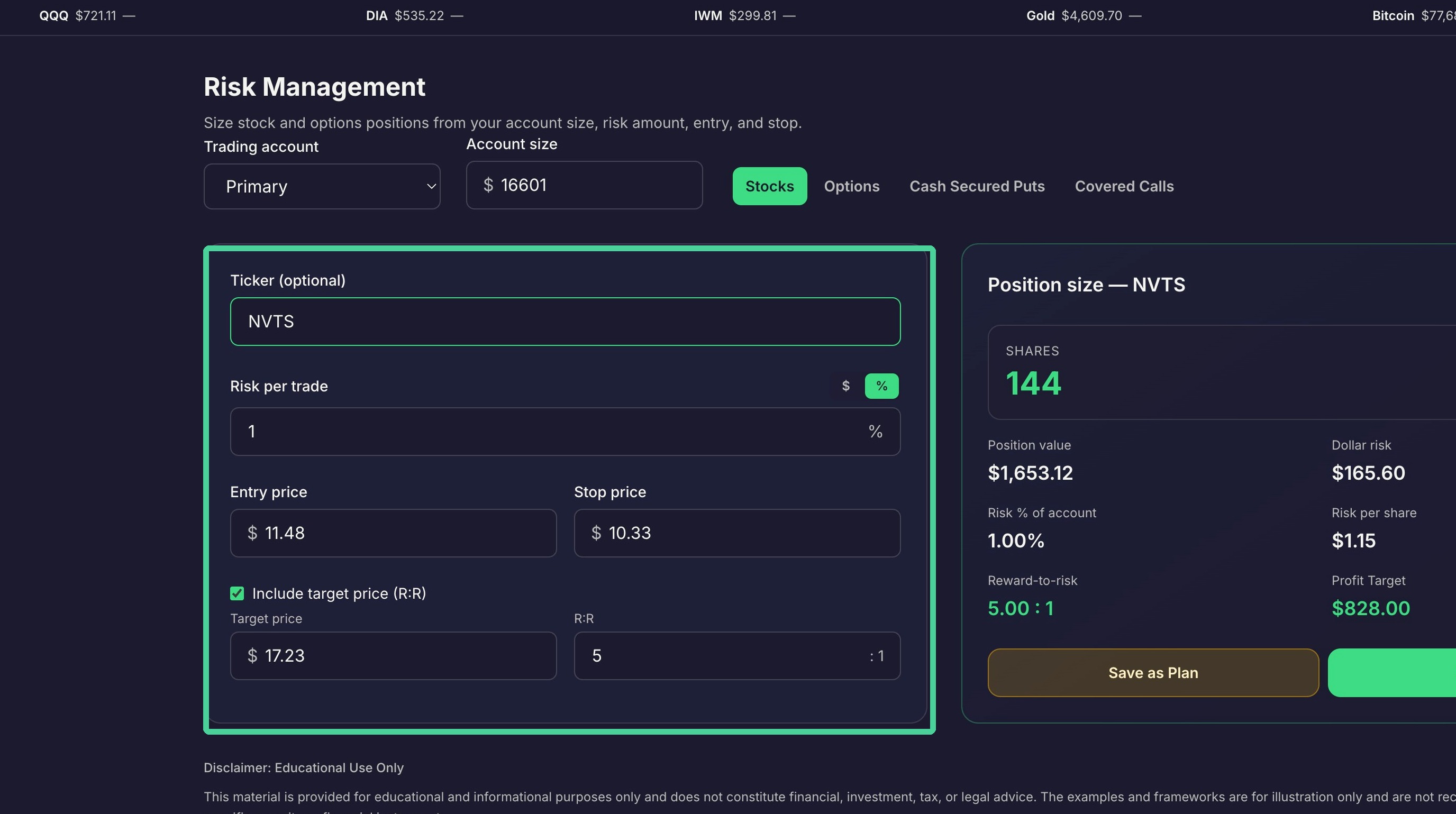
To calculate position sizing for shares of stock, click 'Stocks'.
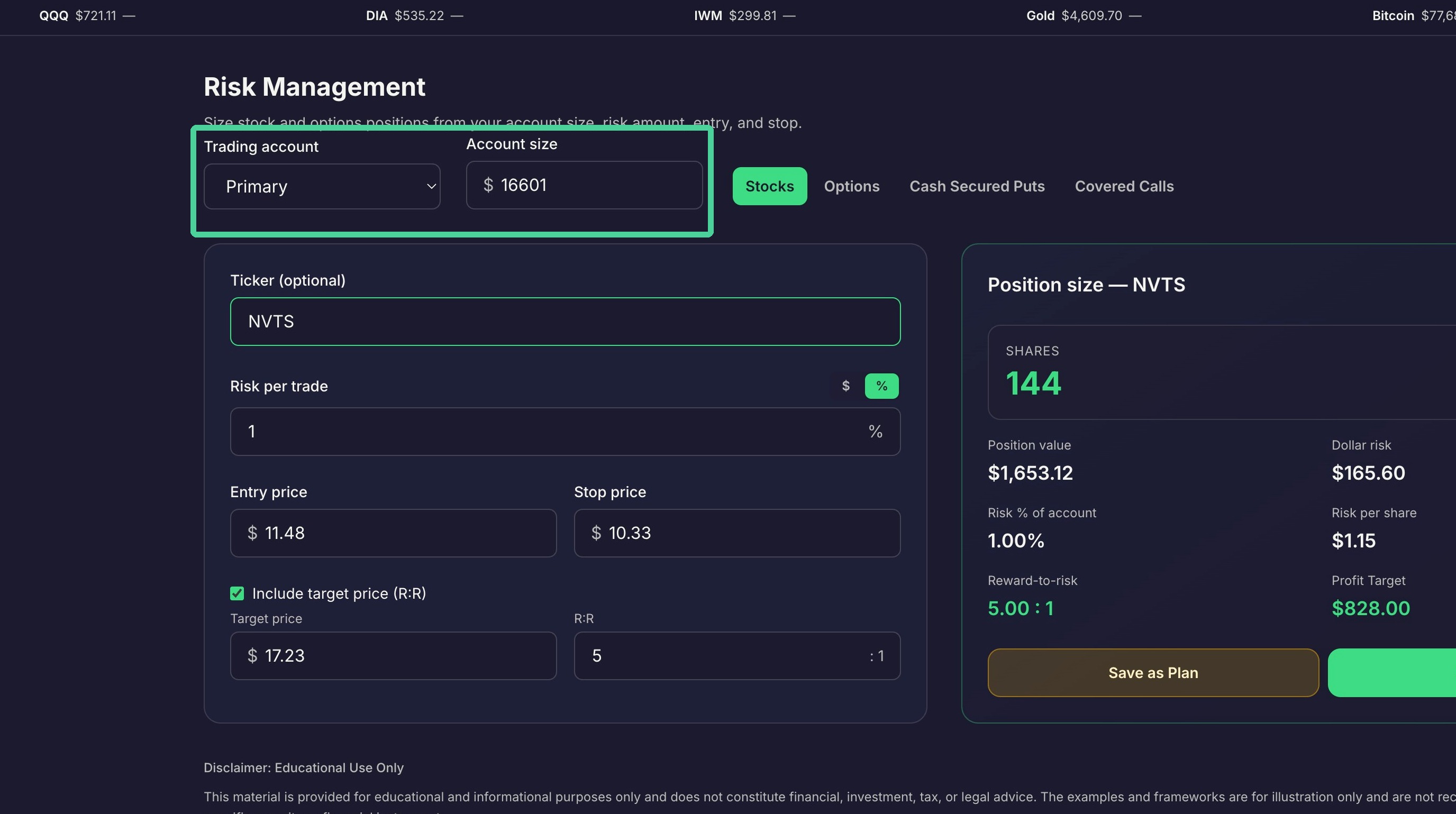
Select the account you wish to use for trading. Your primary account will be selected by default. The account size will automatically be populated.
Here you will enter the stock symbol you want ot trade. The Entry price will be autofilled with the current stock price. The stop price will be calculated based on the 'Risk per Trade' you set as percentage or dollar amount. Set your target price or R:R ratio to determine your exit price.
Options Position Setup
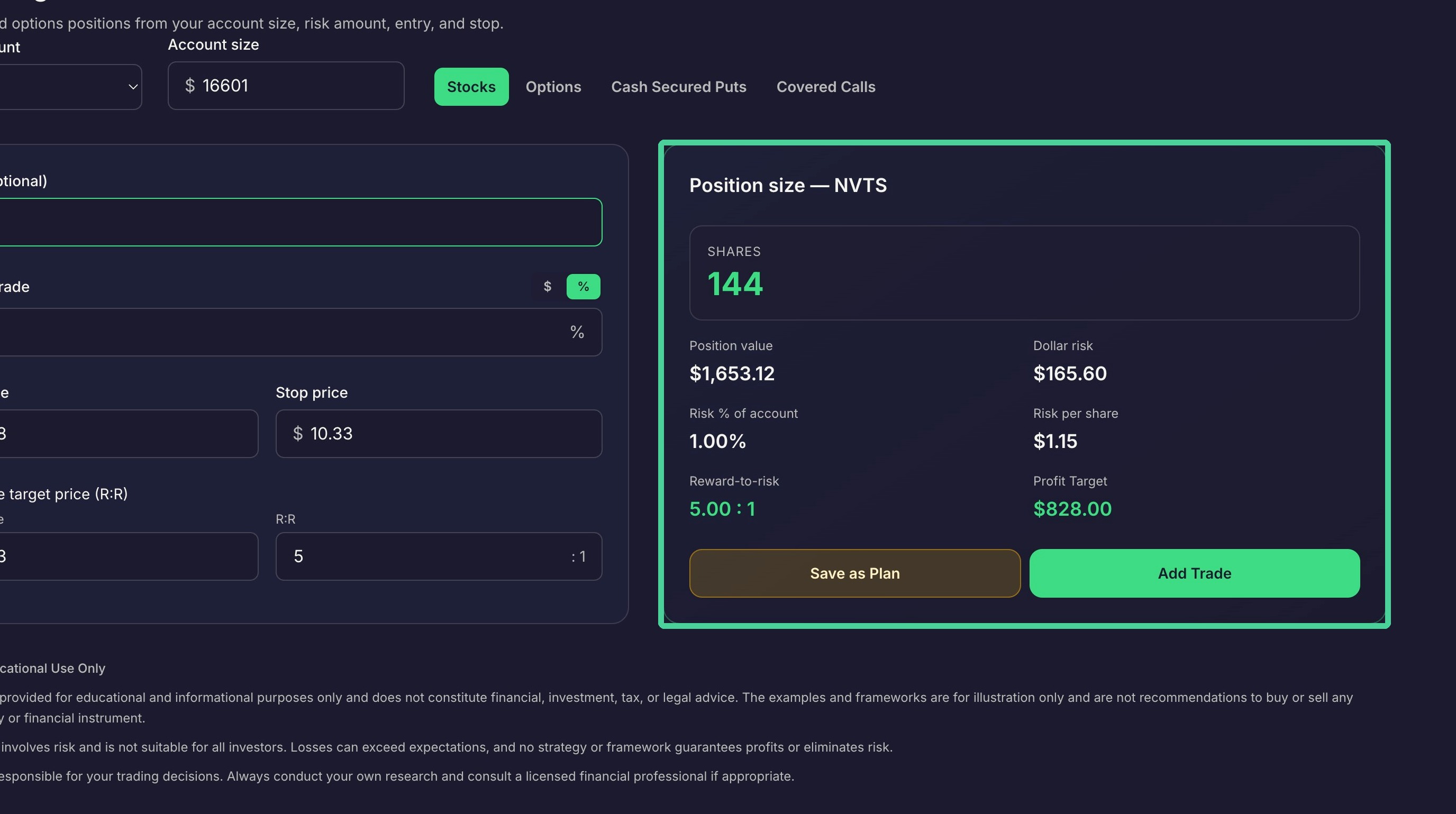
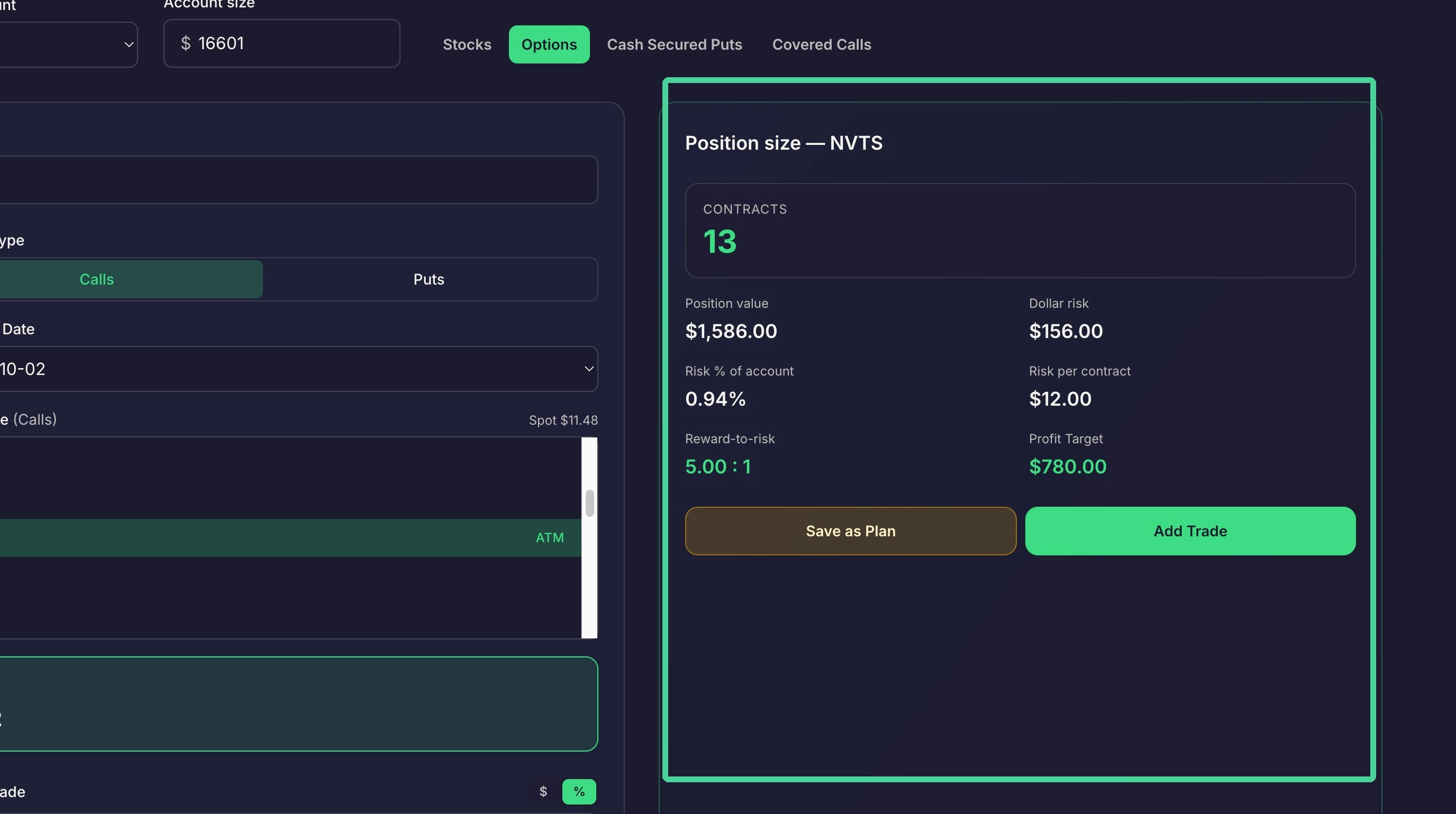
Here you will see the max position you can take based on your account size and risk per trade. You can also add the trade to the journal by clicking 'Add Trade' or add the trade as a plan by clicking 'Save as Plan'.
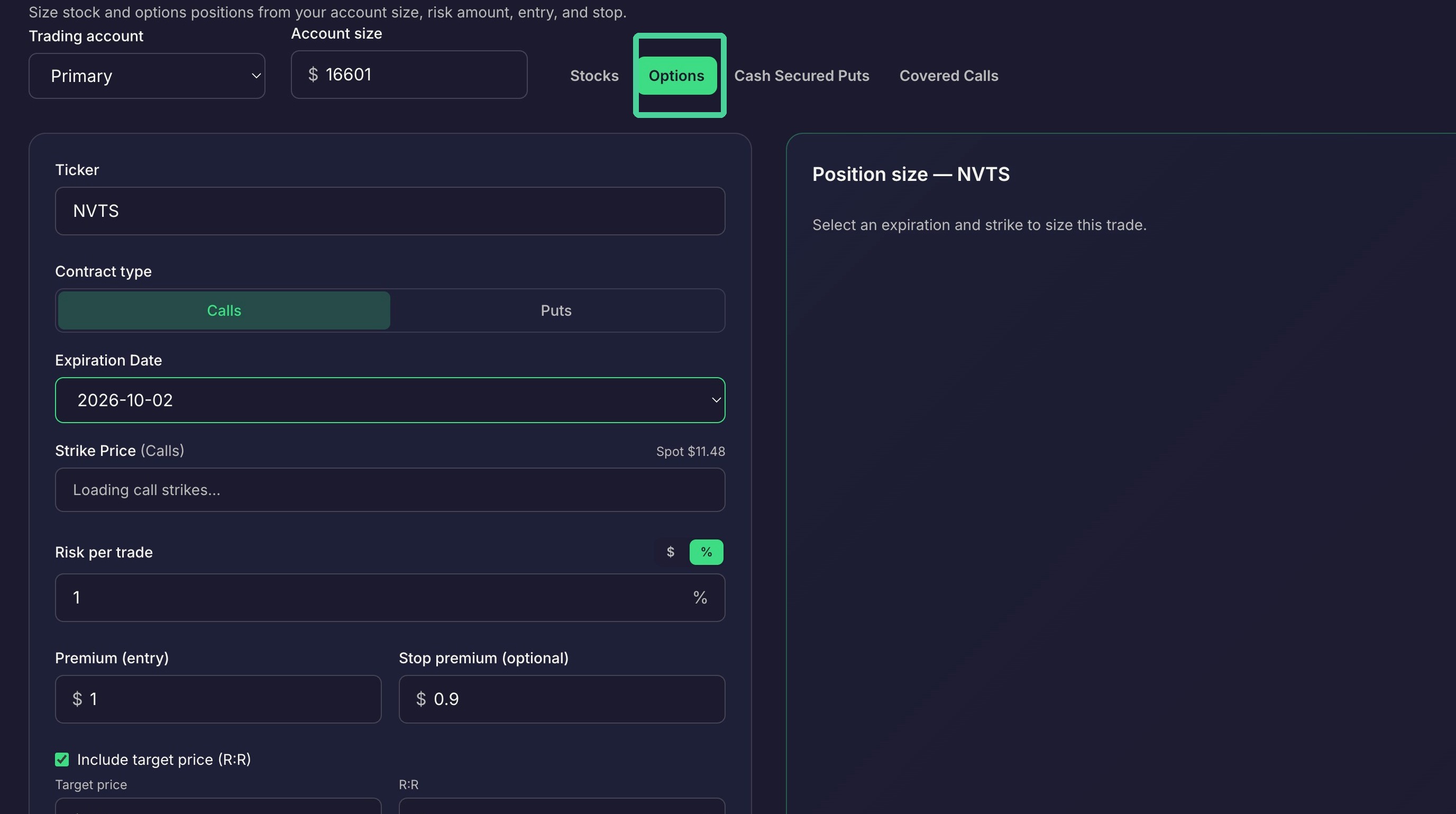
To calculate position sizing for Call or Put options contracts, Click 'Options'.
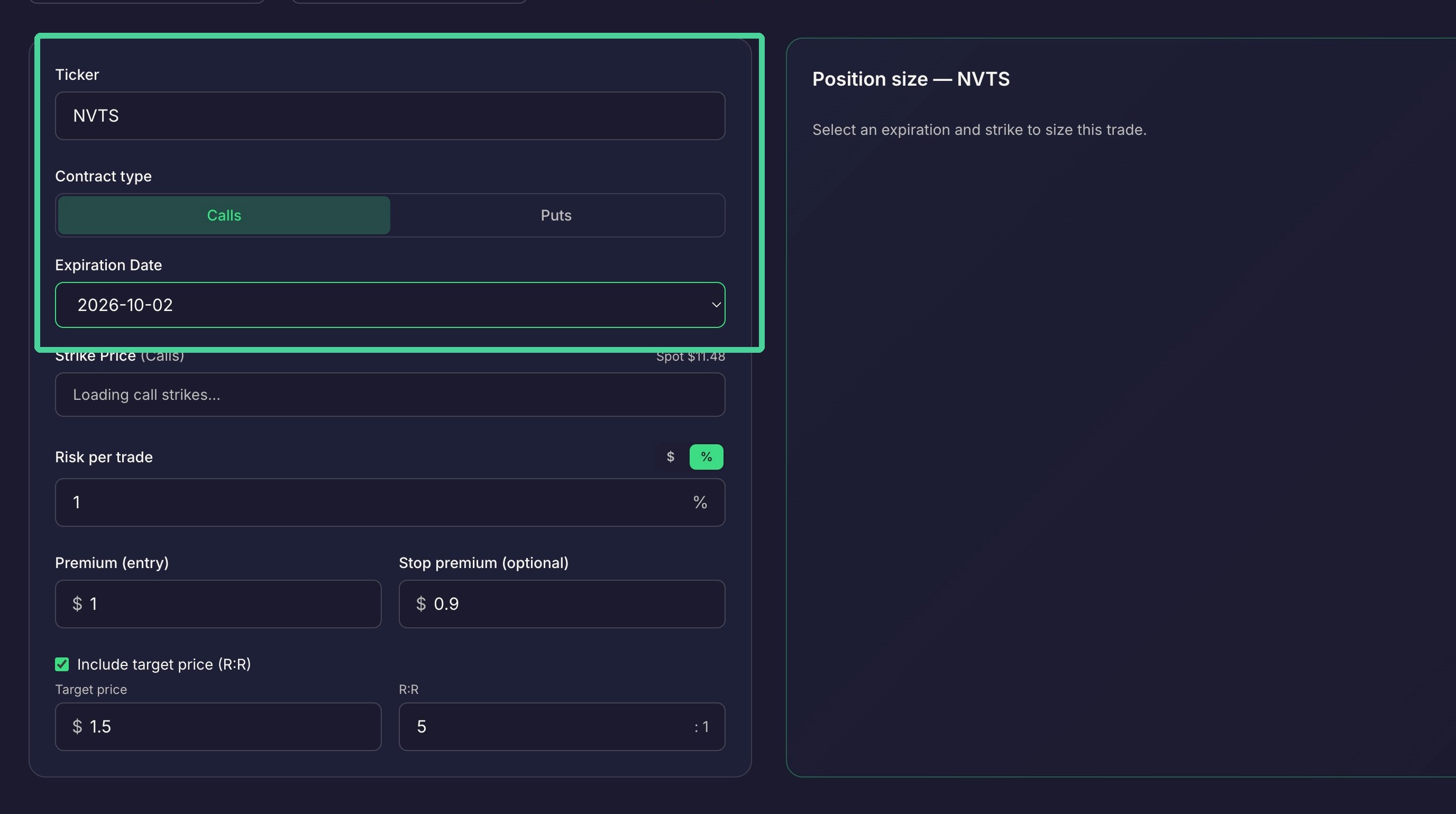
Enter the stock symbol you want to trade, then select the contract type 'Calls' or 'Puts'. This will populate the expiration dates for the options contracts. Select an expiration date to load the strike prices for that expiration date.
From the dropdown select a strike price and the cost per share for that options contract will appear below the dropdown. Set your 'Risk per trade' as a percentage or dollar amount. This will calculate your stop premium. Set your R:R ratio or target price to determine your exit price.
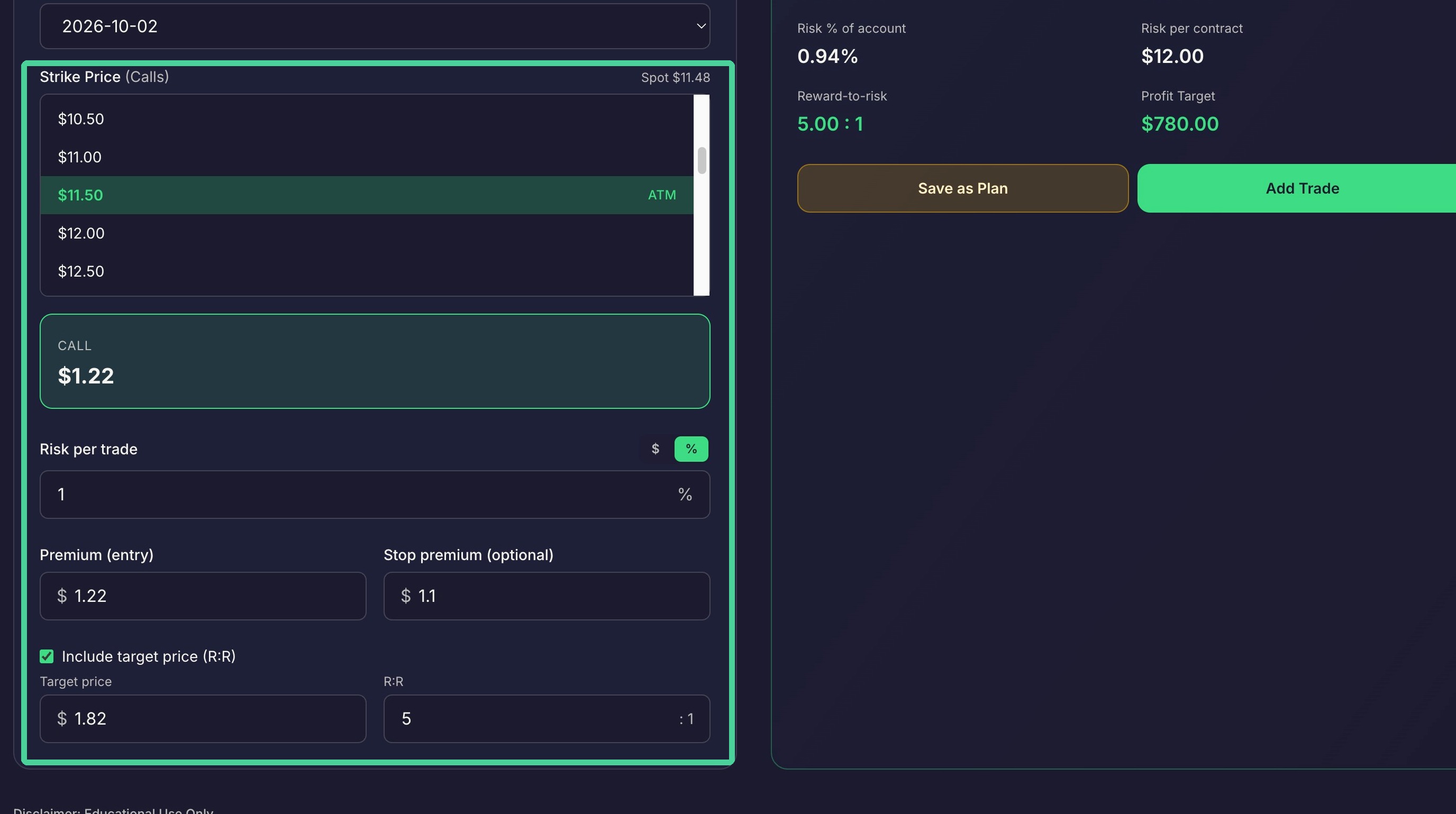
Here you will see the max position you can take based on your account size and risk per trade. You can also add the trade to the journal by clicking 'Add Trade' or add the trade as a plan by clicking 'Save as Plan'.
Cash-Secured Put Setup
To calculate position sizing for selling Cash Secured Put options contracts, Click 'Cash Secured Puts'.
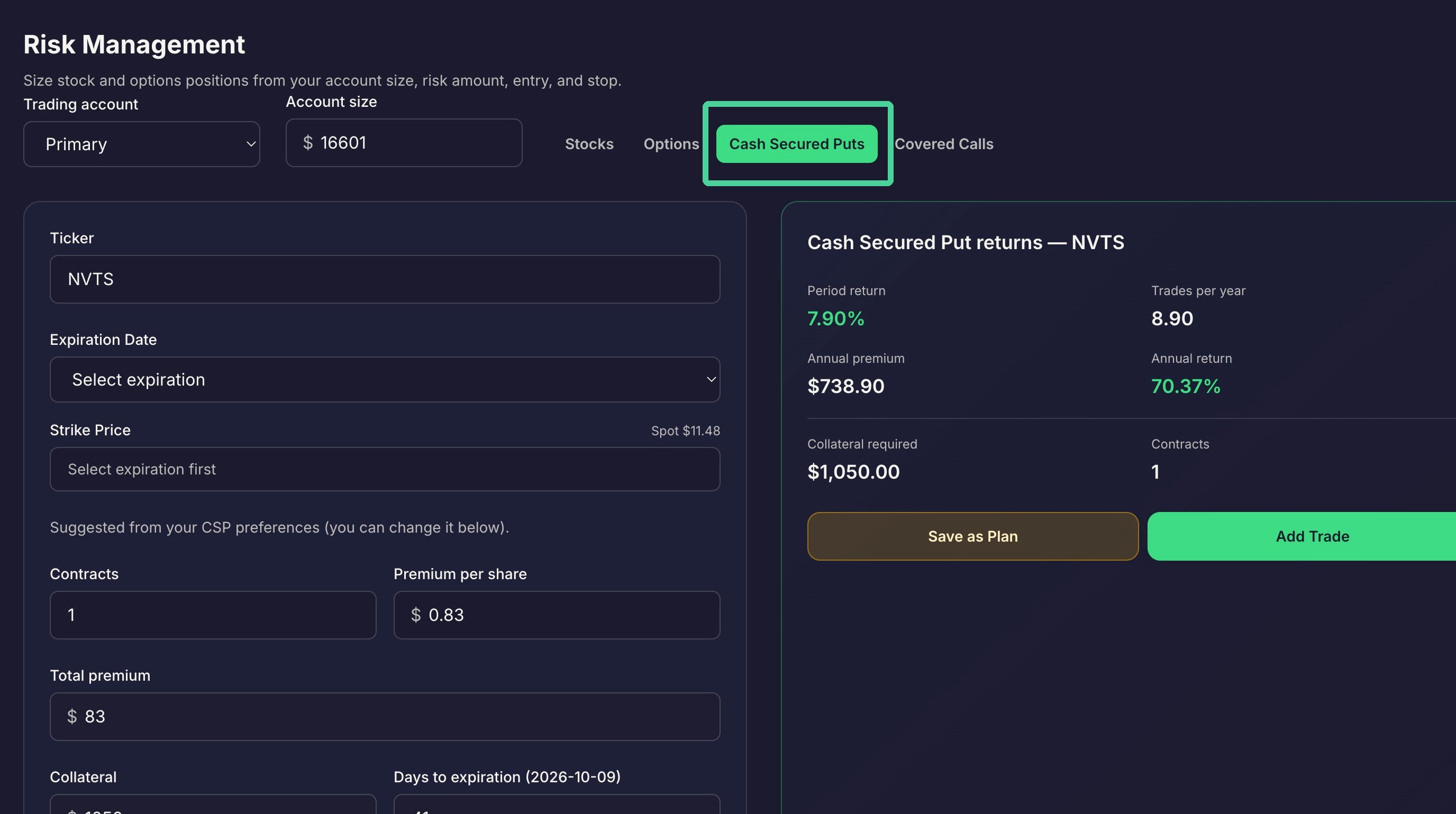
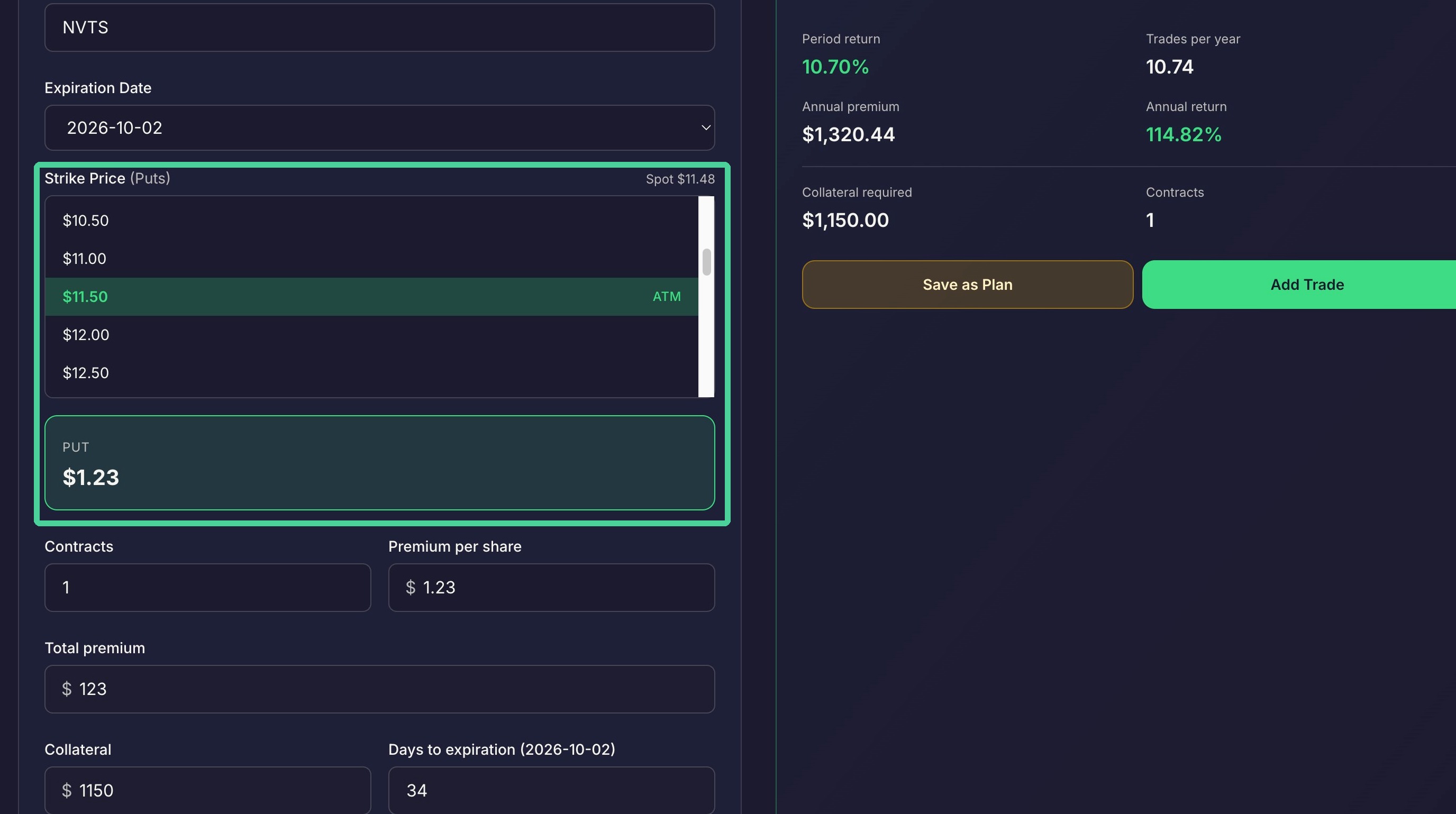
Enter a stock symbol to populate the Put options expiration dates. Select an expiration date from the dropdowm. This will populate the strike prices for that expiration date.
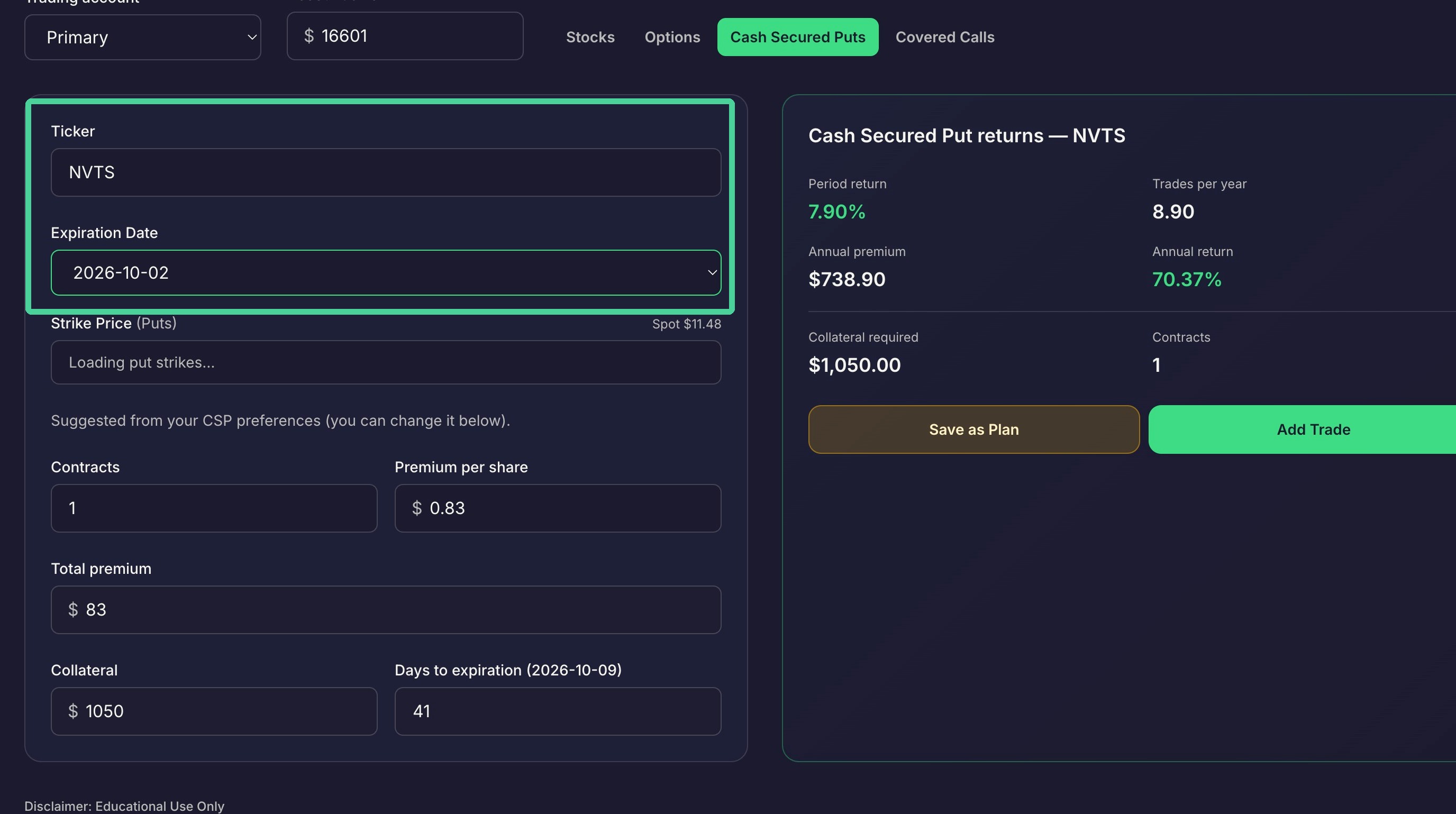
From the dropdown select a strike price and the cost per share for that options contract will appear below the dropdown.
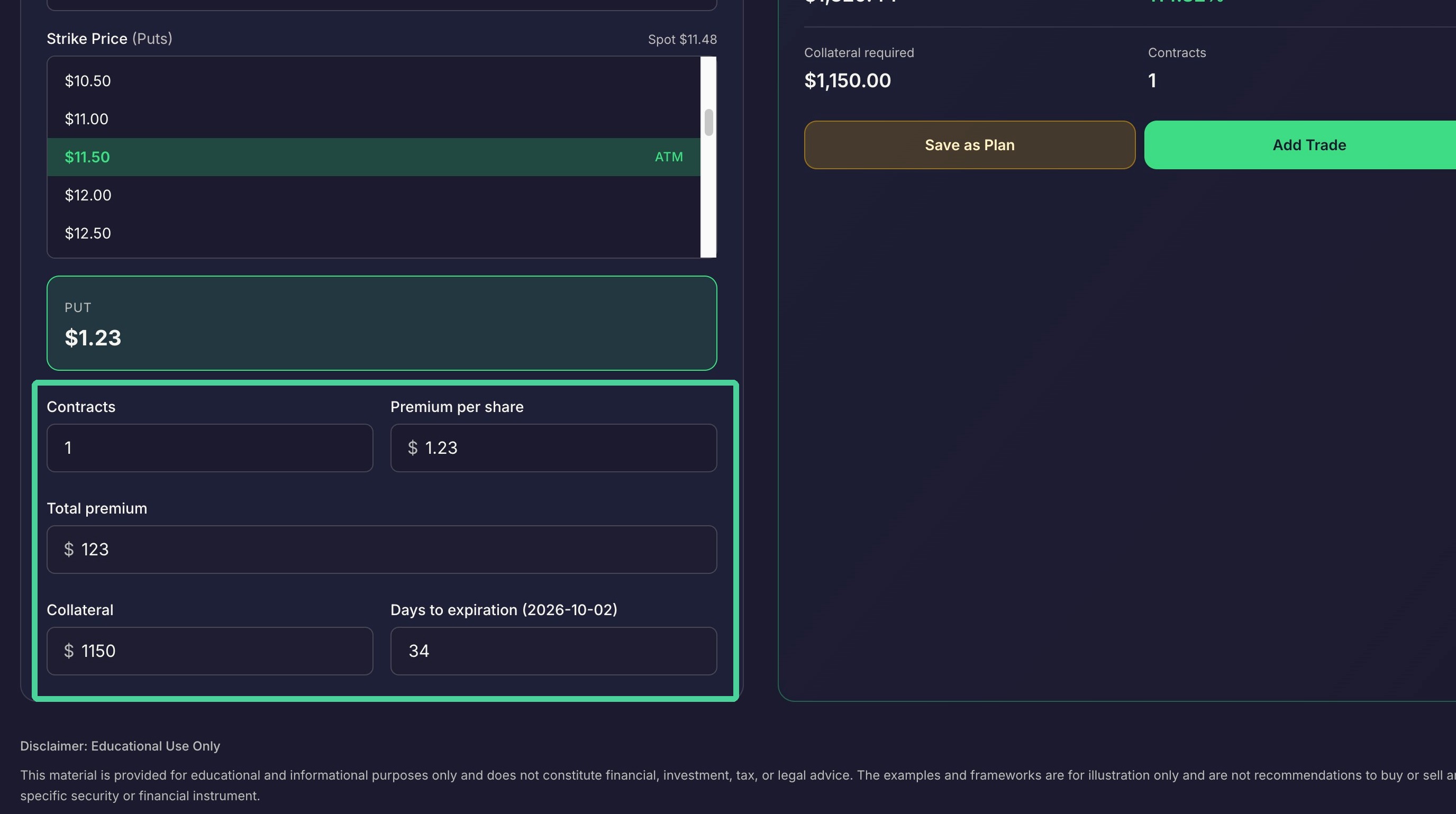
Here you can adjust the number of contracts if you want to sell more than one.
Covered Call Setup
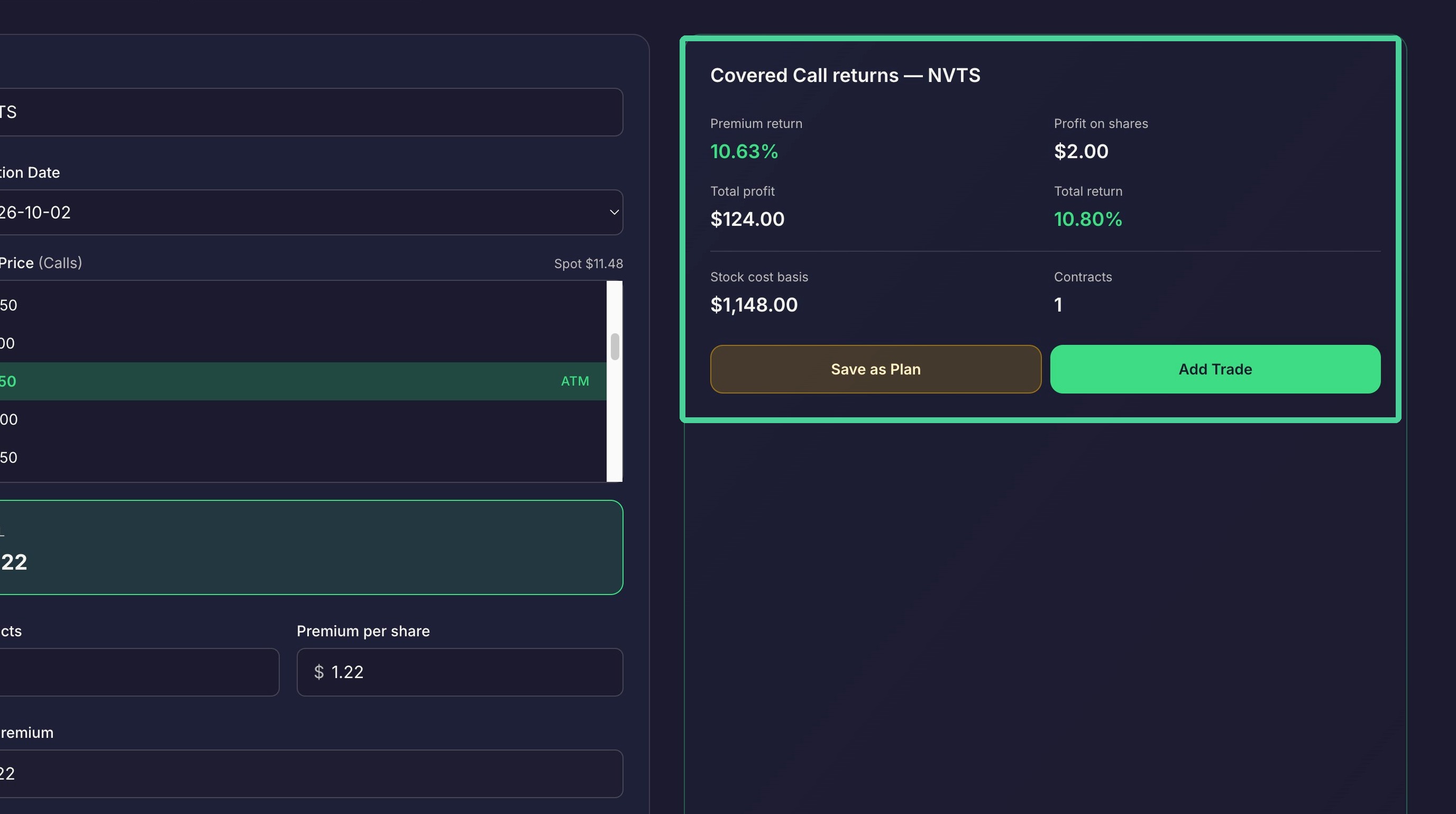
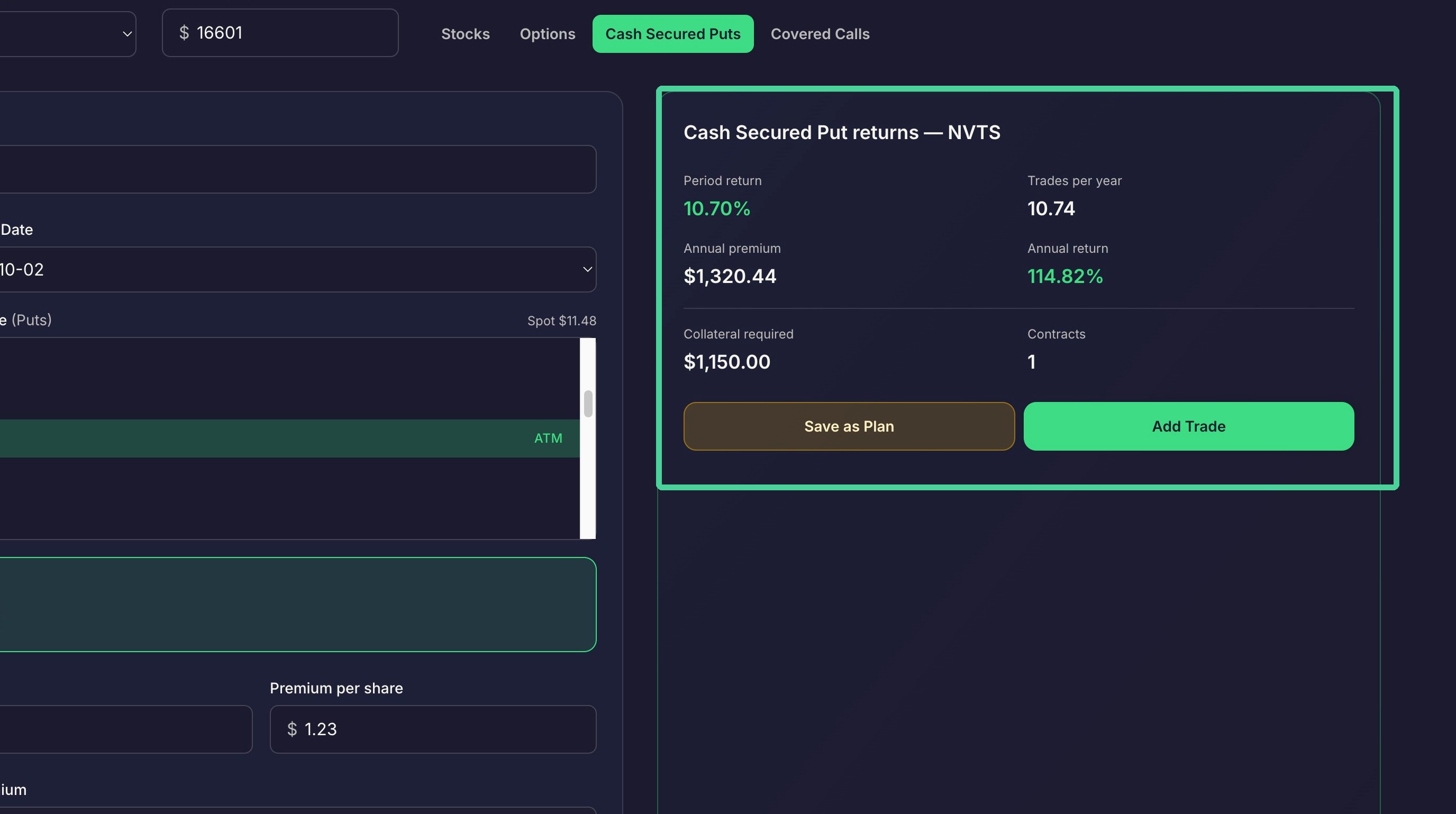
Here you will se the estimated return for the period specified and projected annual return. You can also add the trade to the journal by clicking 'Add Trade' or add the trade as a plan by clicking 'Save as Plan'.
To calculate position sizing for selling Covered Call options contracts, Click 'Covered Calls'.
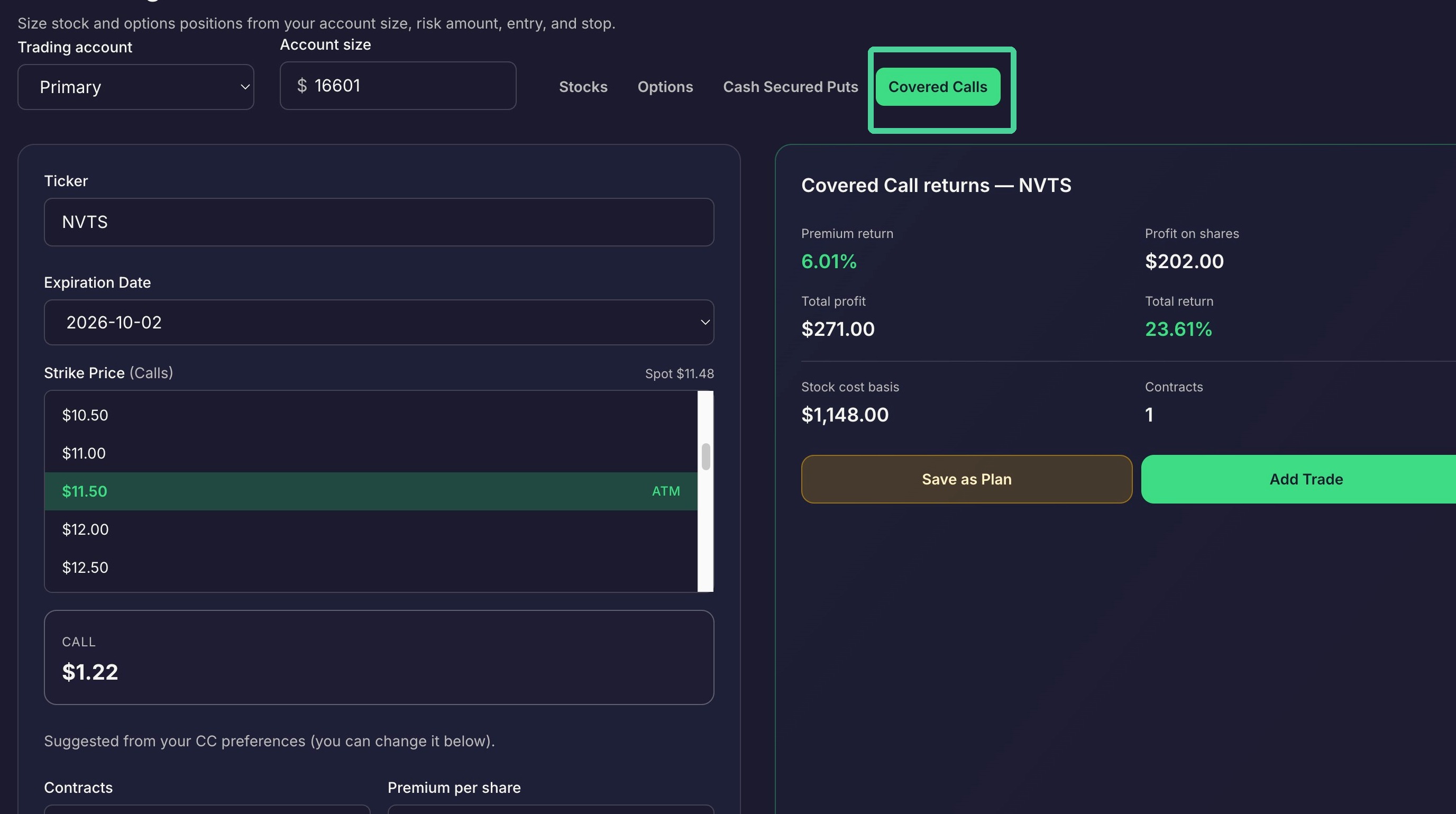
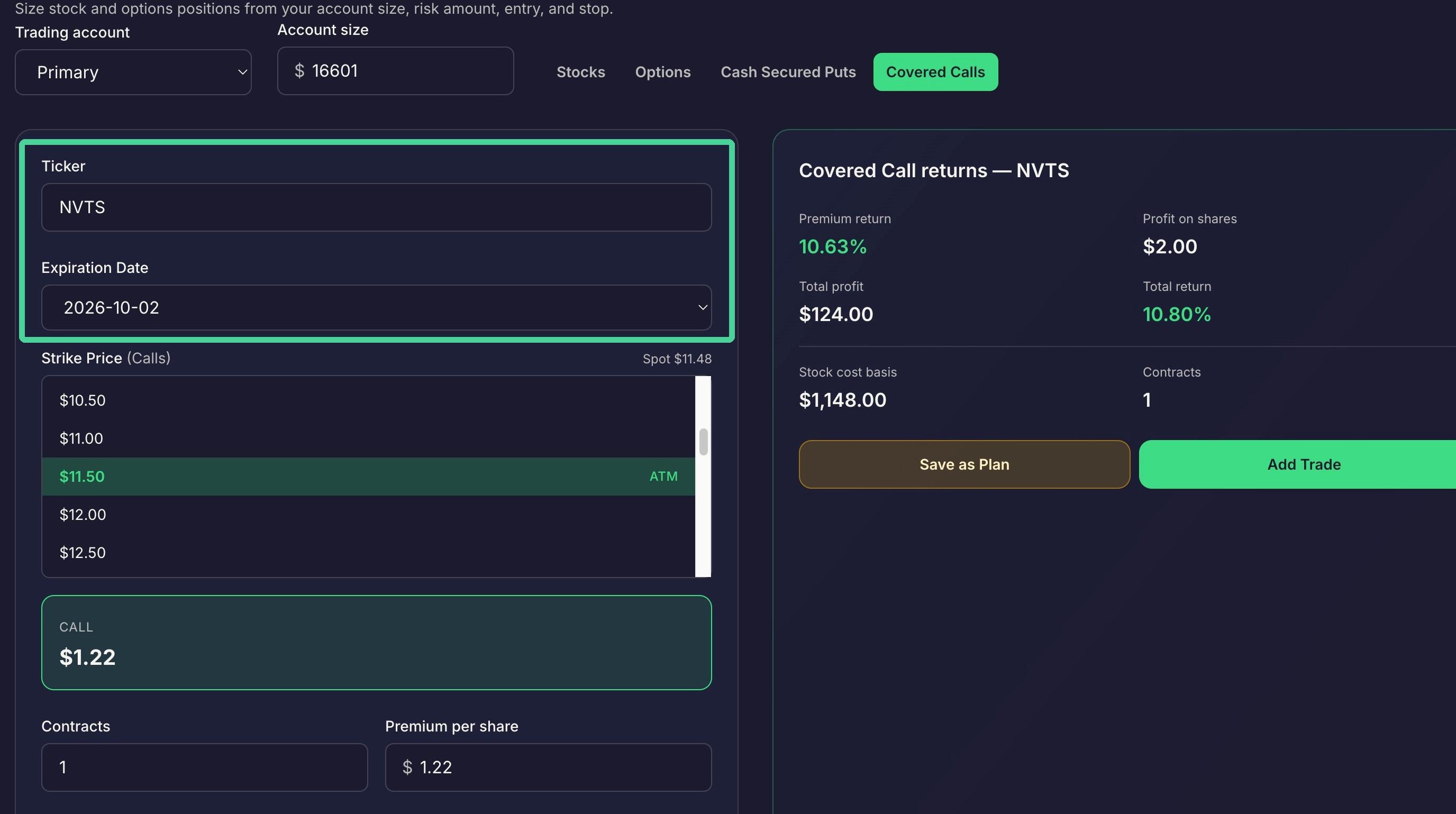
Enter a stock symbol to populate the Call options expiration dates. Select an expiration date from the dropdowm. This will populate the strike prices for that expiration date.
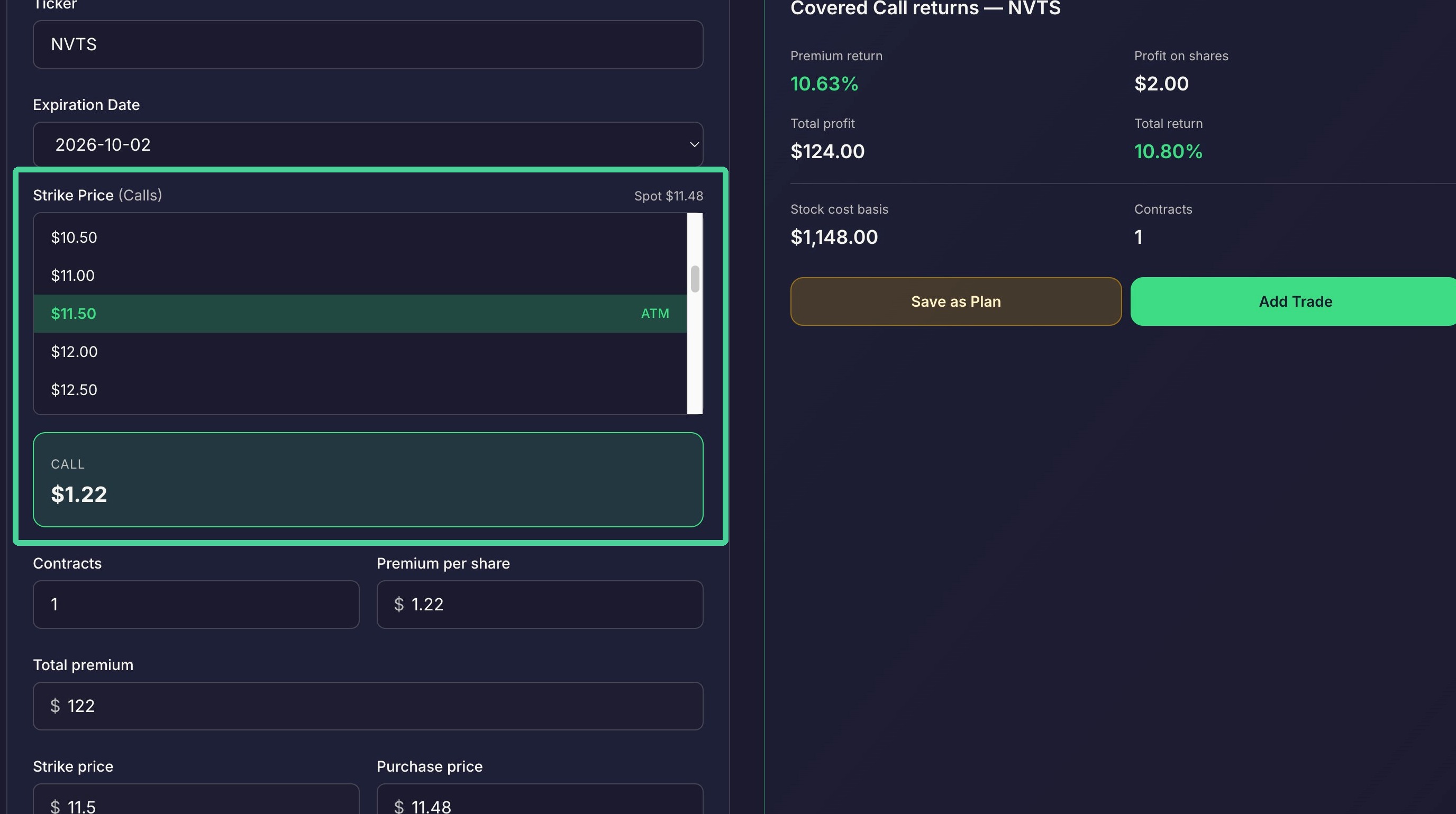
From the dropdown select a strike price and the cost per share for that options contract will appear below the dropdown.
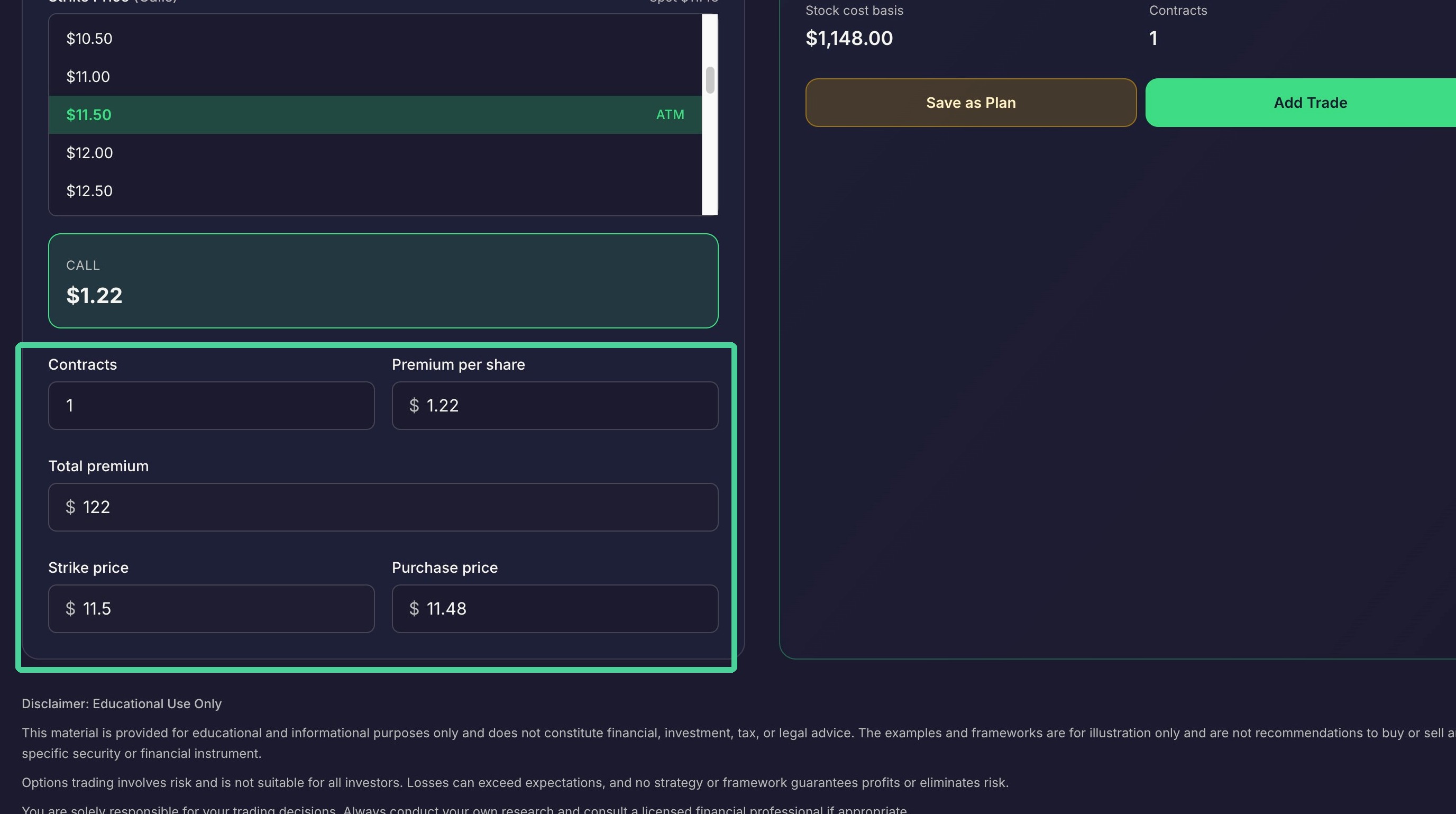
Here you can adjust the number of contracts if you want to sell more than one.
Here you will se the estimated return for the period specified and projected annual return. You can also add the trade to the journal by clicking 'Add Trade' or add the trade as a plan by clicking 'Save as Plan'.