How to Configure and Run Scanners
Scanner
How to Configure and Run Scanners in Traders Tool Chest
Learn how to manage your watchlists and execute custom technical scans to identify trading opportunities. This guide helps you navigate the scanner interface to effectively filter assets and analyze market data.
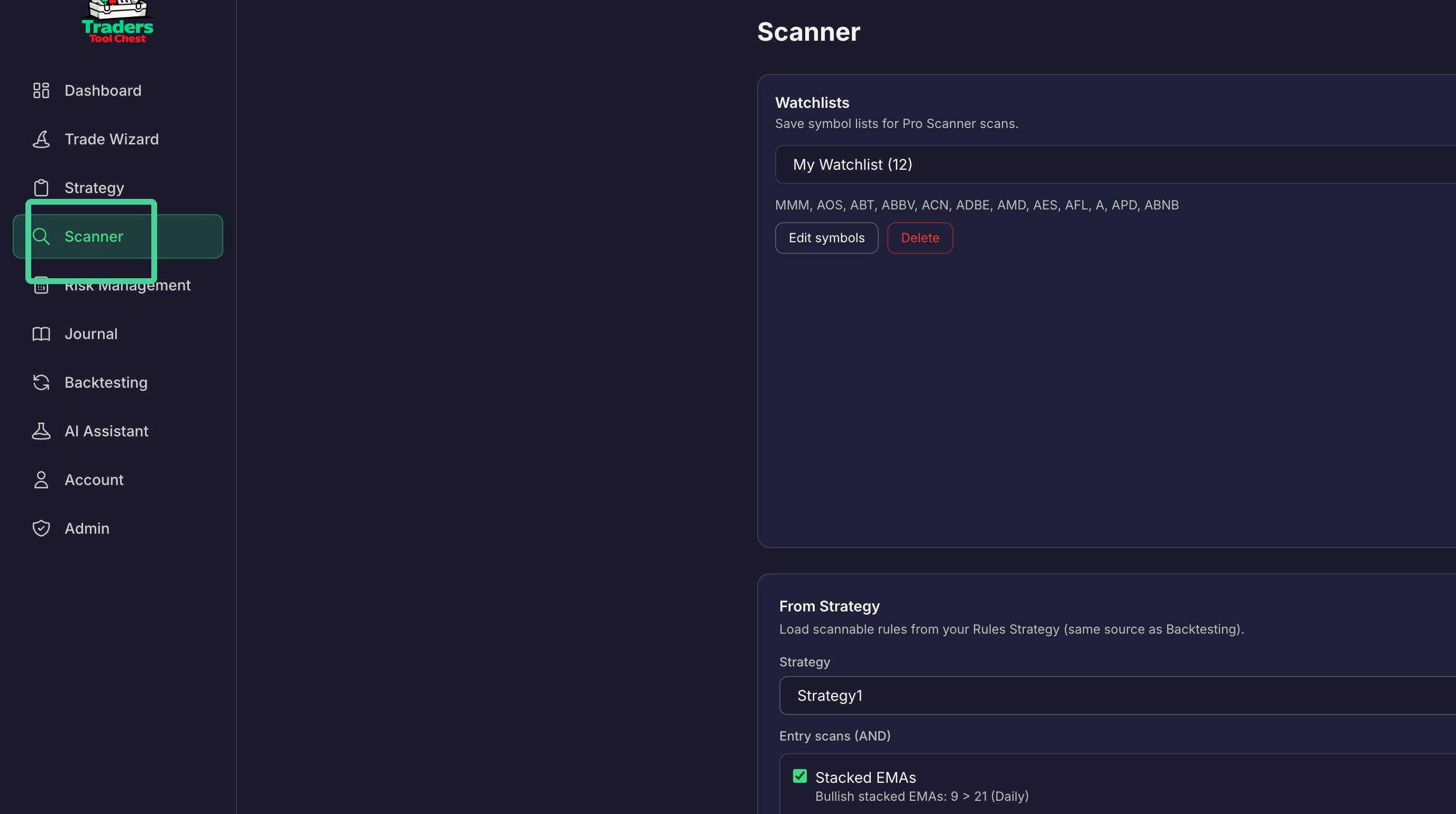
Select Scanner on the left hand side.
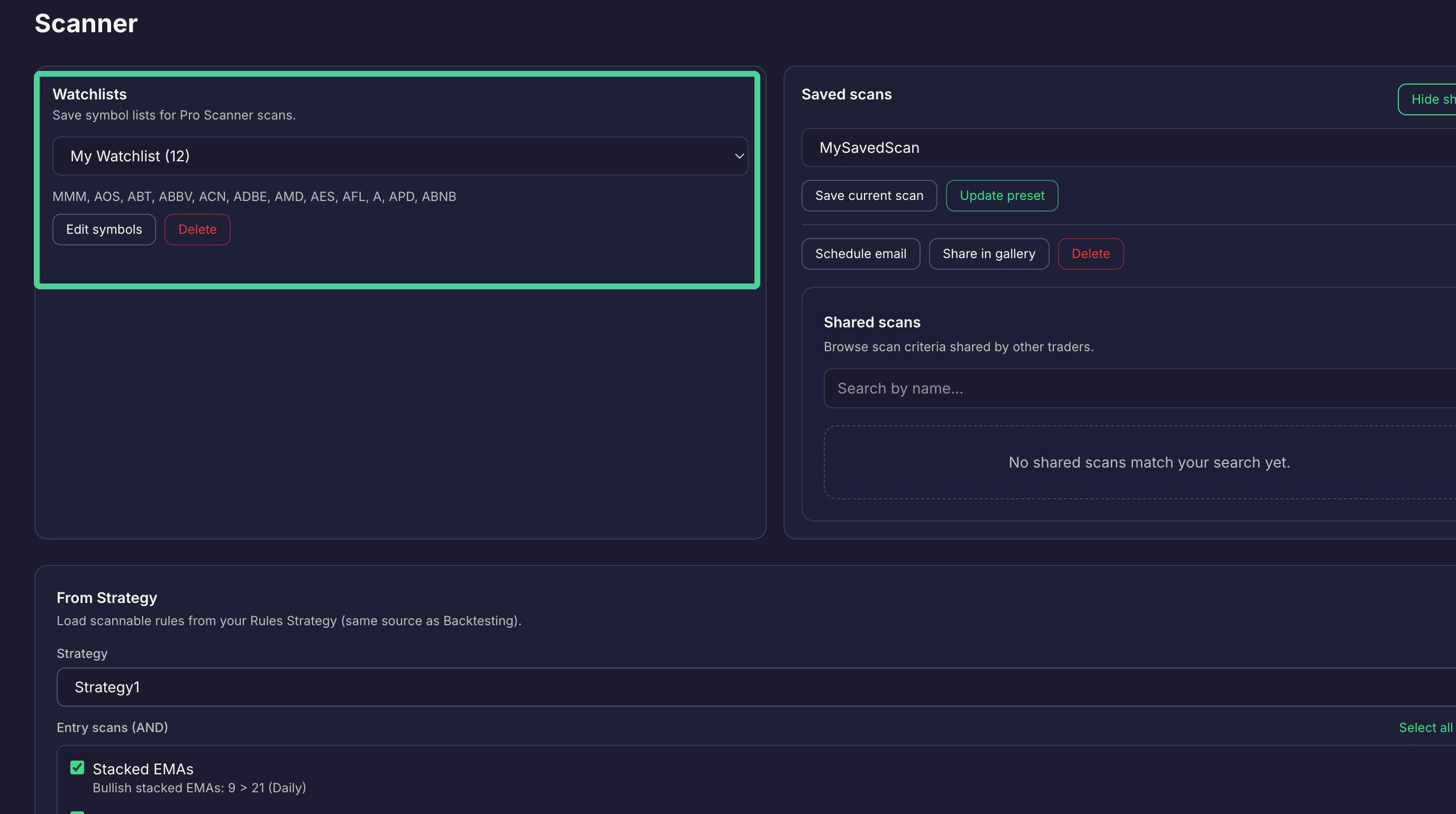
Watchlist Setup
Here you can create a watchlist of stock tickers you want to focus on in your scans. Click the dropdown and select 'Create New Watchlist'.
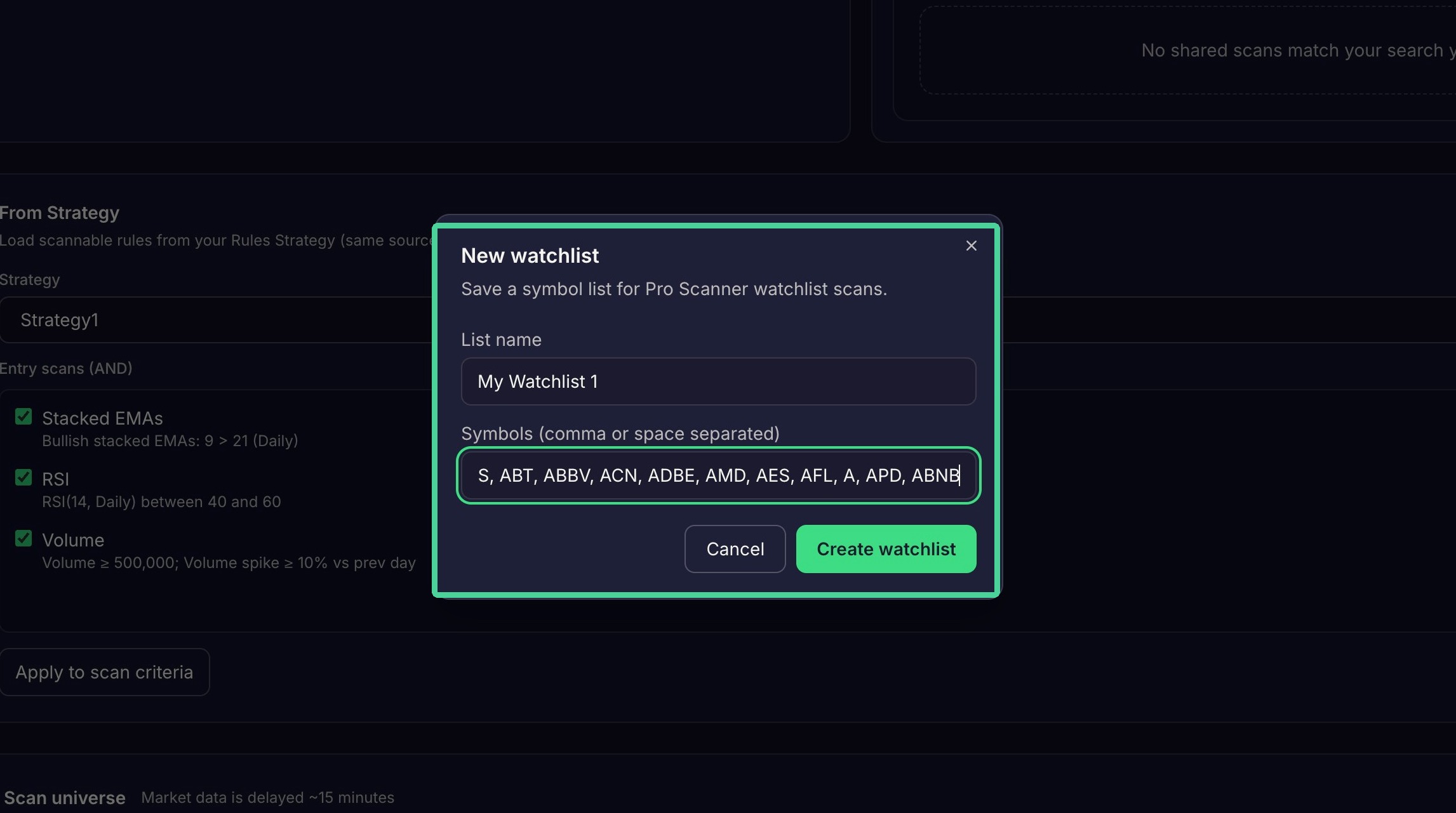
Give the watchlist a unique name and a comma separated list of stock symbols. Click 'Create Watchlist'.
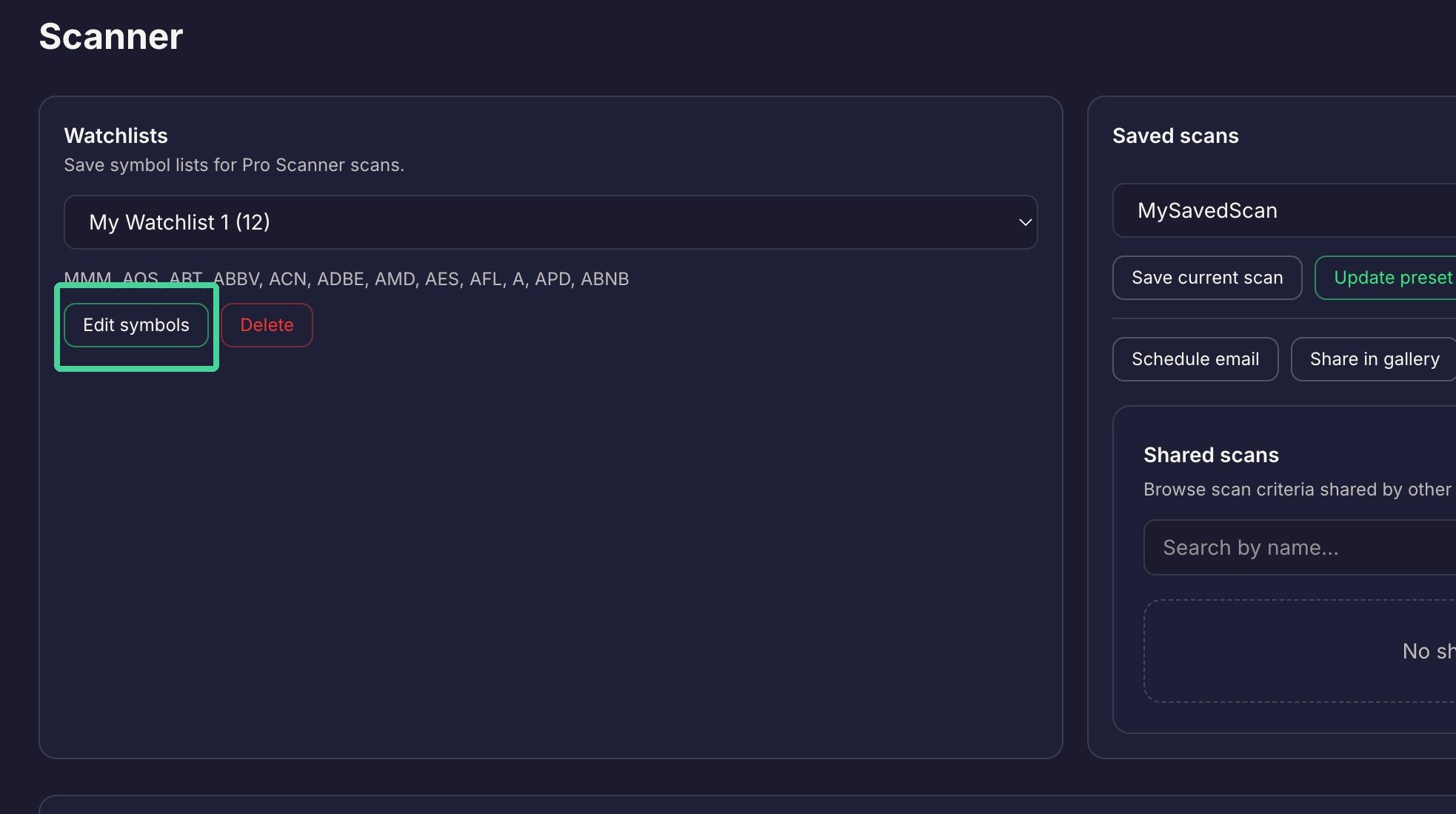
You can edit a watchlist by selecting the watchlist and clicking Edit Symbols.
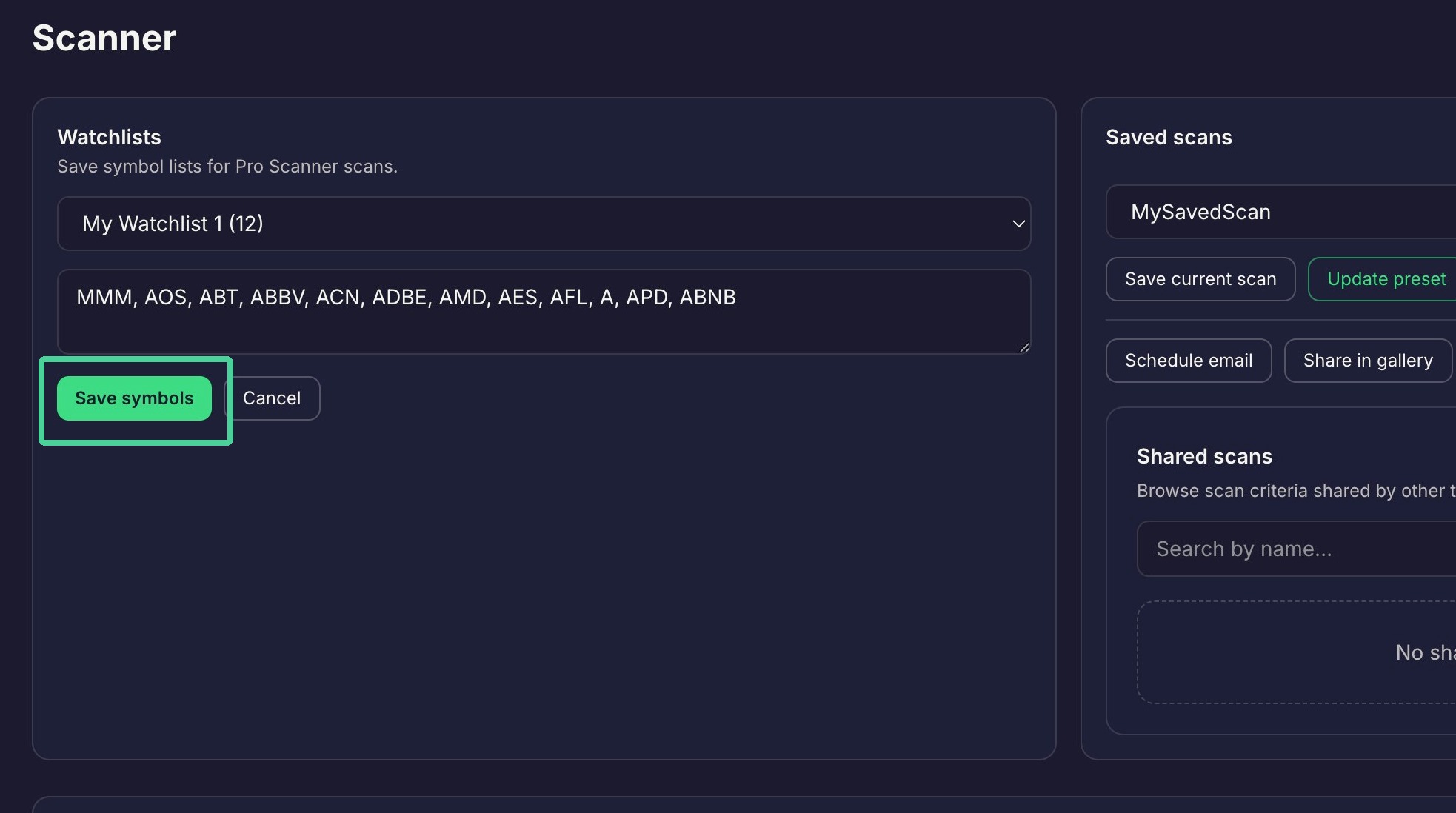
Click 'Save Symbols' to save the new symbols to the watchlist.
Scanner Configuration
If you have created a Strategy, you can select it from the Strategy dropdown here. The scannable rules from the strategy will populate the 'Entry Scans' section.
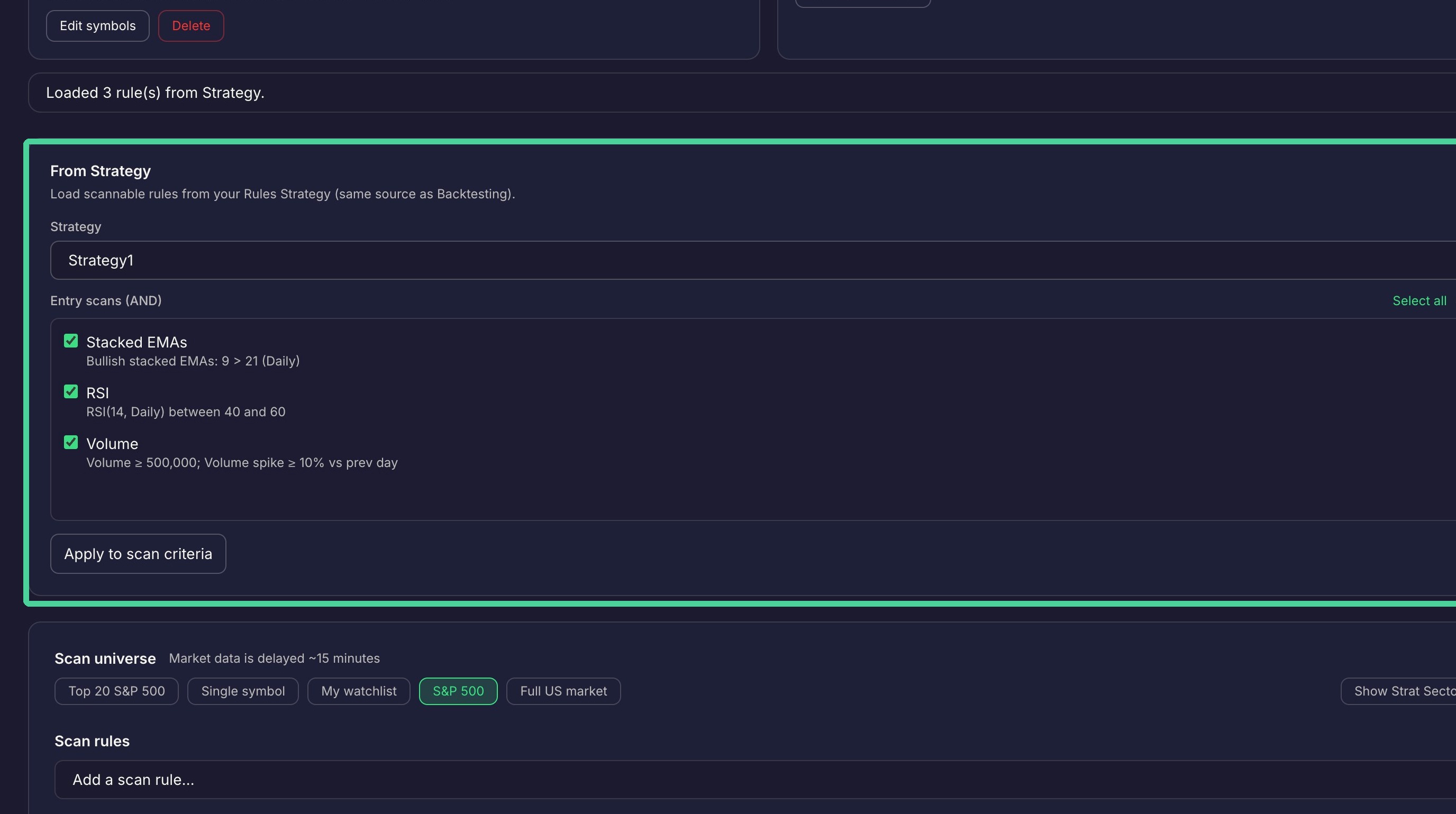
By default all the rules will be checked. Individual rules can be unchecked to remove them from the scan criteria. Click 'Clear' to remove all rules or 'Select All' to check all rules. Click 'Apply to scan criteria' to add the strategy rules to the active scan rules.
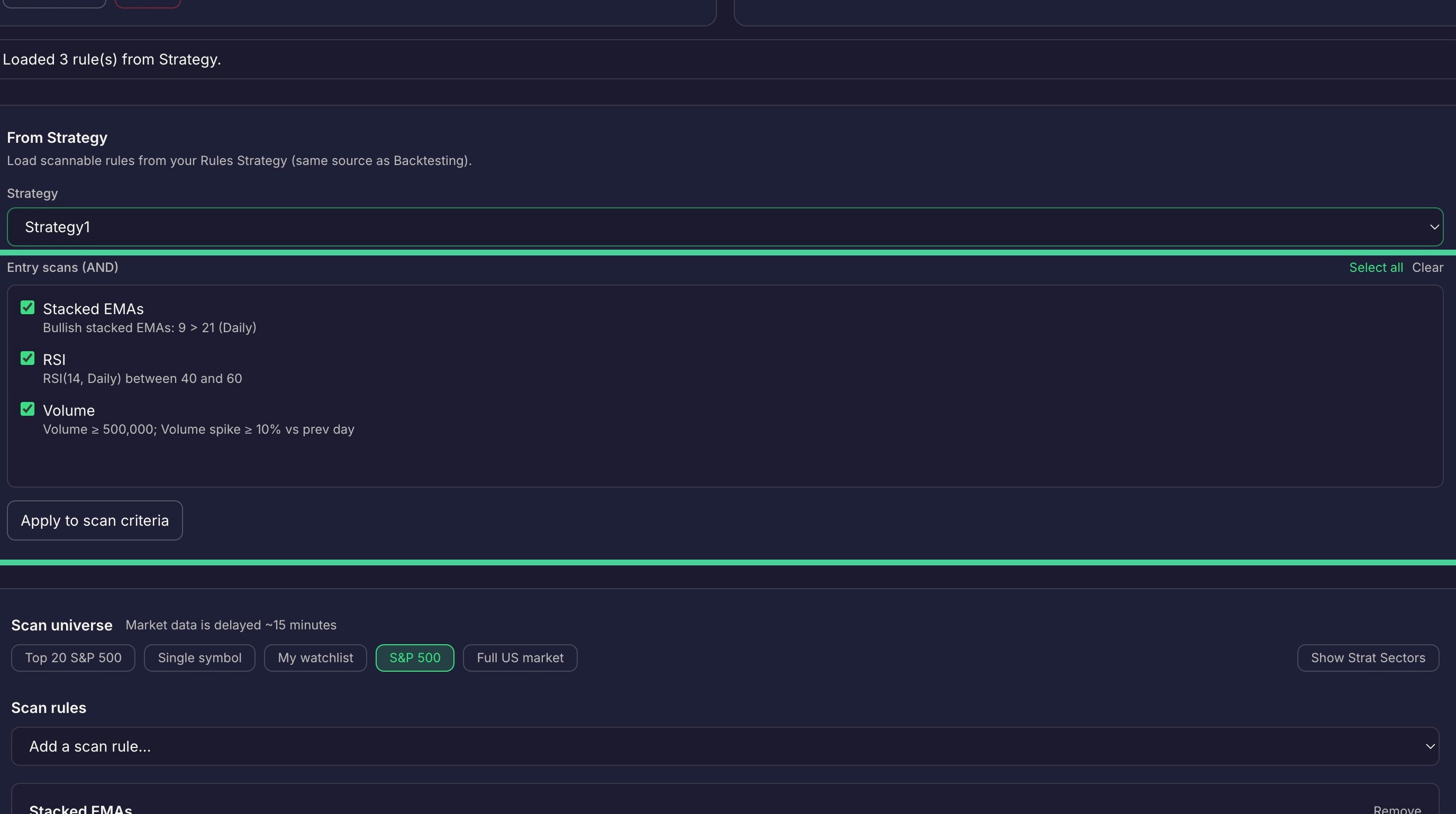
To manually add a scan rule, Click the 'Add a scan rule' dropdown.
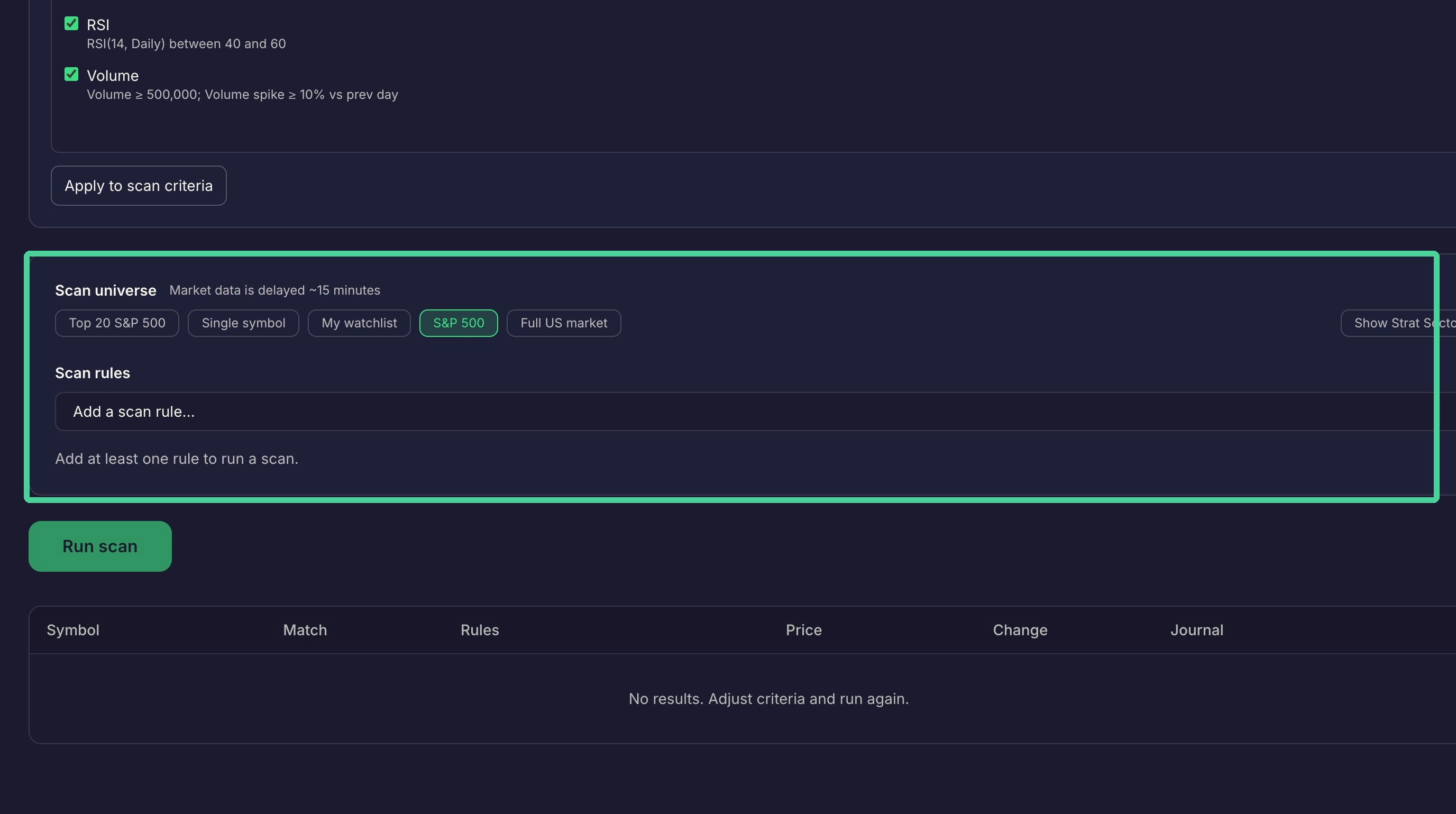
There are many scan rules to choose from in the list. Once selected the rule will be added to the active scan rule list.
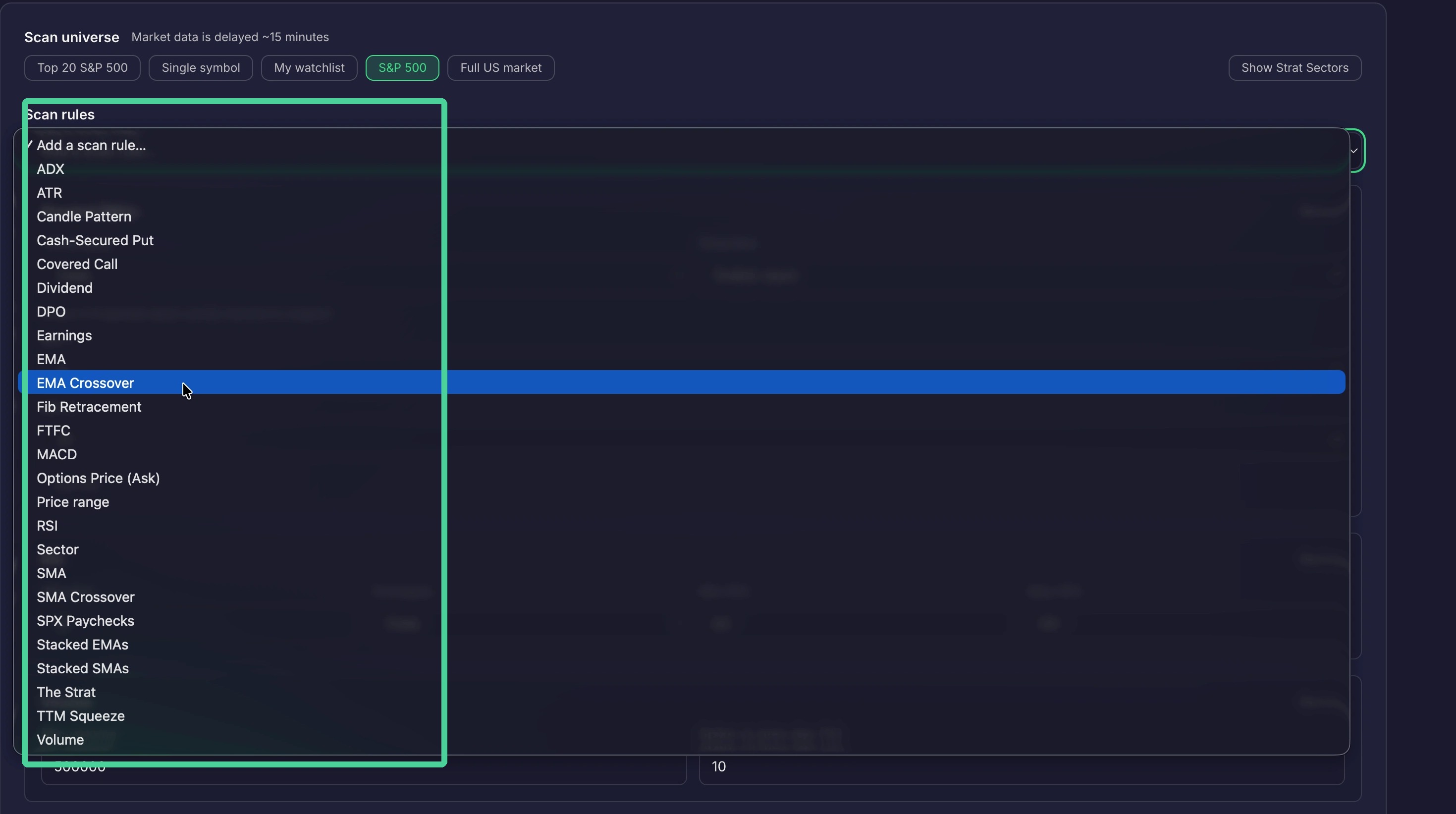
These are the active scan rules. Each rule can have editable parameters that you can set depending on the type of rule. To remove an active scan rule click 'Remove'.
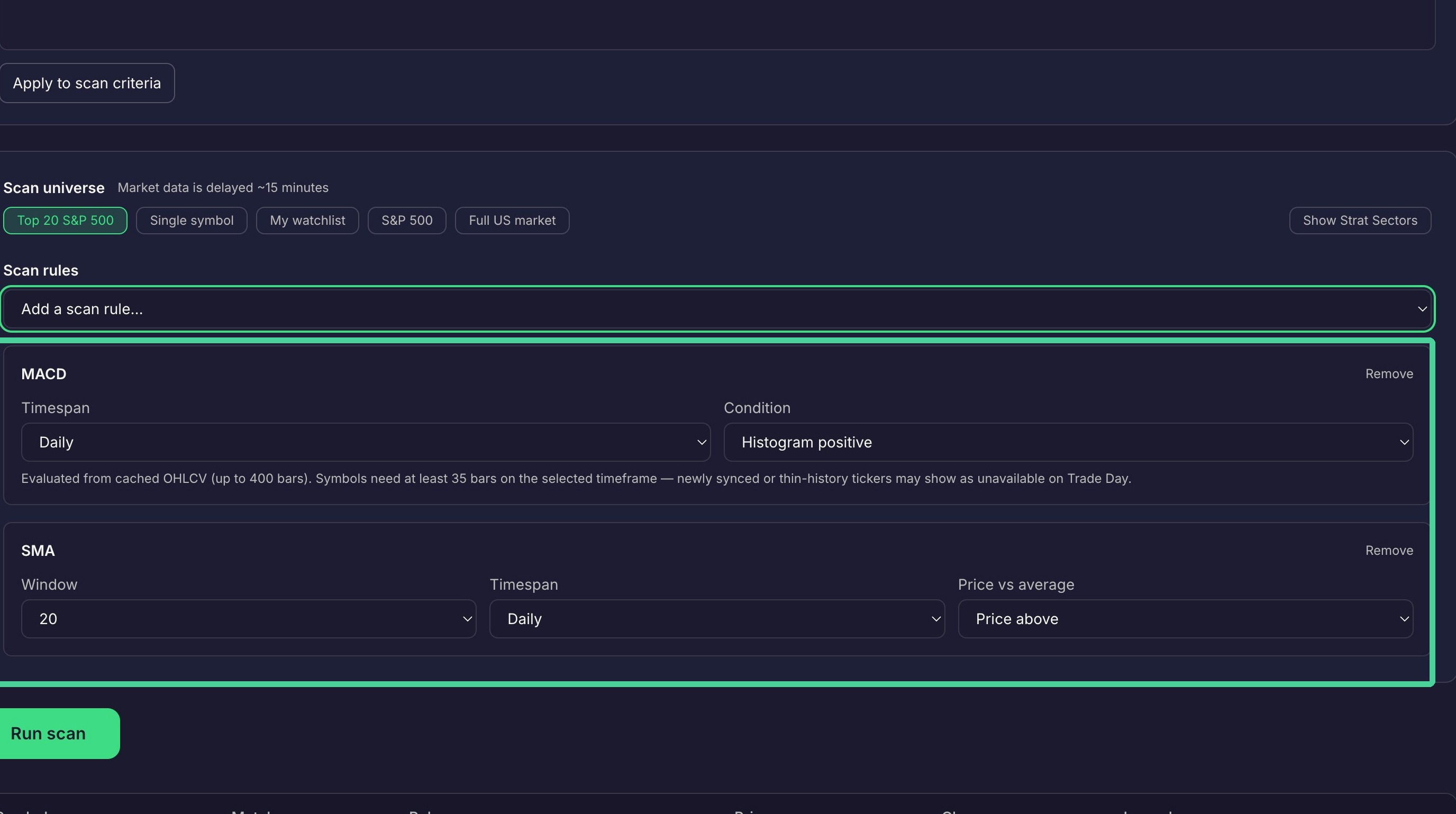
To run a scan first select a Stock Universe. and then select 'Run Scan'.
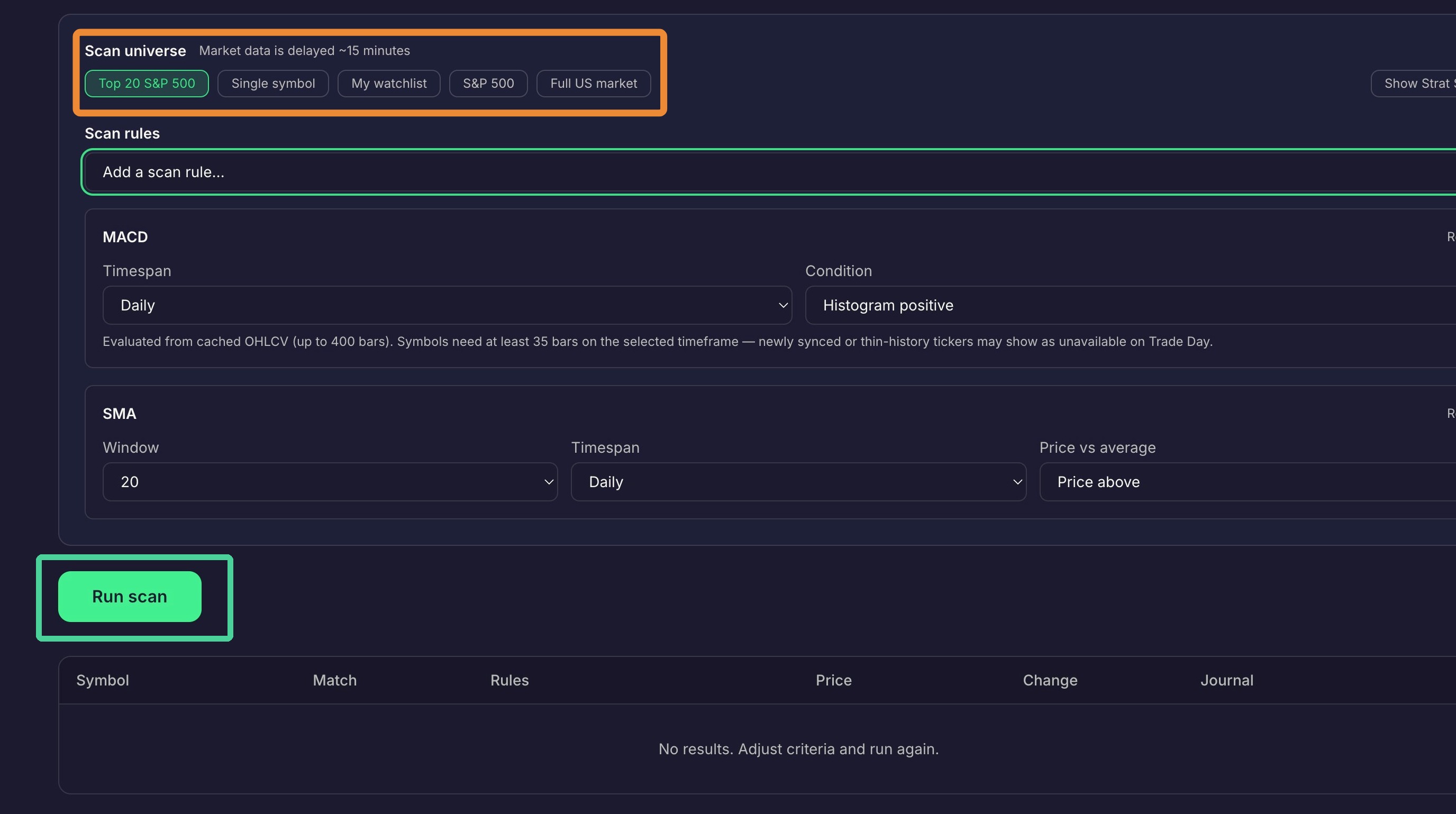
Review Scan Results
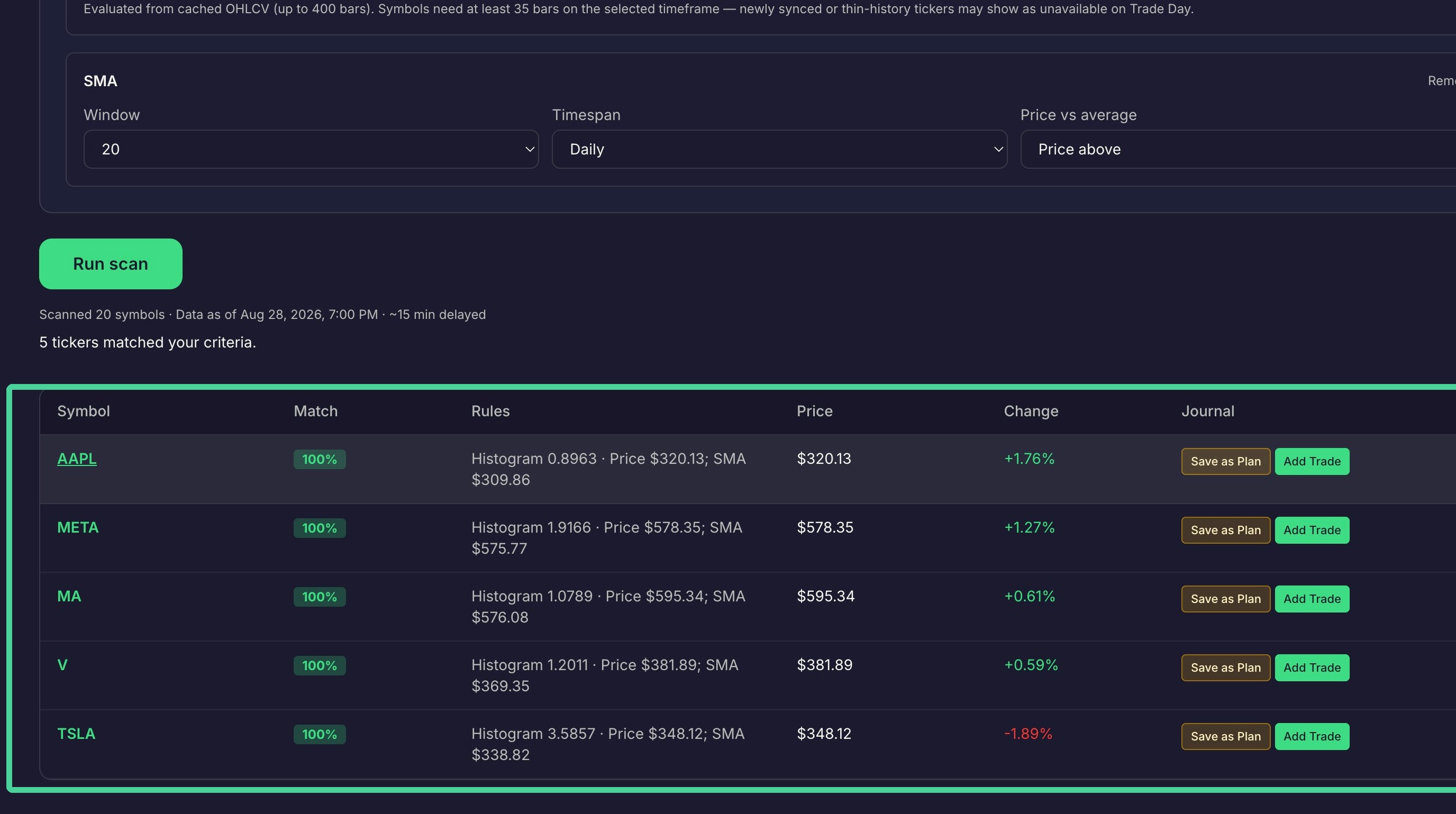
Once the scan completes the stock symbols in the stock universe that match your active scan rule criteria will be listed. Here you also have the option to add the trade to the journal or add it as a plan in the journal.
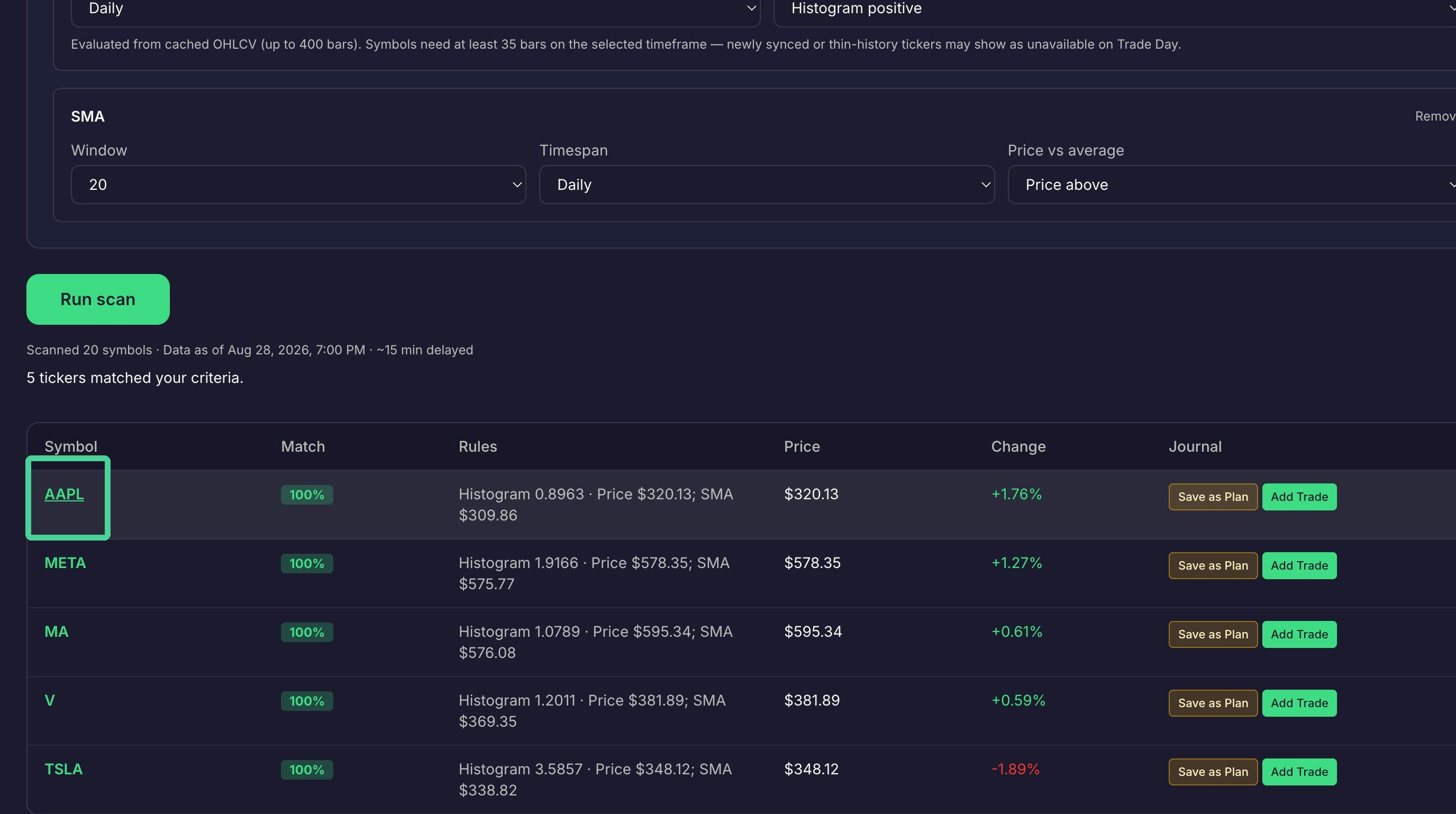
Click on the stock symbol to get more information about the trade.
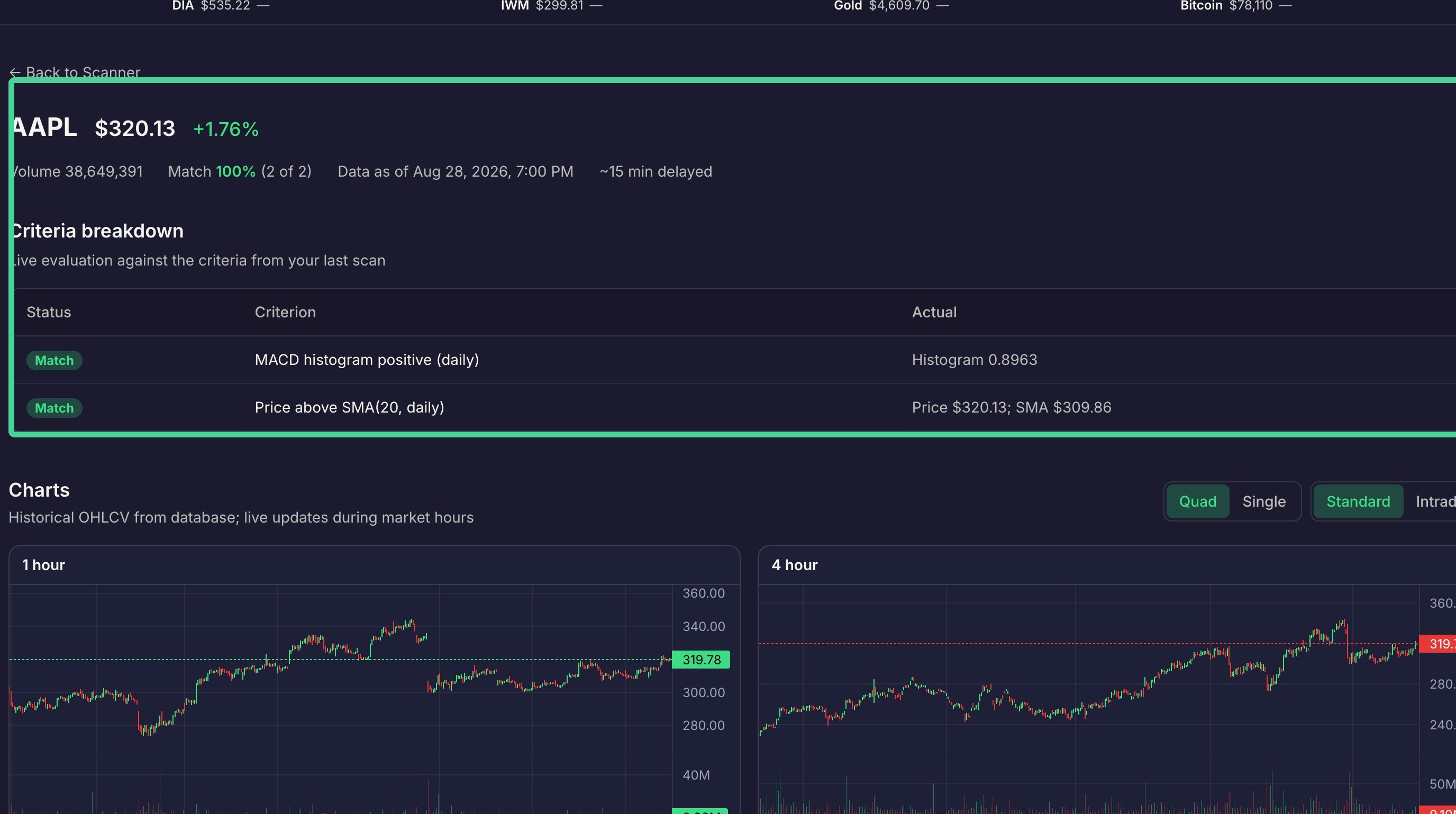
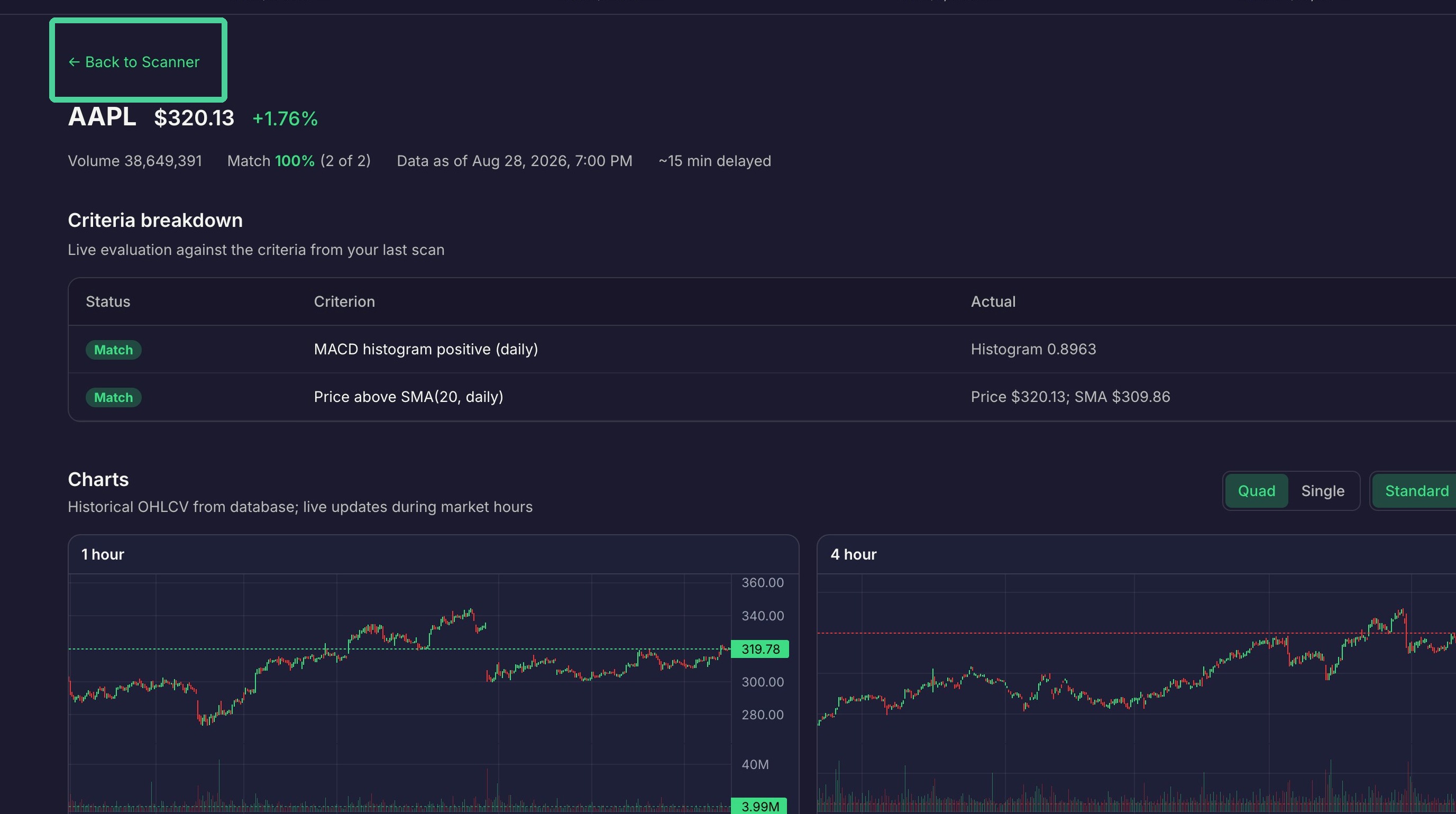
Here we see information about the stock symbol and the active scan rules that met the scan criteria.
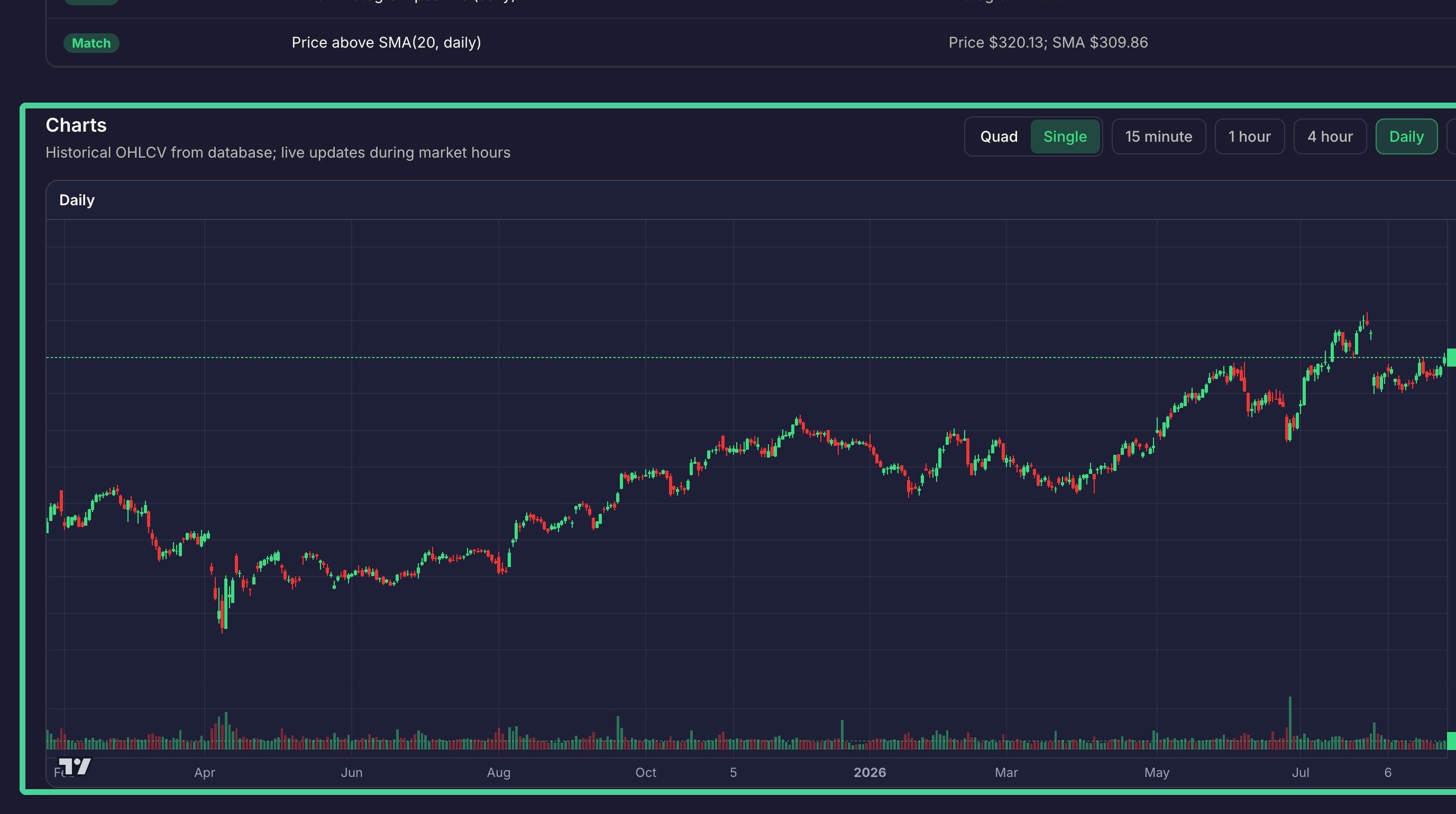
Below we see the charts for the stock symbol. Click Quad to see multiple timeframes simultaneously, or Single to see a single selectable timeframe in a larger chart.
Click "← Back to Scanner" to return back to the scanner page.
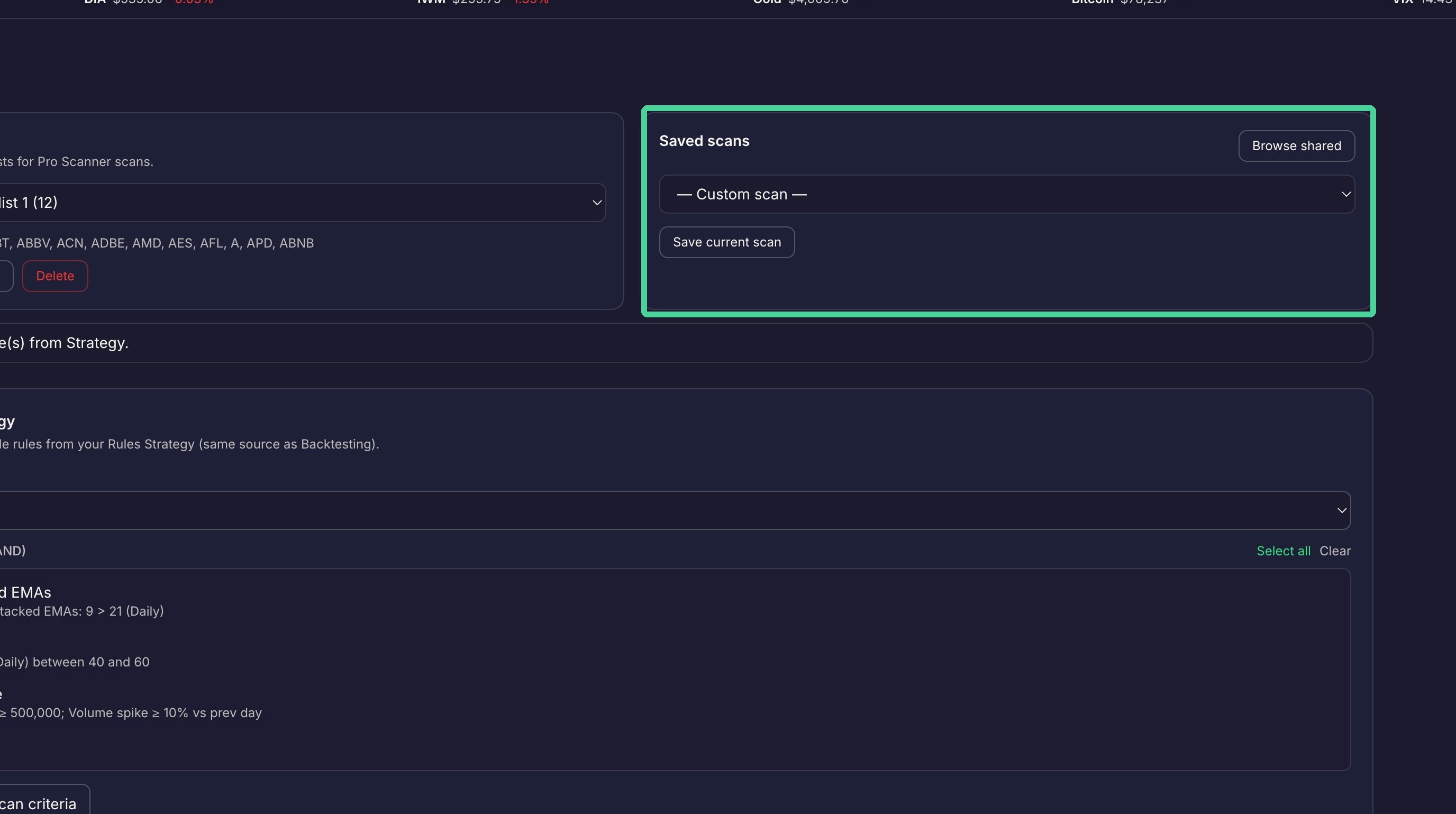
Saved Scan Testing
Here we can save the active scan rules to run the scan again later. Once you have the active scan rules are set the way you want, click 'Save Current Scan'.
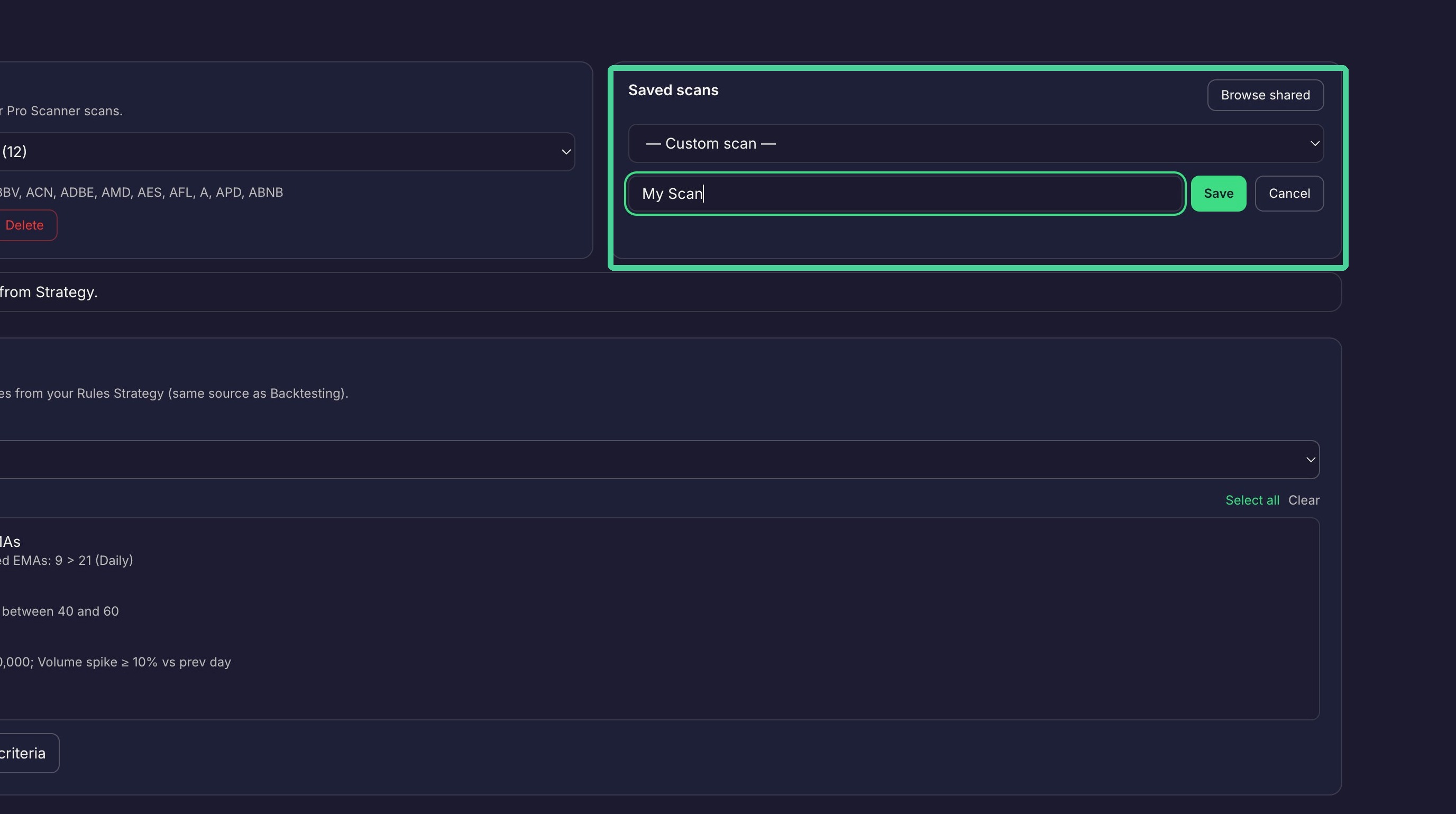
Enter a name for the scan and click 'Save'.
When a saved scan is selected from the dropdown, any active trade rules that are set will be replaced wit the rules from the saved scan.
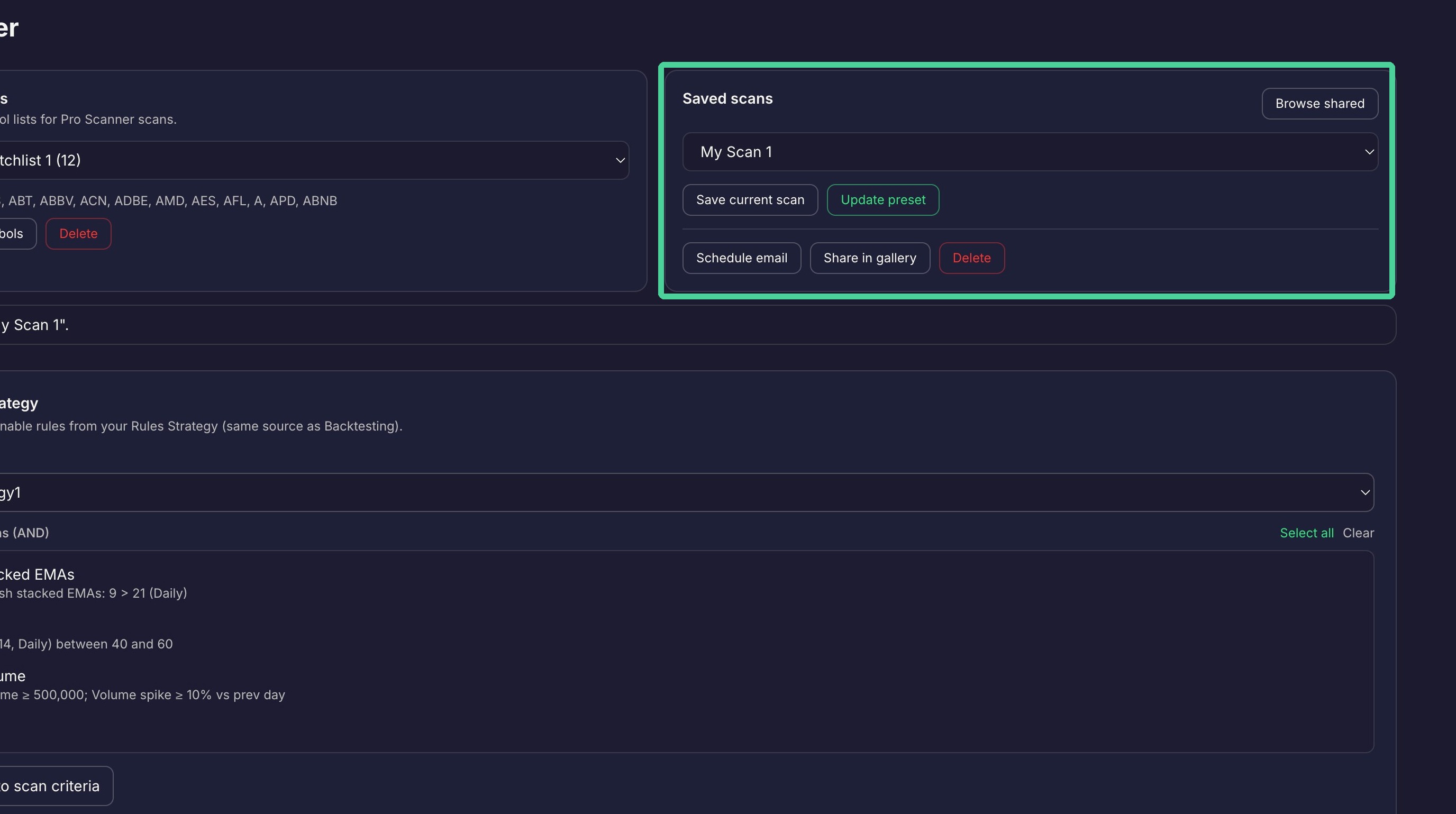
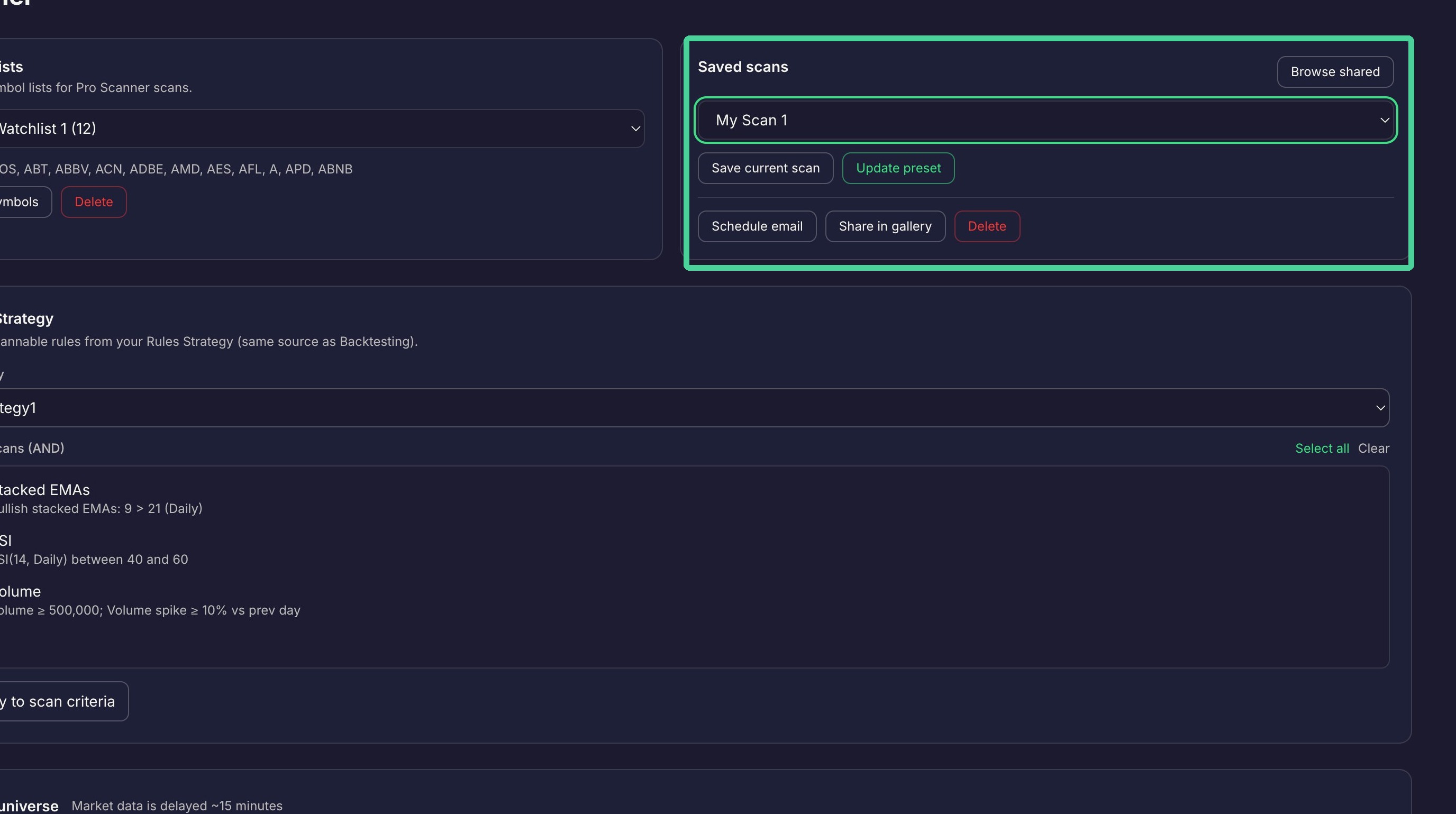
Saved scans can be shared with other Traders Tool Chest users. To share a saved scan, Click 'Share in Gallery'. Other users will see the saved scan in the saved scan gallery.
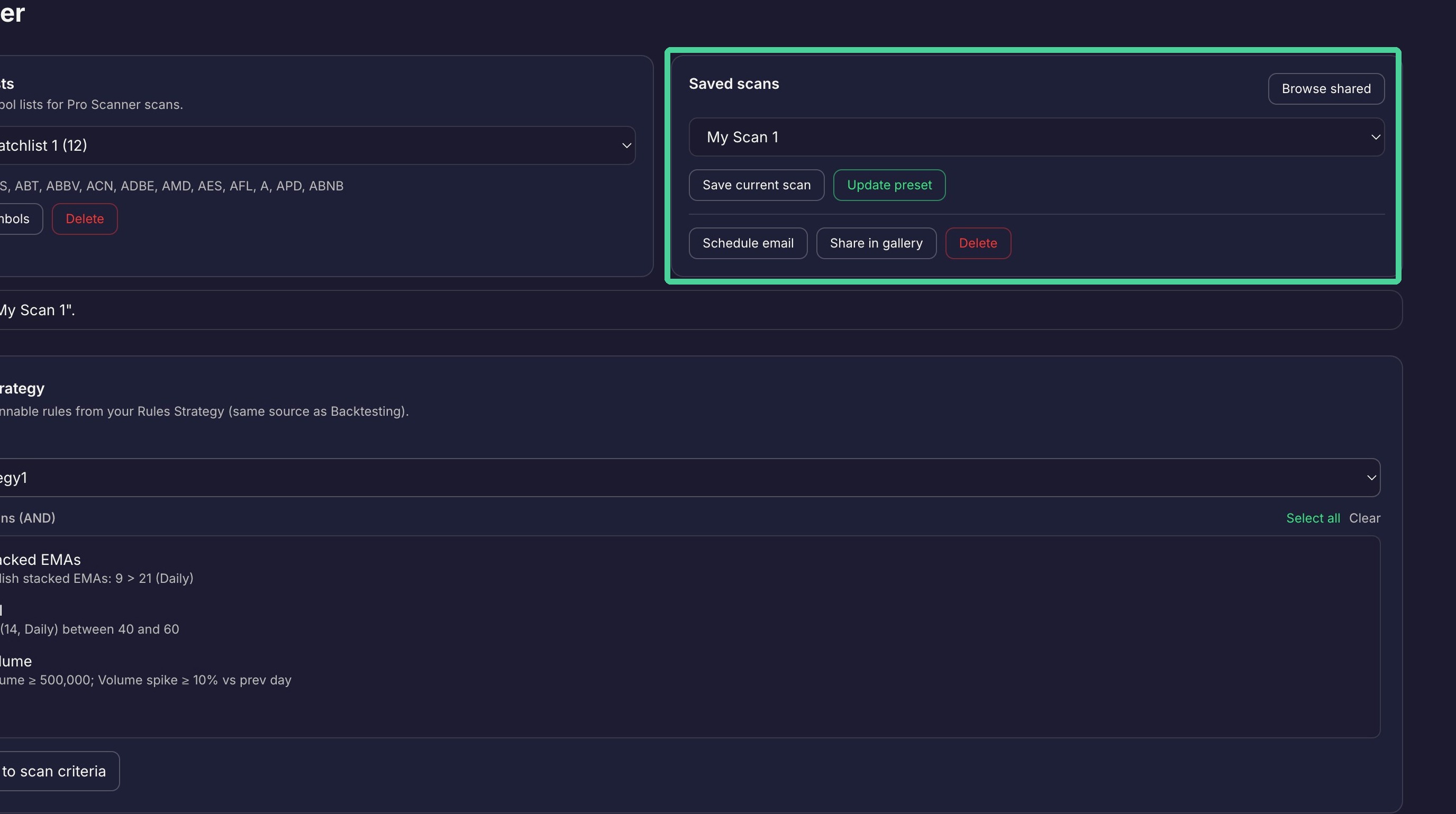
To update a saved scan with new rules, add the new rules to the active scan rules list and click 'Update Preset'.
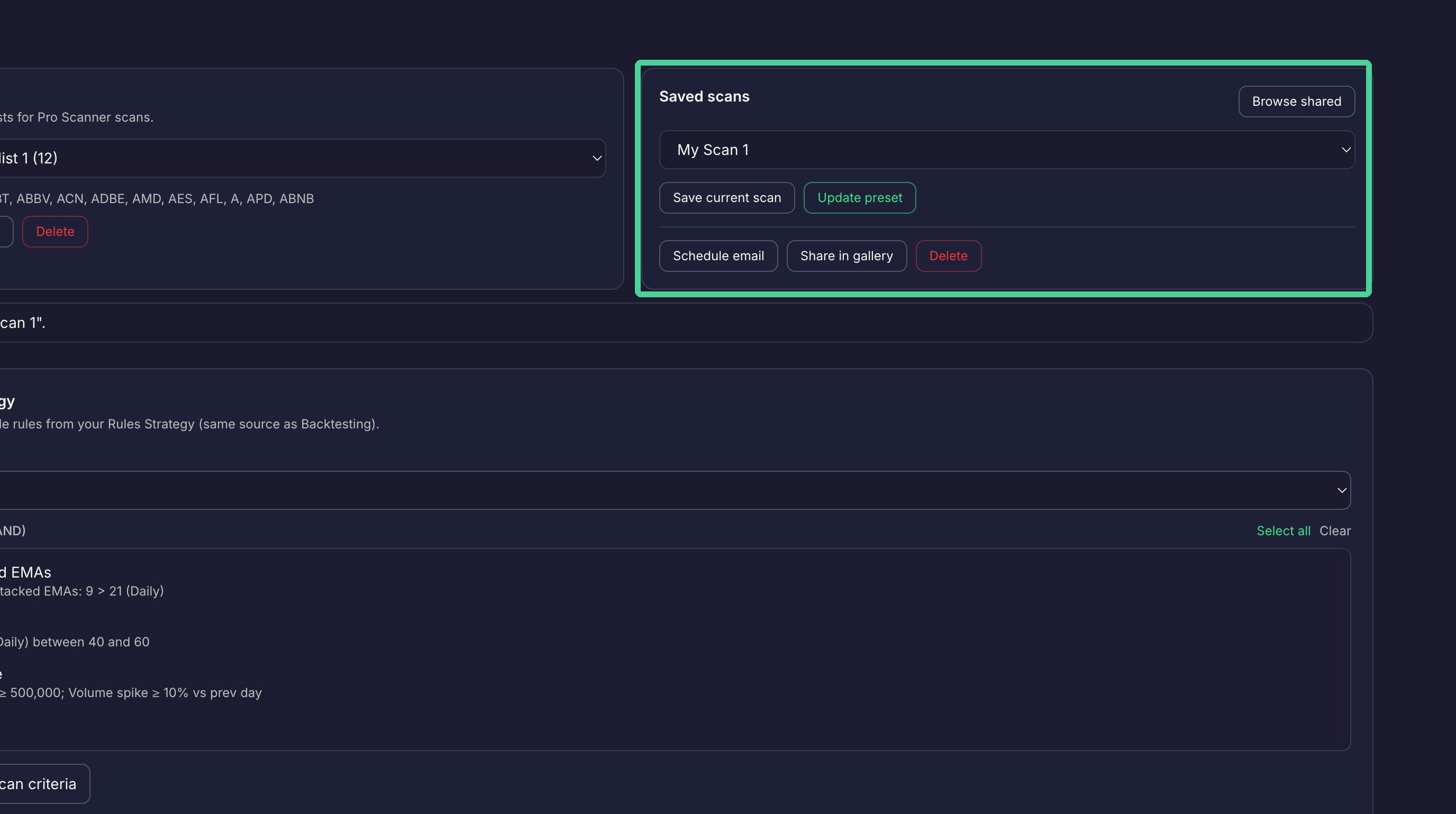
To discontinue sharing a saved scan, select the saved scan from the dropdown and click 'Unshare'.
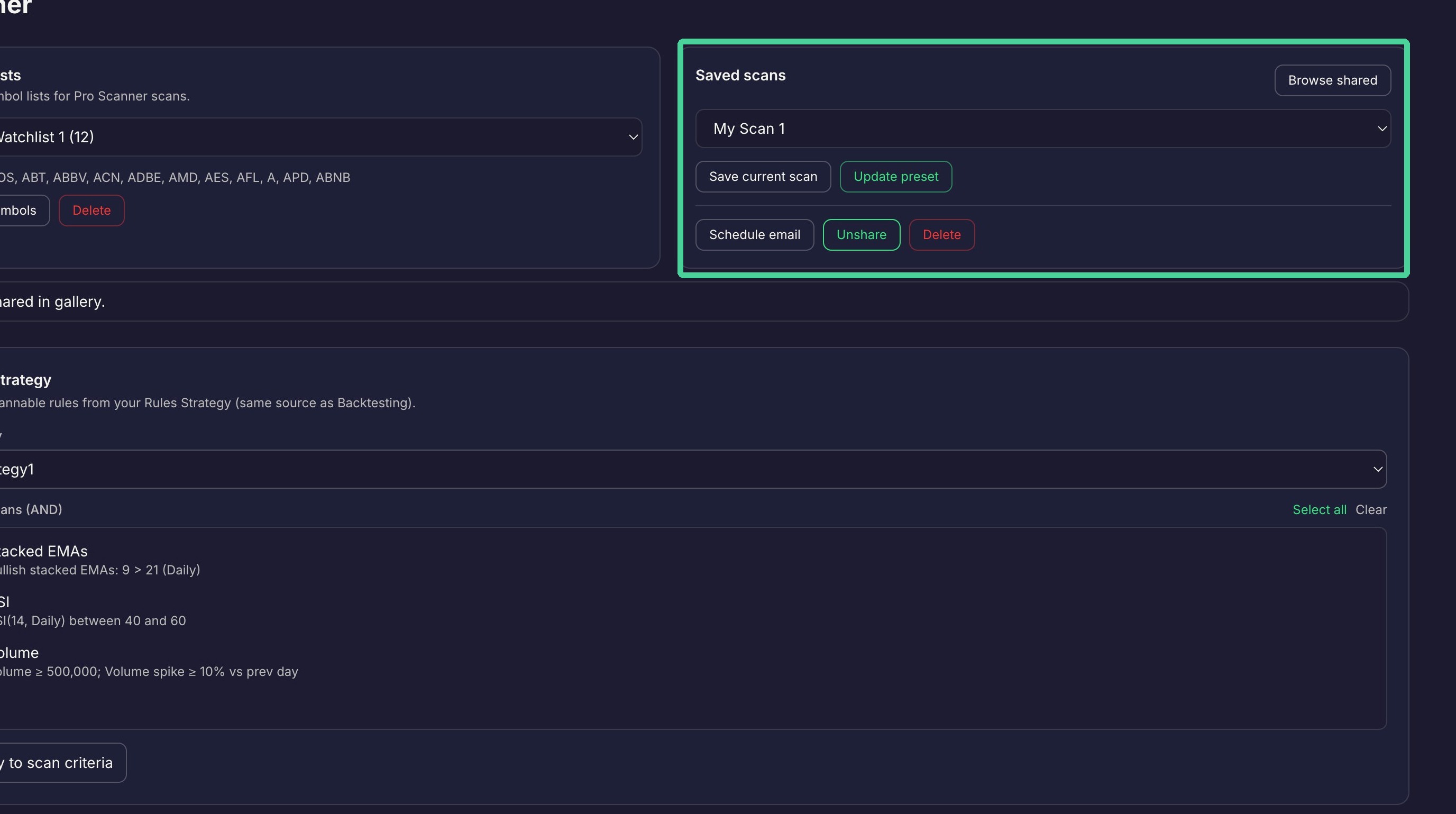
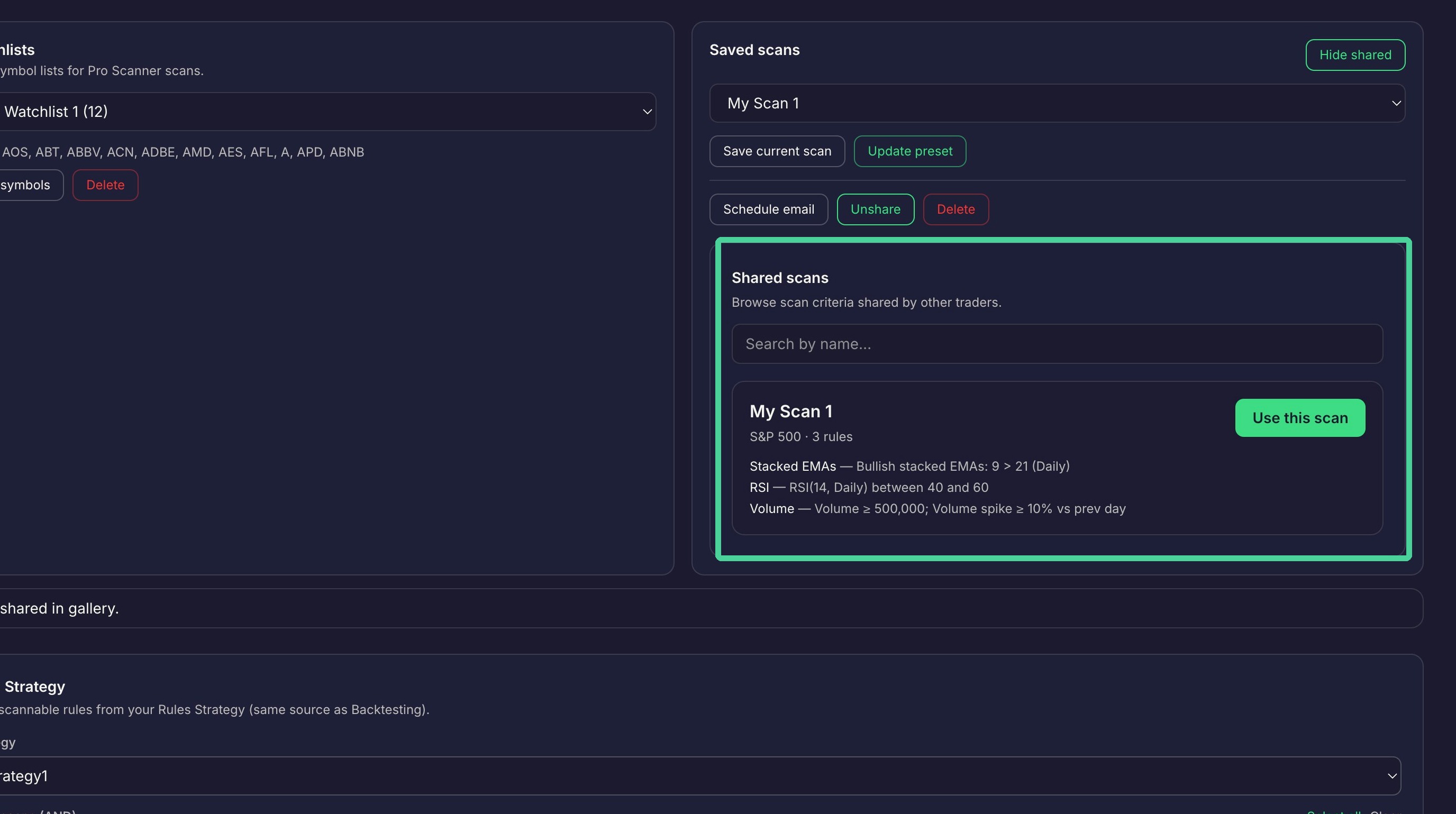
If you want to see the saved scans that others have shared, click 'Browse shared'.
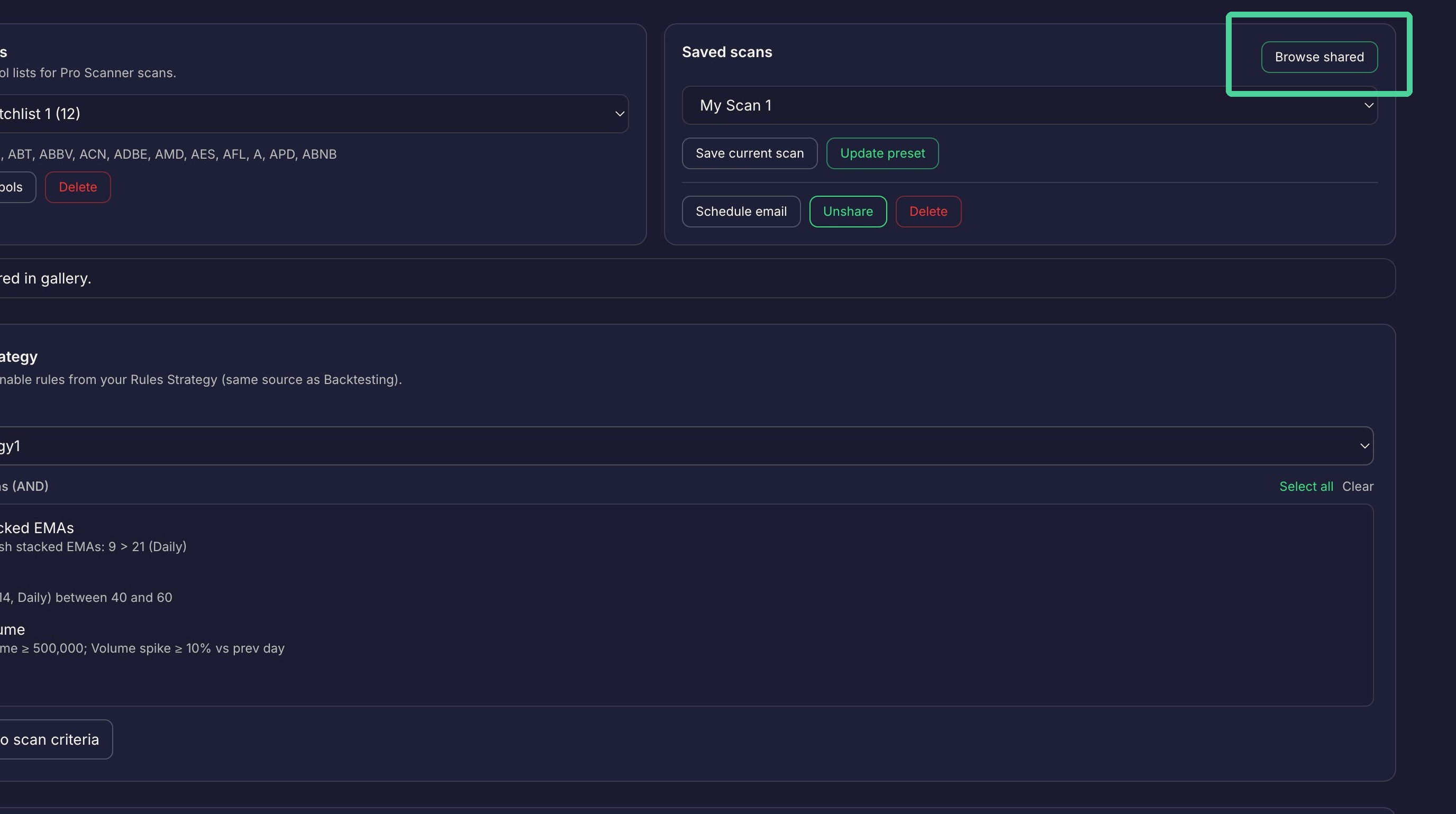
Here you can search for a shared scan by name or look for it in the list. If you find one you want to use, click 'Use this Scan'. The saved scan will be added to your Saved Scans dropdown with '(imported)' appended to the name. Click 'Hide Shared' to hide the shared saved scan list.
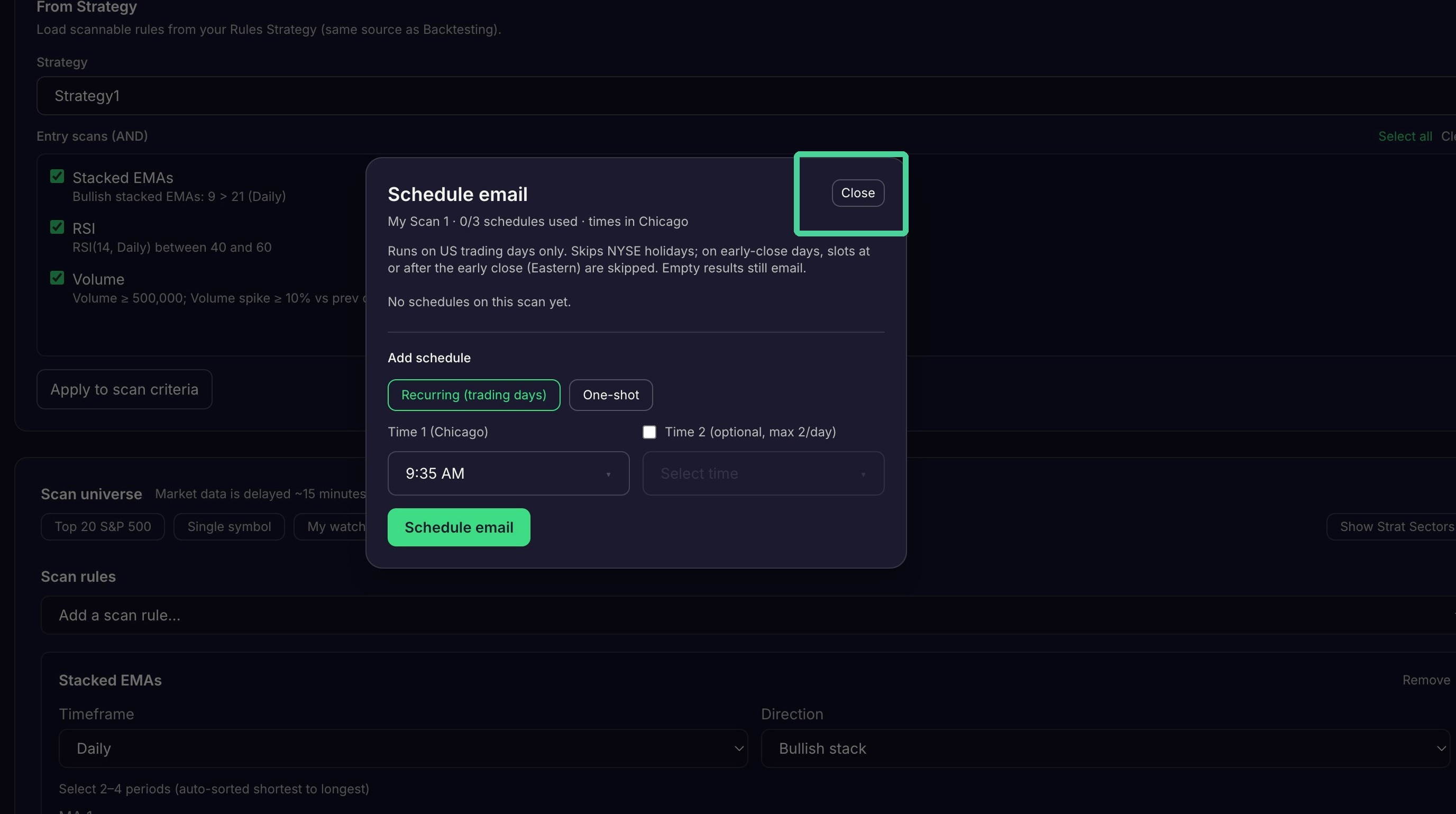
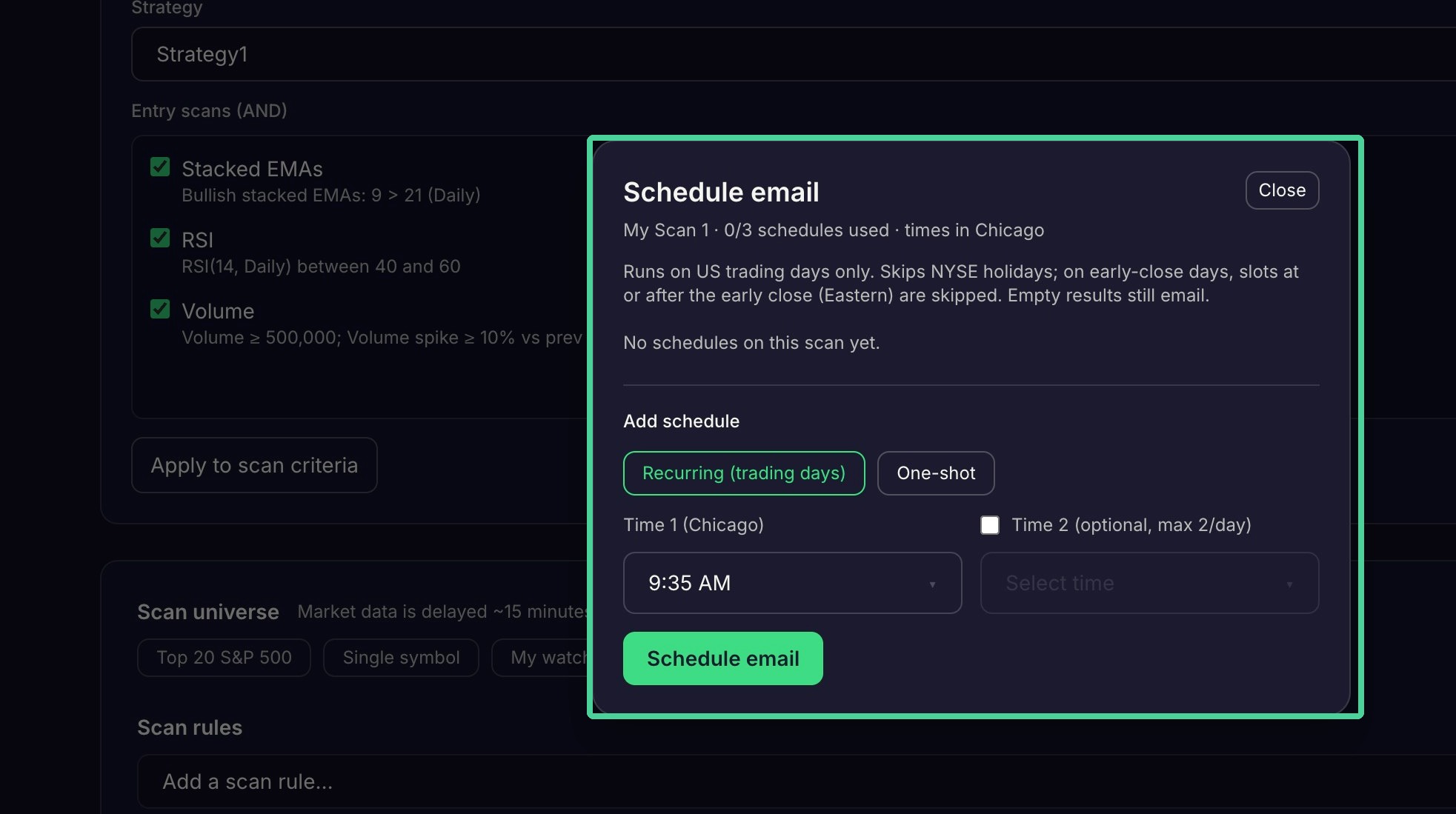
The results of a saved scan can be emailed to you one time only or on a schedule. Click 'Schedule Email'.
Select 'Recurring' to have the scan results sent once per trading day at a specified time. Use the checkbox to send the results a 2nd time on the same day.
Select 'One shot' to enter a specific date for the scan to run. The scan will be run once at the specified time or or twice if a 2nd time is set.
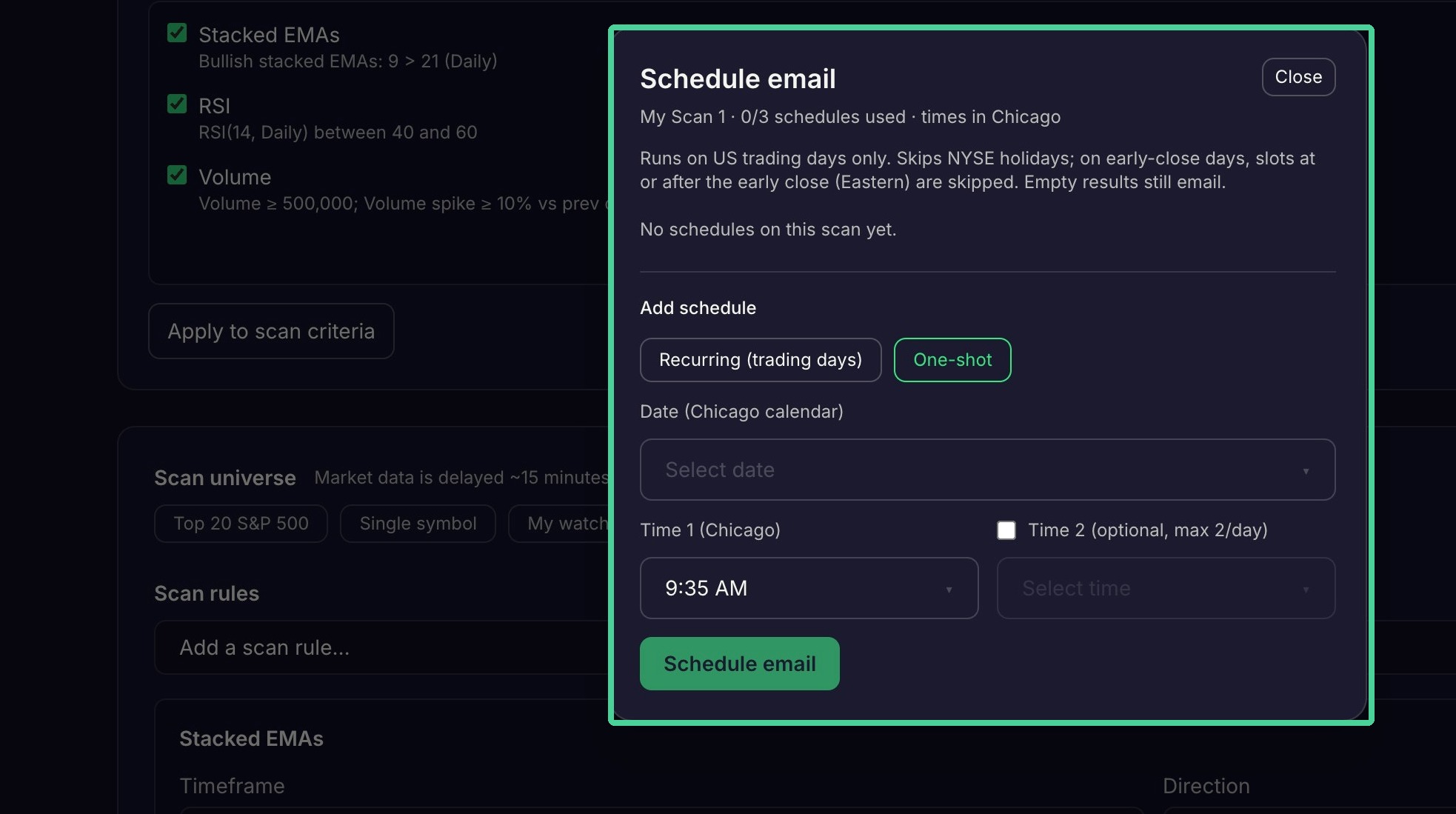
Click "Close" to save the schedule.